In this post we will go over creating VNETs and subnets using PowerShell, we will also be create a script to use a CSV to deploy multiple VNETs / subnets.
Azure PowerShell is a command-line tool that allows you to manage and deploy Azure resources using the PowerShell scripting language.
Azure VNETs provide a secure and isolated network environment within Azure. Subnets allow you to divide a VNET into smaller, logical segments to control network traffic and provide network segregation.
To deploy Azure VNET and subnets using Azure PowerShell, we first either need to create a resource group or use a pre existing one.
We can create a resource group using Az PowerShell
First connect to Azure PowerShell using
Connect-AzAccount
Once connected if there is multiple subscription make sure to select the correct one before creating the resource group or any other resource.
Next we will create the resource group this requires a name and a location.
New-AzResourceGroup -Name 'resource group name' -Location northeurope
Next we can create a VNET and subnet will be using splatting to specifying the parameters.
Just wanted to do a quick post as I was having issue connecting to Az CLi. When connection it was failing to validate the login.microsoftonline.com certificate.
I was getting the below verification error.
HTTPSConnectionPool(host=’login.microsoftonline.com’, port=443): Max retries exceeded with url: /organizations/v2.0/.well-known/openid-configuration (Caused by SSLError(SSLCertVerificationError(1, ‘[SSL: CERTIFICATE_VERIFY_FAILED] certificate verify failed: self signed certificate in certificate chain (_ssl.c:997)’)))
The issue looked to be caused by the SSL inspection being done on the firewall. To check the cert being used by the firewall I used the developer mode in Edge using F12. When in the developer mode go to security and view certificate.
There where a few different recommendations online to set environment variables and run python commands but none of these fixed the issue for me. These where all related to connection request going proxy but in this case to I wasn’t using a proxy.
I tried the python command to use the local system cert store but this didn’t work, someone said to try add the cert file content to the cacert.pem file in the Microsoft SDK. I tried to add it manually to cacert.pem.
Below steps fixed the issue for me.
Using MMC console, export the root cert from my local cert store that was used for the SSL inspection as Base-64 encoded
Use OpenSSL to view the cert content I used “openssl x509 -in ‘Firewall_Root_Cert.cer’ -text” ( can also use notepad but that doesn’t have the issuer or subject details)
Go to C:\Program Files (x86)\Microsoft SDKs\Azure\CLI2\Lib\site-packages\certifi\cacert.pem
Open using NotePad ++ or notepad and then added the cert content to the bottom after the last cert
Below is the updated cacert.pem file.
Once I added the root cert content, I was then able to connect without issue.
If you’re an Azure administrator, you’re likely familiar with the concept of service principals.
These are application identities that are used to manage access to Azure resources. Service principals are an important part of Azure security, but managing them can be a challenge.
In this blog post, we’ll go through listing service principals and exporting details and group membership.
First we need to connect to Azure using Microsoft GraphSDK, the two permission required are Group.Read.All and Application.Read.All
Next we can use to list all service principal
Get-MgServicePrincipal -All: $true
We can use the Filter parameter to select only the principal that we want to check.
Next I wanted to check what groups the principal was a member off. To do this we can use the ID property and the below command.
We can then use the ID to get the group display name
Get-MgGroup -GroupId
Now that we have the service principal and groups we can create the report script. We will be exporting the Displayname, ServicePrincipaltype, AccountEnabled, AppId, createddatetime and groups.
There are three parameters in the script, ServicePrincipals is used to specify the name or names of the service principals to check.
The ConsoleOnly returns results directly to PowerShell console
If using the reportexport parameter the results will be exported to CSV
The script can be run against one or multiple service principals to report on more than one.
To search more than one use , between the names.
The full script can be downloaded from the below GitHub link.
In this post we will be going through the process of setting up Azure Backup Email Reporting.
First step is to configure the Azure Backup Reporting, for this you will need to have already configured at least one Azure Recovery service vaults and have backup running.
I have gone through this process in a previous post so wont be going over here. see previous post for steps involved.
Once we have the backup vault and backup configured we need to configure an Log Analytics workspace to send diagnostic data to so the reports can generate data.
To create a Log Analytics Workspace go to the Azure Admin portal > Log Analytics workspaces.
Click create
Select the resource group the workspace will be created in, give it a name and select the region.
Add tags if required and create.
Now that we have the log workspace we can configure the backup vault to send diagnostic data.
Go to Backup center > Vault
Select the vault that will have diagnostic enabled and go to Diagnostic settings.
Give the diagnostics a name, select the Azure backup category’s and send to log workspace. Select the log workspace to send to.
Click save it can take a few hours before data starts to show in the workspace.
To check that the backup report are showing data,
Go to Backup center > Backup reports and select the workspace from the drop down list.
Click on summary tab to view the summary report.
Once we have reports working we can now configure the email reporting.
To configure email reporting,
Go to Backup center > Backup reports > Email Report
Give the task a name (this will be the name of the logic app), set the subscription, resource group and region.
We will also need to set email frequency, destination email address and email subject.
There is a bug in the naming of the task it suppose to allow hyphens but the UI gives an error if you use them. The work around to this is to create without the hyphens and then once the logic app is deployed clone with the correct naming.
Once the logic app is created if we want to use hyphens, go to Clone and use hyphens for the name of the cloned logic app.
Then remove the logic app without the hyphens.
Next we need to approve both the API’s
On the Office365 API authorize the account that is authorize will be used to send the mail so if there is no mailbox associated against the account you will receive an error like the below.
“Office 365 Outlook” connector Error:- REST API is not yet supported for this mailbox. This error can occur for sandbox (test) accounts or for accounts that are on a dedicated (on-premise) mail server
To use a Shared Mailbox the Logic app will need modified the send a mail v2 action and add in a from address and use an account that has send as permission set on the mailbox.
Once both API have been authorized we can run the trigger to test the job.
The backup report should then send.
To modify the time that the mail is sent at, we will need to set the time in the logic app. Open the logic app designer and add a new parameter under Recurrence.
Support for both Azure AD and MSOL modules have been extended to allow the updating of scripts and I would presume due to some command not existing in Graph yet. The modules will be deprecated in June 30th 2023 so any scripts using command with either of these modules should be updated as soon as possible.
In this post we will be going through some common commands that use either the Azure AD or MSOL PowerShell modules and how to find commands that will replace them in Graph and using the scope roles to set required API permissions.
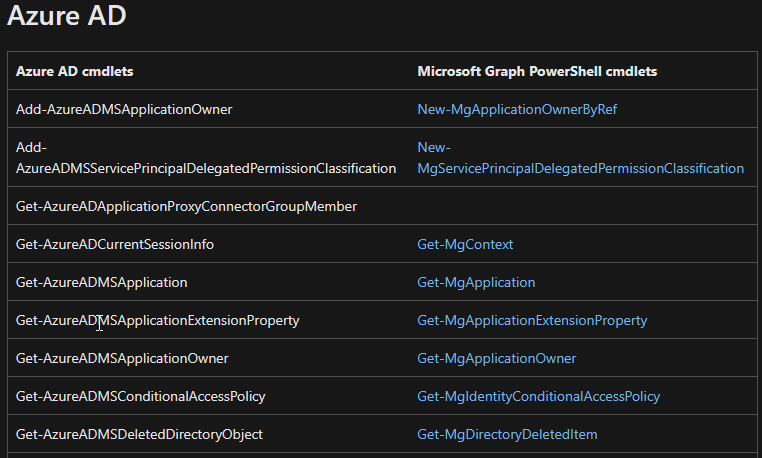
First stop I usually do is to check if the commands have direct replacements, we can use the below learn page to check. The page will have tables with the Azure AD / MSOL command and then the replacement command if one exist in the second row.
For the below reference we will be using Get-MsolUser if we check the document that command is replaced by Get-MgUser.
Now when connecting to Azure AD or MSOL all commands and permission are based on the role of the account you sign-in with.
If we connect with MSOL we can query users once we have the required role.
For Graph the way to connect is slightly different if we don’t specify a scope when connecting, we can connect but we don’t automatically have the require API permission assigned so if we run the Get-MgUser command we will get an error for insufficient privilege’s
If we add the -scope User.Read.All
If we want to check what permission are available for a command we can use Find-MgGraphCommand with the command we want to check. We can also use the apiversioni (v1.0 or beta)
Depending on what task we are trying to do we can select the required permission, one example is if I just want to get back information on account’s I would just use User.Read.All. If I wanted to change a users settings I would use the User.ReadWirte.All.
Another difference between modules is that in Graph there is no -userprinicpalname parameter and uses UserID instead
To get licenses assigned to a user we can use.
Get-MgUserLicenseDetail -UserId UPN
As we can see Microsoft Graph has a few differences and instead of having most data under single objects like Get-MsolUser we have to now use multiple commands to return the same data which can be a bit more difficult when starting out.
Azure NSG flow logs are a feature of Azure Network Security Group (NSG) that allows administrators to track and monitor network traffic flowing through their Azure virtual network.
The flow logs provide detailed information on the source and destination of the traffic, as well as the protocol and port being used. This information can be used to identify trends and patterns in network usage, as well as to detect and troubleshoot potential security threats.
Azure NSG flow logs provide a valuable tool for administrators to maintain visibility and control over their Azure network environment.
To set the NSG flow logs to be sent to Log workspace we can use Traffic Analytics.
In this post we will be going through enabling NSG Flow Logs, enabling Traffic Analytics and reviewing the logs for allowed and denied traffic using Azure Log Analytics Workspace.
There will be a cost for using the Azure Storage, workspace and Traffic Analytics so confirm these before proceeding as the more data sent the more it will cost.
When creating a new deployment in Azure it is good security practice to restrict access between subnets to the required ports only. This can sometimes be a bit difficulty if the application communication is not fully documented.
This is where NSG Flow can be used as we can use this to review the traffic between the subnets going over the NSG’s. There are some prerequisite for this
Storage account in the same region as the NSG
Log Analytic workspace
Network Watcher (this should be created automatically once a vNet is created)
Network Security group
VM running in two network and have an NSG assigned
Once all the above are ready we can start to enabled the logging. NSG flow can be either enabled from NSG directly or through Network Watcher. We will be doing this in Network Watcher.
First step is to go to Network Watcher > NSG Flow
Select the required Subscription, the required NSG’s, storage account and retention (0 on retention means the logs are kept forever) since this is a test environment I will only keep the logs for 5 days.
On configuration select version 2 and enabled traffic analytics. On traffic analytics set the process interval to either 1 hour or 10 mins, select the subscription and workspace.
Apply tags if in use, then review and create.
The deployment should only take a minute or so and then the NSG flow should show as succeeded.
Once enabled it can take little bit for data to start showing. We can check that the container has been create on the storage account.
Open the storage account and go to Containers there should be a new insight-logs container.
If we navigate down the folder structure there will be a JSON file that has all the NSG access requests, we could use the JSON file it self but it pretty difficult to read.
To check that data is going to the workspace, go to Log Analytics Workspace. Select the workspace we used earlier.
We will use the AzureNetworkAnalytics_CL table and flowlog to view the data. I used the below Learn article to help understand the table / fields and create the queries.
Now that we have confirmed data is being shipped to the log workspace, we can start to create the KQL query that will show all traffic between the specific IP of the servers.
The below query will return inbound and outbound request for specified source and destination IP
One way to limit the communication is to use NSG’s.
In this example we will be using a 10.10.1.0/24 address space
Address Space
Then we will be creating multiple subnets with /28 mask.
Subnets
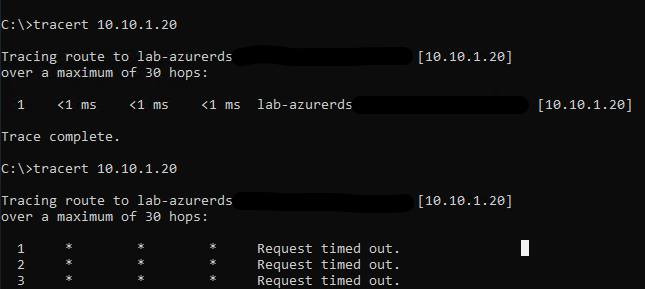
I have added one server to both the Ops and Mgmt subnets. Now if we make a connection between each VM the traffic will be routed directly between both VM’s.
trace route
Next, we will setup the NSG to only allow connection between the subnets for RDP and SMB. In this case we will be creating an NSG per subnet, but this could be done in one NSG.
Network Security Group
Next, we need to create two new inbound rules one to allow the required ports and the second to deny all other access.
Go to inbound rules and select Add.
Add rule
Added in the required details
·Source: IP Address
·Source Port:
·Destination: IP Address
·Destination IP Address:
·Service: Custom
·Destination Port Ranges:
·Protocol TCP
·Action: Allow
·Priority: 110
·Name: Allow_Mgmt_Subnet_Access
Allow inbound rule
Next, we will create the deny rule.
Deny inbound rule
I would usually set the deny to a much lower priority, so that if more rules are required in the future there won’t be an issue with the deny rule having a higher priority and blocking the traffic.
Once saved, the allow and deny rule should show under inbound rules.
Now when we try to run tracert again, this time we won’t be able to connect.
Tracert
If we try open a connection using SMB, we can connect without issue.
To block access back to the other subnet we will need to create the same rules but with the opposition subnet source and destination IP ranges.
After creating both set of NSG rules there will be no access between the subnets on any port other than those specified in the inbound rules.
In this post we will be going through setting up a conditional access policy to allow connection’s to a Microsoft App Registration that will be used for calling Microsoft GraphAPI from only certain countries / public IP’s.
Microsoft has a preview feature in Conditional Access for workload identities. A workload identity is an identity which allows an application or service principal access to resources.
When an App Registration is created, it will create a service principal. This service principal is what we will use in the conditional access policy.
First we need to create the named location to define where we want to allow the access from.
To create a named location go to endpoint management admin page.
Once in Conditional access, go to Named location and add the required countries locations and or IP ranges.
Named locations
To add as single IP use /32 bit subnet mask.
IP range
Once we have the named locations we can create the Conditional access policy.
Go to the policies tab and click on new policy.
Policies page
Give the policy a name and set the assignment to workload identities.
Conditional access policy
Next select the service principal for the Graph App registration.
Users or workload selection
Next on Cloud apps or actions select, All cloud apps
Cloud apps or actions selection
Next we need to specify which location will be included, which we set to any location as we will use the exclude to allow access from the named location we will connect from.
Conditions selection
Next select the location that will be excluded from the policy in my case it will be the public IP we added earlier to the named location.
Excluded Locations
Next we set the access, I will be blocking access as I only want to allow access from the one public IP we specified in the excluded location.
Access selection
With any conditional access policy I would recommend setting the policy to Report-only to confirm that only the access that we excepted to be blocked is.
Policy settings enabled section
To check if the policy is applying correctly against the service principal we can check the sign-in logs.
First connect using Graph query and then go to sign-in logs.
MEM Admin Blade
Select service principal sign-ins.
Sign-in logs
Click on the request ID and look at the Report-only tab to see if the access would have been blocked or allowed.
Sign-in logs
Once we confirm that the policy is applying the correct access, the conditional access can be set to on.
Now once we try to connect from an IP or location not on the excluded list, it will be blocked from accessing.
Graph Connection
When we connect from an allowed location, we will get back the access token and be allowed to connect.
Graph Connection Token
When creating App registration we should look at access controls for these as this can be over looked and lead to a security risk, most application do not need access from any location and should be limited to only the require location or IP address to give greater access control.
Recently we have been reviewing some of our old Exchange Web Service mailbox connections and updating these to use Microsoft Graph. We wanted to restrict what mailbox’s the Azure App registration used for Microsoft Graph could connect to.
To set this up in Exchange Online we can use an Application Access Policy. In this post we will be going through setting up and confirming the mailbox’s access.
I have gone through setting up Azure App registration for Microsoft Graph before so we wont be going through that in this post.
I will also be using certificate and Microsoft MSAL PowerShell Module to get the Graph access token.
See post below if you need to know how to connect using MSAL with certificate base authentication.
Once we have the app registration setup and certificate issued and uploaded to the app registration, we can then assign the GaphApi permission to access mailboxes.
If we don’t apply the permission we will get access denied.
Graph Message Access Error
I will be giving Mail.Read API permission, this will give access to view all mailboxes.
Graph API Permissions
Grant admin consent for the API permission.
Now if we try to query the mailbox we should now be able to see the messages.
Graph Message Response
At this stage we can use the App registration to read messages from any mailboxes.
To lock this down so that the Graph query is only able to view certain mailboxes we can use
New-ApplicationAccessPolicy
to create an application access policy. The policy can be applied to a group or a single users.
To run the command, we will need Application ID of the app registration, mailbox or mail enabled security group and description. Using a group is useful if there are multiple mailboxes that they will need to allow access.
New-ApplicationAccessPolicy -AppId ApplicationID -PolicyScopeGroupId "user_group@domain.com" -AccessRight RestrictAccess -Description "Restrict this app to view mailbox or security group."
To run the command we need to connect to Exchange Online
Connect-ExchangeOnline
Then run the command to create the application access policy.
We can test what mailboxes the app registration can access using.
Now once we try to query the mailbox we have give access to we will see the message returned, if we try query any other mailbox we will an error message.
Applying the application access policy is a good idea for security as allowing an application to read mailboxes that it doesn’t need access to can be a risk if the app was ever compromised or there is sensitive data in mailboxes that no other users or application should have access to.
In this post we will be looking at creating a report to show what Azure App registrations have expiring client secret / certificate in the specified amount of days.
There is currently no in built way to report on expiring App registrations in the Azure portal other than checking the app registration, so we will be using Microsoft Graph SDK to automate the reporting.
First to automate the report we need to create an app registration to use for the Microsoft Graph connection. I have gone through this in a previous post.
The specific Microsoft GraphApi application permission required is Application.Read.All, this needs to be added to the App Registration that we use for Microsoft Graph.
App Registration API Permission
Next we need to connect to Microsoft Graph using.
Connect-MgGraph
To list the app registration use
Get-MgApplication
Microsoft Graph Applications
Once we have the list of apps we can use PasswordCredentials to view client secret details
(Get-MgApplication).PasswordCredentials
Application Secrets Properties
and KeyCredentials to view the certificates details
Application Certificate Properties
Once we have the required properties, we can create the script to export the app registration details.
App Registration Report
There are two parameters Reportonly which returns just the result to PowerShell window and ReportExport which will export the report to the specific folder specified.











 TheSleepyAdmins