Upgrading from vCenter Server Appliance 6.7 to 7.0

In this post we will be going through upgrading from VCSA 6.7 to 7.0. Keeping your appliance at the latest version will give access to new features, feature improvements and security fixes.

When upgrading a VCSA there will be a new appliance VM created. The database and configuration from the existing appliance will be copied during the upgrade process.

Currently in my LAB vCenter Appliance is running 6.7 Update 3l.

Before upgrading to any newer version of VMware it important to check that all products that connect to vCenter (Backup, Reporting or Monitoring tools) all support the latest release.

To check for VMware products you can use the VMware interoperability matrix link below.

VMware Product Interoperability Matrices

This can also be used to view the upgrade path as if you are running 6.0 version of vCenter there is not a direct upgrade to 7.0 and will require a two step upgrade.

There is also a sequence on which products should be upgrade. See below link.

Update sequence for vSphere 7.0 and its compatible VMware products (78221)

For third party (non-VMware) products you will need to check the product support page to verify if the versions are supports with vCenter 7.0

Once everything is confirmed as supported we can go ahead with the upgrade.

First download the 7.0 ISO file from VMware.

Download VMware vSphere – My VMware

Before attempting an upgrade make sure that there is a backup of the appliance that can be used to restore incase of any issue during the upgrade. The source appliance shouldn’t be changed but I would recommend a backup just to be extra safe.

Once download mount the ISO to Windows and go to the \vcsa-ui-installer\win32\ and double click on installer.exe

Select Upgrade

Follow the upgrade wizard

Accept the end user license agreement

Next step needs the vCenter details and the ESXi host or vCenter logons details where the appliance is running. (The hostname of the vCenter was case sensitive and I was getting the below error when using all lower case.)

If a certificate warning appears accept to continue

Give the appliance a name (if you want to re use the existing name the change the current appliances name to something different or there will be an error show when clicking next to continue with the upgrade.)

Select the deployment size

select the datastore

Assign a temporary IP address that will be used while copying data

Review the settings and if all looks to be correct click finish to start the upgrade.

The appliance should now start to deploy

After the deployment of the appliance completes, the next step is to run the configuration stage. This will copy the configuration and data from the existing appliance. Once completed the old appliance will be shutdown.

Click continue to start stage 2 of the upgrade

Click next

There will be a pre-req check done before the upgrade can continue. If there are any errors the upgrade wont be able to procced.

Select the data that will be copied

select if you want to join the customer experience improvement program

Review the settings and tick I have backed up the source vCenter server

Click finish and there will be a warning that the source vCenter will be shutdown

The copy and importing of data can take more than an hour to complete.

Once the upgrade has completed the old appliance should be shutdown and the new appliance running vCenter 7.0 should have all data and configuration copied.

When we logon to the vCenter appliance it will now running 7.0.0

Last step is to verify that all management tools work as excepted after the upgrade.

Configure UnityVSA on VMware 6.7

In the previous post we went thorough configuring and setting up the UnityVSA.

Deploying EMC UnityVSA on VMware ESXi 6.7 – TheSleepyAdmins

In this post we will configure the iSCSI initiators, connecting vCenter to the UnityVSA and configure iSCSI LUN that will be used as shared storage between a LAB virtual ESXi hosts.

First step was to create the iSCSI VMKernal adapter on the ESXi host to allow connection to the Unity.

Logon to vCenter, go to the required host > configure > VMKernel adapters and click Add Networking

Select VMKernel Network Adapter

This image has an empty alt attribute; its file name is image-89.png

Follow the wizard to create the new VMKernal adapter ( I am using the same IP range as my host as this is just a LAB setup but in production this should be a separate physical network)

Next we need to configure the storage adapter, go back to configure > Storage Adapters and click Add Software Adapter

Next we need to configure the adapter settings to point to the SAN in this case the UnityVSA IP.

Once added the adapter will recommend a rescan, we haven’t configure any LUN’s yet so I will do the rescan after that.

Next we need to configure the VMware access and LUN’s on the Unity.

Logon to the web management console > go to VMware > vCenters and click the + button to add the vCenter server

Add in vCenter details, click find and select the required hosts

I wont be creating a VASA provider so I left that un-ticked and completed the wizard

The hosts and vCenter should now show in the Unity console

This image has an empty alt attribute; its file name is image-107.png

Once the host and initiators are added the last step is to configure the LUN’s. This can either be done using block or can be done using VMware storage integration.

If using the VMware integration it will automatically add the datastore to VMware using VMware API’s.

Creating a block LUN is basically the same steps only it doesn’t automate the creation of the Datastore in VMware so in this post we will be using the VMware integration for provisioning LUN’s.

Go to Storage > VMware > Datastores and Click the + button to add

Select block and the VMFS version

Give the datastore a name (This will also be the name that is assigned to the Datastore in VMware)

Select the pool to be used and size of the LUN

Add the hosts that will be configured to access the LUN

I wont be taking snapshots or replication the LUN so I left them un-ticked and complete the wizard

The LUN should now start to be created

There will also be task in VMware showing the Unity starting the rescan of the host HBA’s

If we now check the datastores in VMware the new datastore should show.

VMware and the UnityVSA are now configured and additional LUN can be added to allow for vMotion testing and to setup a cluster as if it where using shared storage.

Deploying EMC UnityVSA on VMware ESXi 6.7

I have been using virtual SAN appliance in my labs for a few years as it is the easiest way to configure shared storage for my LAB cluster and as I don’t have a NAS or another external storage device available.

EMC have a version based on there Unity array and this is the same version we us in production so I wanted to configure this as my virtual SAN.

In the next few posts we will go through configuring a UnityVSA and setting up so that it can present iSCSI LUN’s to VMware.

To download the OVA use the below link, the current version 5.0.3

Data Storage Management Software Downloads | Dell Technologies US

Create a new VM and select deploy using an ova

Select the required datastore

Select the appropriate network

Assign a static IP

This image has an empty alt attribute; its file name is image-66.png

Complete the VM deployment wizard.

The VM will now start to deploy.

Once the appliance was deployed there was no network connectivity and I had to run the intial configuration command.

To connect I used the VMware console. The default logon for the admin account is Password123# but this didn’t work for the console logon.

I had to use service for both the usersname and password.

To configure the IP run the below command.

svc_initial_config -4 “IPAddress Subnet defualtGateway”

I was then able to connect to the Unity Management console. To logon use the default admin/Password123#

Next follow the initial configuration wizard

set the DNS and NTP

Once at the licenses page, we will need the system UUID to be able to register from a trial licenses. The get license didnt work for me so i use

https://www.dellemc.com/en-us/auth/elmeval.htm

Next we configure the storage pools, I added some additional drivers to the VSA to be used as storage pools

Follow the wizard to create the storage pool

This image has an empty alt attribute; its file name is image-98.png

I wont be configure alerts or proxy servers so I leave them as default values.

Next we configure the iSCSI interfaces, these will be used to connect to the ESXi host later

I wont be configuring a NAS server either so will leave that as default also

Finish the configuration

The UnityVSA should now be configured and show simlar to the below.

In the next post we will go through configuring the LUN’s and connecting to vCenter.

Set Custom SSL Certificate on VMware vCenter 6.7 Appliance using Windows CA

In this post we will go through generating and applying a custom SSL cert for VMware vCenter 6.7 Appliance.

When VCSA is installed it generates a self singed cert which cause users to get a cert error when connecting. I used the below VMware doc when setting up the cert.

Replace Machine SSL Certificate with Custom Certificate (vmware.com)

I have already configure a Windows CA so this or another CA will be a requirement before creating the cert.

Before attempting this in production make a backup or take a snapshot to allow quick recovery in case of any issues.

To generate the cert signing request (CSR) , we will use the certificate-manager CLI

To connect I enable SSH on the appliance.

Then used putty client to connect.

First I created a folder that will be used to export the CSR and private key.

Once created we can then run certificate manager using the below.

/usr/lib/vmware-vmca/bin/certificate-manager

We want to replace the Machine certificate with custom cert so select option 1.

Enter the users name and password and select option 1 to generate CSR.

put in the require information below are the fields and values

FieldValue
Countryuse your own country 
NamevCenter FQDN 
OrganizationUse your own company name
OrgUnituse your own 
Stateown state
IPAddressvCenter IP Address 
HostnamevCenter FQDN 
VMCA NamevCenter FQDN 

Once the CSR has been created,

use a client like WinSCP to connect to vCenter and go to the specified folder above in my case this was the cert folder and copy the CSR file.

Now go to your CA to submit the CSR, I will be using the web enrolment.

Click on request a certificate

Click on submit an advanced certificate request.

Click submit a certificate request.

Open the CSR file using notepad and copy the txt

Paste the txt in to the saved request box and select the template I created a custom template for web servers.

Once submitted you should get the option to download the cert selected base 64 encoded as this is required by vCenter.

Once downloaded, upload the cert back to vCenter using WinSCP

Launch certificate manager again and select option 1 but then option 2 to import the custom cert.

/usr/lib/vmware-vmca/bin/certificate-manager

Enter in the details cert file that will be used for vCenter, the private key that was issued with the CSR request and the CA cert file.

You should now the service being updated.

Once completed vCenter should now be using the custom SSL cert.

Azure Application Proxy SSO Integrated Windows Authentication

Today I was setting up Integrated Windows Authentication single sign on for an Azure Application proxy that connects to an internal Apache web application.

We had already configured the application for SSO internally.

Below is the link to the Kerberos SSO for Azure App Proxy

Kerberos-based single sign-on (SSO) in Azure Active Directory with Application Proxy | Microsoft Docs

Prerequisites

Before you get started with single sign-on for IWA applications, make sure your environment is ready with the following settings and configurations:

  • Your apps, like SharePoint Web apps, are set to use Integrated Windows Authentication. For more information, see Enable Support for Kerberos Authentication.
  • All your apps have Service Principal Names.
  • The server running the Connector and the server running the app are domain joined and part of the same domain or trusting domains.
  • The server running the Connector has access to read the TokenGroupsGlobalAndUniversal attribute for users.

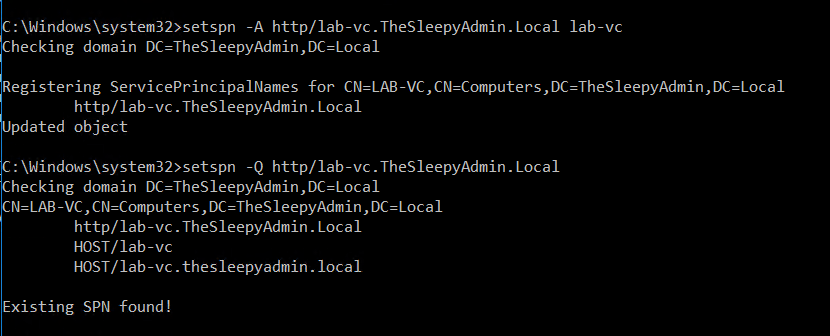
First step was to confirm that there was an SPN configured for the Application. Since this is a web application we will use http for the serviceclass.

setspn -Q http/webapp.domain.local

If the SPN isn’t configured use setspn to register.

setspn -A http/webapp.domain.local computername

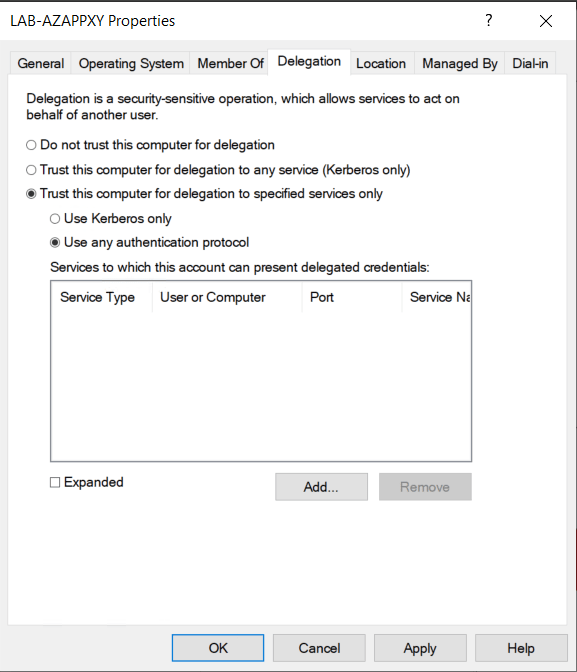
The next step is to configure the delegation on the Azure application proxy connector server.

Go to the server object in AD, open the properties and go to delegation.

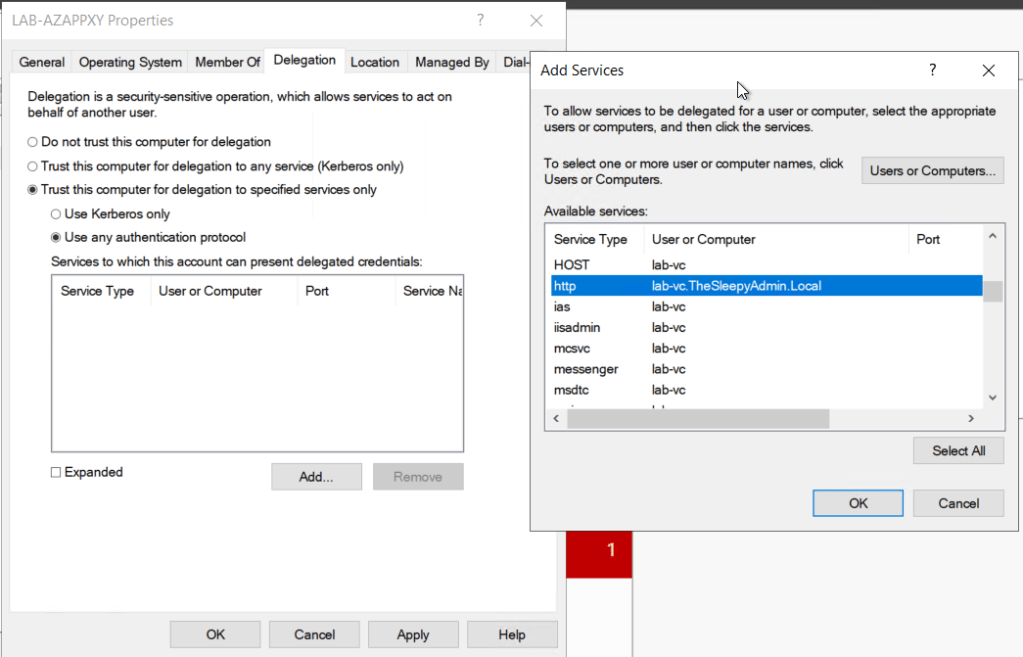
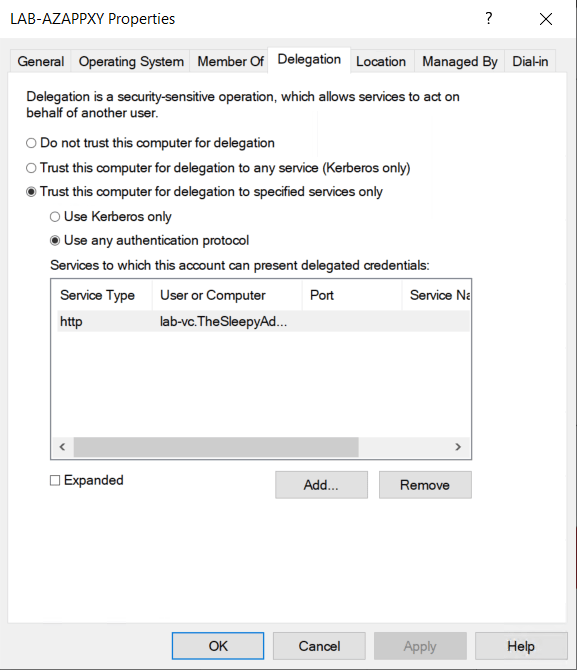
Click add and select the computer or user account that has the SPN that will be used and select the service.

The last step that I had to do was add the server to Windows Authorization Access Group so that the connector could have read access to TokenGroupsGlobalAndUniversal users attribute in AD.

When I didn’t have the server in this group I was getting SPN issues.

Next we need to configure SSO in Azure Enterprise app. Logon to Azure

Azure Active Directory > Enterprise applications > App

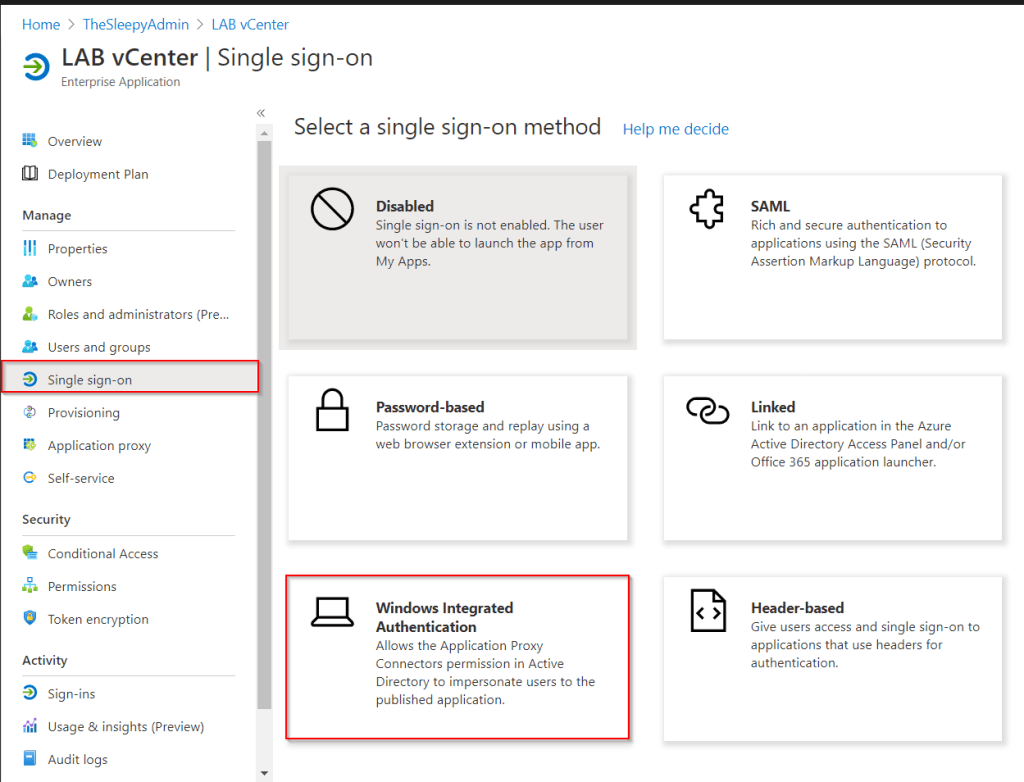
Select Single sign-on and Windows Integrated Authentication

Put in the internal SPN that was configured earlier and set the delegated login, Our app uses samaccount name so I used On-premises SAM account name.

Once the above is completed close all open session to Office 365 / Azure AD and re-signed in to the external URL for the application proxy and the application should now signed in using SSO without have put in credentials a second time.

VMware 6.7 External PSC to Embedded PSC migration

VMware have recently deprecated using external platform service controller (PSC) with vCenter 6.5 Update2 and 6.7

Deprecation of the external Platform Services Controller deployment model (60229) (vmware.com)

Since we where upgrading from Windows vCenter and PSC to appliance’s we had to migrate to new external PSC and then convert the external PSC after the migration.

In this post we will be going through the process of converting and decommissioning an external PSC.

In vCenter 6.7 there is a conversion tool built in to the vCenter web console that allow the PSC to be converted from an external to embedded PSC.

vCenter Server Converge Tool Enhancements in vSphere 6.7 Update 2 – VMware vSphere Blog

The conversion tool is available under Administration > deployments > system configuration

Select the vCenter server that has the external PSC and click converge to embedded

Enter in the logon details for the existing PSC SSO domain and select Join AD if you want to also join the vCenter appliance to AD (use this if the existing PSC has domain joined).

This image has an empty alt attribute; its file name is image-39.png

The converge tools will start and and it will require vCenter servers services to restart, this will cause an outage to vCenter while the service restart.

This image has an empty alt attribute; its file name is image-40.png

Once all the vCenter services have restarted, vCenter should now show as an having an embedded PSC.

The last step is to decommission the old PSC.

Select the old PSC from in the System configuration and use the decommission PSC action.

Click on porceed.

Enter the SSO logon details, view thumbprint and accept the acknowledgment tickbox.

Click decommission and the PSC will start to be removed.

Once completed vCenter will now be running an embedded PSC and the external PSC will be powered off and can be deleted.

If there are other vCenter in enhanced linked mode follow the same process for each additional vCenter

Using Microsoft Graph PowerShell SDK

In a previous post we went over connecting to Microsoft GraphApi using PowerShell and Graph Rest API.

In this post we will be going through using the PowerShell SDK as I am more familiar with this method of connecting as it is similar to the current PowerShell modules uses by Exchange online, Azure AD….. and this will make creating scripts and querying data easier.

First step to use the Graph SDK is to install the PowerShell Module.

Open an admin PowerShell Window and run the below command.

Install-Module Microsoft.Graph

Once the module is installed we can now connect to graph.

I only want to query user information so I will use User.Read.All as the scoped permission.

Below is a link to the Microsoft document on graph permissions.

Microsoft Graph permissions reference – Microsoft Graph | Microsoft Docs

Connect-MgGraph -Scopes "User.Read.All"

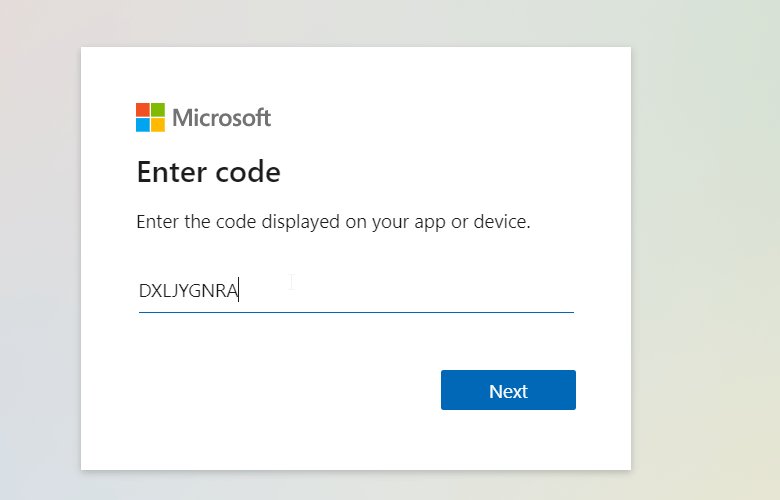
Go to the URL in the PowerShell response and enter the code.

Accept the permission request.

Once accepted, PowerShell should now be connected.

All command’s in the Graph Module use MG in the name which can be used to find commands needed.

To get all users we can use Get-mguser.

By default the Graph SDK will use API v1.0 to change to the beta version which has more information and is the default one that I use.

To set the profile run the below.

Select-MgProfile -Name "beta"

Now if we look at the user type it now returns guest or member value since the change to the beta version.

This image has an empty alt attribute; its file name is image-33.png

We can also use filters to only return required users, the below will only return guest users.

Using connect-msgraph with a user account requires manual steps to connect so it’s not great for automation.

We can use a certificate and app registration to automate the connection.

Use app-only authentication with the Microsoft Graph PowerShell SDK – Microsoft Graph | Microsoft Docs

We covered the app registration in a previous post so we wont go over creating the app registration again.

First step is to create the cert that will be used, we will be using self signed cert but you can use a cert issue from an internal CA also.

To create the self signed cert I used the below command

New-SelfSignedCertificate -DnsName TennatDomainName -CertStoreLocation "Cert:\CurrentUser\My" -FriendlyName "Graph_SDK"

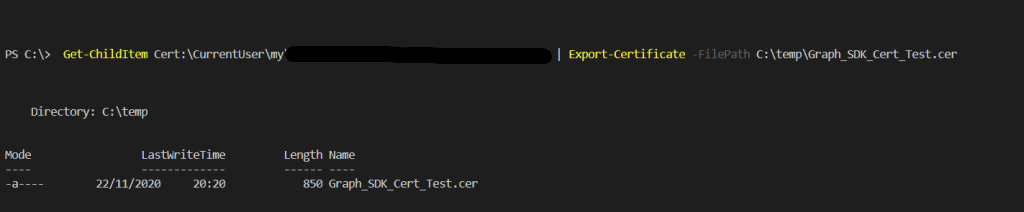
Once the cert has been created, export the cert so that it can be uploaded to the App registration.

Get-ChildItem Cert:\CurrentUser\my\CertThumbprint | Export-Certificate -FilePath C:\temp\Graph_SDK_Cert_Test.cer

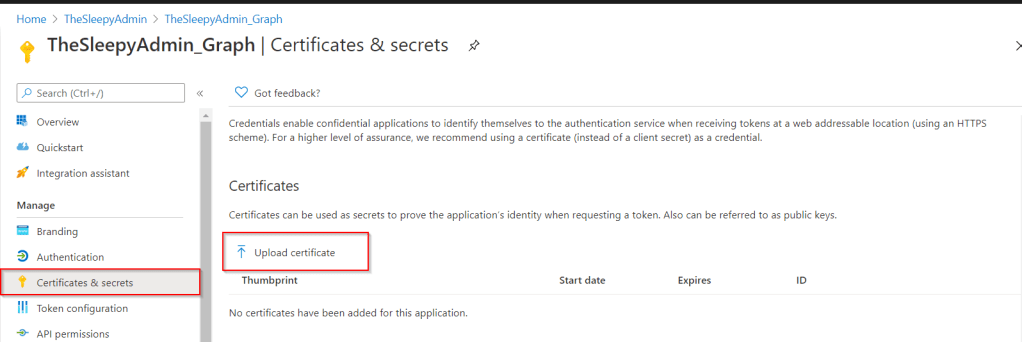
Logon to Azure portal > Azure Active Directory > App registrations > graph app registration

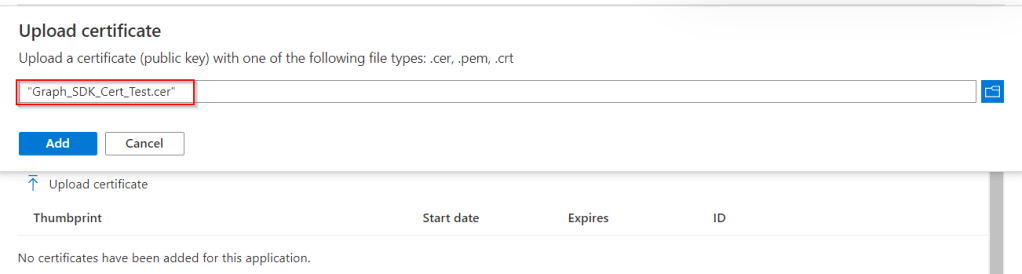
Select the exported certificate

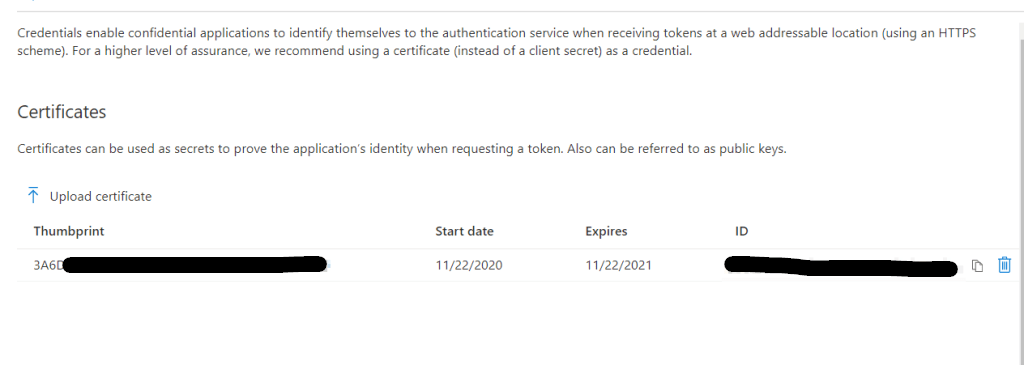
Once uploaded the cert detail will show under certificates.

Now that the cert is uploaded we can use either the thumbprint or the certificate name, ApplicationID and TenantID to automate connections to Microsoft Graph.

Connect-MgGraph -CertificateThumbprint Thumbprint -ClientID YOUR_APP_ID -TenantId YOUR_TENANT_ID

I used the below to automate checking for Guest users and there sign-in logs.

$Cert = "Thumbprint"
$AppID = "YOUR_APP_ID "
$TenantID = "YOUR_TENANT_ID"

Connect-MgGraph -CertificateThumbprint $Cert -ClientId $AppID -TenantId  $TenantID

$GuestUsers = Get-MgUser -Filter "usertype eq 'Guest'"

foreach ($Guest in $GuestUsers) {
Write-Warning "Checking Guest User $($Guest.DisplayName) SignIn Logs"
Get-MgAuditLogSignIn -Filter "UserId  eq '$($Guest.ID)'" | 
Select-Object UserDisplayName,UserPrincipalName,IPAddress,AppDisplayName,ResourceDisplayName,ClientAppUsed
}

Windows 10 20H2 Feature Update Error 0xC1900208 ConfigMgr

Recently we have been testing Windows 10 20H2 Feature update deployment using ConfigMgr. When the update was applying it was failing and the error in software center was 0xC1900208.

To check what the code means I usually use the below Microsoft Doc but unfortunately the below code was not showing.

Windows Update error code list by component – Windows Deployment | Microsoft Docs

The error is listed under below Windows 10 upgrade errors doc

Get help with Windows 10 upgrade and installation errors (microsoft.com)

Since the error was relating to incompatible app next I checked the feature update logs these are located under a hidden folder on the root of the C drive C:\$WINDOWS.~BT\Sources\Panther

I checked the Setupact.log and the compatdata XML.

In the compatdata XML there was an incompatibility with the version of McAfee DLP installed on the device. This device was not getting the latest version of DLP.

To try fix the issue I updated the version to the latest release which support Windows 1020H2 and tried the update again but it continued to fail with a different error code 0x80240020.

To get the update to work correctly I had to remove the following folders

C:\Windows\ccmcache

C:\$WINDOWS.~BT\

And delete all the files and folders under

C:\Windows\SoftwareDistribution\Download

I also ran the below three action from the configuration manager agent in the control panel:

Machine policy retrieval and evaluation cycle, Software updates deployment evaluation cycle and software updates scan cycle.

I waited around 5 minutes for the scan’s to complete and tried the feature update again and it installed without issue this time.

ConfigMgr query all devices software update install status

During a recent audit we need to get a list of all update and there install status on every device.

We use Configmgr for applying software update but I was not getting the information (well that I could find) using the out of the box reports.

I decided to write a SQL query to all devices, applicable updates and some device information.

To get the compliance status I used the Microsoft doc for the v_UpdateComplianceStatus SQL view.

SMS_UpdateComplianceStatus Class – Configuration Manager | Microsoft Docs

Below is the full SQL query

select rsys.name0 AS 'Computername',
 os.Caption0 AS 'Operating System',
 os.BuildNumber0 AS 'Build Number',
 ui.ArticleID AS 'Update ID',
 ui.Title,
 ui.Description,
 --Set Install Status
 Case
 when ucs.Status='0' then 'Detection state unknown'
 When ucs.Status='1' then 'Update is not required'
 when ucs.Status='2' then 'Update is required'
 When ucs.Status='3' then 'Update is installed'
 End As 'Install Status',
 --Set client Activity
 Case
 When ch.ClientActiveStatus='1' then 'Active'
 When ch.ClientActiveStatus='0' then 'Inactive'
 End As 'Client Active Status',
 ui.InfoURL,
 ui.DatePosted
 from v_updateinfo ui
 join v_UpdateComplianceStatus ucs on ucs.ci_id=ui.ci_id
 join v_CICategories_All catall on catall.CI_ID=UCS.CI_ID
 join v_CategoryInfo catinfo on catall.CategoryInstance_UniqueID = catinfo.CategoryInstance_UniqueID and catinfo.CategoryTypeName='UpdateClassification'
 join v_R_System rsys on rsys.resourceid=ucs.resourceid
 join v_GS_OPERATING_SYSTEM os on os.ResourceID = ucs.ResourceID
 join v_CH_ClientSummary ch on ch.resourceID = ucs.ResourceID
 order by rsys.name0

This is what the output should look like.

Checking Sign-in logs in Azure AD using Microsoft Graph API

In a previous post we went through configuring and connecting to Microsoft Graph API.

In this post we will going through querying sign-in logs.

Connecting to Microsoft GraphAPI Using PowerShell – TheSleepyAdmins

We have been trying to audit guest account activity and sign-in logs are the only way I have been able to find if these account’s have been active for the last 30 days. Instead of manually filtering sign-in logs from Azure AD I want to automate this using Graph.

To query sign-in logs the below API permission are required. since we are using client secret we only require Application permission.

Below is the link to the Microsoft doc I used for getting info on listing sign-ins.

List signIns – Microsoft Graph v1.0 | Microsoft Docs

Permission typePermissions (from least to most privileged)
Delegated (work or school account)AuditLog.Read.All and Directory.Read.All
Delegated (personal Microsoft account)Not supported
ApplicationAuditLog.Read.All and Directory.Read.All

Next step was to run the command to get to the access token for connecting to Microsoft Graph this is covered in the previous post so we won’t be going over that here.

To connect to the sign-in Graph use the below Url

https://graph.microsoft.com/v1.0/auditLogs/signIns

Below is the command to connect and view all sign-in logs data

$LoginUrl = "https://graph.microsoft.com/v1.0/auditLogs/signIns"
(Invoke-RestMethod -Headers @{Authorization = "Bearer $($token)"} -Uri $LoginUrl -Method Get).value

This will return all the default values for each sign-in log.

This image has an empty alt attribute; its file name is image-58.png

We only wanted to have Displayname,UPN,IP,App used and date the log was created. We also wanted to only have Logs that where created in the last 30 days.

$LoginUrl = "https://graph.microsoft.com/v1.0/auditLogs/signIns"(Invoke-RestMethod -Headers @{Authorization = "Bearer $($token)"} -Uri $LoginUrl -Method Get).value | Select-Object userDisplayName,userPrincipalName,ipAddress,clientAppUsed,createdDateTime | Where-Object {$_.userPrincipalName -notlike "*DomainName.com" -and $_.createdDateTime -gt "2020-09-29"}

Below is the results from the above query.

Now that we have the query, we can either run the query manually or in my case I will be setting up a script to run in a scheduled task to export this data.