
In this post we will go over the different methods to enabled accelerated networking in an existing Azure VM.
Accelerated networking improves performance as it allows the network interfaces of Azure VM to bypass the host.

Below are some of the benefits of using accelerated network.
Lower Latency / Higher packets per second
Reduced jitter,
Decreased CPU utilization
Accelerated networking is only supported on VM that have 2 or more CPU’s. If the VM’s are in a availability set all VM’s in the set need to be powered off before updating.
There are three way’s to enabled accelerated networking on existing VMs use either AZ PowerShell Module or the AZ CLI and directly in the Azure portal.
To enable in the Azure portal go to Virtual machines > Networking and select the required network interface.

To enable first Power off the VM,
Select the network interface and click on the name. This will bring you to the network interface configuration page.
Click on enable accelerated networking

You will have to confirm you have validate that your operating system is supported.

Once completed the network interface should now show have accelerated networking enabled.

Enabling in the console is fine for one or two interfaces but if there are a few to update doing PowerShell or AZ CLI will be a quicker method.
To update using the AZ PowerShell Module, first we need to install the module.
To install run the below command
Set-ExecutionPolicy -ExecutionPolicy RemoteSigned -Scope CurrentUser
Install-Module -Name Az -Scope CurrentUser -Repository PSGallery -Force
Once installed use the below to connect, you will be prompted to put in Azure account details.
Connect-AzAccount
Once connected, we can check if the network interfaces have accelerated networking using the below command.
Get-AzNetworkInterface -ResourceGroupName RGName | Select-Object Name,EnableAcceleratedNetworking
To enabled accelerated networking the VM needs to be stopped and deallocated so either power off from the Azure console or use stop-azvm
Stop-AzVM -Name VMName -ResourceGroupName RGName
To enable we need to get the network adapter information into a variable and then set the enabledacceleratednetworking property to true.
$networkacc = Get-AzNetworkInterface -ResourceGroupName RGName-Name nicname
$networkacc.EnableAcceleratedNetworking = $true
$networkacc | Set-AzNetworkInterface
Once the command completes, we can run the command to check the network interfaces again and one should now have enabledaccleratednetworking set to true.

If there were multiple network interfaces in the resource group to enable, we could get the list and loop through each, but each VM would need to be supported or they would error out.
$networkaccs = Get-AzNetworkInterface -ResourceGroupName RGName
foreach ($networkacc in $networkaccs){

$networkacc.EnableAcceleratedNetworking = $true
$networkacc | Set-AzNetworkInterface

}
Last step is to power back on the VM either from the Azure portal or using AZ PowerShell.
Start-AzVM -Name VMName -ResourceGroupName RGNameThat is the process for setting using AZ Powershell.
To set using the Azure CLI, first we need to install the go to the below and download the MSI installer.
https://docs.microsoft.com/en-us/cli/azure/install-azure-cli-windows?tabs=azure-cli

Once installed launch PowerShell.
to logon either use az login for an interactive logon process
or use with username and password parameter. (This method will not work with MFA so we will be using the interactive method.)
az login -u <username> -p <password>When running the az login command you will be brought to the standard login.microsoft.com page.

Once signed in, we can query the resource group for network interfaces to see what has acceleratednetworking enabled
az network nic list --resource-group RGName --query [].[name,enableAcceleratedNetworking] --output tableTo update the interfaces the VM needs to be powered off either in the Azure console or using AZ Cli
To use AZ Cli
az vm deallocate --resource-group RGName --name VMName
az network nic update --name NicName --resource-group RGName --accelerated-networking true
Once the command completes run the list command again to confirm that acceleratednetworking is set to true.

last step is to start the VM using either Azure port or Az Cli
az vm start --resource-group RGName --name VMNameThe network interfaces should now have accelerated networking enabled.




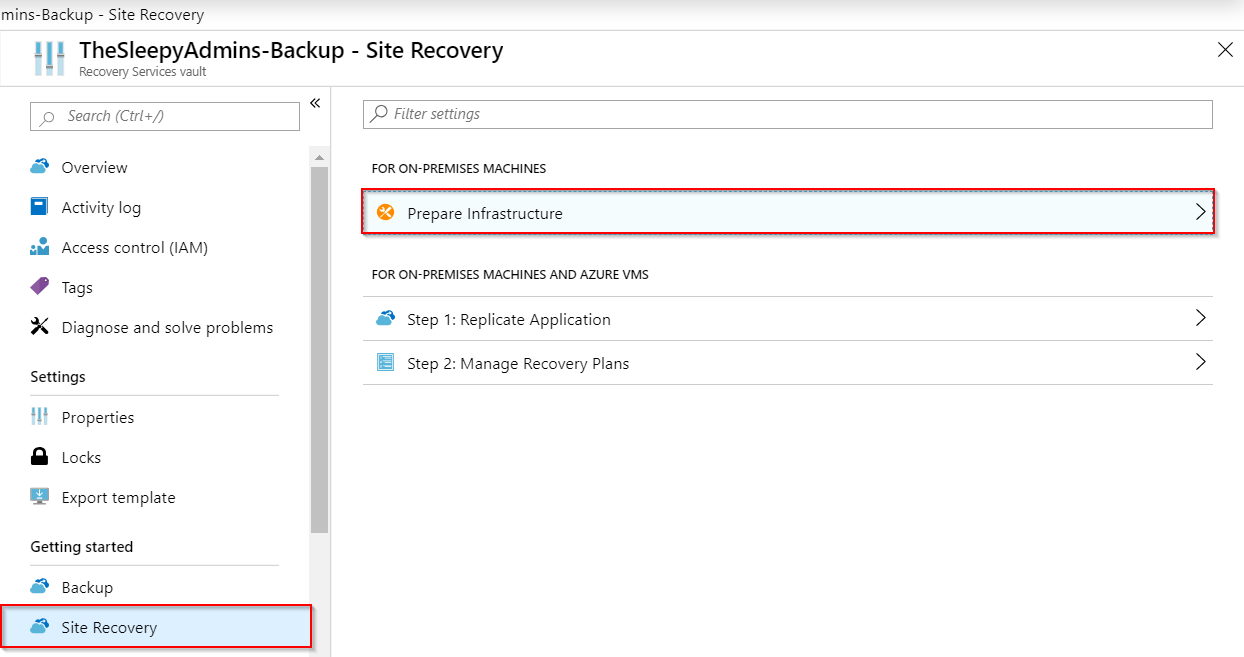
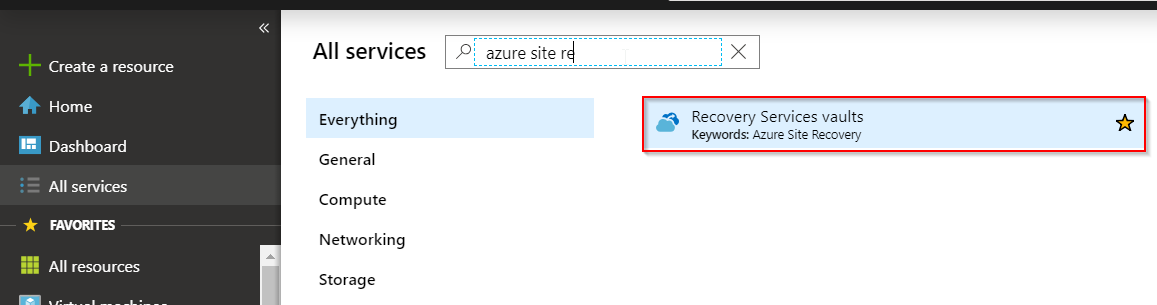 Go to the already configure vault, select Site Recovery and click on prepare infrastructure
 Once the wizard has started select the require goals
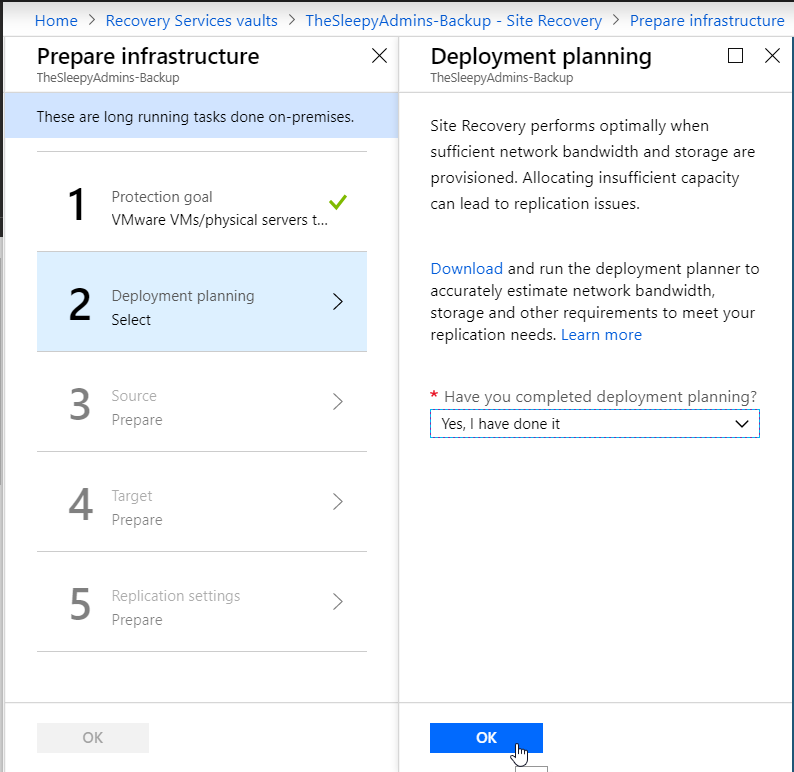
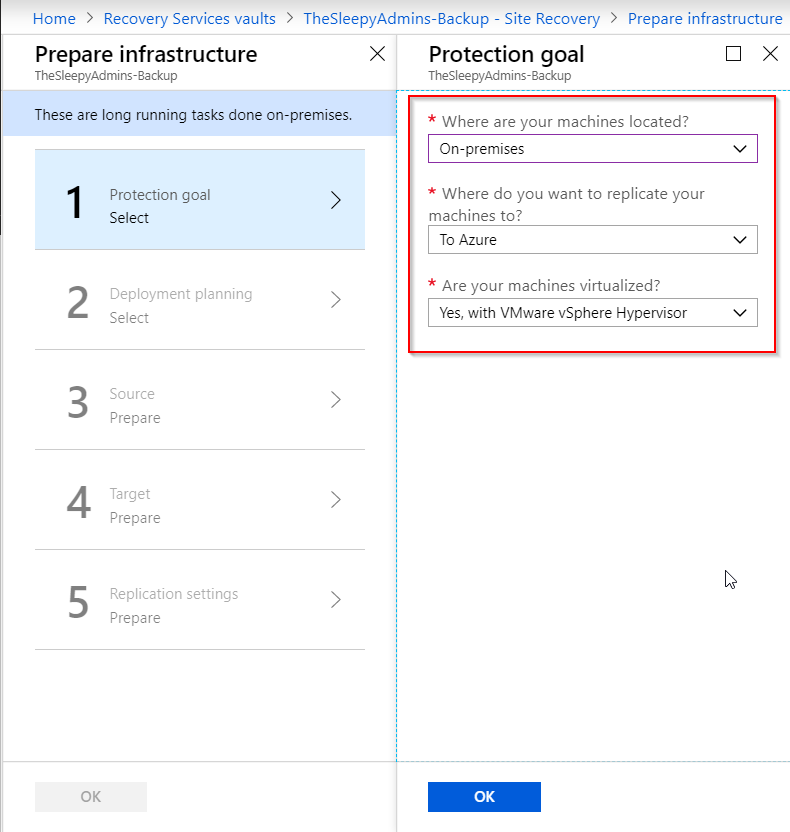 I am not running the planning tools as this is a test but it is recommended to run before starting a deployment to verify the required bandwidth.
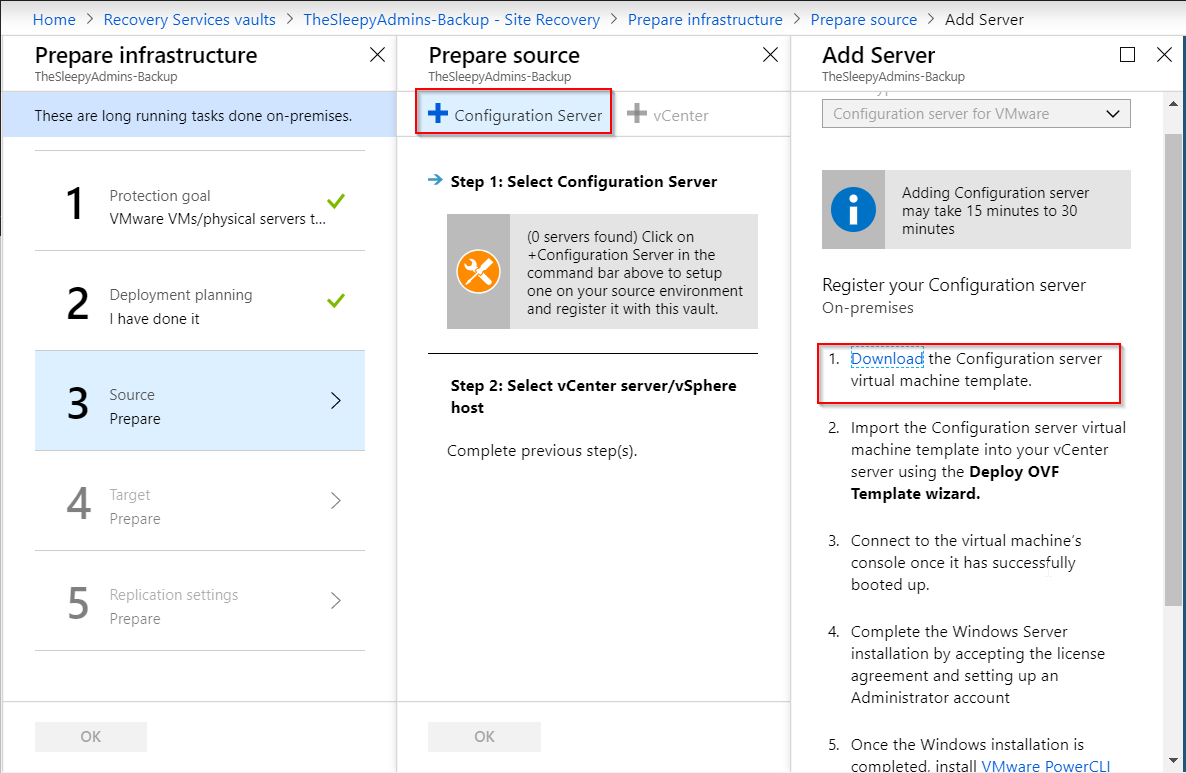
  Next we will download the OVA appliance that will be imported to VMware
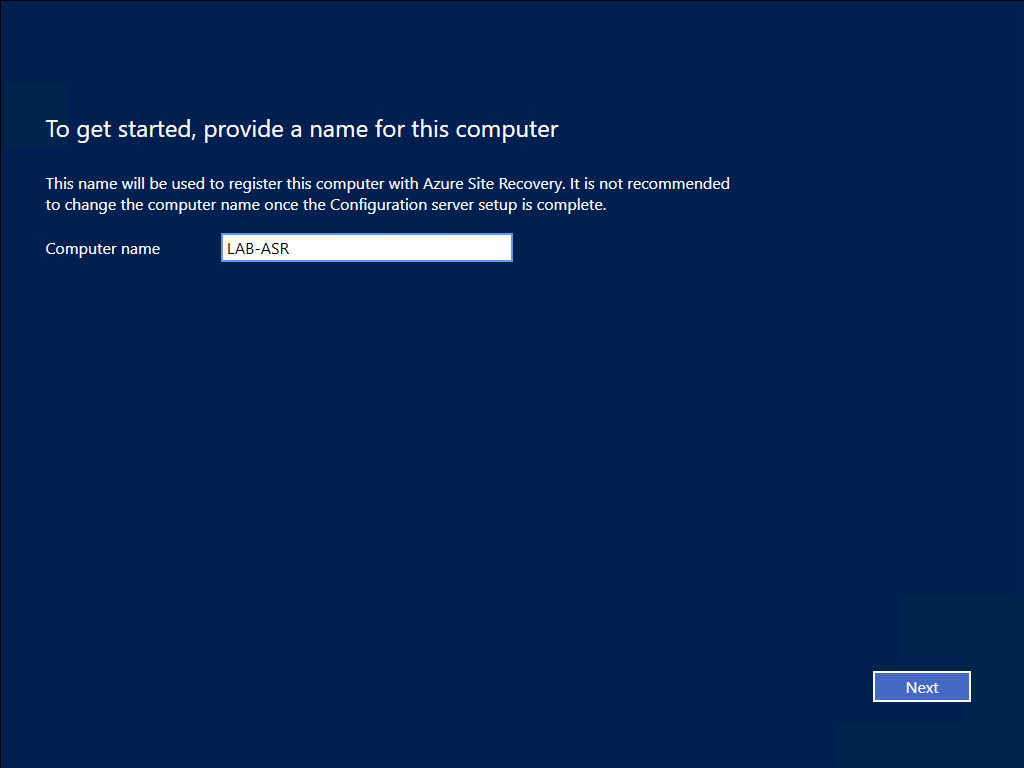
 Once the OVA has been downloaded and imported to VMware on boot up the server will require you to read / accept a licence agreement and provide an administrator password.
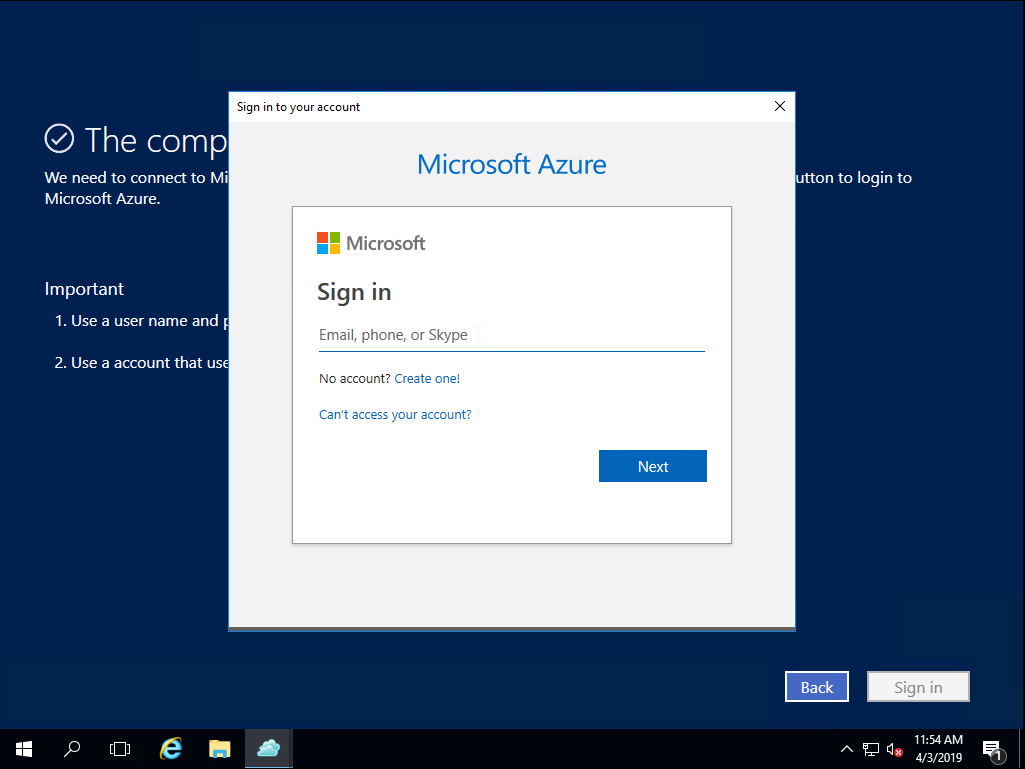
 Next step is to sign in to Azure tenant that the server will connect to for replication
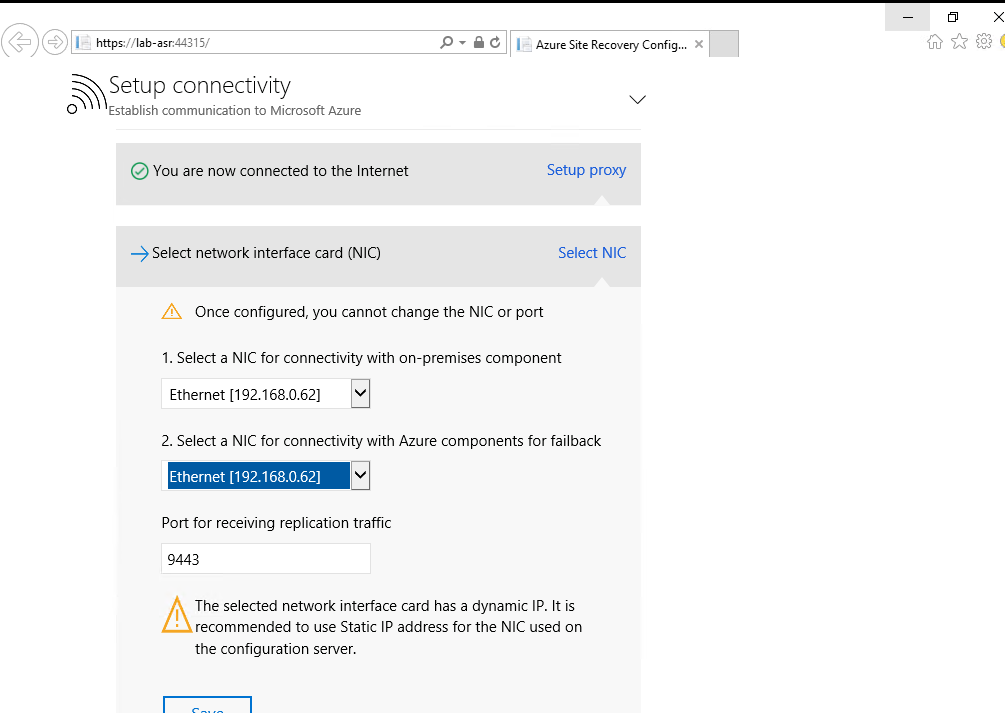
 Next we will go through the configuration steps first step is to set the interface that will be used to connect to on-prem devices & connection back to Azure there can be two different NIC’s assigned if required.
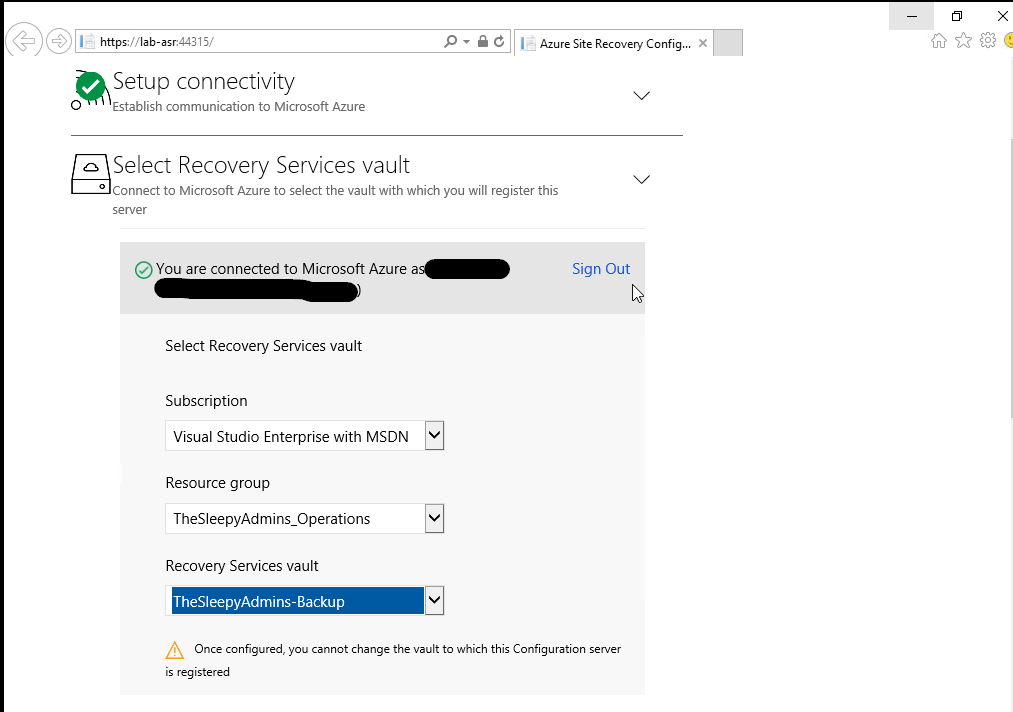
  Next is to configure the Recovery vault that will be used, select the subscription, the recovery vault RG and recovery service vault that has been configured.
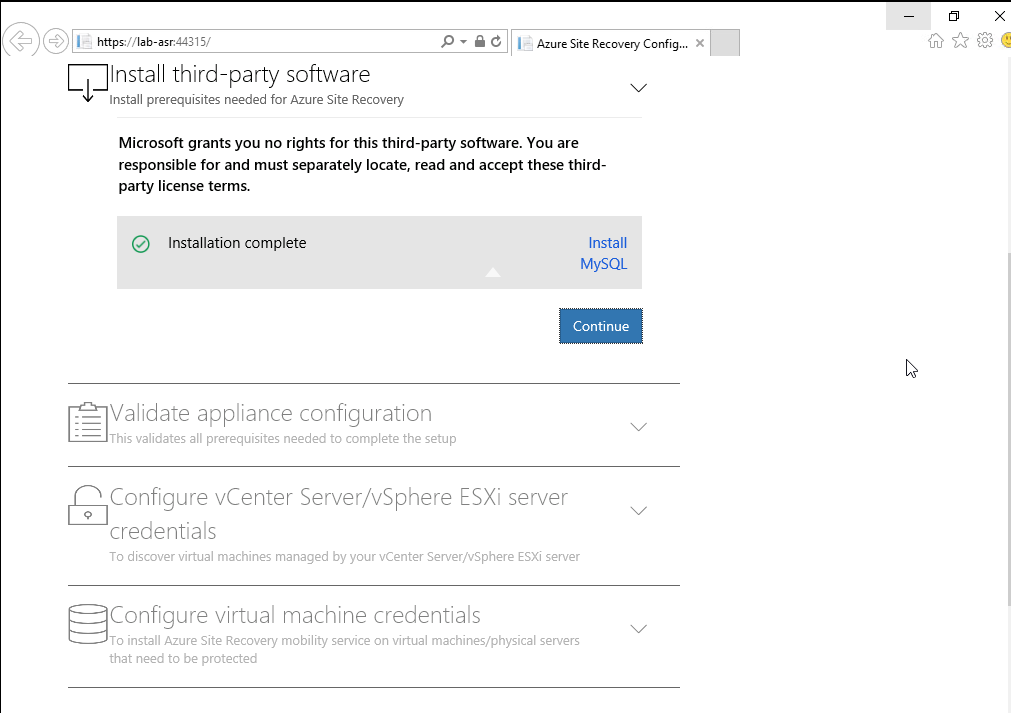
  Install the MySQL software
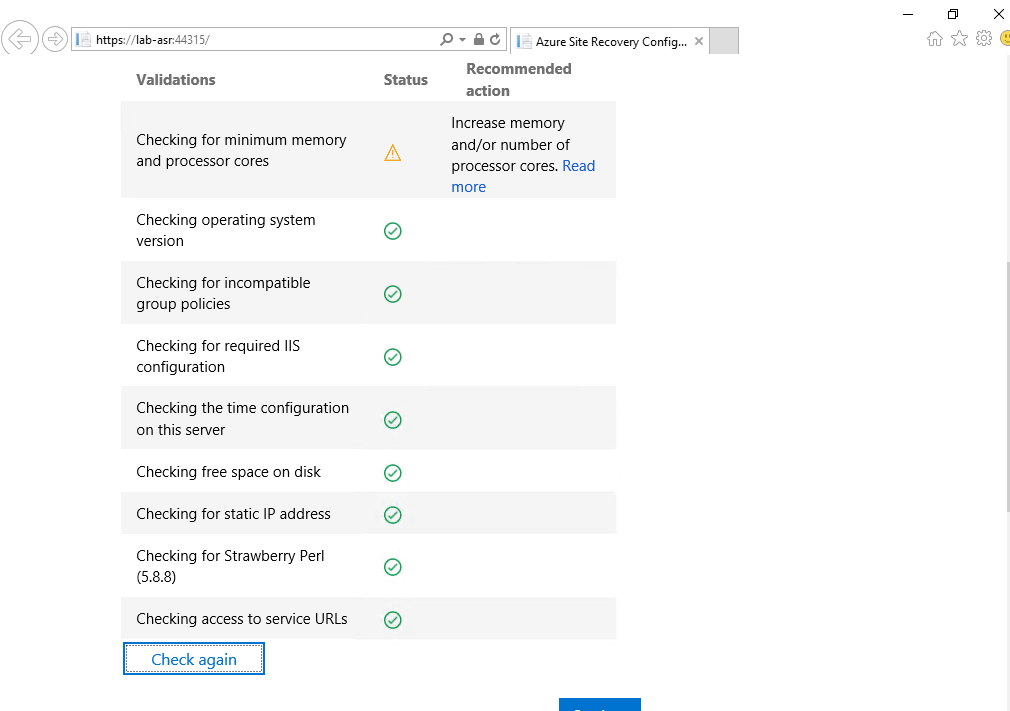
  Next a validation test will run. (I am getting a warring for memory and CPU as I didn’t have enough memory / CPU and had to edit the VM to run on less resource but it will still complete)
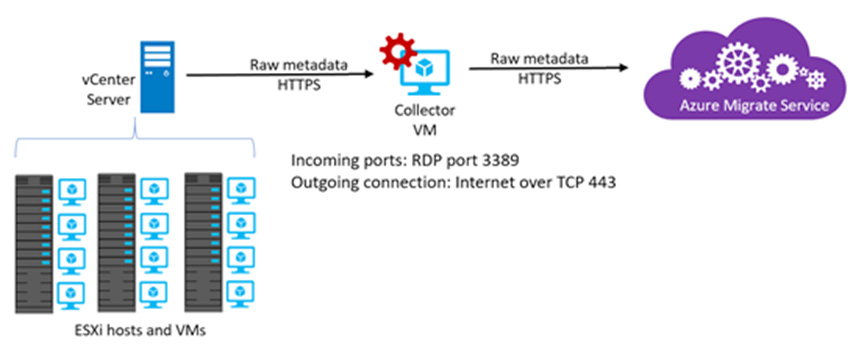
 Next is to connect to the vCenter server that is running the VM’s that are to be replicated to Azure.
 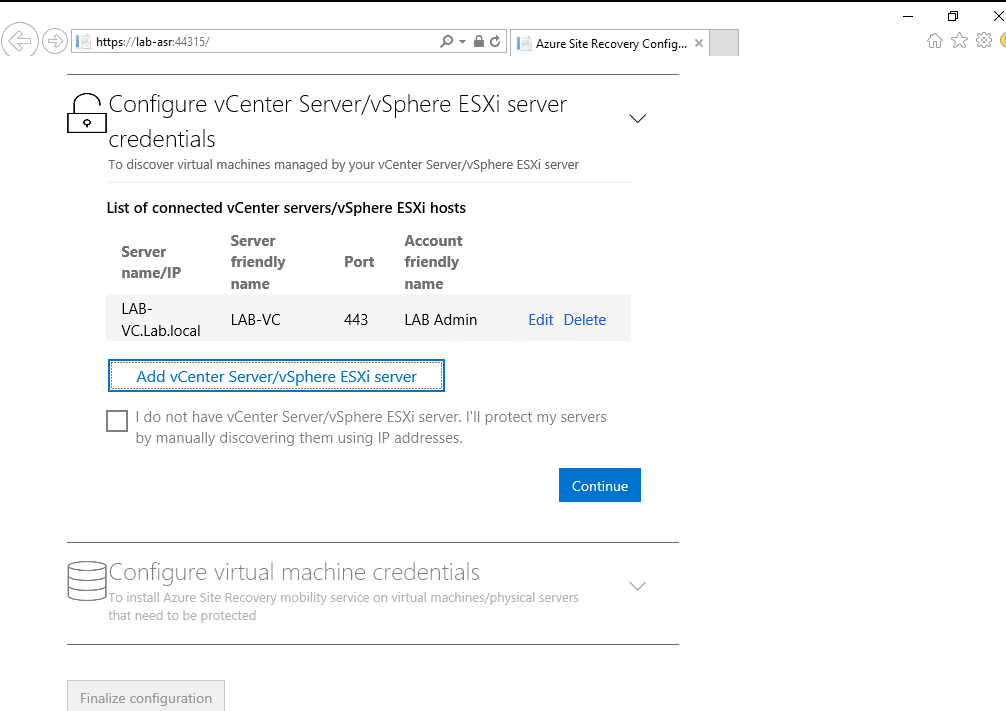 Last step will configure the configuration server in Azure.
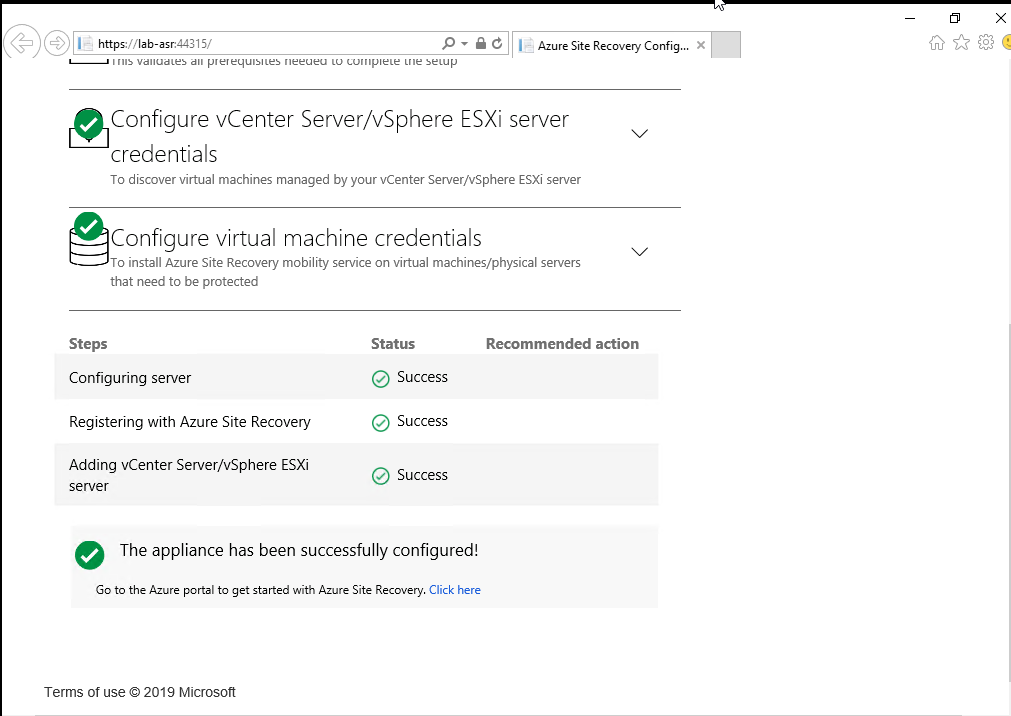 Once this has been completed we can go back to the Azure portal and we should now see the configuration server show under prepare infrastructure setup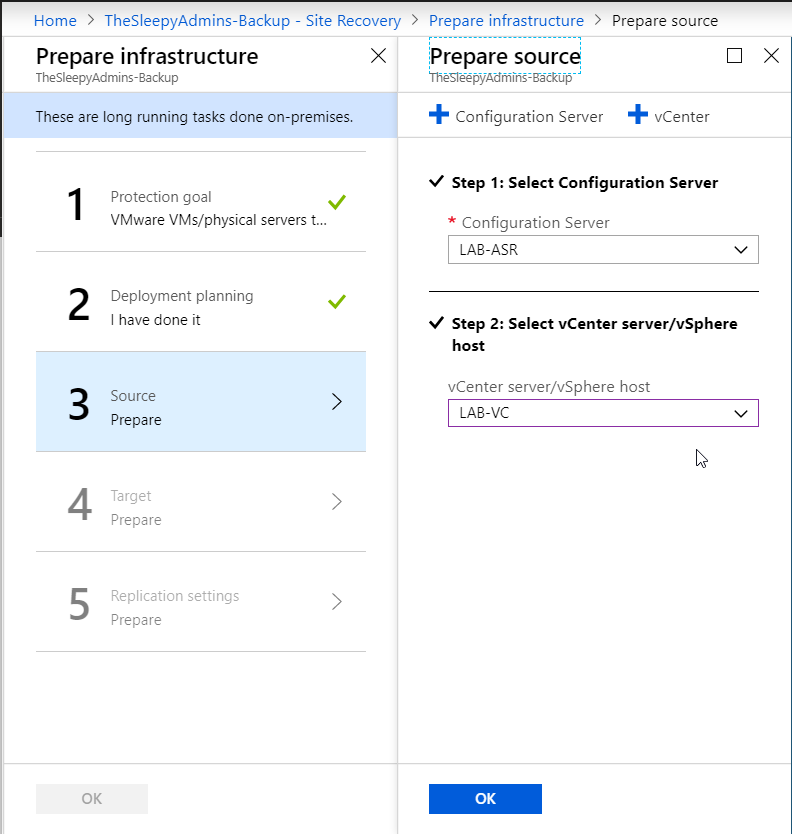
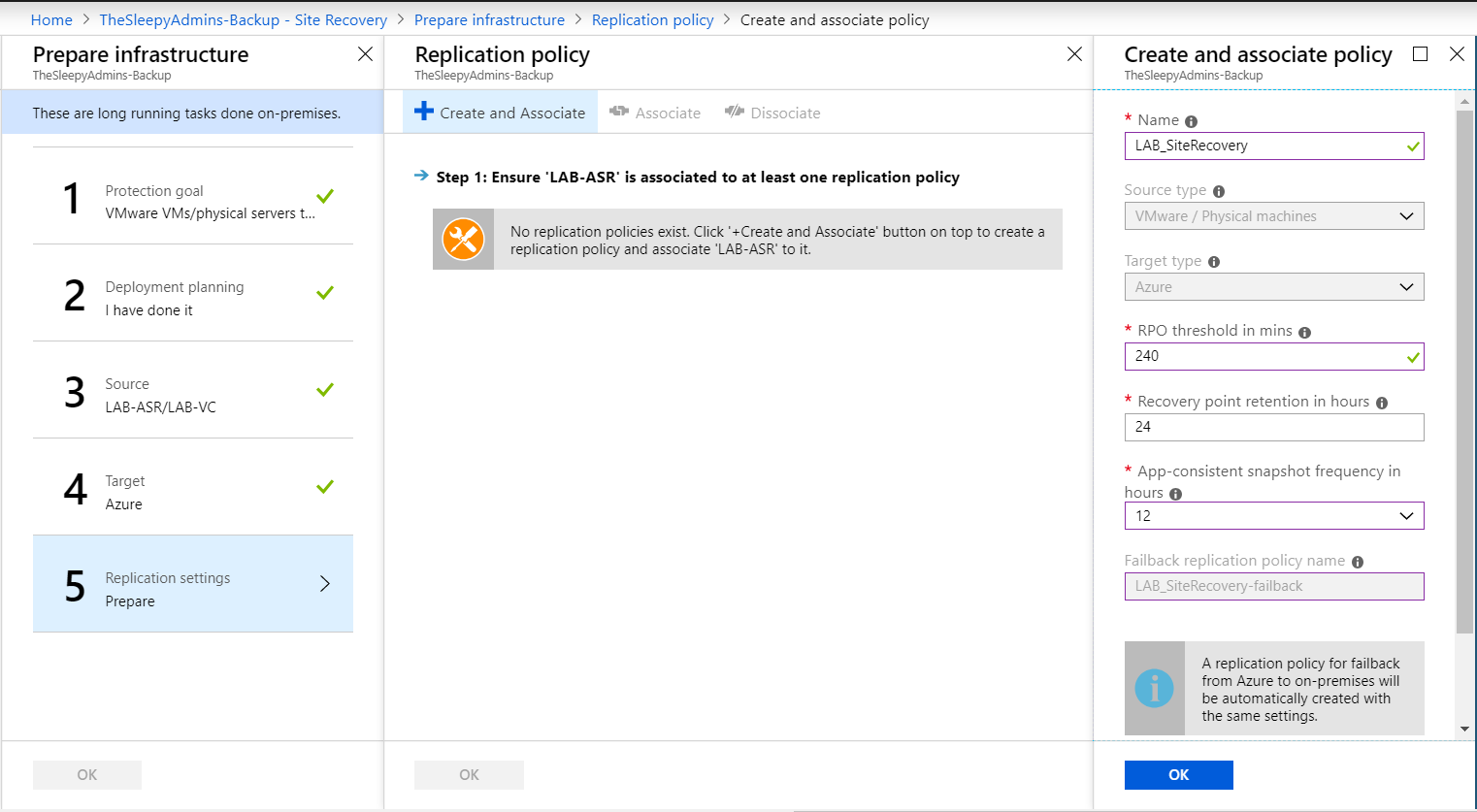
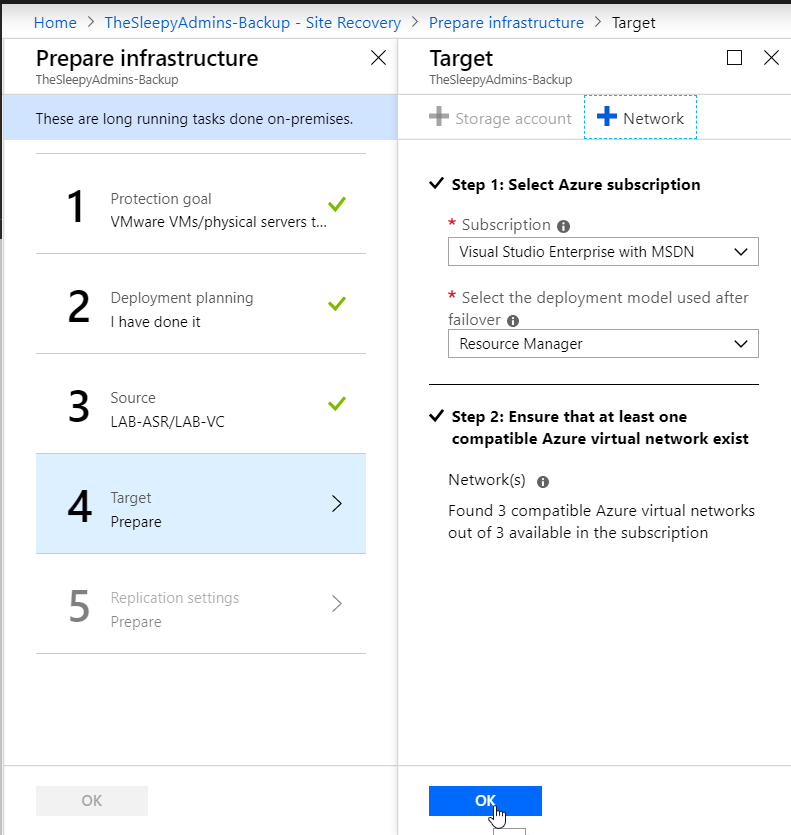 Next create a replication policy to apply to the ASR configuration server.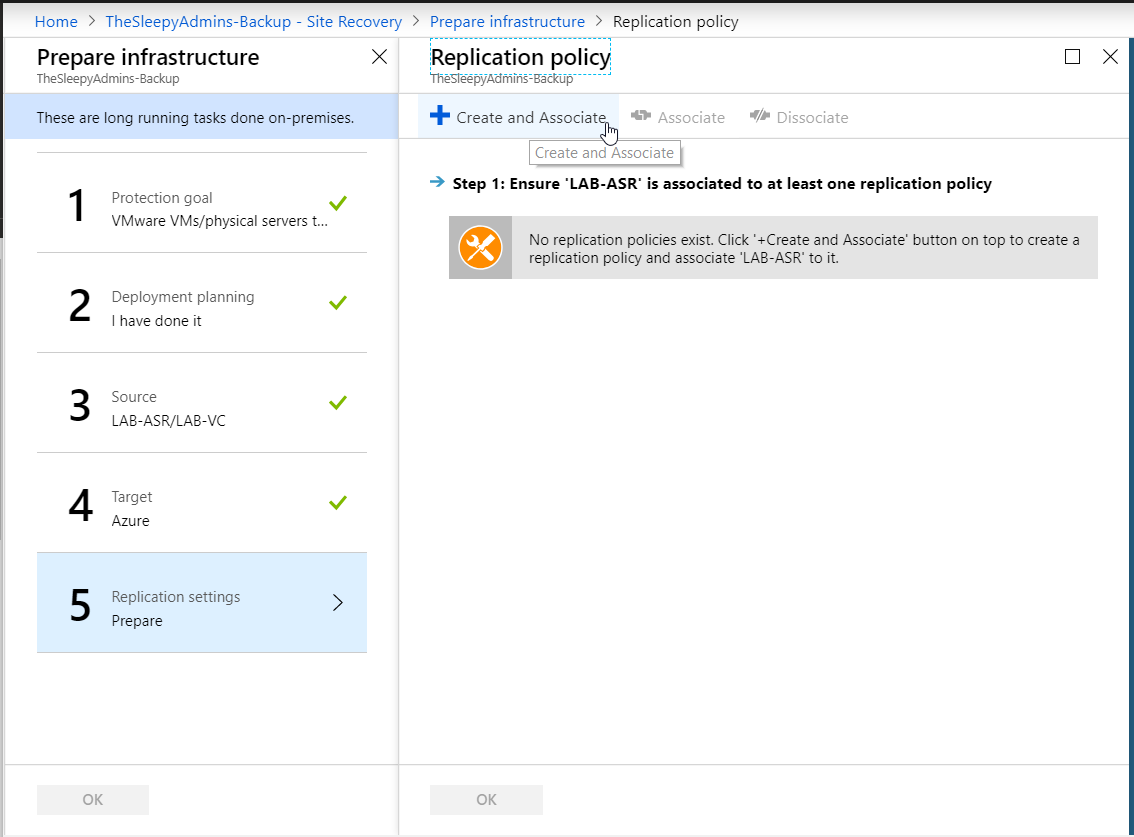
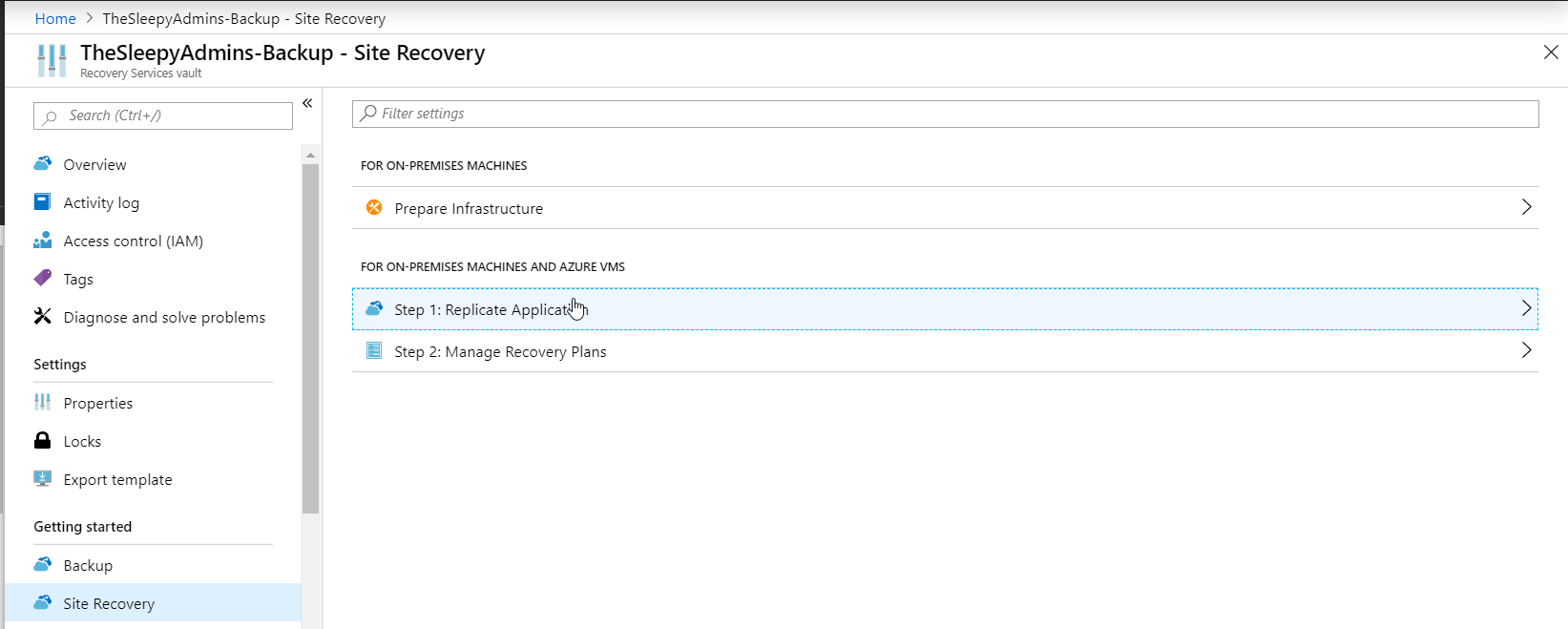
 Once the configuration is done we can now protect and replicate our on-prem VM’s , go back to site recovery and select step 1: Replicate Application
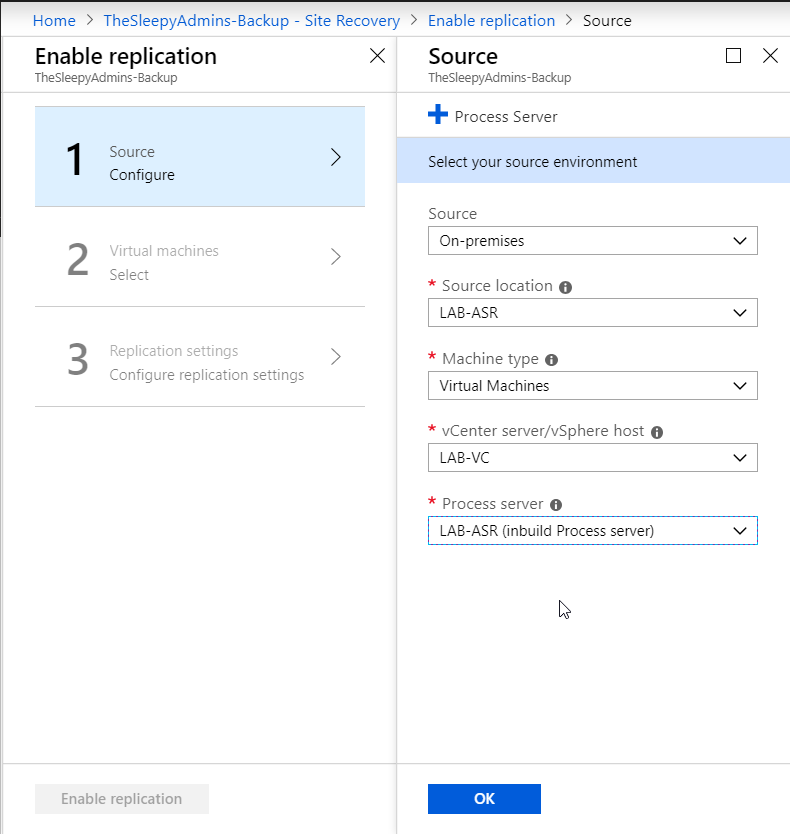
  Select source, source location (Configuration server on-prem)Machine type (Physical / virtual), vCenter (If virtual) and the process server
 Select the subscription, RG that the VM will replicate too and the deployment model
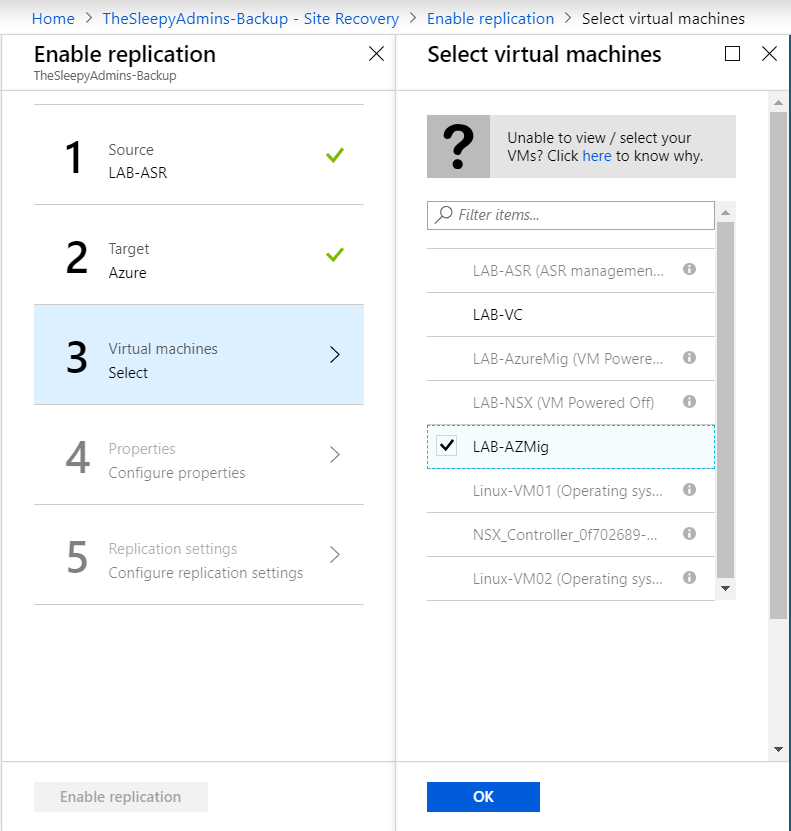
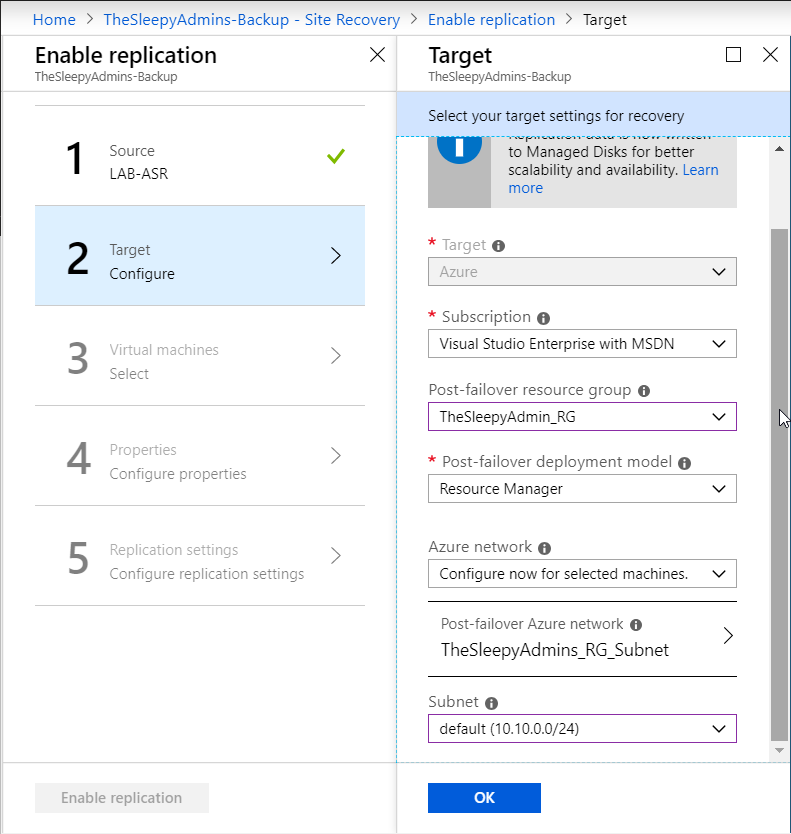 Next select the server that will be replicated the VM must be powered on and be running VMware tools be available for replication other wise they will be grey-out
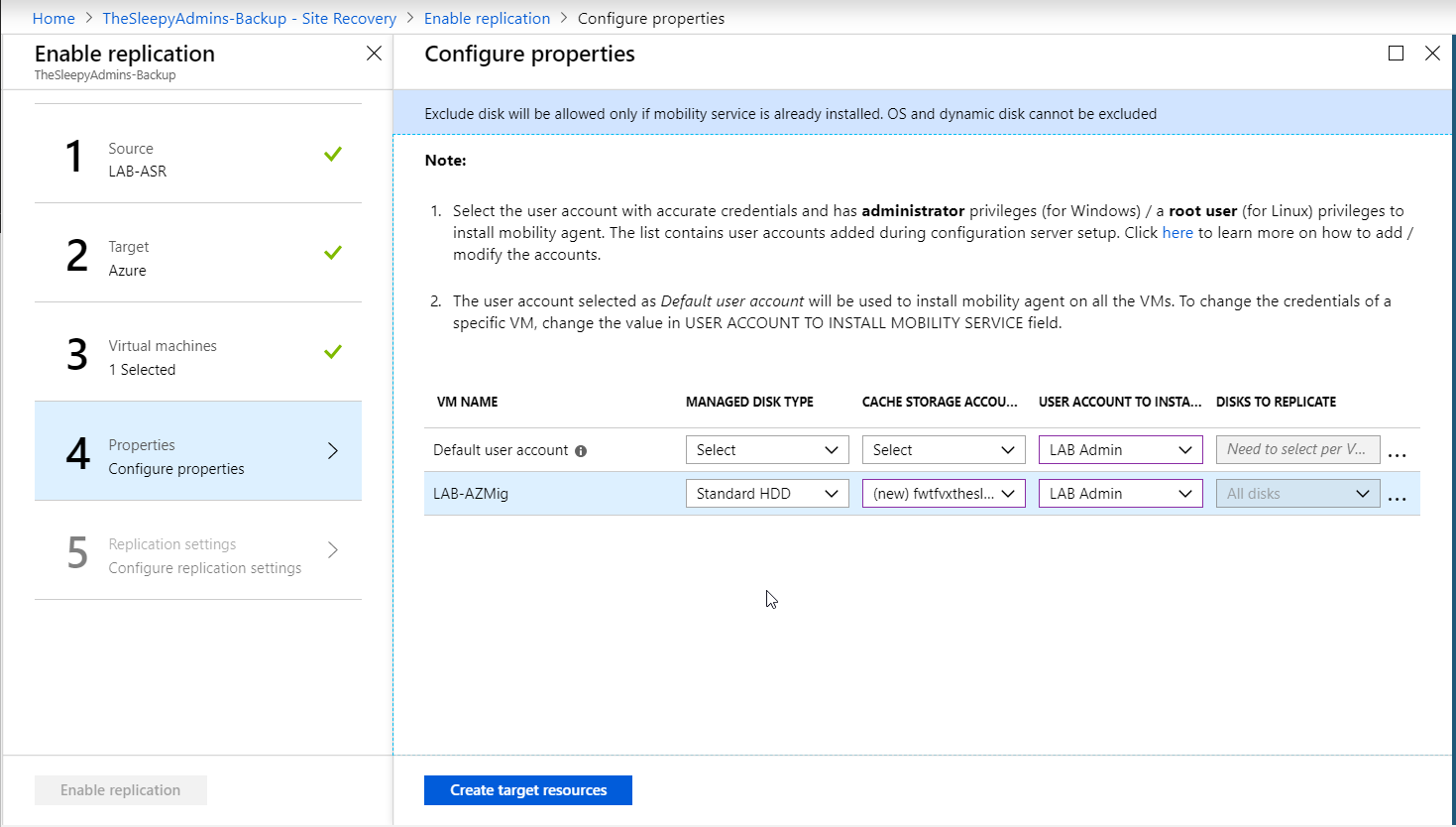
 Select the required disk type, storage account
  last step is to assign the policy required (Multiple policy can be created base on the recovery time requirements and retention times)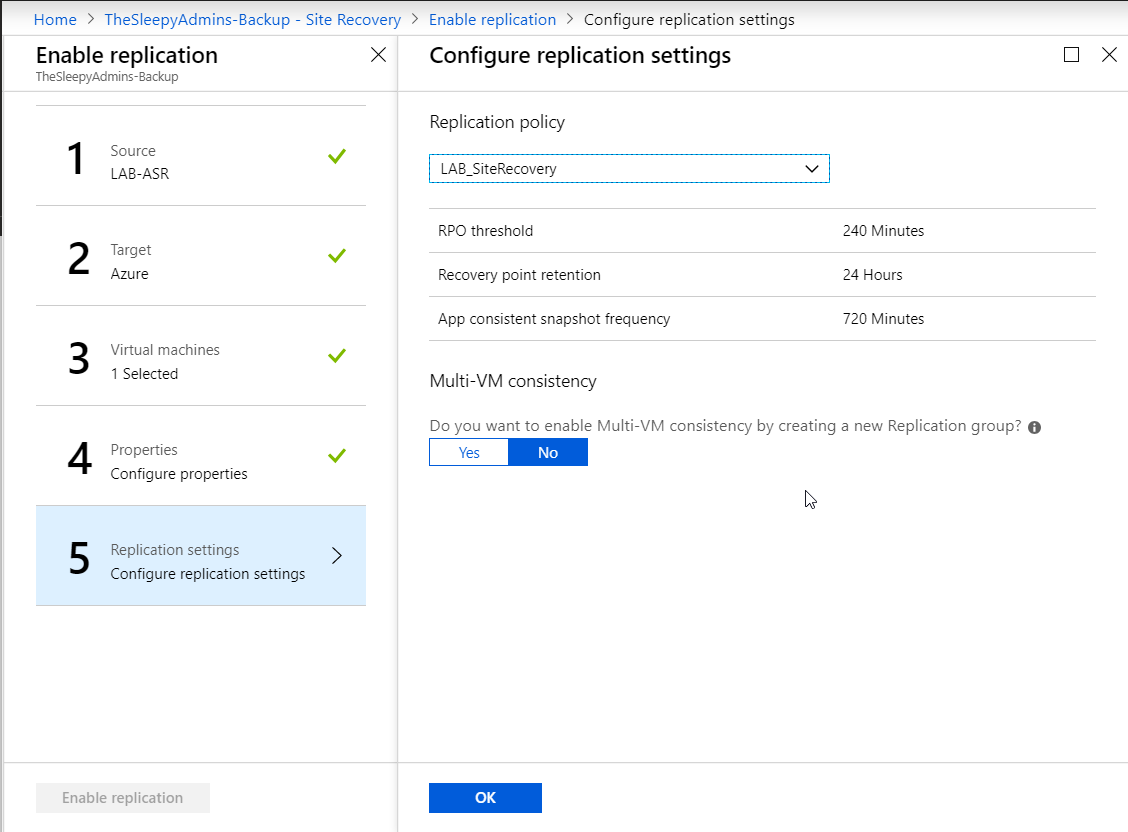
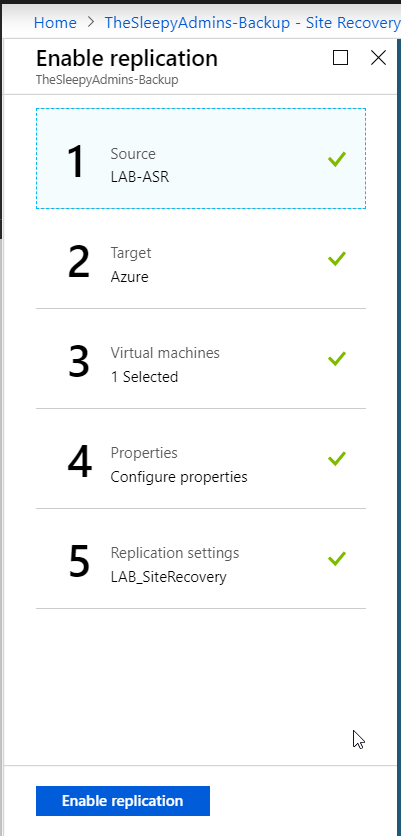
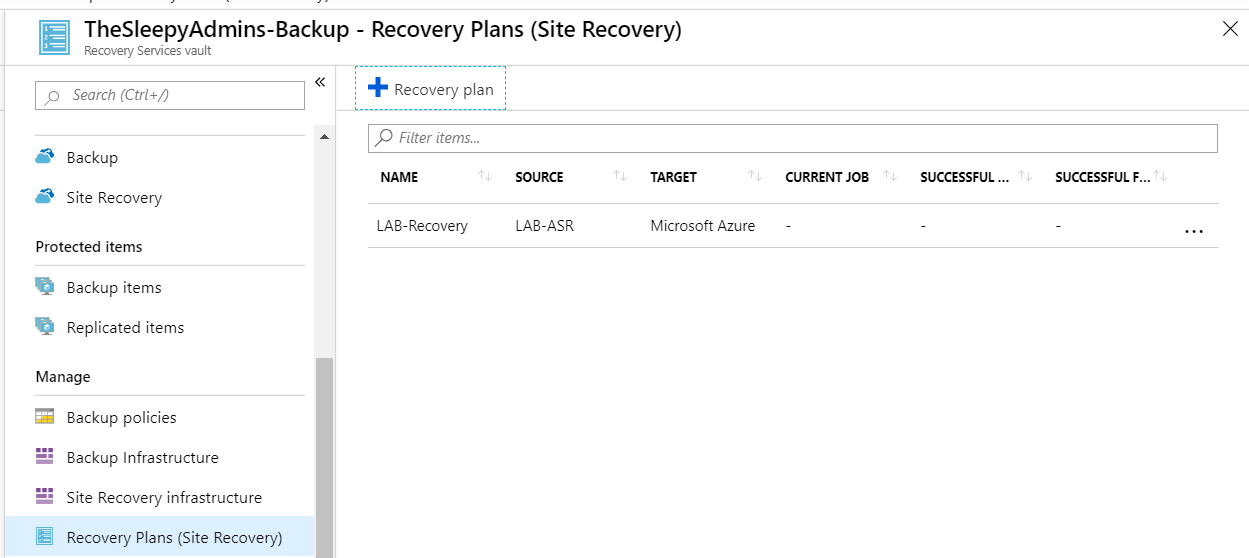
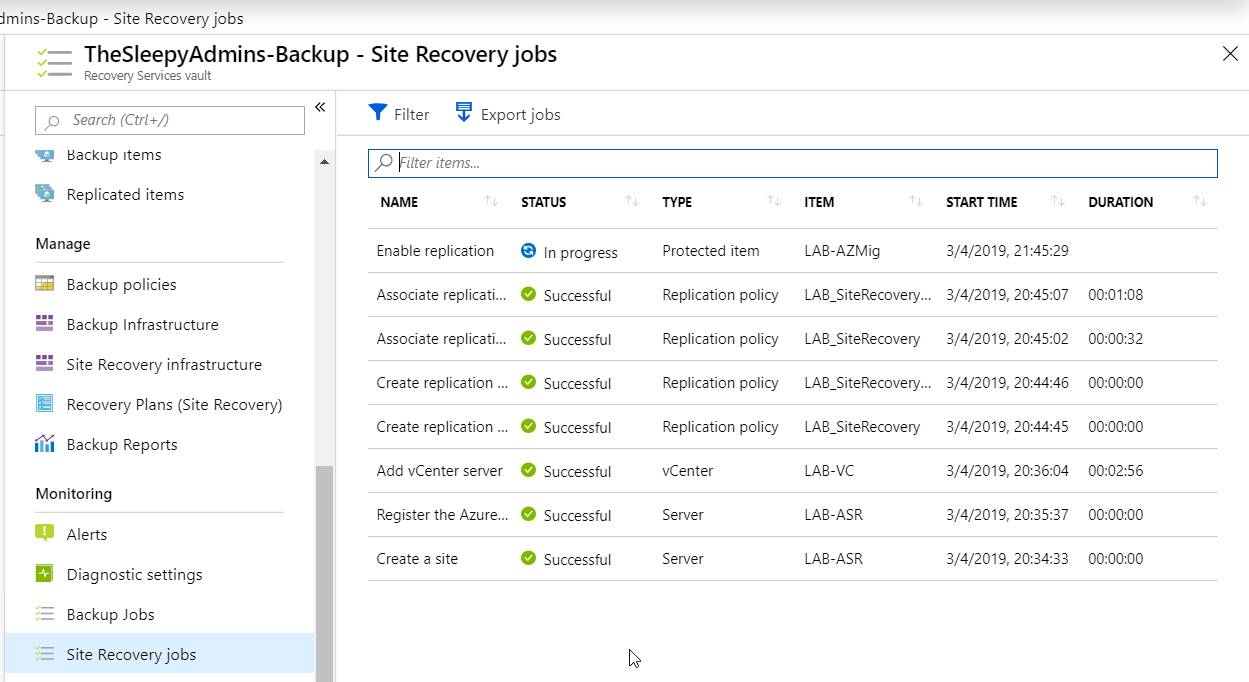 Once replication has completed we can create a recovery plan, go to recovery Plans (Site Recovery and select Recovery plan
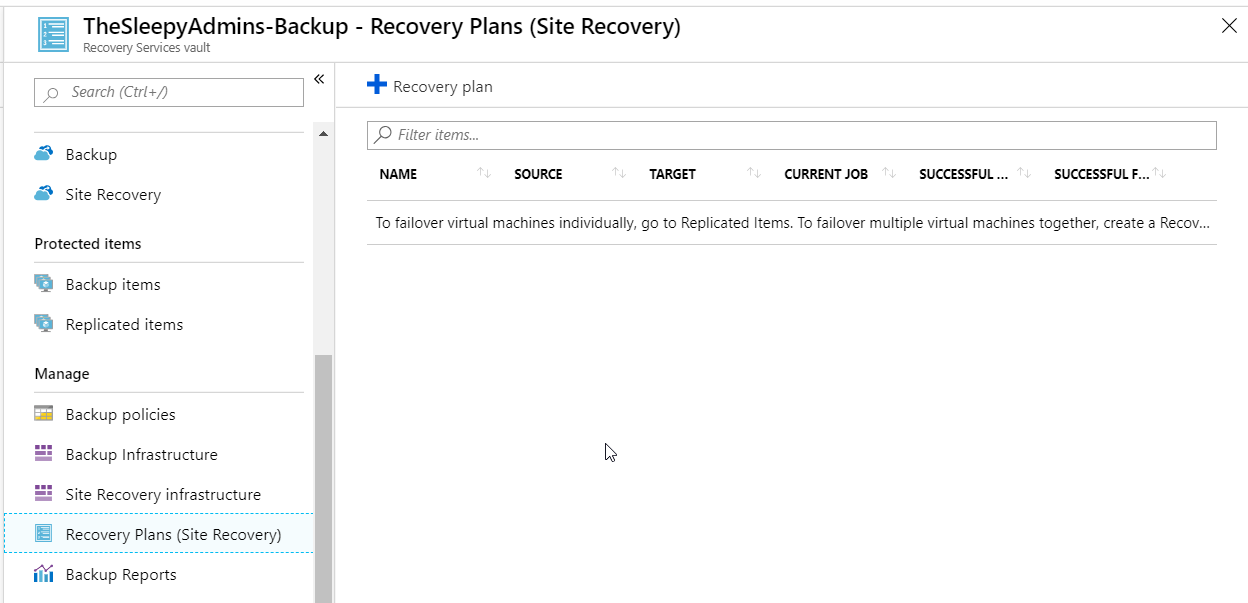 Give the plan a name, select source, target , deployment type and select the VM’s that will be added to the recovery.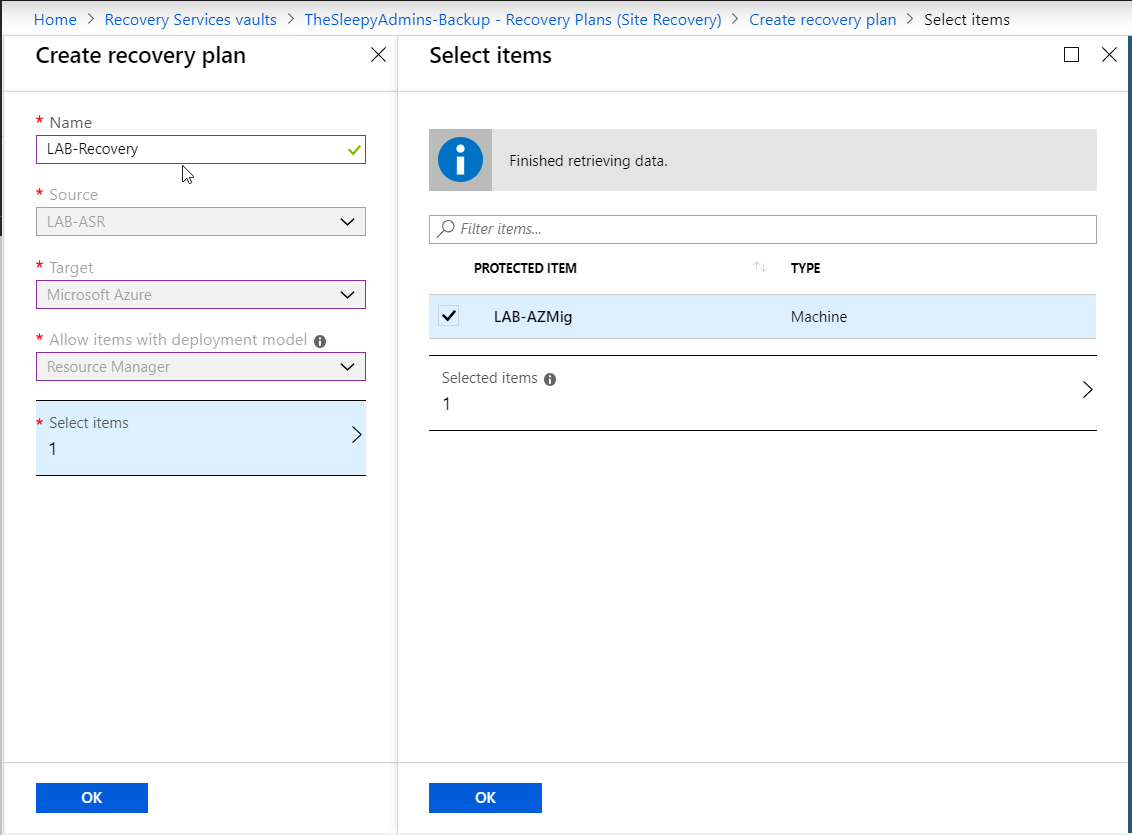

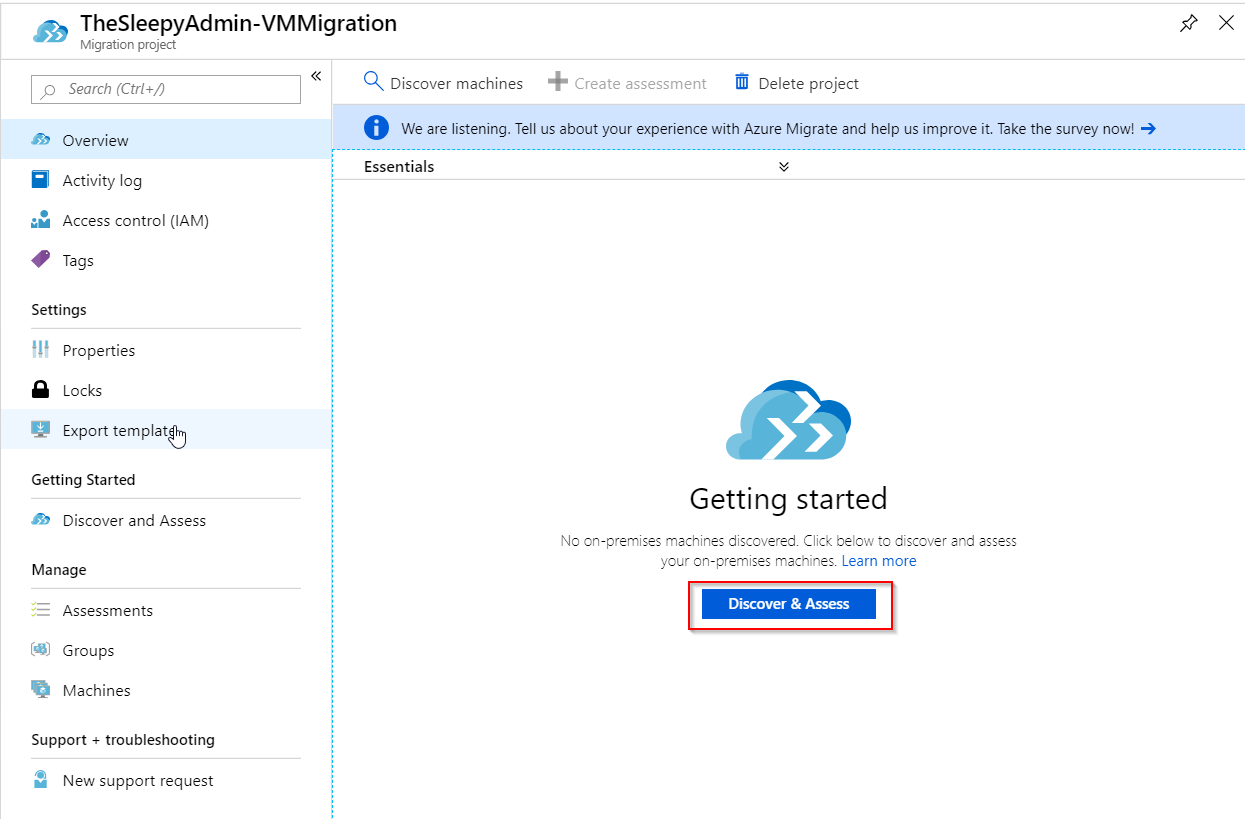
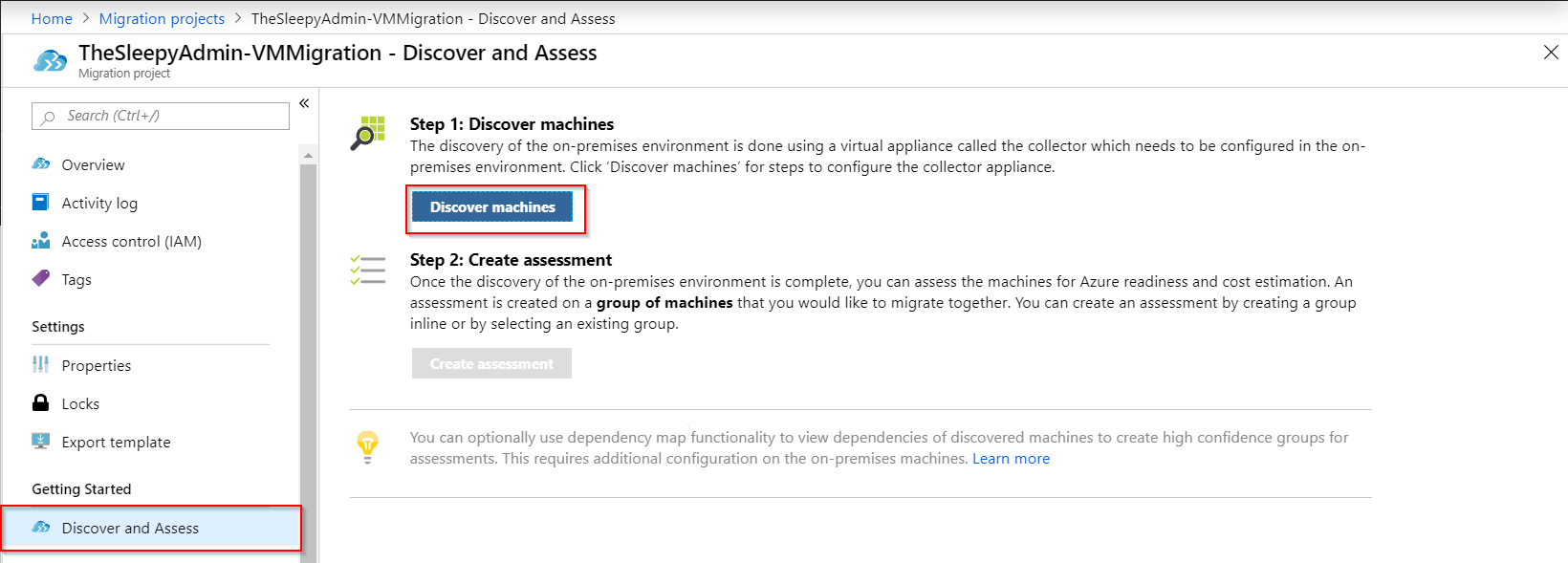 download OVA. The system requirement for the OVA are: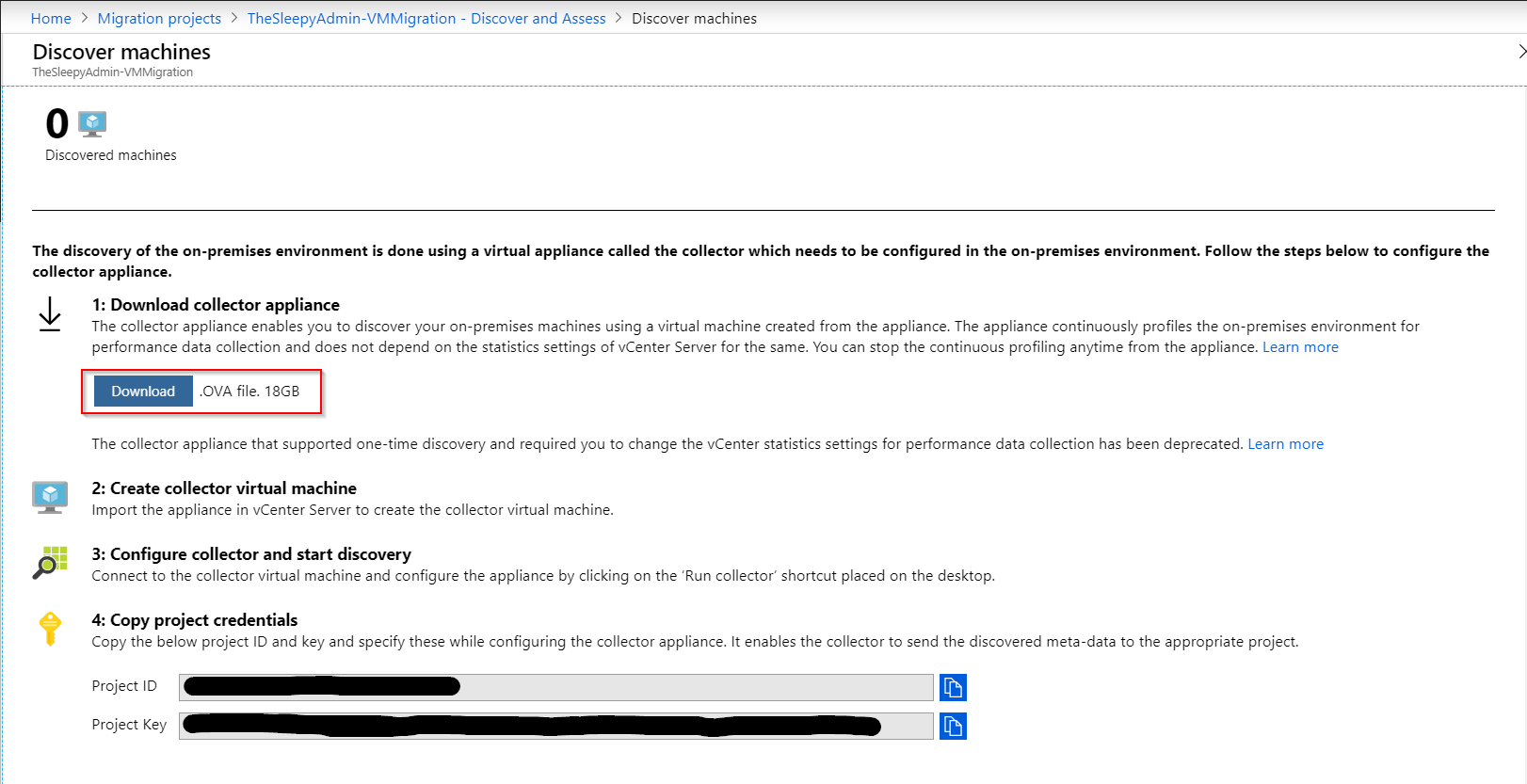
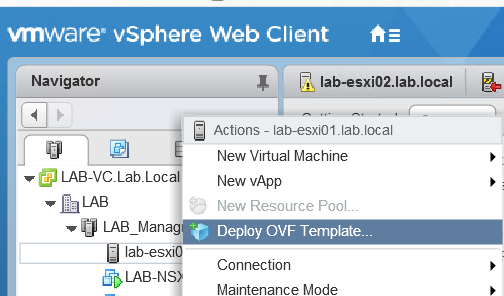
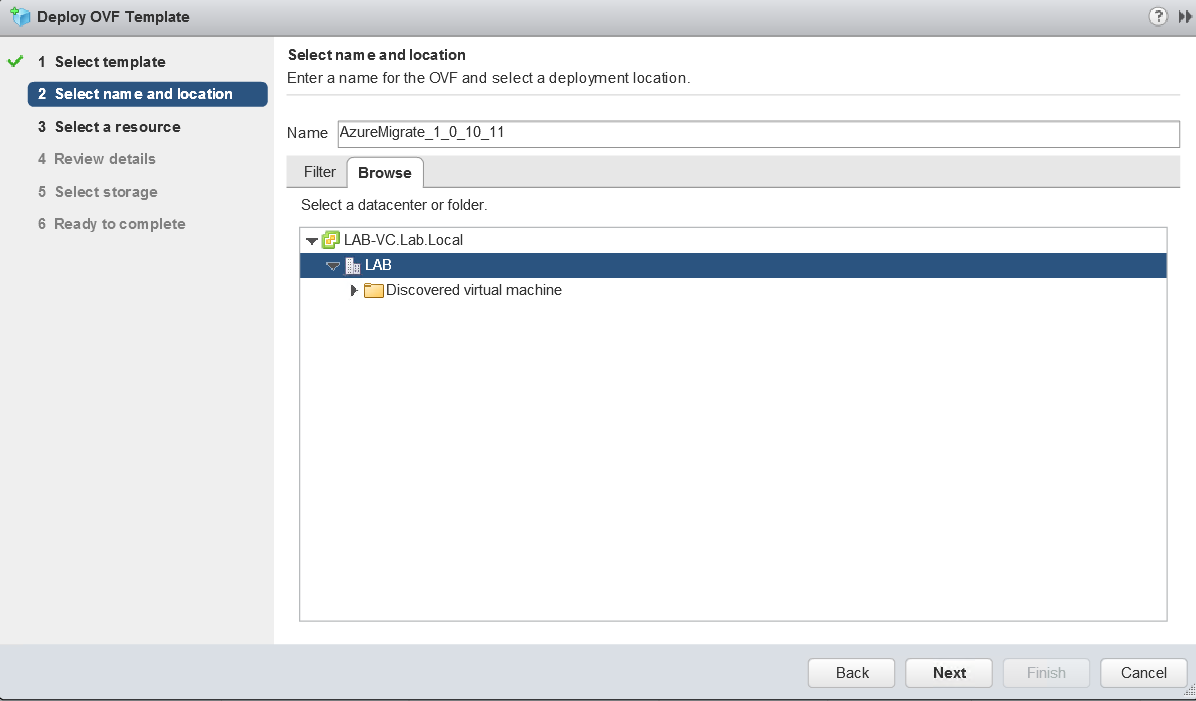
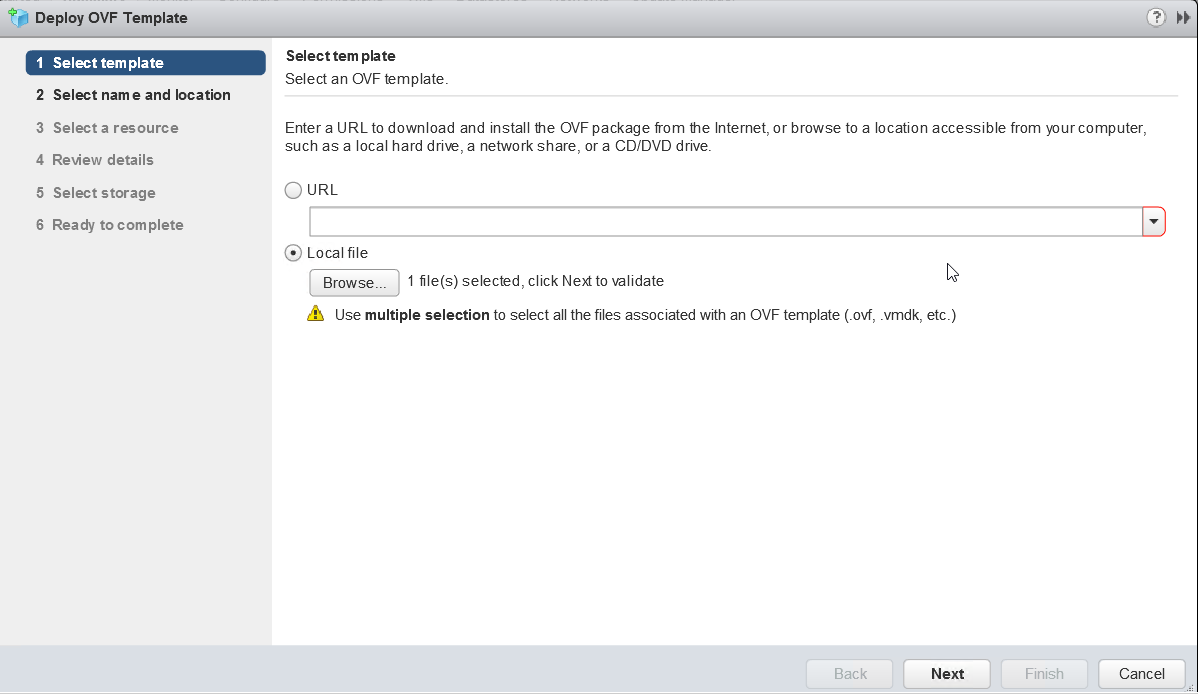 Select the Name and location of the OVA
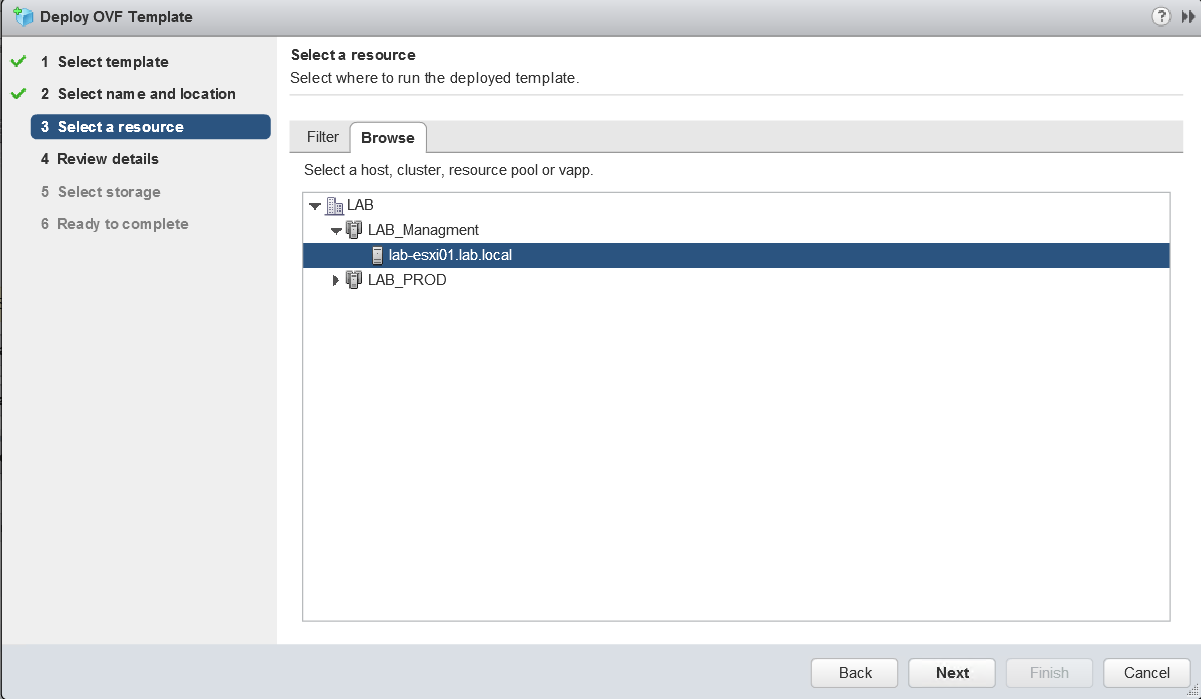
 Select the destination cluster
  Click Next
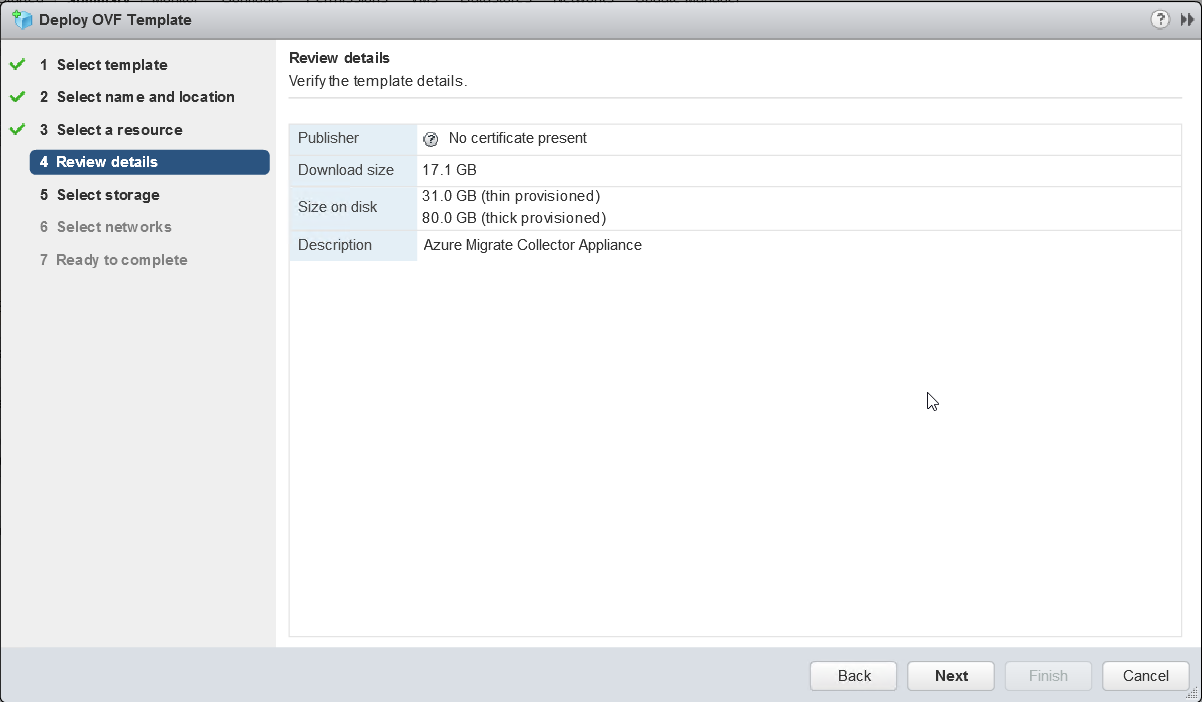 Select destination data store and specify either thick or thin provisioned disk
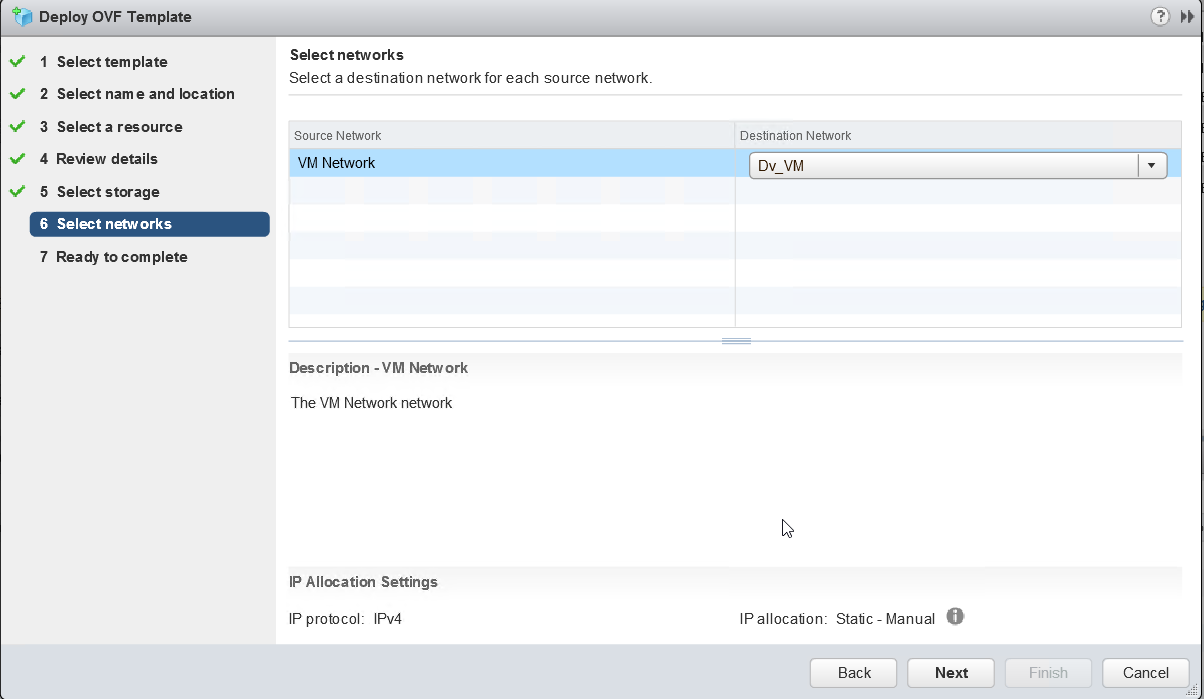
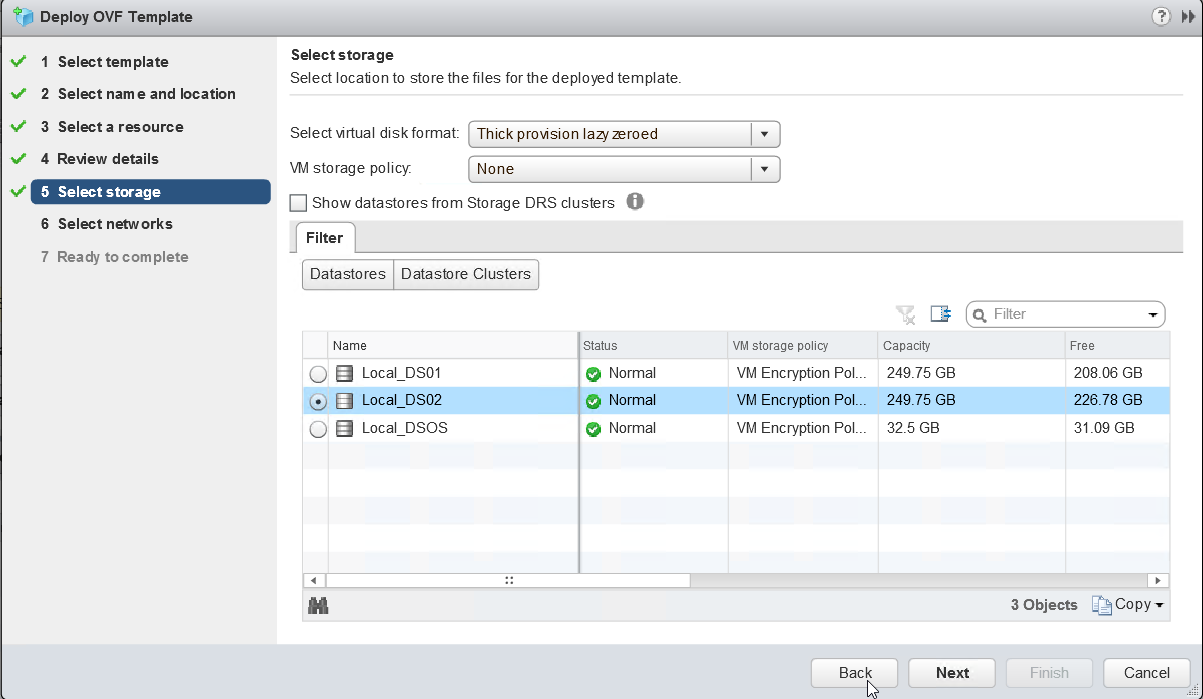 Select the port group tha the VM will use
 Review and confirm settings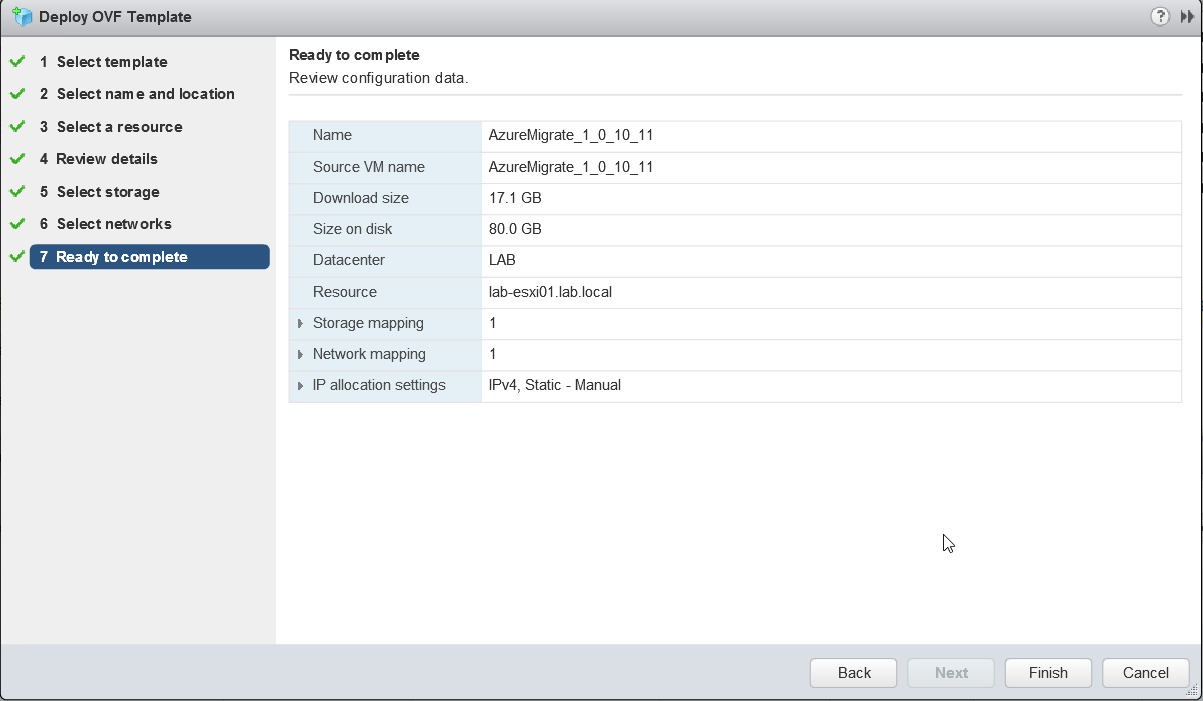




 TheSleepyAdmins