Configure Windows Hello for Business with Cloud Kerberos Trust

In this post we will be going through the process of setting up Cloud Kerberos Trust to allow Entra Joined devices to access on prem resources (FileShare, Web apps..).

Prerequisites

Before starting, ensure you have the following:

  • Microsoft Entra ID Tenant
  • Active Directory
  • Domain Admin and Global Admin rights
  • Intune license and admins rights to configure Windows Hello for Business settings.
  • Windows 10 or Windows 11 devices

I used this learn article to setup the cloud Kerberos trust.

https://learn.microsoft.com/en-us/windows/security/identity-protection/hello-for-business/deploy/hybrid-cloud-kerberos-trust?tabs=intune

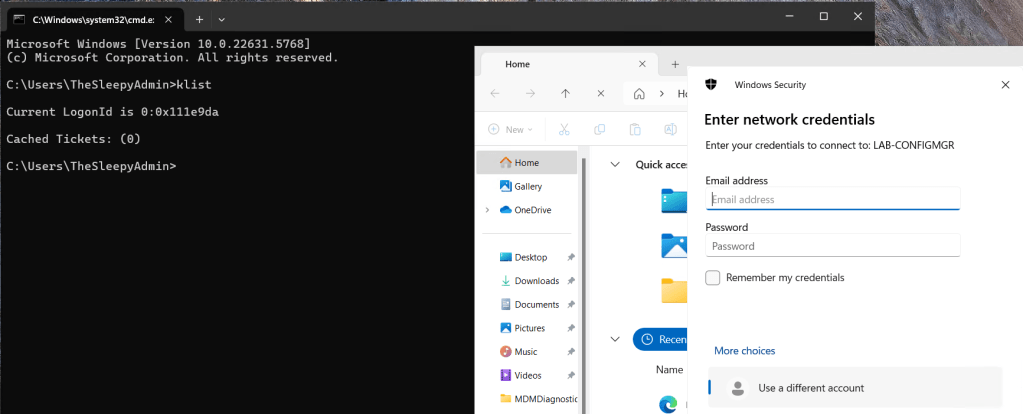
Currently when I try to access resource using a Entra only joined device I get prompted for my username and password by on-prem resources. This is due to NTLM being blocked and not being issue Kerberos tickets due to being a Entra Only joined device.

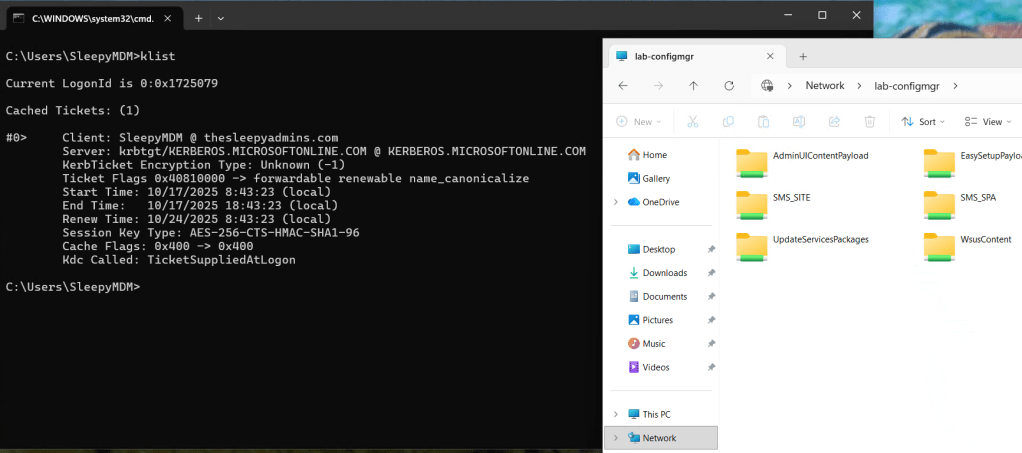
We can run klist to see if any Kerberos tickets have issues.
First we need to setup the AD object that will be used by Entra to generate Kerberos TGTs.

Open a PowerShell prompt using the Run as administrator option. Install the Azure AD Kerberos PowerShell module by running:

# First, ensure TLS 1.2 for PowerShell gallery access.
[Net.ServicePointManager]::SecurityProtocol = [Net.ServicePointManager]::SecurityProtocol -bor [Net.SecurityProtocolType]::Tls12

# Install the AzureADHybridAuthenticationManagement PowerShell module.
Install-Module -Name AzureADHybridAuthenticationManagement -AllowClobber

Run the following PowerShell commands to enable cloud trust Kerberos.

# Specify the on-premises Active Directory domain. A new Microsoft Entra ID
# Kerberos Server object will be created in this Active Directory domain.
$domain = $env:USERDNSDOMAIN

# Enter an Azure Active Directory Hybrid Identity Administrator username and password.
$cloudCred = Get-Credential -Message 'An Active Directory user who is a member of the Hybrid Identity Administrators group for Microsoft Entra ID.'

# Create the new Microsoft Entra ID Kerberos Server object in Active Directory
# and then publish it to Azure Active Directory.
Set-AzureADKerberosServer -Domain $domain -CloudCredential $cloudCred

This will then create a object in AD similar to a read only domain controller.

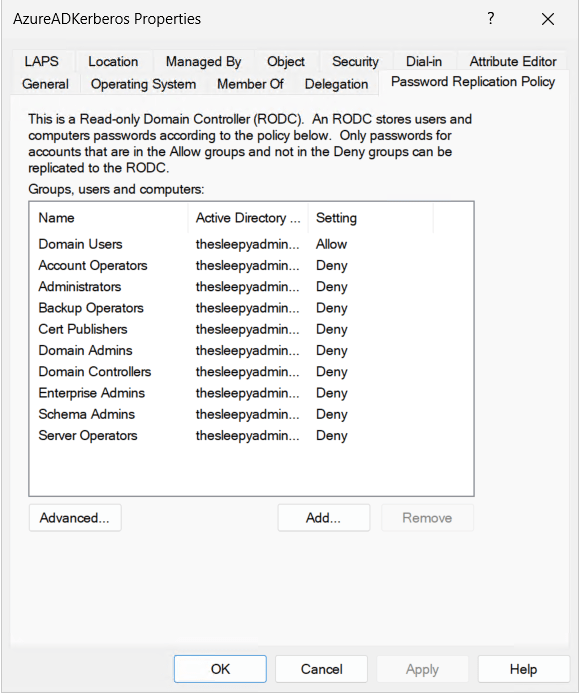
One thing to note is that if your account is part of a privileged group in AD, your password wont be replicated to this new object. We can check the group by going to the AD object and password replication tab. If your account is in any of the deny group you wont be issued Kerberos tickets.
Next we need to go to Intune and Configure the Windows Hello for Business policy.

Logon to the Intune Admin portal > Devices > Windows > Configuration > Create New Policy.
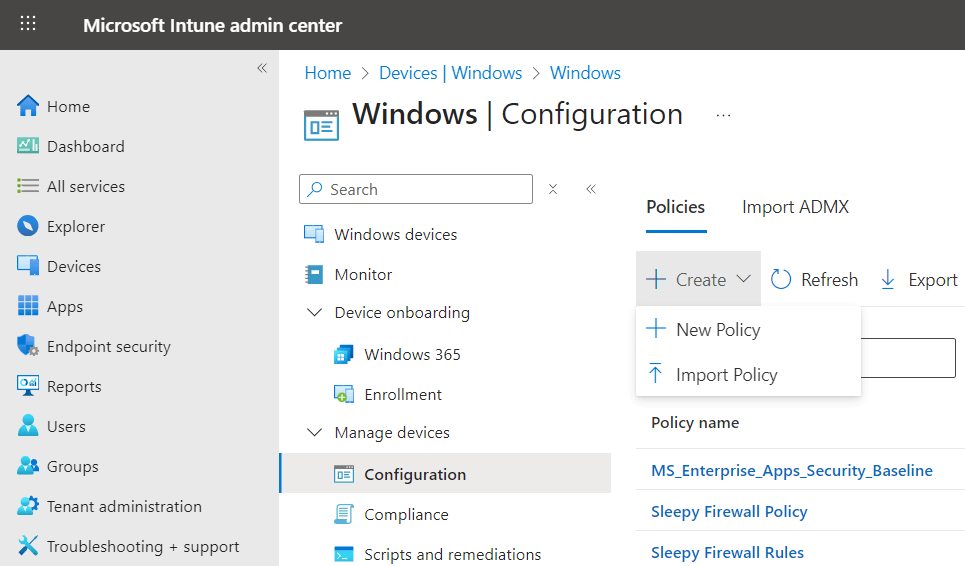
Select platform Windows 10 and Later and profile type Settings Catalog, click Create

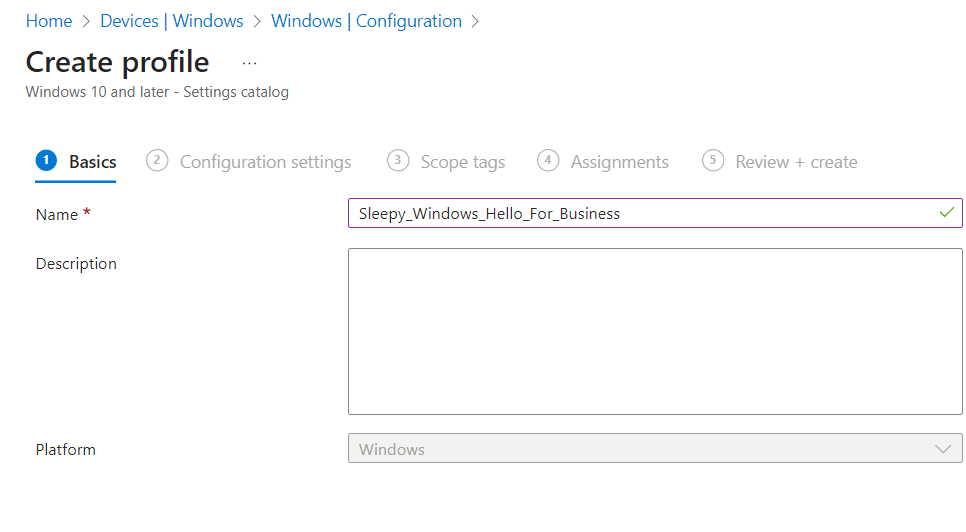
Give the policy a name and description.
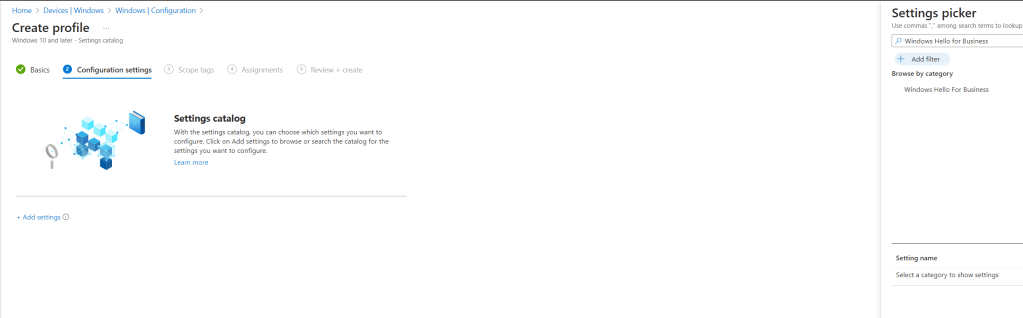
Click add settings and search for Windows Hello for Business.
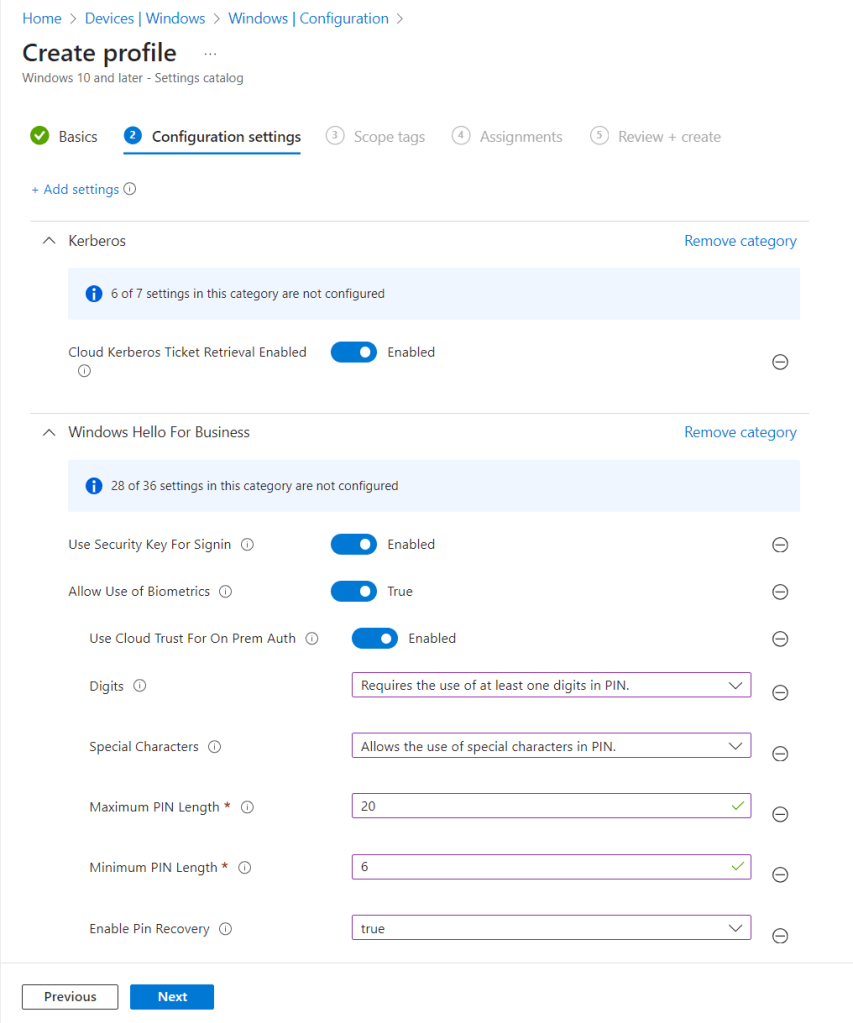
I used the below settings for my pin and we need to enable use cloud trust for on prem auth and Cloud Kerberos Ticket Retrieval.
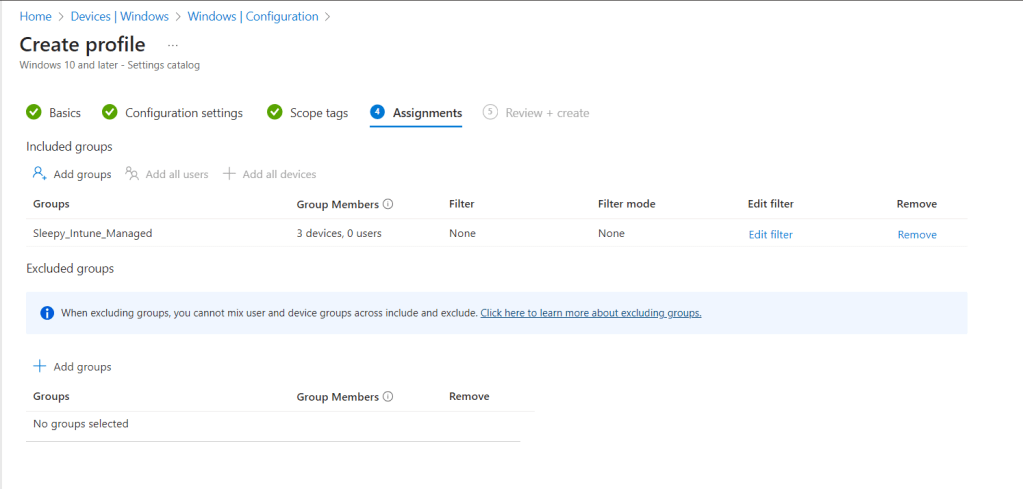
I left scope as defualt and apply the policy to my Intune Managed group.
Once the policy is applied we can connect back to the asset and restart.

On the next logon if we check we should now be able to connect to onprem resources and get issued Kerberos tickets.
This has been a quick run through of Setting up Cloud Kerberos Trust.
Entra Hybrid: Enroll Hybrid Joined devices to Intune using Group Policy

In this post we will be going through the process of enrolling hybrid joined devices to Intune. There are a few different methods to enroll but in this post we will using GPO to enable auto enrollment.

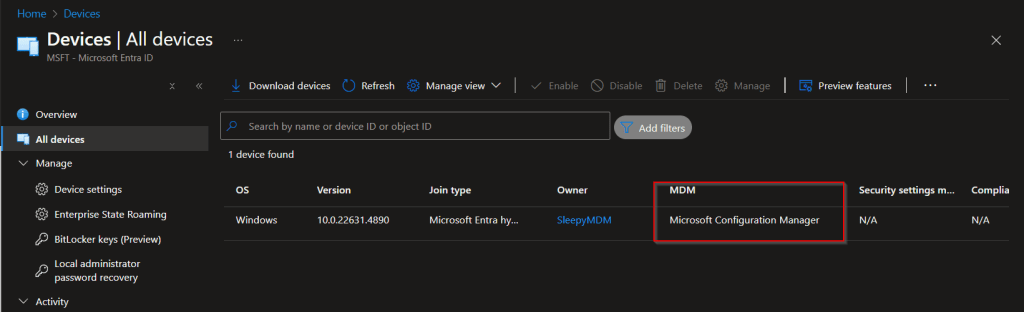
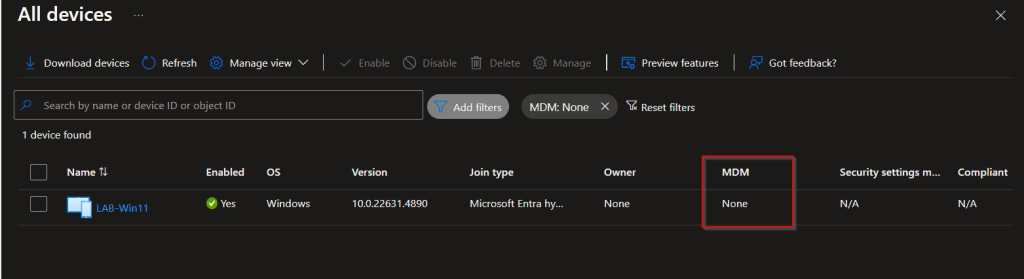
First we need to confirm that MDM is not set on the device. Log on to Microsoft Entra ID portal and go to all devices.

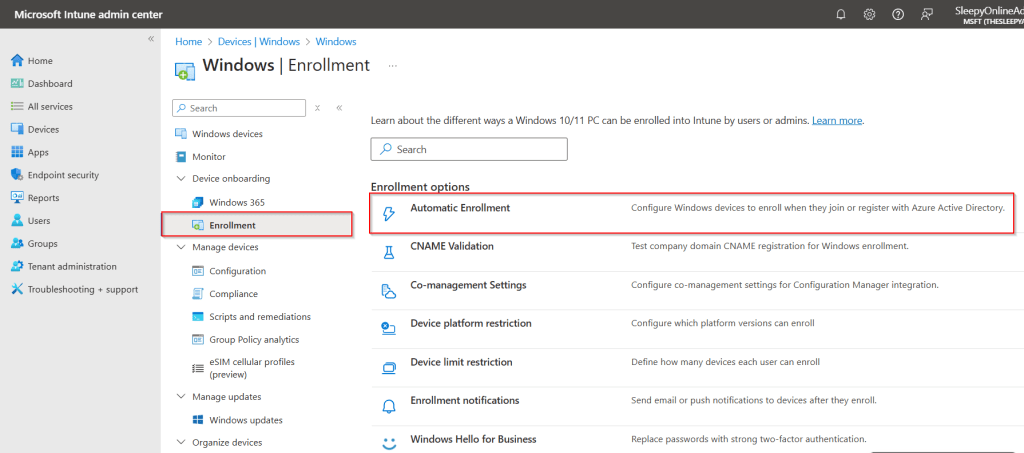
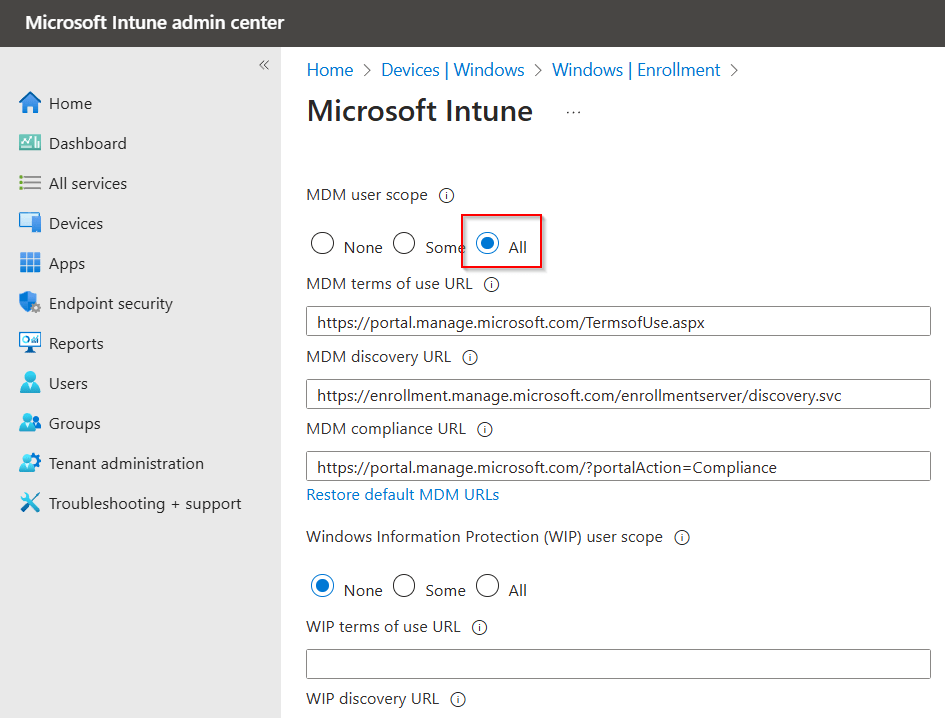
Next we need to check that auto enrollment is enabled, go to Intune > Devices > Windows > Automatic Enrollment.

We can either scope MDM to some users or all (we will enabled for all).

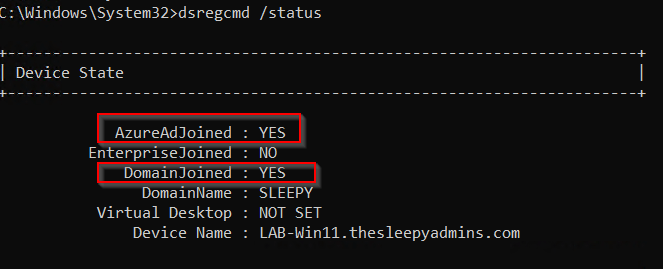
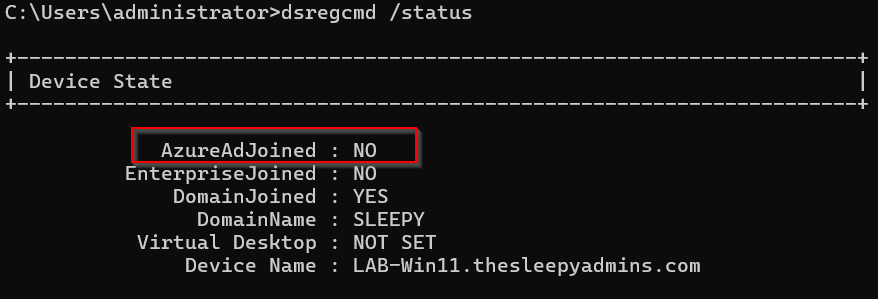
Next we need to confirm the devices that we are trying to enroll is hybrid joined, we can use dsregcmd /status to check the device state.

Once we confirm MDM User enrollment is enabled and the device is hybrid joined, we can create the group policy.

Open gpmc.msc on the domain controller or admin workstation.

Right Click Group Policy Object, click New and give it a name.
Right click on newly created GPO and click Edit
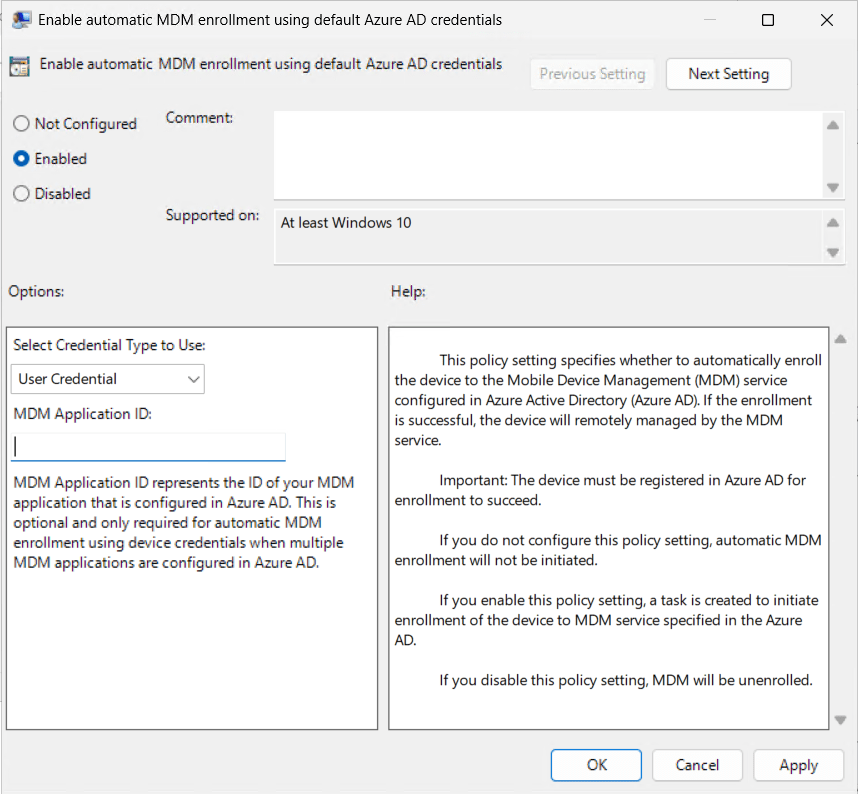
go to Computer Configuration > Policies > Admin Templates > MDM and Double click Enable automatic MDM enrollment
Select Enable, select User Credentials under Select Credential Type.

Next, we need to link the group policy with the OU where the Hybrid joined devices are located.

In group policy, right click on the OU, click link an existing GPO, select Group Policy that we created.

Go to the device and run GPUPDATE /force

It can take a while for the client to register in the Azure portal. Once it has should see MDM change in my case its to ConfigMgr as I still have the ConfigMgr agent installed.

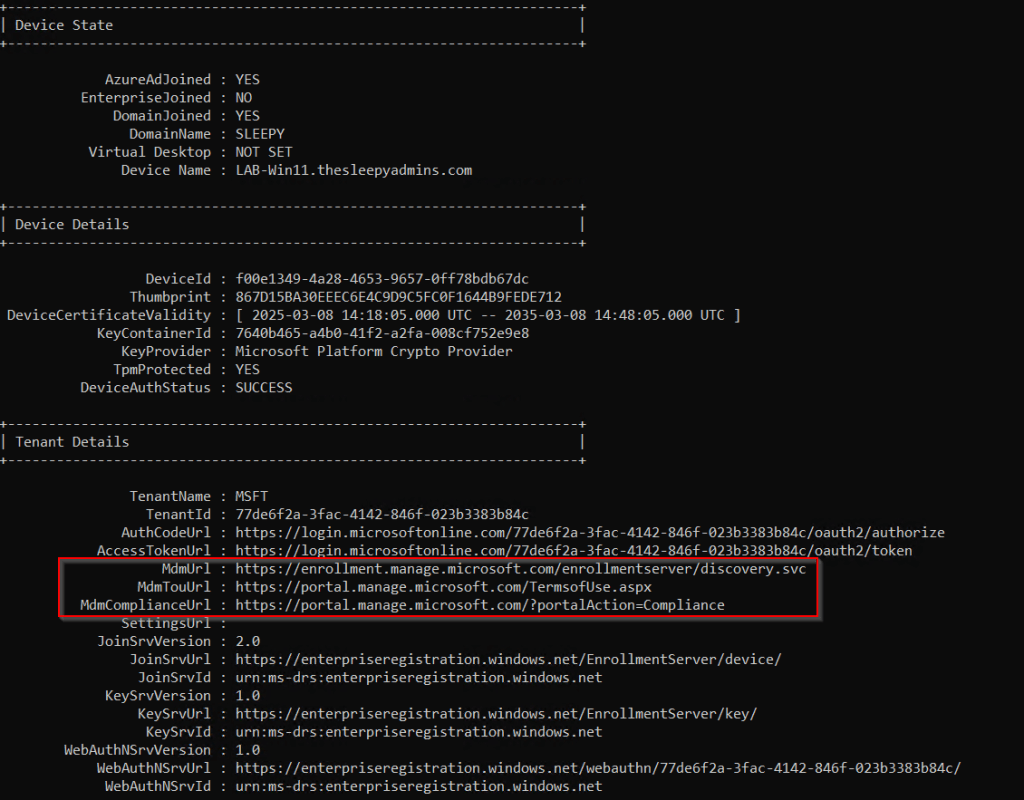
We can run dsregcmd /status to view that the MDM urls have been configured.

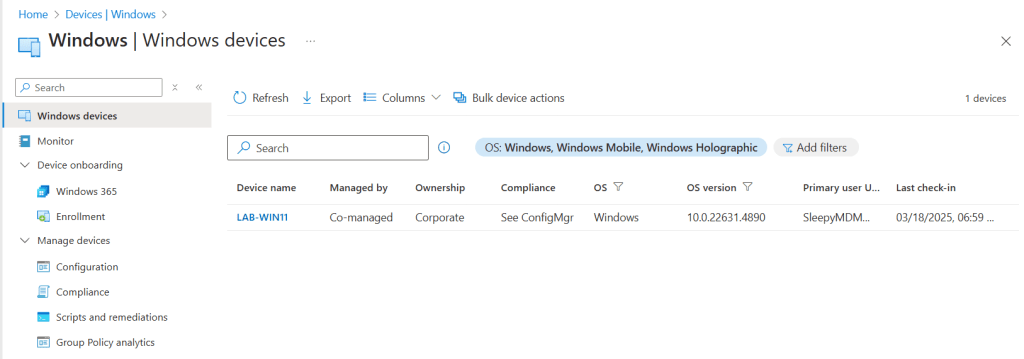
We can also check Intune to confirm the device shows.

This was a quick overview of setting up auto enrollment for hybrid devices to Intune.

Configure Microsoft Entra hybrid join

In this post we will going through the process of enabling and setting up Entra ID hybrid with on-premises AD join.

There is some debated on whether companies should go with hybrid join or Entra ID joined. The decision should be based on business requirements, if there is very little on- premises resources and no required for legacy application then the move to fully cloud managed is most likely the best option but for larger organization that have on-premises resources, then doing hybrid join can be a good alternative till full cloud management can be implemented.

Below are the prerequisite for setting hybrid join

  • Microsoft Entra Connect 1.1.819.0 or later
  • Account with Hybrid Identity Administrator on your Microsoft Entra tenant.
  • Enterprise administrator credentials for each of the on-premises Active Directory Domain Services forests.
  • Users can register their devices with Microsoft Entra ID. More information about this setting can be found under the heading Configure device settings, in the article, https://learn.microsoft.com/en-us/entra/identity/devices/manage-device-identities#configure-device-settings
  • The OU which contains the computer accounts that need to be synced must be selected in Entra Connect.

I would recommend reviewing Plan your Microsoft Entra hybrid join implementation article before enabling.

https://learn.microsoft.com/en-us/entra/identity/devices/hybrid-join-plan

If you need to know how to configure Microsoft Entra Connect see previous blog post. https://thesleepyadmins.com/2025/02/17/install-and-configure-microsoft-entra-connect/

We can either enabled hybrid join during the initial install of Entra Connect, but in this case we will be adding the feature to an existing Entra Connect deployment.
First we can check the status of the client to confirm we are not using hybrid joined by running the below command.
dsregcmd /status

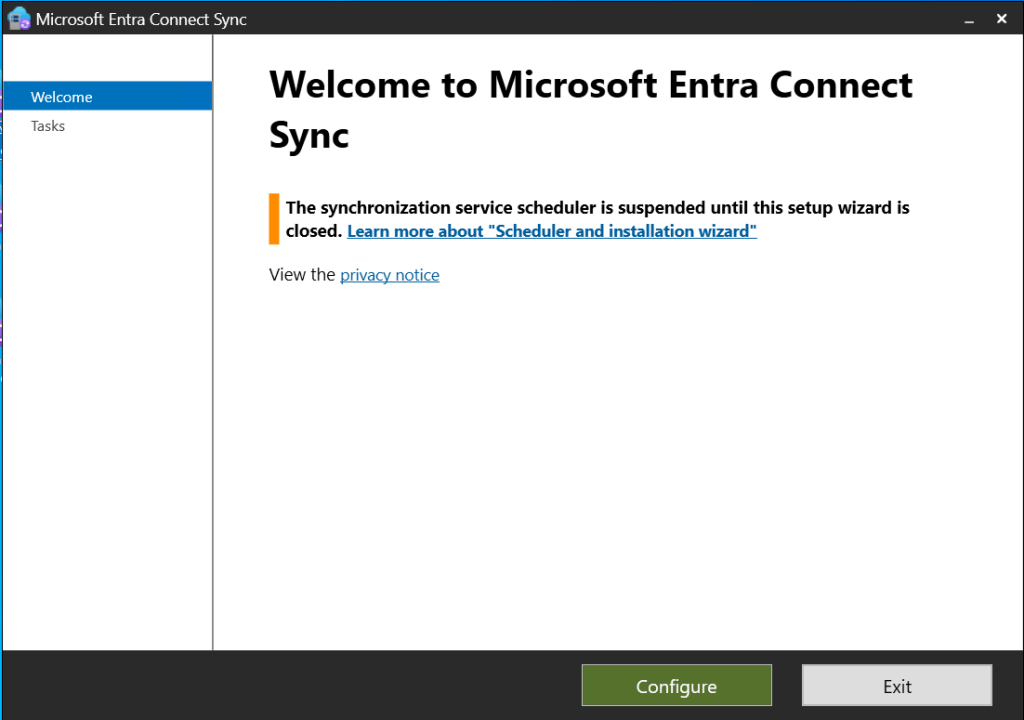
Next to configure hybrid join we need to open Microsoft Entra Connect sync configuration application.

Select configure.

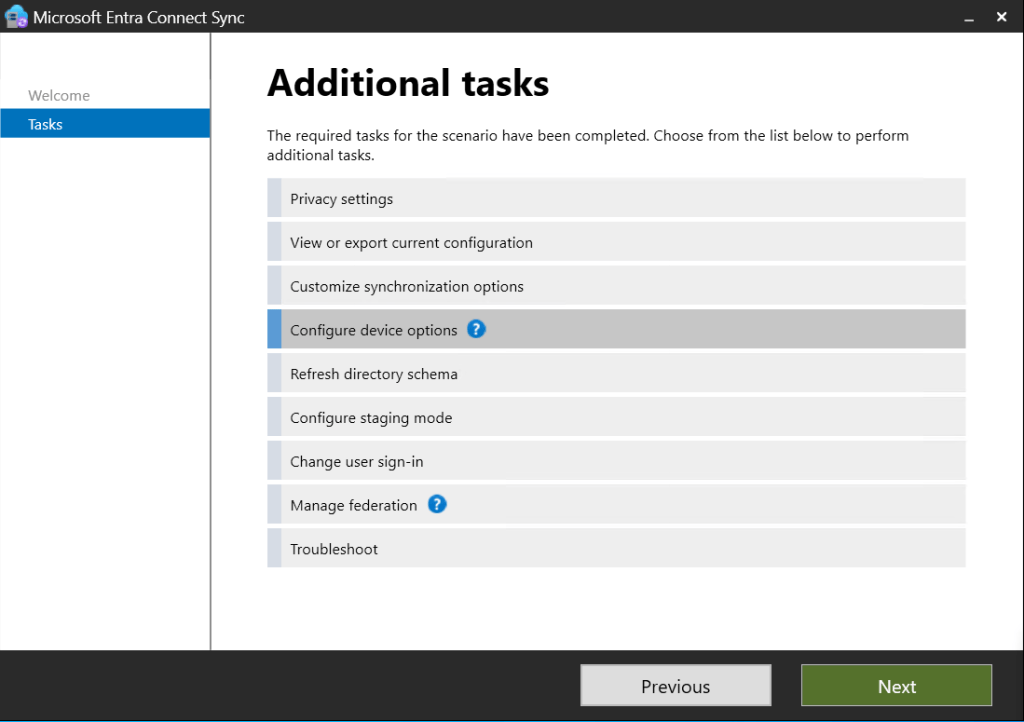
Next on tasks tab select Configure device options.

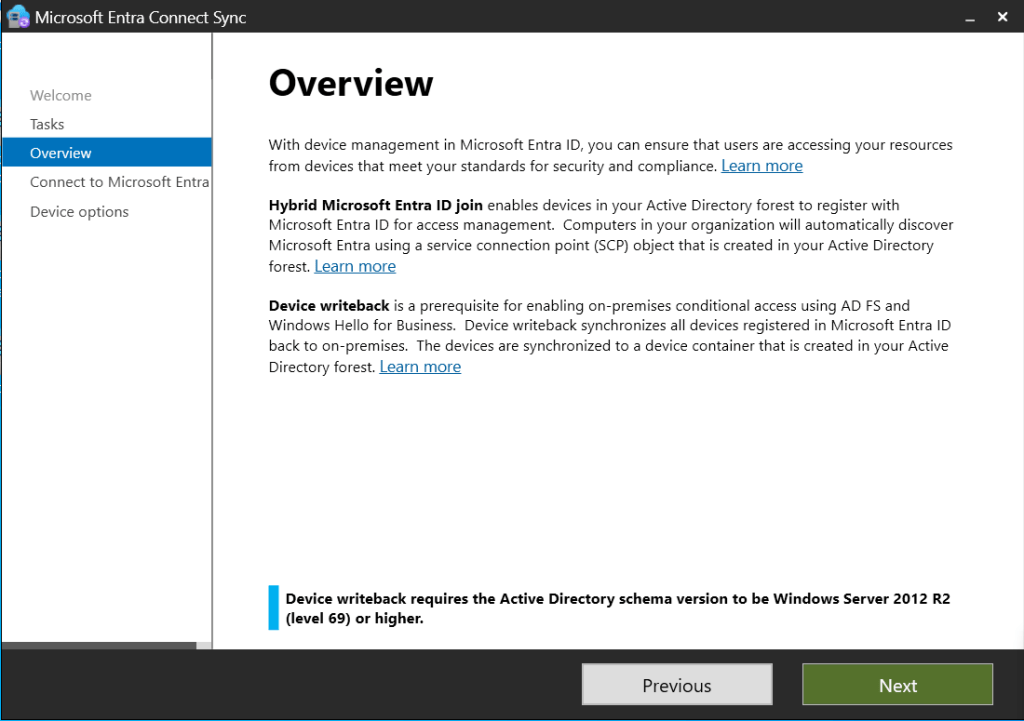
Check the overview

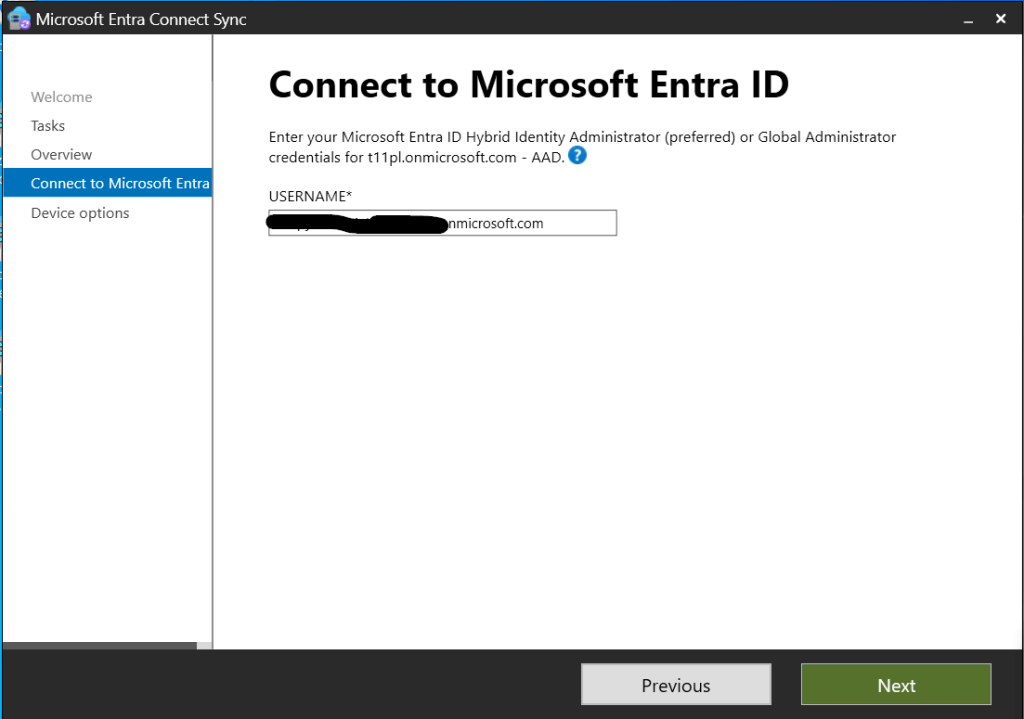
Enter the usersname and password for the account with Hybrid Identity Administrator.

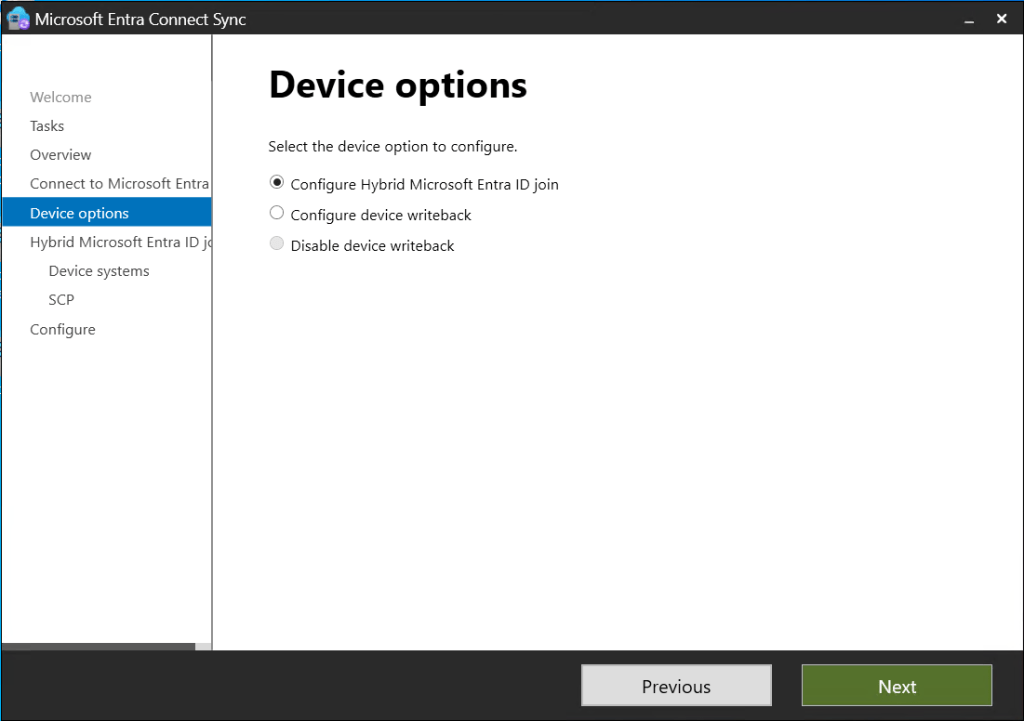
Select Configure Hybrid Microsoft Entra ID join.

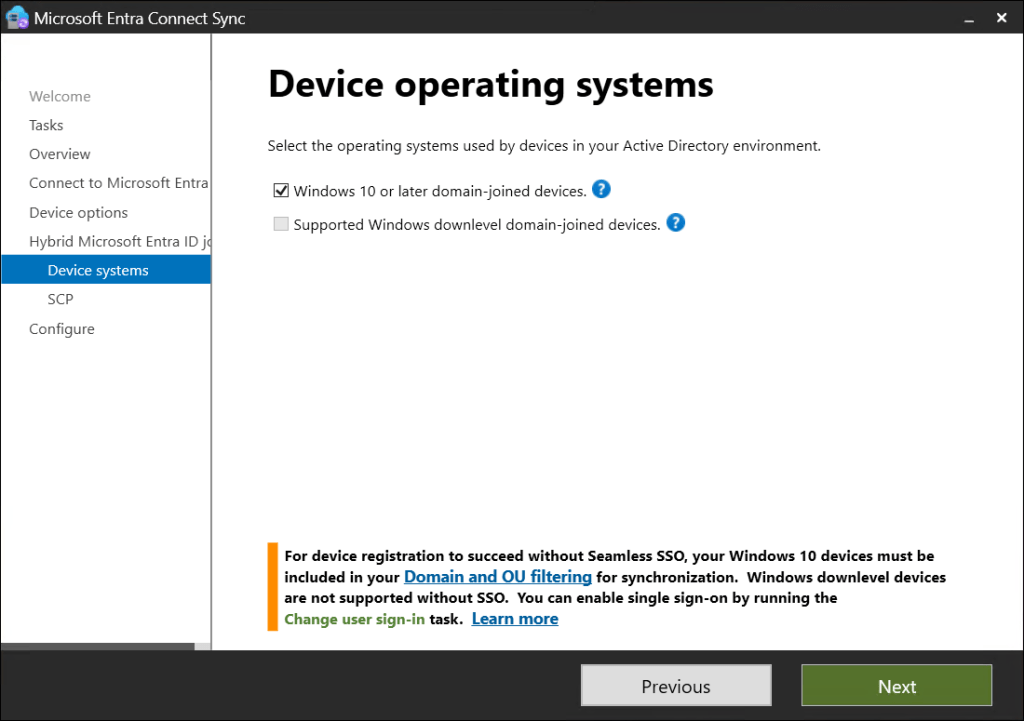
Windows 10 or later domain-joined devices.

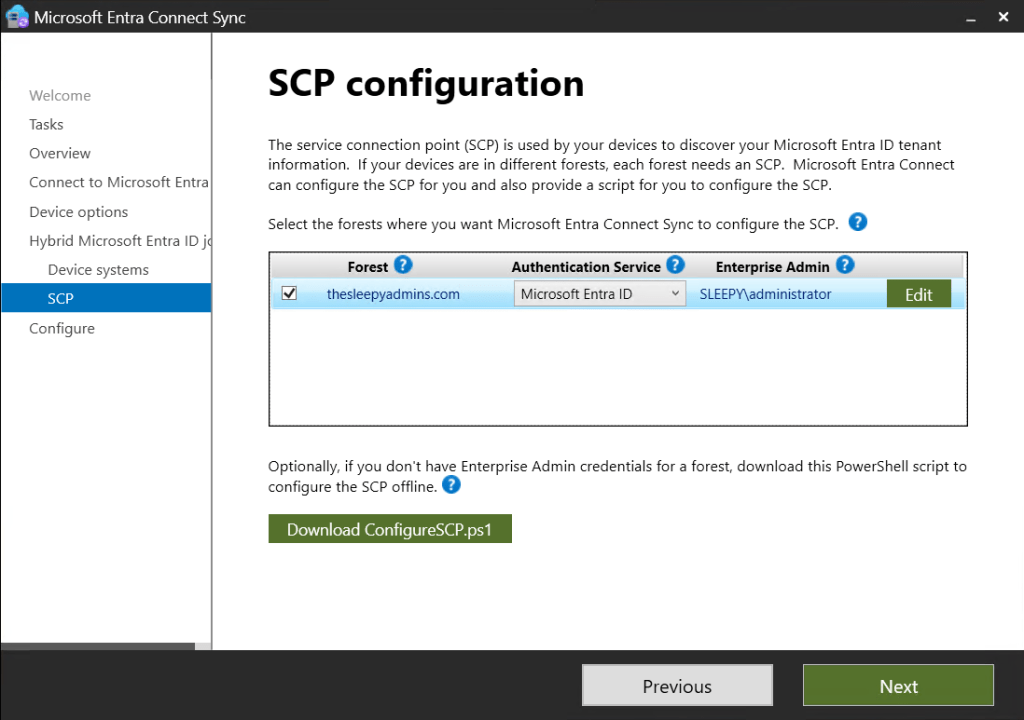
Select the domain to create the service connect point, the account used must be a enterprise admin.

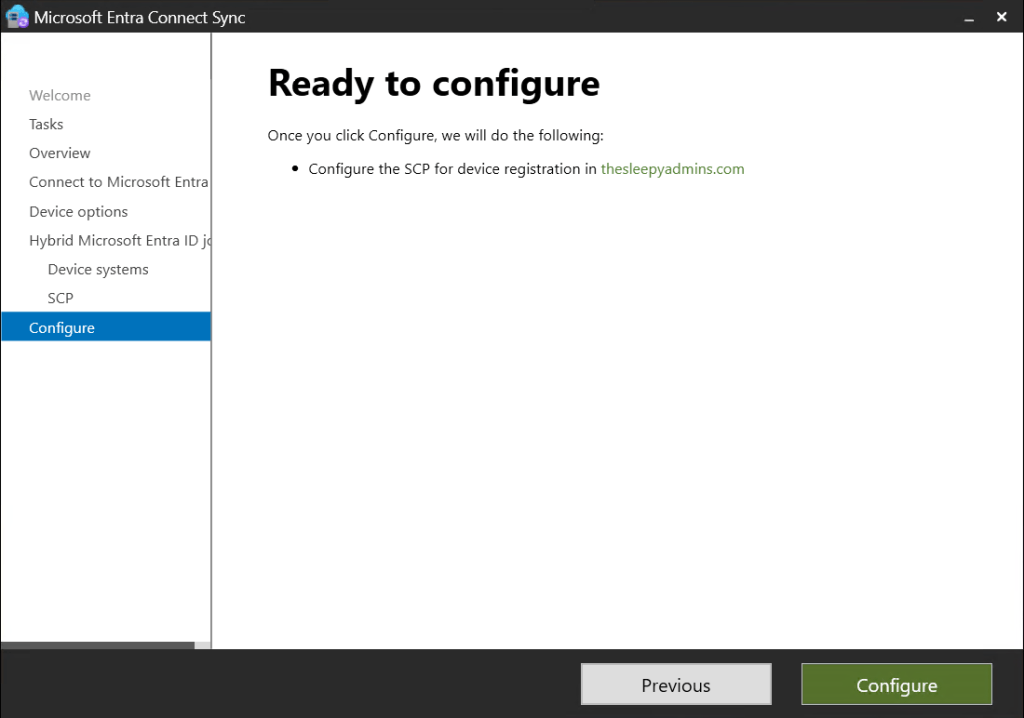
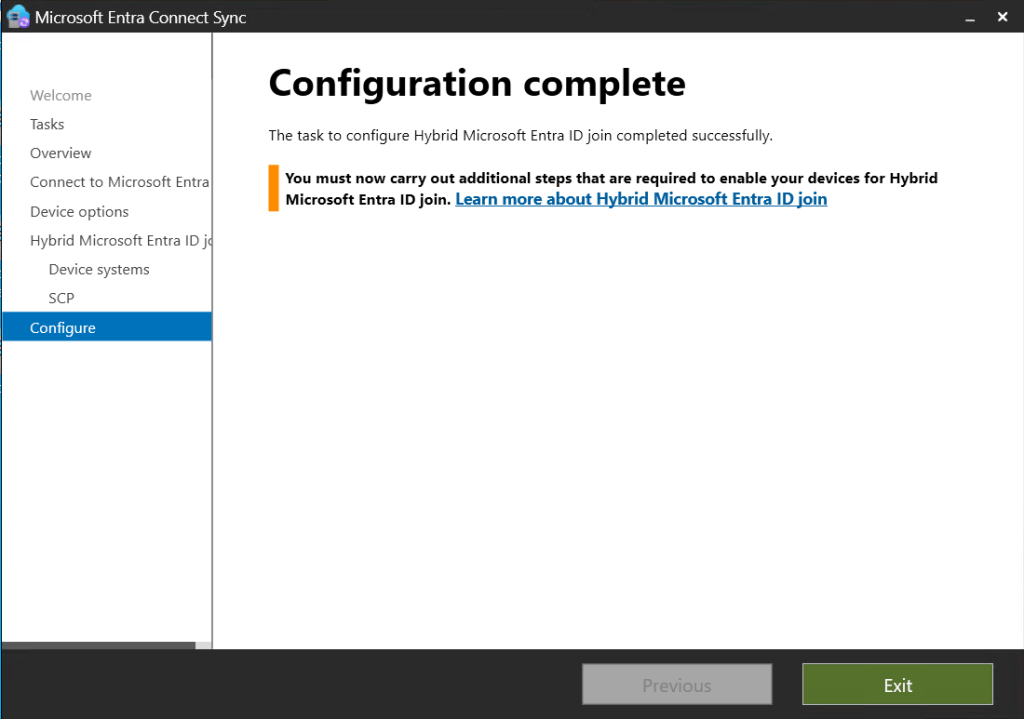
Click configure to start the deployment of the configuration.

Once completed exit the console.

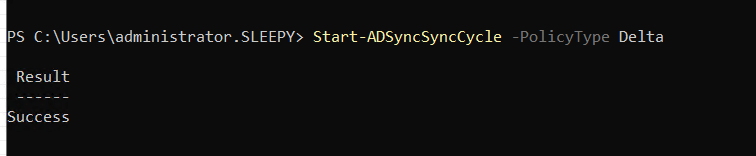
We can now run a delta sync using the below PowerShell command.

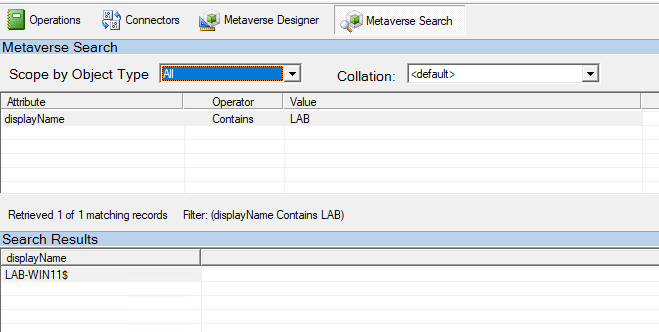
We can check the metaverse search to show if the device has been synced.

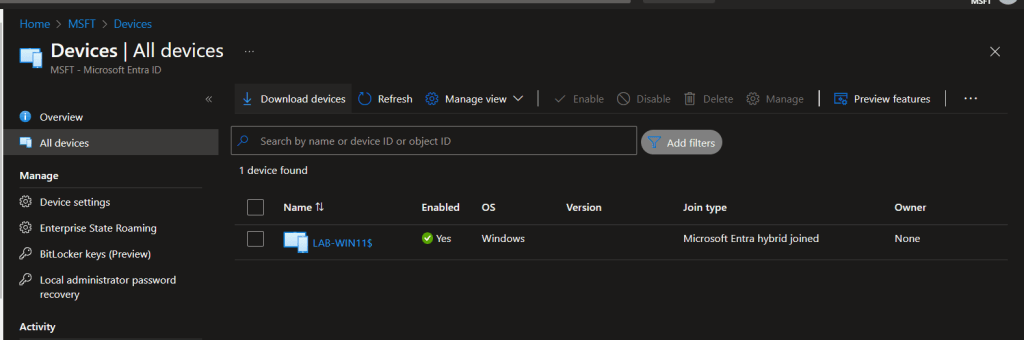
We can also confirm by going to Microsoft Entra ID > Devices > all devices and confirm the devices is now showing.

We next need to restart the device, then run the dsregcmd again to confirm if we are now showing as hybrid joined.

dsregcmd /status

This has been a overview of setting up Microsoft Entra Hybrid join.

Install and configure Microsoft Entra Connect

In this post we will be going through the process of installing and configure Microsoft Entra Connect to sync on premises AD object to Microsoft Entra ID.

We will be syncing users and groups.

We will be using a dedicated server you can co locate on another server but it best to have a dedicated server or Entra Connect. The server must be domain joined.

We will need an account with Global Admin rights on the tenant we want to sync too and Enterprise admin in AD that we will be syncing.

The account can be setup temporary and remove the rights after Entra Connect is setup as we will let it configure its own accounts with required rights during the install.

Entra Connect Pre-reqs

  • .NET Framework 4.6.2 or later
  • Domain-joined Windows Server 2016 or later
  • TLS 1.2 enabled
  • SQL (Can select to use SQL Expresses during install or use full SQL)
  • Domain we want to sync is external routable not .local and has been verified in the M365.

To view the prerequisites for see below link .

https://learn.microsoft.com/en-us/entra/identity/hybrid/connect/how-to-connect-install-prerequisites

TLS script to check and enabled required TLS settings.

https://learn.microsoft.com/en-us/entra/identity/hybrid/connect/reference-connect-tls-enforcement

We can download the Entra Connect installer from here.

https://www.microsoft.com/en-ie/download/details.aspx?id=47594

Once we confirm all permission, pre req and firewall rules are in place we can start to configure Entra ID.

Run the AzureADConnect.msi installer and agree to the license terms and click Continue.

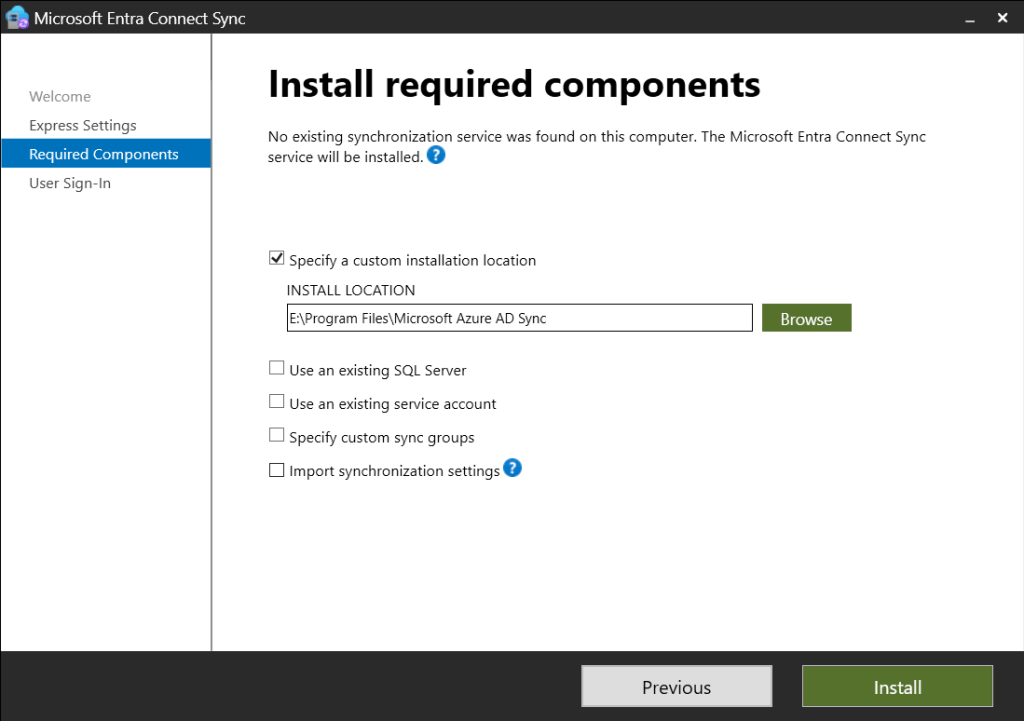
    We can either select custom or express install. We will use custom to select a specify install location but this can be use to set an existing SQL server or use pre configure service accounts also.

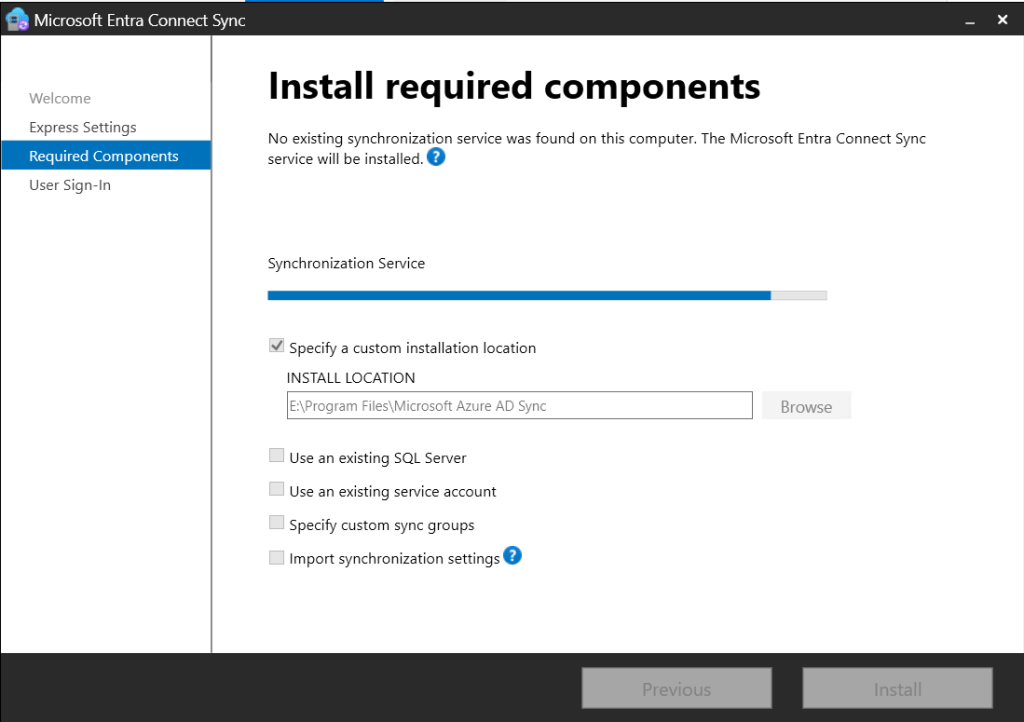
    Click install once all settings are configured.

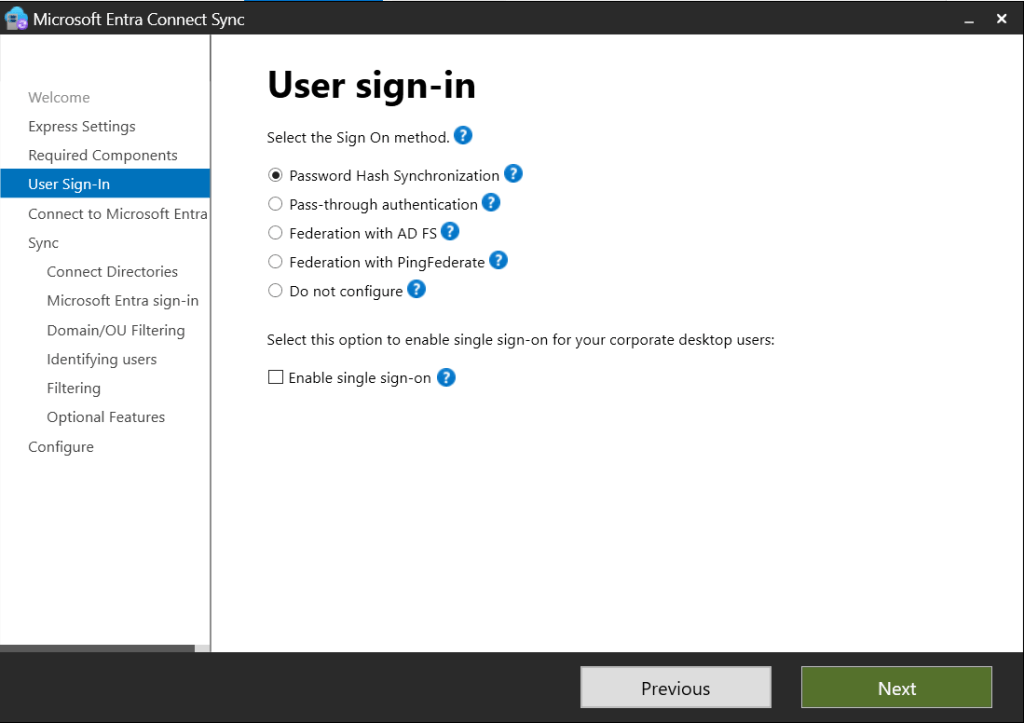
    Next we need to configure the sign in options. We will be using Password hash synchronization below link outlines each type.

    https://learn.microsoft.com/en-us/entra/identity/hybrid/connect/plan-connect-user-signin

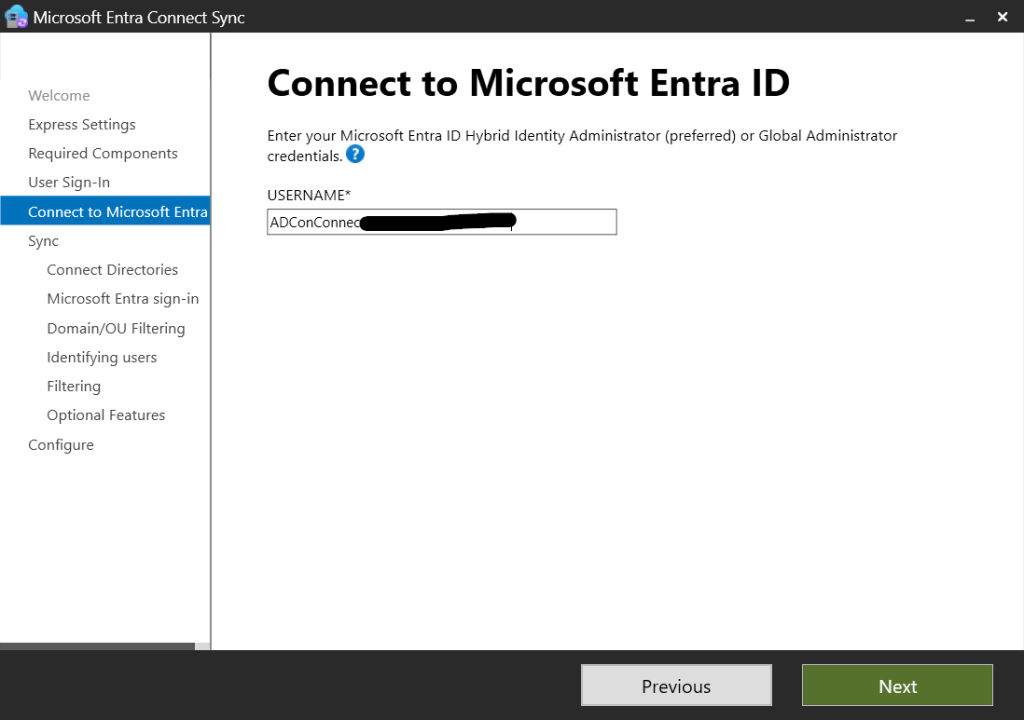
    Next enter the account with Hybrid Identity Administrator or Global Administrator.

    Enter the password and MFA prompt if required.

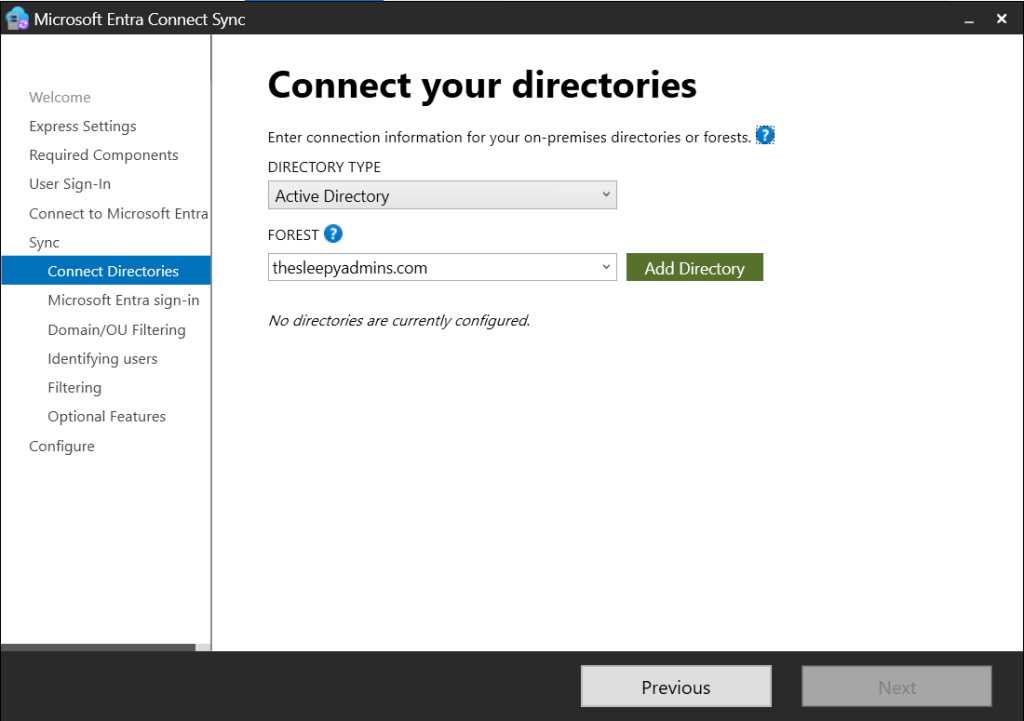
    Next we need to select the domain and click add directory.

    Enter the credentials for the enterprise admin and select to create a new account or use an existing account.

    Click ok and the domain now show as configured.

    Leave attribute at UPN unless there is a requirement to change.

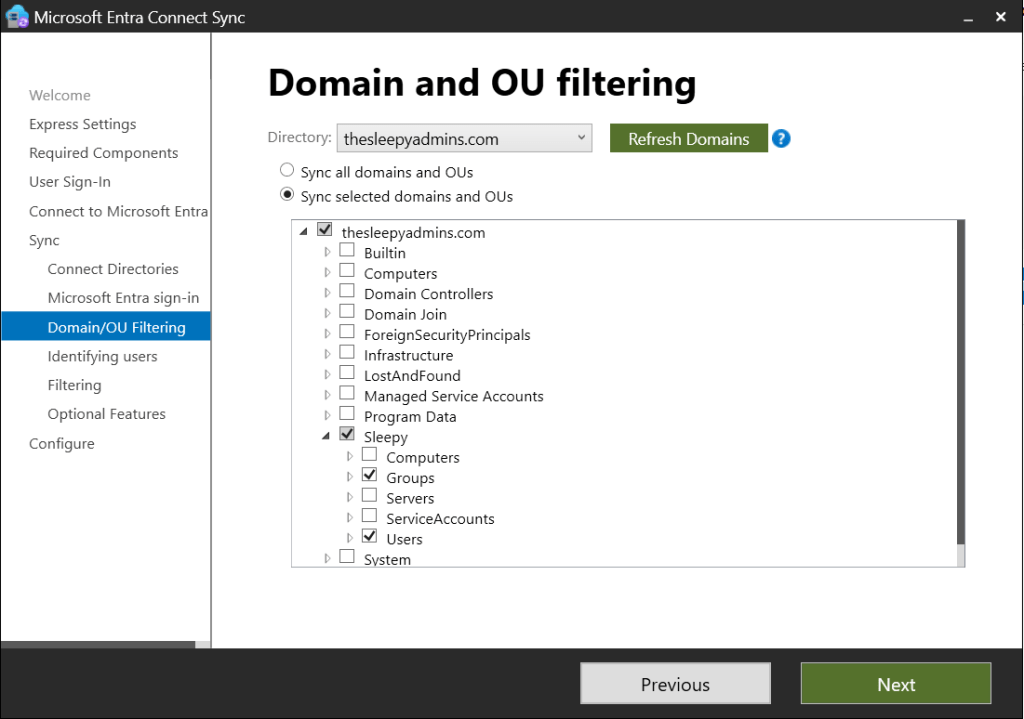
    Select the required OU’s to sync.

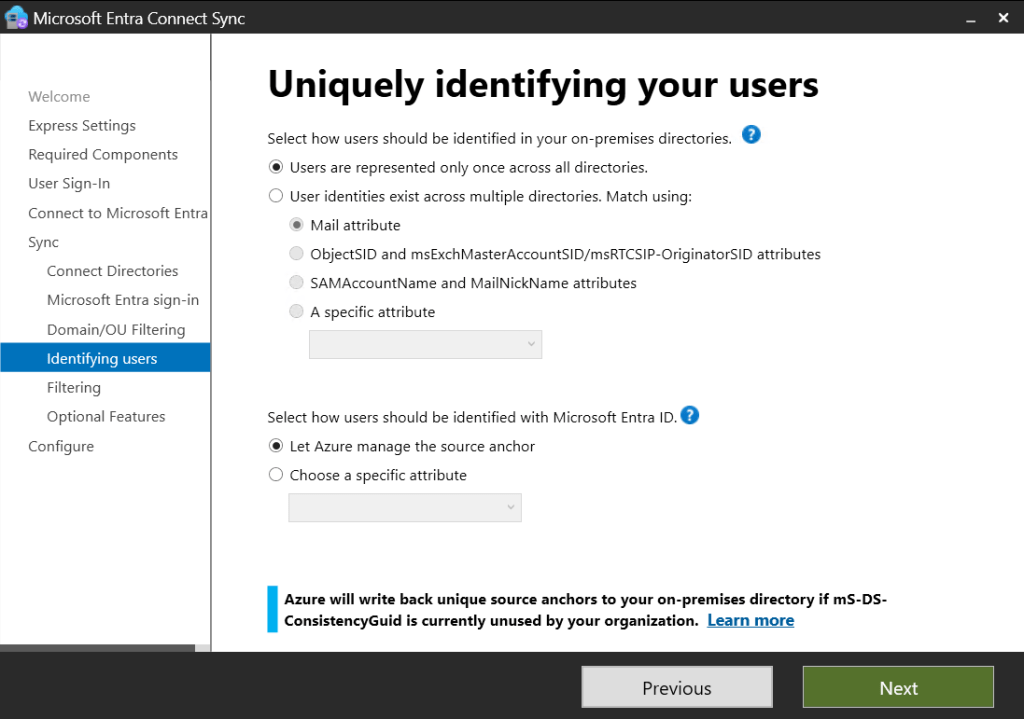
    Leave identifying users as default.

    We can either sync sub set of users or all users we will go for all users.

    We can enabled option features, we will be leaving this at password hash sync.

    Next we can start the sync process and enabled staging mode if we only want to write the details to the Entra Connect database but not M365 or AD. We will be starting the sync process.

    Click install to start.

    Wait for the install to complete.

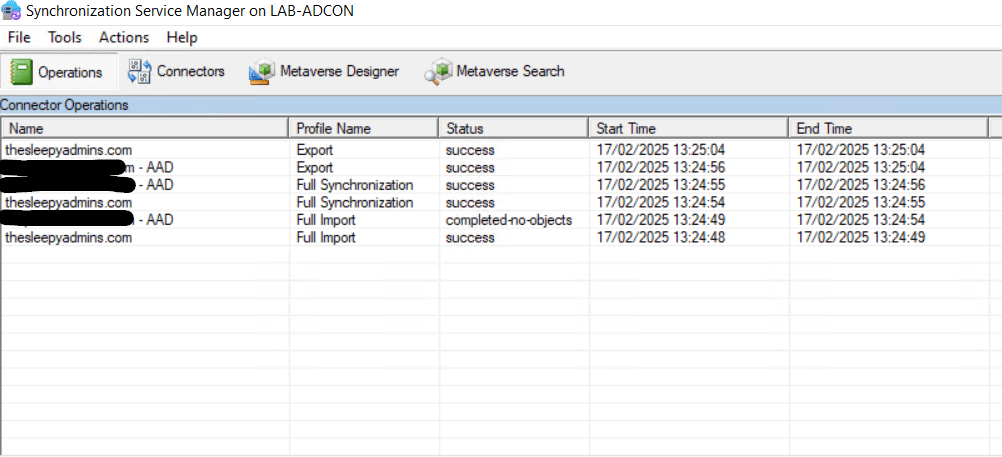
    We can launch Synchronization Service to verify the sync

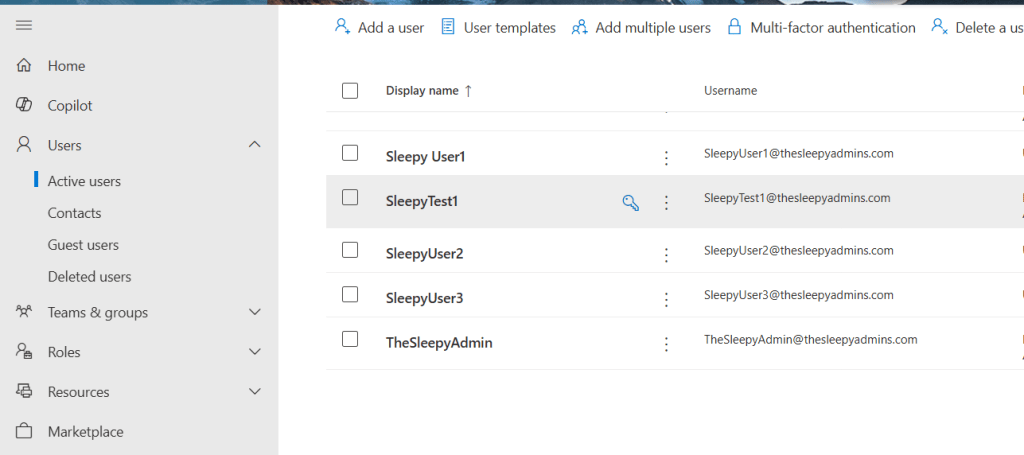
    We can also check and verify that on-prem users have been created.

    We can also verify the sync account service accounts have been created these should have names like

    On-Premises Directory Synchronization Service Account on Entra

    and

    MSOL_numbers in AD.

    We have now successfully configured Entra Connect. The sync will now happen every 30 minutes.

    Using Filtering in Microsoft Graph SDK

    In this post we will be going through using different filter types in Microsoft Graph SDK.
    Using filters is useful when trying to return specific results or subset of data.

    To check if a command supports filtering we can look up the command on the Microsoft Learn page or try -Filter.

    There a few different operators we can use for filtering below is the full list.

    • eq
    • not ne
    • startswith
    • endswith
    • in
    • le
    • ge
    • not and endswith
    • not and startswith
    • not and eq
    • not and in contains
    • has

    Once we know the command supports filtering, we need find a property to filter on for users we will use display name.

    Get-MgUser -Filter "DisplayName eq 'Name'"
    

    To find all displaynames that start P we can use startsWith(DisplayName, ‘value’)

    Get-MgUser -Filter "startsWith(DisplayName, 'P')"
    

    To filter using a variable we can create a new variable with a value and call that in side the filter. This can be use when doing foreach loops to go through each object in an array.

    We can also use filtering to return objects by date, the date has to be formatted in a specific way or the filter will error out.

    The data has to be yyyy-MM-ddT00:00:00Z To get the correct date format we can use ToString and the format.

    $date = (Get-Date).AddDays(-30).ToString('yyyy-MM-ddT00:00:00Z')
    Get-MgAuditLogSignIn -Filter "AppDisplayName eq 'OfficeHome' and CreatedDateTime ge $($date)" | Select-Object AppDisplayName,CreatedDateTime
    

    Filtering is an import to learn when using Microsoft Graph without it, it can be difficulty to find the right data or objects.

    Filtering also helps improve performance and reduce the amount of data retrieved from Microsoft Graph.

    Create Azure Alert Using KQL Custom Search

    In this post we will be going through creating an alert rule using Azure monitor and custom log search.

    This can be setup for for most services in Azure that are set to use Azure log work space or have activity logs but we will be setting up for a Azure VM in this post.

    We needed to create an alert for a specific server that we have powered off and wanted to be alerted when it was powered on.

    There is no out of the box alerting for this, we end up deciding to use an alert rule with a KQL query.

    First we need to logon to the Azure portal and go to the VM we wanted to alert on.

    Select Alerts blade and create custom alert rule.

    Select custom log search from the drop down signal name.

    Add the search query. I used the AzureAcitivty table and search for the operation value name for virtual machine start action.

    AzureActivity
    | where OperationNameValue == 'MICROSOFT.COMPUTE/VIRTUALMACHINES/START/ACTION' and ActivityStatusValue == 'Success'
    | where EventSubmissionTimestamp >= (ago(2h))
    

    We will also need to set the required measurement type, aggregation type and aggregation.

    I used count as I want to alert when there is a count greater than 1, as this will mean the VM has been booted up.

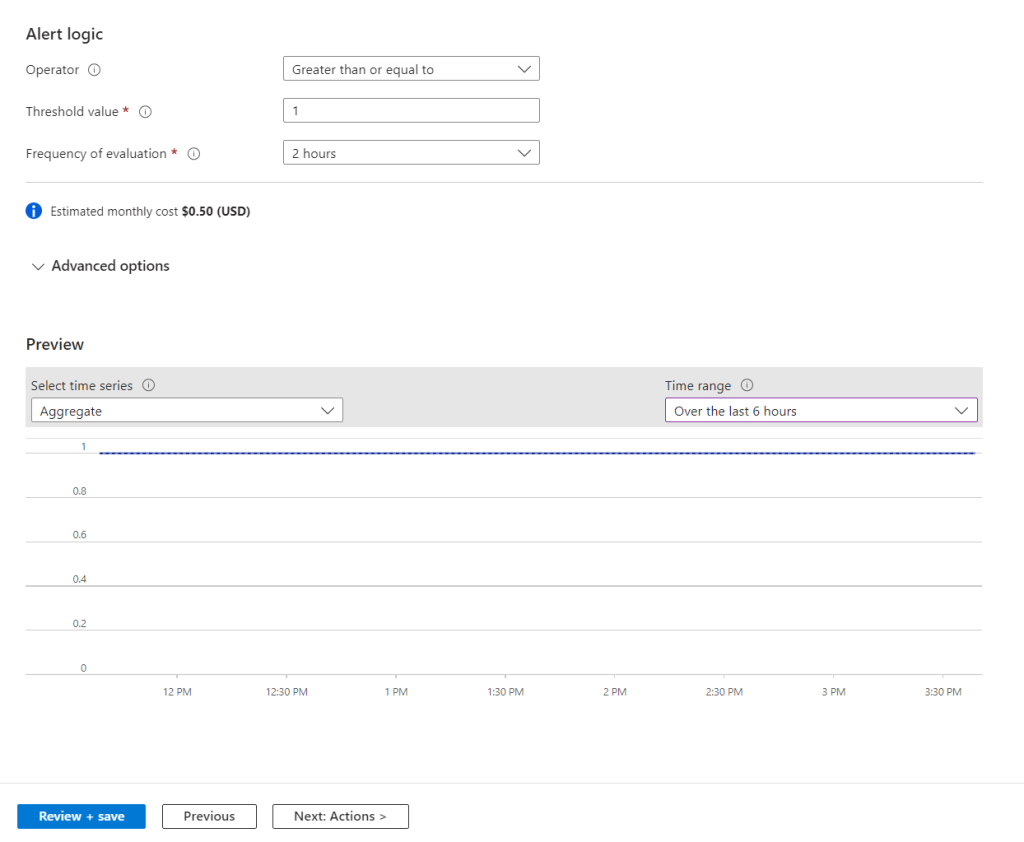
    Next we need to set the alert logic.

    Set the operator, threshold value and frequency check for the alert. I set the threshold to greater than one alert and evaluate the logs every 2 hours.

    We can change the preview to view the current aggregate, which is one for me as I started the VM earlier in the day.

    Next we need to either create a new action group or use a pre existing one. I will be creating a new group.

    This can be set to send email, SMS message, push notification or voice message.

    Next we need to set the subscription and resource group for the alert. We will also set the alert rule severity, name, description and region.

    We can also set advanced option like automatically resolving alerts.

    Next we set the tags to be used, if required.

    Last step is to review and confirm all the settings.

    To test we can Power on the VM and check if the alert fires in the Azure portal and we received the email alert.

    Setting up alerts using custom log search’s can be very usefully especially if there is no out of the box report.

    Azure Migrate VMware (Agentless) Replication ErrorID 181009

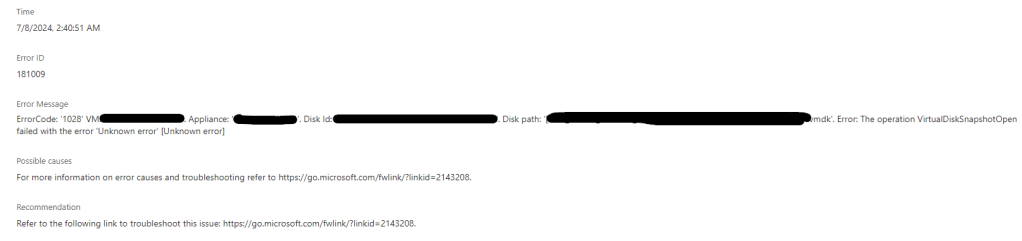
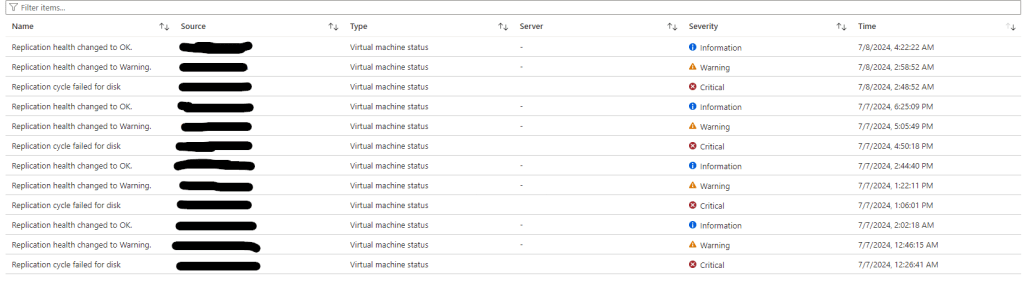
    During a recent migration we have been having issues with Azure Migrate VMware (Agentless) where the replication would start failing intermittently with ErrorID 181009 and Error Message:

    ErrorCode: ‘1028’ VM: ‘ServerName’. Appliance: ‘ApplianceName’. Disk Id: ”. Disk path: ‘vmdk’. Error: The operation VirtualDiskSnapshotOpen failed with the error ‘Unknown error’ [Unknown error]

    Replication failures
    • We had checked all the correct permission had been applied.
    • Also confirmed that we were running the VDDK 7.0 for vSphere 7.
    • Confirm the password for the account didn’t contain unsupported special characters.

    We used the troubleshooting link below but there was no issue listed that matched our issues.

    https://learn.microsoft.com/en-us/azure/migrate/vmware/troubleshoot-changed-block-tracking-replication?context=%2Fazure%2Fmigrate%2Fcontext%2Fvmware-context#an-internal-error-occurred

    During troubleshooting with VMware / Azure support we end up having to download the VMware VDDK 8.0, delete the existing VDDK from “C:\Program Files\VMware\VMware Virtual Disk Development\” and updating this with the VDDK 8.0 version.

    The link to the VMware VDDK is https://developer.broadcom.com/sdks/vmware-virtual-disk-development-kit-vddk/latest/

    This fixed the replication issues.

    Windows Defender Install – ERROR_SXS_ASSEMBLY_MISSING

    During a recent Windows Defender deployment we ran in to an issue with the onboarding script where the Windows Defender feature would fail to install with Enable-WindowsOptionalFeature : The referenced assembly could not be found.

    When checking the the CBS log under C:\Windows\Logs\CBS\CBS.log we found that the issue was related to a missing package for a previously installed update.

    CBS Failed to pin deployment while resolving Update: Package_8092_for_KB5005043~31bf3856ad364e35~amd64~~10.0.1.3.5005043-16635_neutral from file: (null) [HRESULT = 0x80073701 – ERROR_SXS_ASSEMBLY_MISSING]

    After a bit of troubleshooting there where two fixes to this issues, if the update that is missing is available, we can download the update MSU / CAB file from the Microsoft update catalog using the KB ID. I have covered this in a previous blog post so wont go over that fix on this post use the below link to view that post.

    In some of our cases the update file was not available to download anymore, in this case we need to modify the registry to set the package values that are corrupted to be ignored.

    First we need to get the list of packages that are showing in the CBS logs as corrupted. The below script will go through the CBS log and get the packages and format the results.

    $cbsLog = "c:\windows\logs\cbs\cbs.log"
    $results = @()
    
    Write-Host "Checking CBS logs for SXS Assembly Errors" -ForegroundColor Green
    $checkingfailure = Get-Content $cbsLog | Select-String "ERROR_SXS_ASSEMBLY_MISSING"
    
    $cbsresults = Get-Content $cbsLog  | Select-String "Resolving Package:"


    if ($cbsresults) {
    
        foreach ($cbsresult in $cbsresults) {
    
            $packageresult = ($cbsresult | Out-String).Split(":").trim().Split(',')| Select-String "Package_"
    
            $results += $packageresult
        }
    }
    
    $results | Select-Object -Unique
    

    Now that we have the list we need to set the local administrators group as the owner of the component registry key in order to be able to update the effect packages current state so they wont be checked.

    Open regedit and go to

    HKEY_LOCAL_MACHINE\SOFTWARE\Microsoft\Windows\CurrentVersion\Component Based Servicing

    Select Administrators as the owner and replace owner on subcontainters and objects.

    Last step is to set the local administrators with full control of the registry key.

    Now that we have the permissions set we can modify the registry values. This can be either scripted or manually done.

    The current value needs to be change to 0 to set.

    Set each of the corrupted package to 0

    Then revert the permission back so Administrators have read access and trusted installer (NT Service\TrustedInstaller) is the owner of the components registry key and subkeys.

    Now when we try and run the onboarding script again the Windows Defender feature enables without issue.

    Azure FileShare: CMDKEY: Credentials cannot be saved

    I was setting up an Azure FileShare recently and wanted to connect with the storage account key to configure the initial permission and folder structure.

    When trying to added the connect account details I was getting the below response.

    CMDKEY: Credentials cannot be saved

    The issue was due to one group policy that was blocking saved passwords. The specific policy setting was Network access: Do not allow storage of passwords and credentials for network authentication

    To fix the issue I had to create a new GPO that would change the policy setting for the device I was connecting from. Setting to Disabled.

    Once this was updated the command then completed successfully.

    After getting the credential to successfully add I still couldn’t map the shared.

    I was getting New-PSDrive : The specified network password is not correct

    After a bit of troubleshooting the issue was down to having NTLM v2 disabled on the security setting on the Azure FileShare.

    The settings is under storage account > select the storage > Data storage > File shares > Security.

    Under security check that NTLM v2 is enabled under Authentication mechanisms.

    After enabling NTLM v2, I was able to connect to the Azure FileShare using the storage account key.

    Microsoft Entra ID App Registration Certs / Client Secret HTML Report

    In this post we will be going through creating a HTML report for Microsoft Entra ID App registration to export a list of expired and expiring client secrets and certificates.

    I wanted to create a HTML report that would highlight cert / secrets that where expired or due to expire and make it quicker to check what is due to expire.

    This report will use the existing PowerShell script I created last year to export Azure App registration details to a CSV file, just updated to use an embedded CSS style sheet to format the html output.

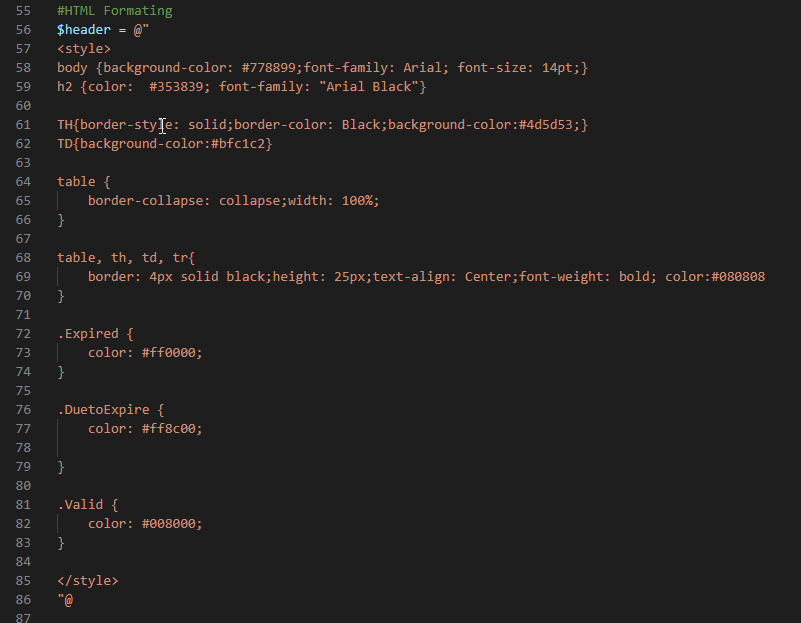
    First I needed to create a HTML style sheet, below is the HTML code I use for the HMTL formatting.

    The last step was update the rows to set each row to green, orange or red depending on the status of the cert / secret.

    To run the script I will be using a certificate and app registration as this allow for better automation and certificate are recommend over client secrets for security. If you need to know how to set this up I have done a previous post on this.

    .\Get-AppRegistrationdetailsHTMLv2.ps1 -CertificateThumbprint thumbprint -ClientId ClientID -TenantId TenantID -ReportExport C:\temp\Graph\ -ExpiryDate 200
    

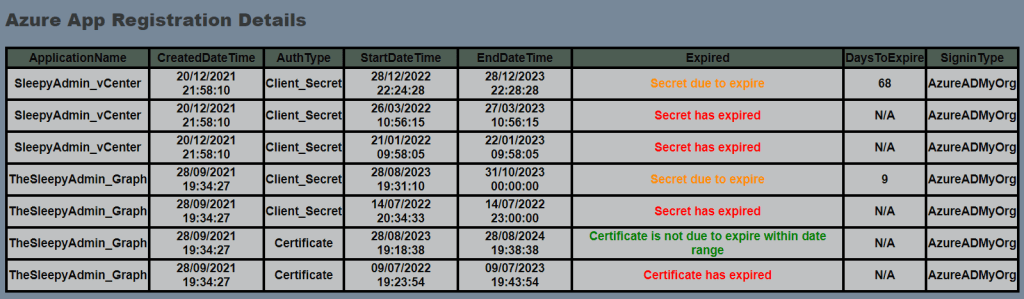
    Below is an example of the full export.

    The table and colors can be modified just have to update the style sheet.

    To download the full script use the below GitHub link.

    https://github.com/TheSleepyAdmin/Scripts/blob/master/MSGraph/AppRegistration/Get-AppRegistrationdetailsHTMLv2.ps1