Configure Windows Hello for Business with Cloud Kerberos Trust

In this post we will be going through the process of setting up Cloud Kerberos Trust to allow Entra Joined devices to access on prem resources (FileShare, Web apps..).

Prerequisites

Before starting, ensure you have the following:

  • Microsoft Entra ID Tenant
  • Active Directory
  • Domain Admin and Global Admin rights
  • Intune license and admins rights to configure Windows Hello for Business settings.
  • Windows 10 or Windows 11 devices

I used this learn article to setup the cloud Kerberos trust.

https://learn.microsoft.com/en-us/windows/security/identity-protection/hello-for-business/deploy/hybrid-cloud-kerberos-trust?tabs=intune

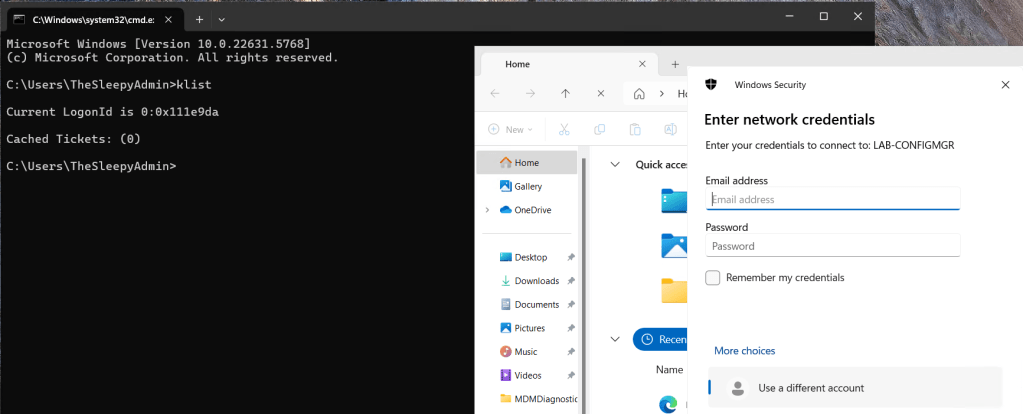
Currently when I try to access resource using a Entra only joined device I get prompted for my username and password by on-prem resources. This is due to NTLM being blocked and not being issue Kerberos tickets due to being a Entra Only joined device.

We can run klist to see if any Kerberos tickets have issues.
First we need to setup the AD object that will be used by Entra to generate Kerberos TGTs.

Open a PowerShell prompt using the Run as administrator option. Install the Azure AD Kerberos PowerShell module by running:

# First, ensure TLS 1.2 for PowerShell gallery access.
[Net.ServicePointManager]::SecurityProtocol = [Net.ServicePointManager]::SecurityProtocol -bor [Net.SecurityProtocolType]::Tls12

# Install the AzureADHybridAuthenticationManagement PowerShell module.
Install-Module -Name AzureADHybridAuthenticationManagement -AllowClobber

Run the following PowerShell commands to enable cloud trust Kerberos.

# Specify the on-premises Active Directory domain. A new Microsoft Entra ID
# Kerberos Server object will be created in this Active Directory domain.
$domain = $env:USERDNSDOMAIN

# Enter an Azure Active Directory Hybrid Identity Administrator username and password.
$cloudCred = Get-Credential -Message 'An Active Directory user who is a member of the Hybrid Identity Administrators group for Microsoft Entra ID.'

# Create the new Microsoft Entra ID Kerberos Server object in Active Directory
# and then publish it to Azure Active Directory.
Set-AzureADKerberosServer -Domain $domain -CloudCredential $cloudCred

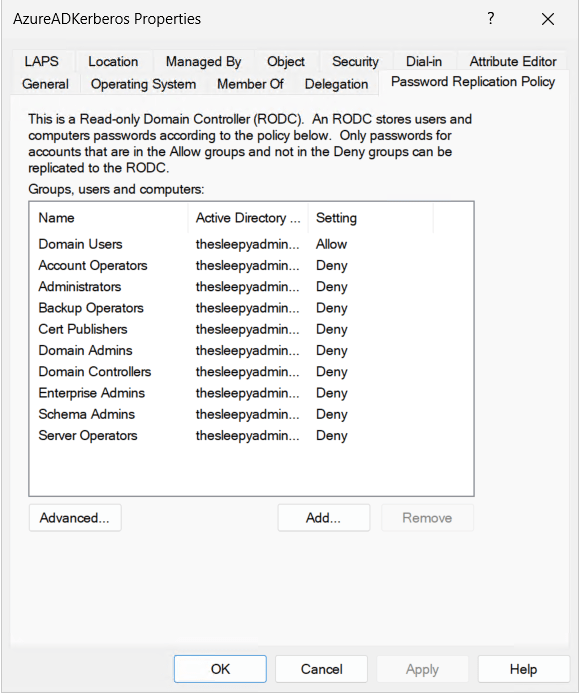
This will then create a object in AD similar to a read only domain controller.

One thing to note is that if your account is part of a privileged group in AD, your password wont be replicated to this new object. We can check the group by going to the AD object and password replication tab. If your account is in any of the deny group you wont be issued Kerberos tickets.
Next we need to go to Intune and Configure the Windows Hello for Business policy.

Logon to the Intune Admin portal > Devices > Windows > Configuration > Create New Policy.
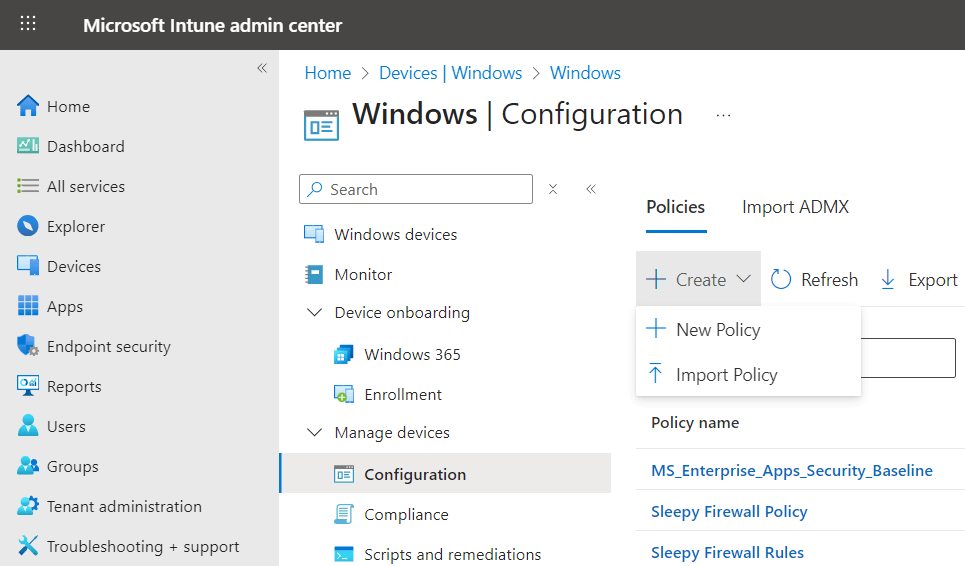
Select platform Windows 10 and Later and profile type Settings Catalog, click Create

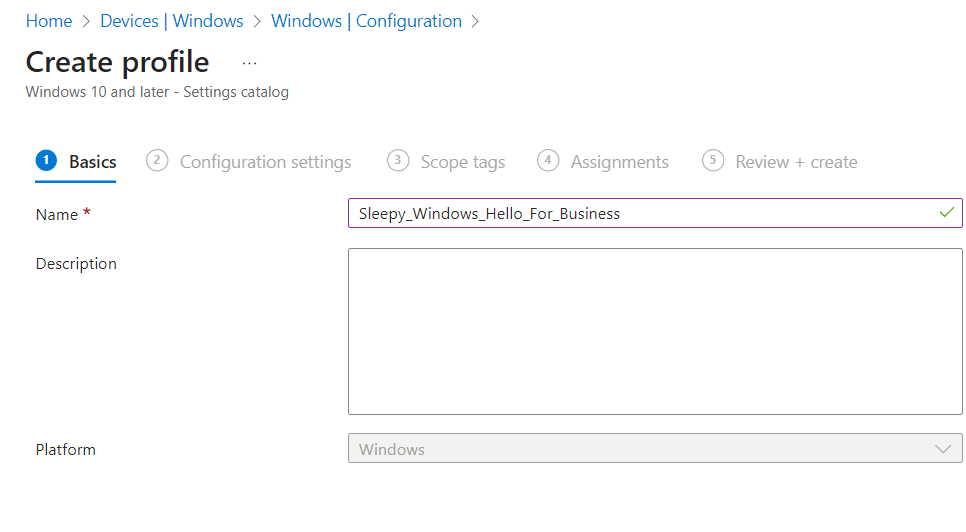
Give the policy a name and description.
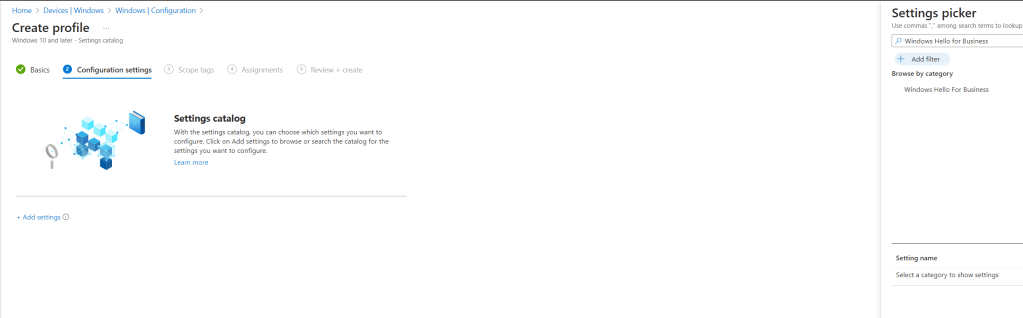
Click add settings and search for Windows Hello for Business.
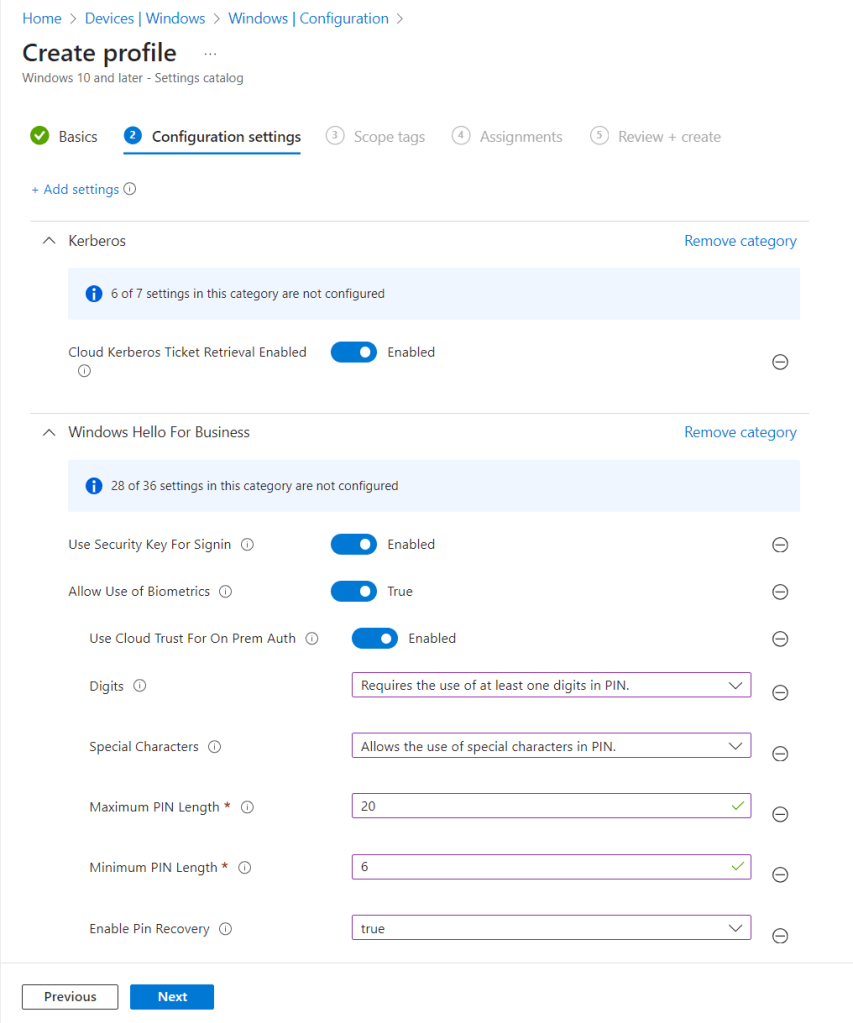
I used the below settings for my pin and we need to enable use cloud trust for on prem auth and Cloud Kerberos Ticket Retrieval.
I left scope as defualt and apply the policy to my Intune Managed group.
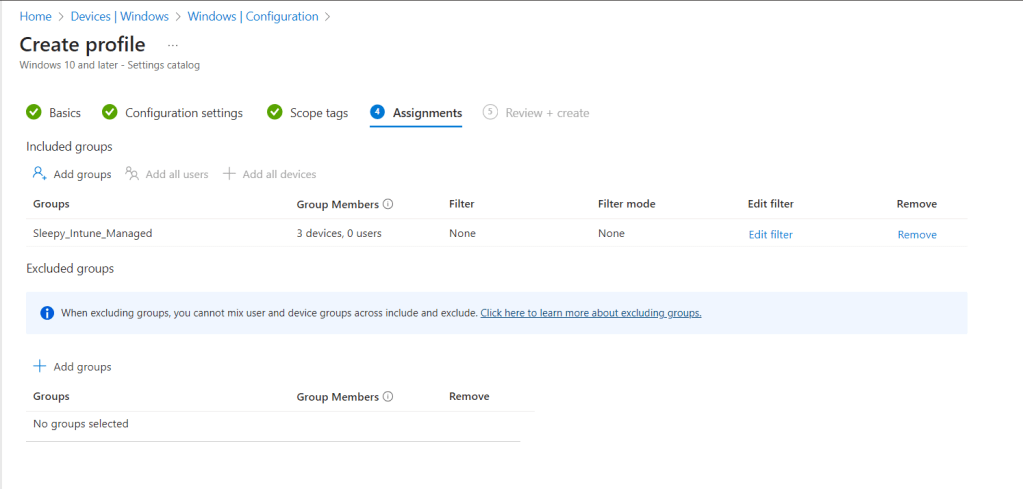
Once the policy is applied we can connect back to the asset and restart.

On the next logon if we check we should now be able to connect to onprem resources and get issued Kerberos tickets.
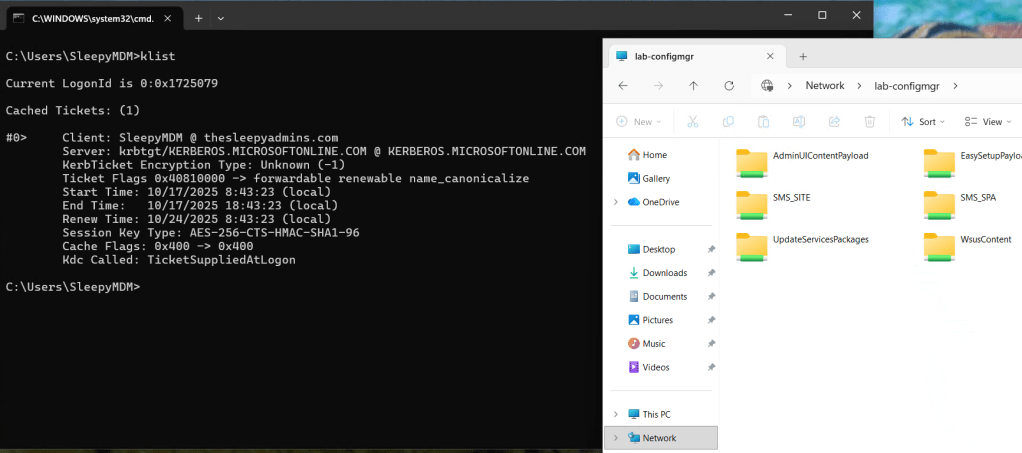
This has been a quick run through of Setting up Cloud Kerberos Trust.

Updating Group Policy Administrative Templates (ADMX)

In this post we will go through the process of downloading and update ADXM templates for Group policy.

First we need to download the ADMX installer, I will be downloading the Windows 11 version.

Download Administrative Templates (.admx) for Windows 11 2024 Update (24H2) from Official Microsoft Download Center

To view the settings available we can use the corresponding spreadsheet for the templates, below is for Windows 11 24H2.

https://www.microsoft.com/en-sg/download/details.aspx?id=106255

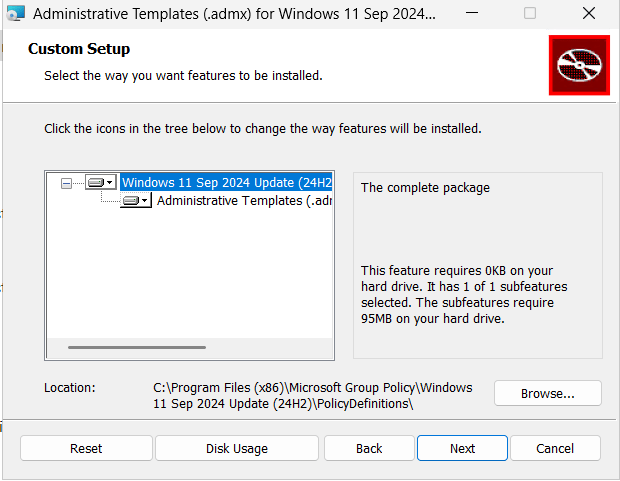
Once downloaded we can run the installer, the default install location for is

C:\Program Files (x86)\Microsoft Group Policy

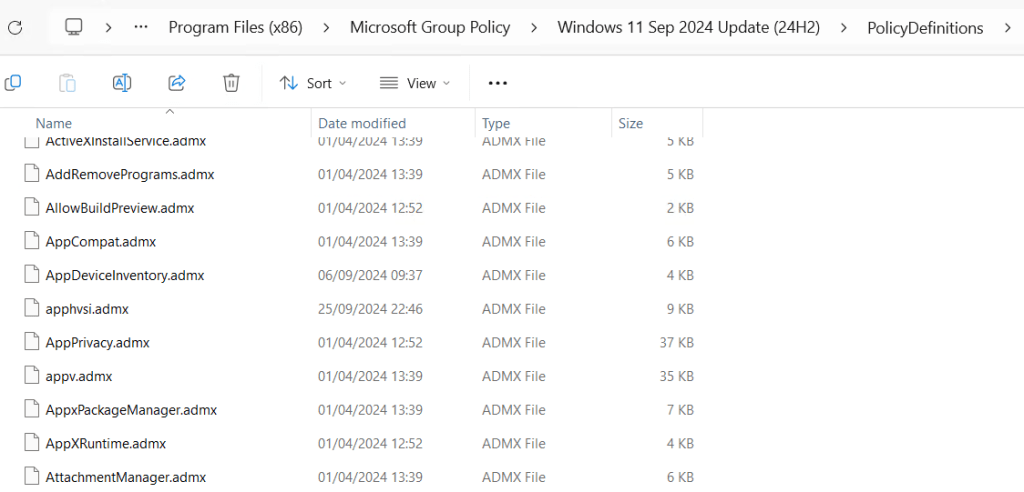
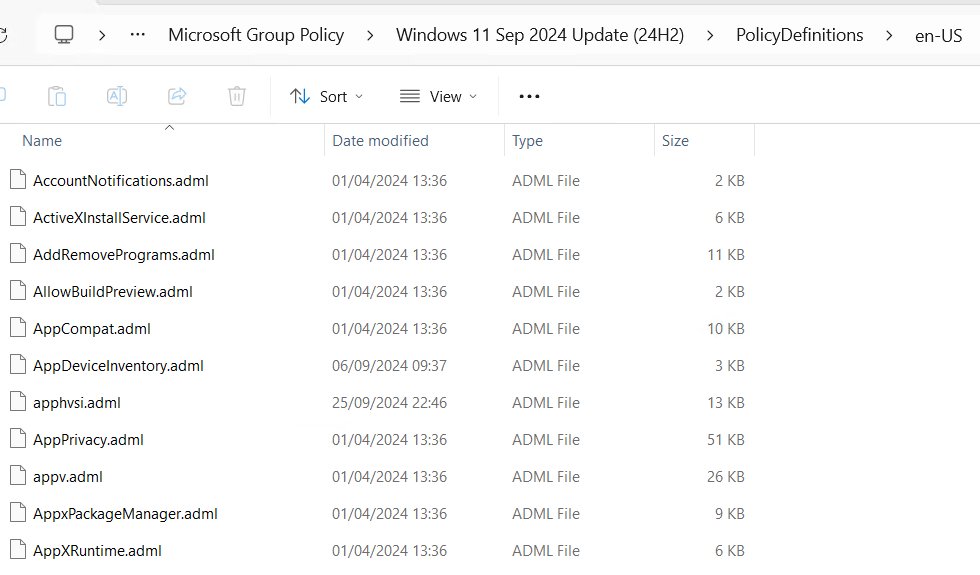
Once installed we can go to the folder and check for the admx and adml files.

The admx files will be in the root folder.

The adml files will be under the specific language version in my case it en-US

When deploying, you only need to copy the specify language version you need not all of them.

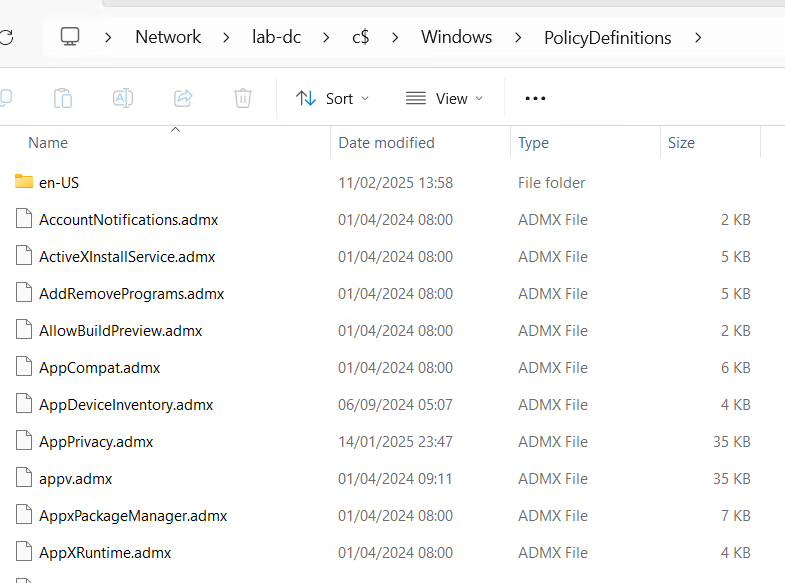
The default location for the files is c:\Windows\PolicyDefinitions, on the domain controller.

This is fine if you only have one DC but if there are multiple its better to move the PolicyDefinitions folder to the replicated sysvol folder.

Before updating the files it is recommend to backup the existing PolicyDefinitions folder.

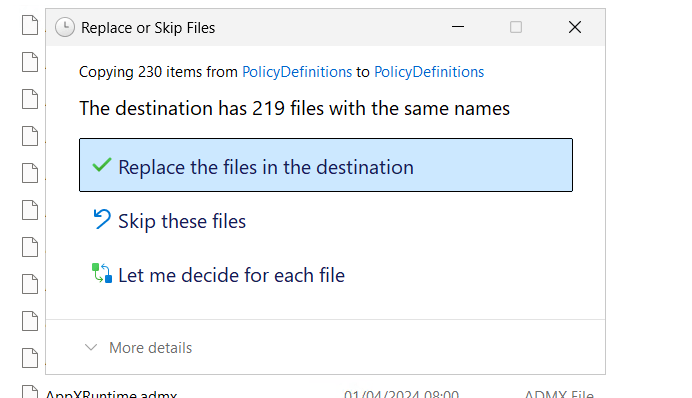
Once backed up we can copy and overwrite the admx and adml files.

After the files are overwritten we can now use the policy settings in the new templates.

Configure Microsoft Entra hybrid join

In this post we will going through the process of enabling and setting up Entra ID hybrid with on-premises AD join.

There is some debated on whether companies should go with hybrid join or Entra ID joined. The decision should be based on business requirements, if there is very little on- premises resources and no required for legacy application then the move to fully cloud managed is most likely the best option but for larger organization that have on-premises resources, then doing hybrid join can be a good alternative till full cloud management can be implemented.

Below are the prerequisite for setting hybrid join

  • Microsoft Entra Connect 1.1.819.0 or later
  • Account with Hybrid Identity Administrator on your Microsoft Entra tenant.
  • Enterprise administrator credentials for each of the on-premises Active Directory Domain Services forests.
  • Users can register their devices with Microsoft Entra ID. More information about this setting can be found under the heading Configure device settings, in the article, https://learn.microsoft.com/en-us/entra/identity/devices/manage-device-identities#configure-device-settings
  • The OU which contains the computer accounts that need to be synced must be selected in Entra Connect.

I would recommend reviewing Plan your Microsoft Entra hybrid join implementation article before enabling.

https://learn.microsoft.com/en-us/entra/identity/devices/hybrid-join-plan

If you need to know how to configure Microsoft Entra Connect see previous blog post. https://thesleepyadmins.com/2025/02/17/install-and-configure-microsoft-entra-connect/
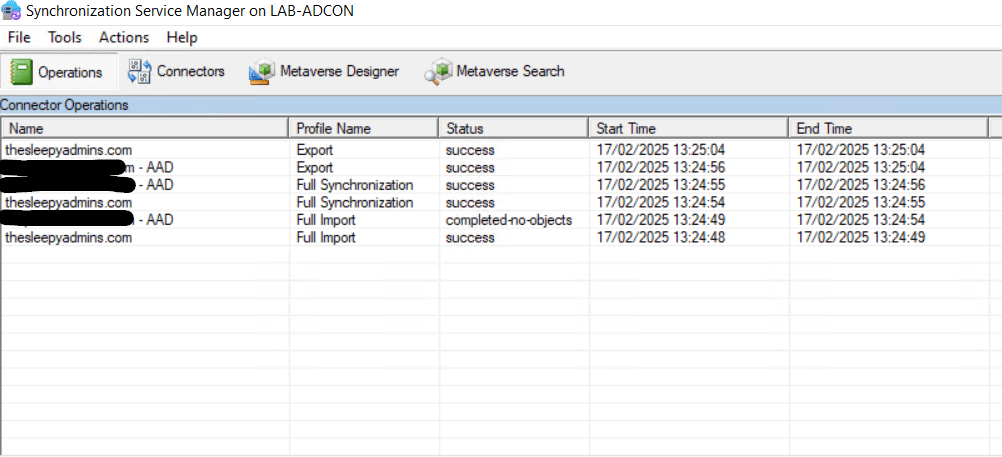
We can either enabled hybrid join during the initial install of Entra Connect, but in this case we will be adding the feature to an existing Entra Connect deployment.
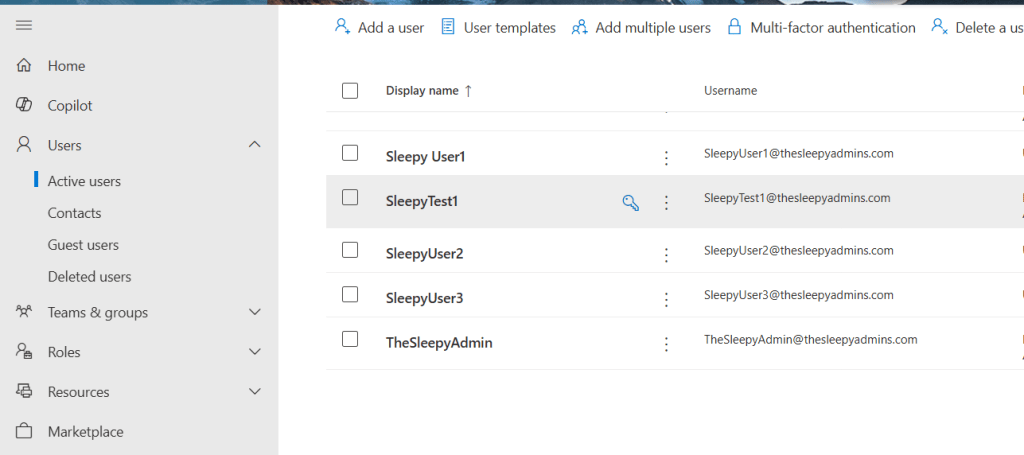
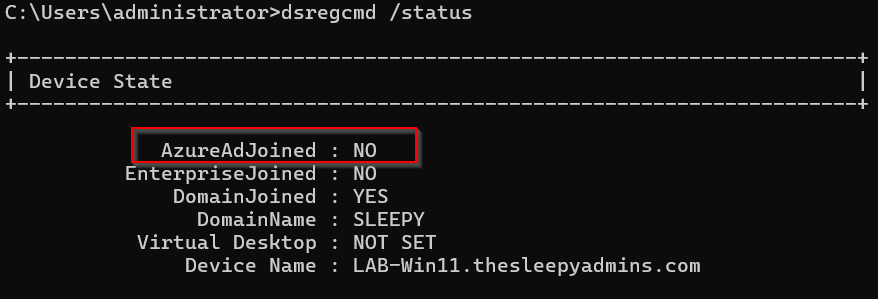
First we can check the status of the client to confirm we are not using hybrid joined by running the below command.

dsregcmd /status

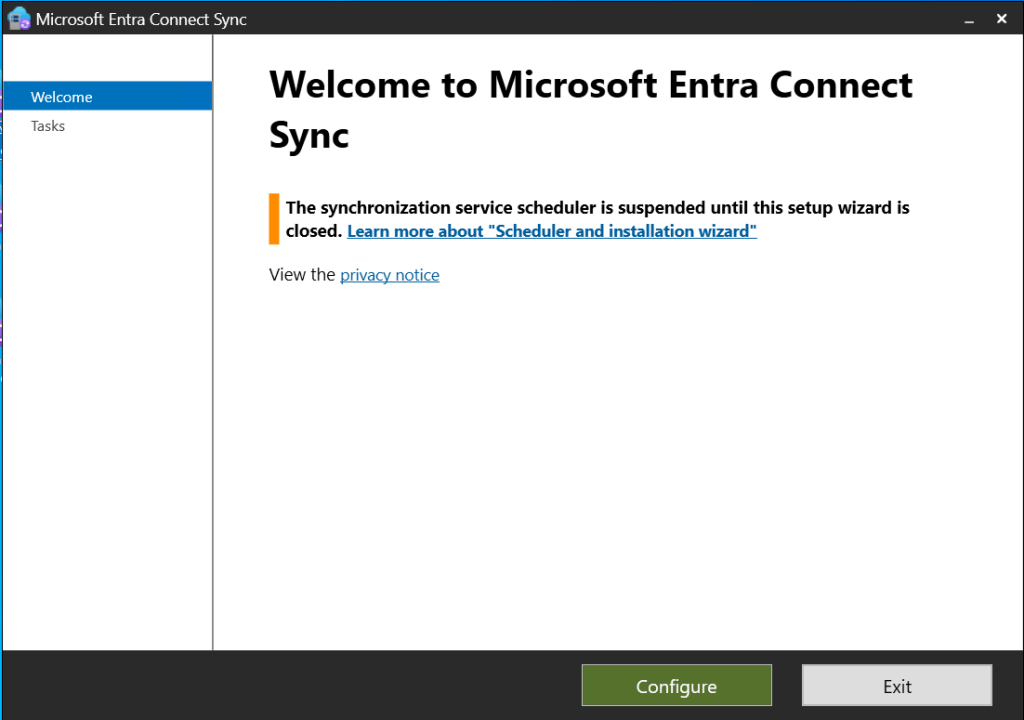
Next to configure hybrid join we need to open Microsoft Entra Connect sync configuration application.

Select configure.

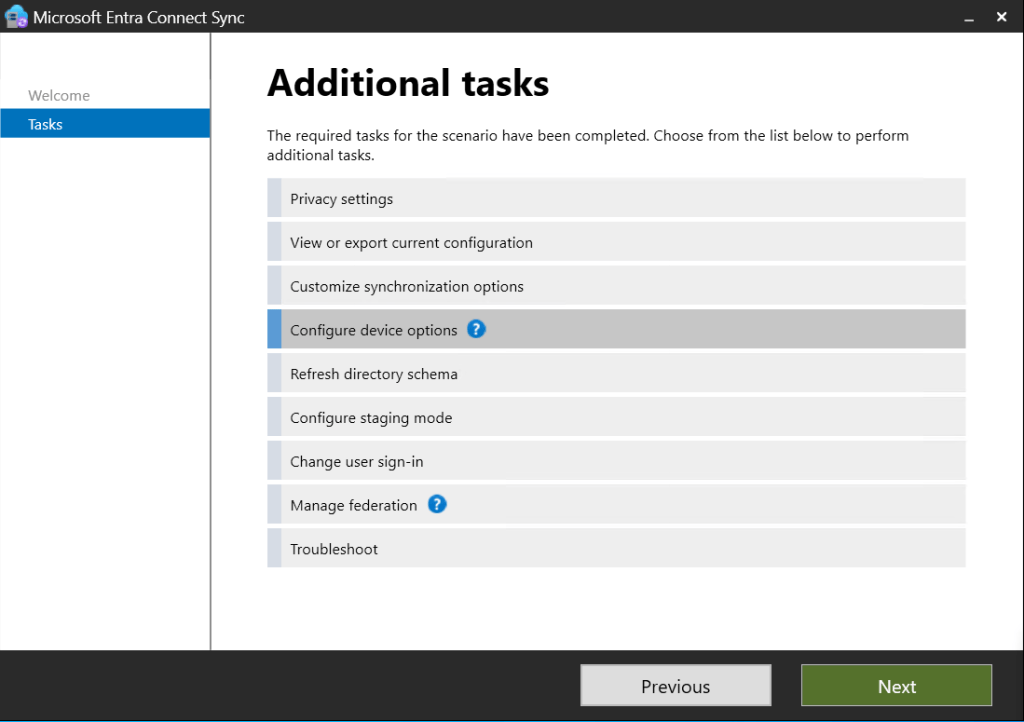
Next on tasks tab select Configure device options.

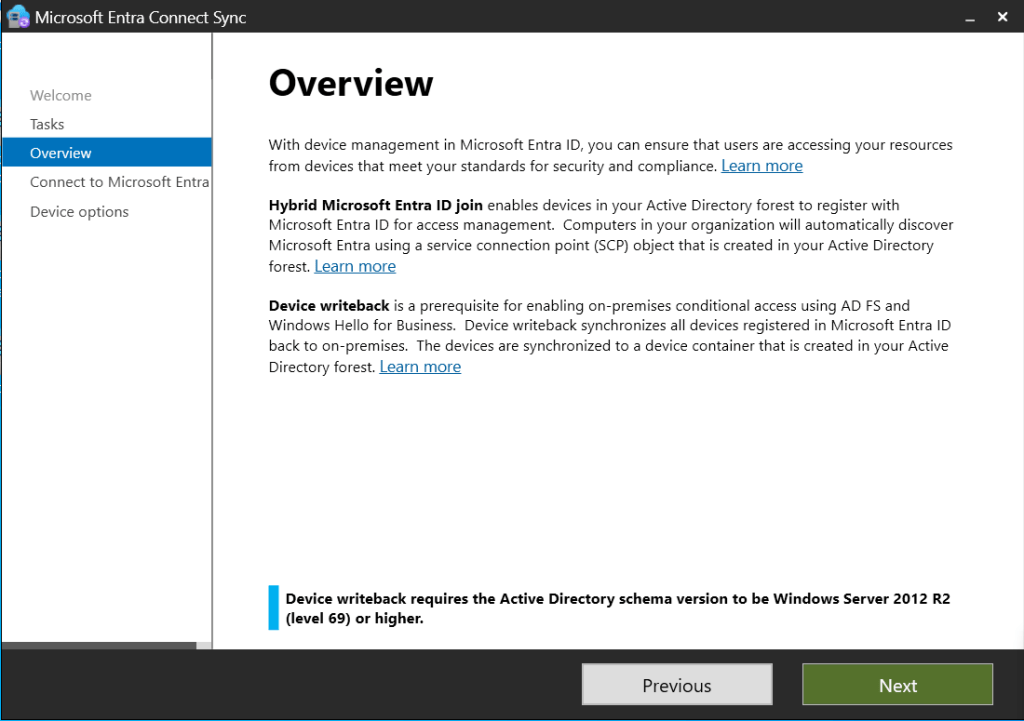
Check the overview

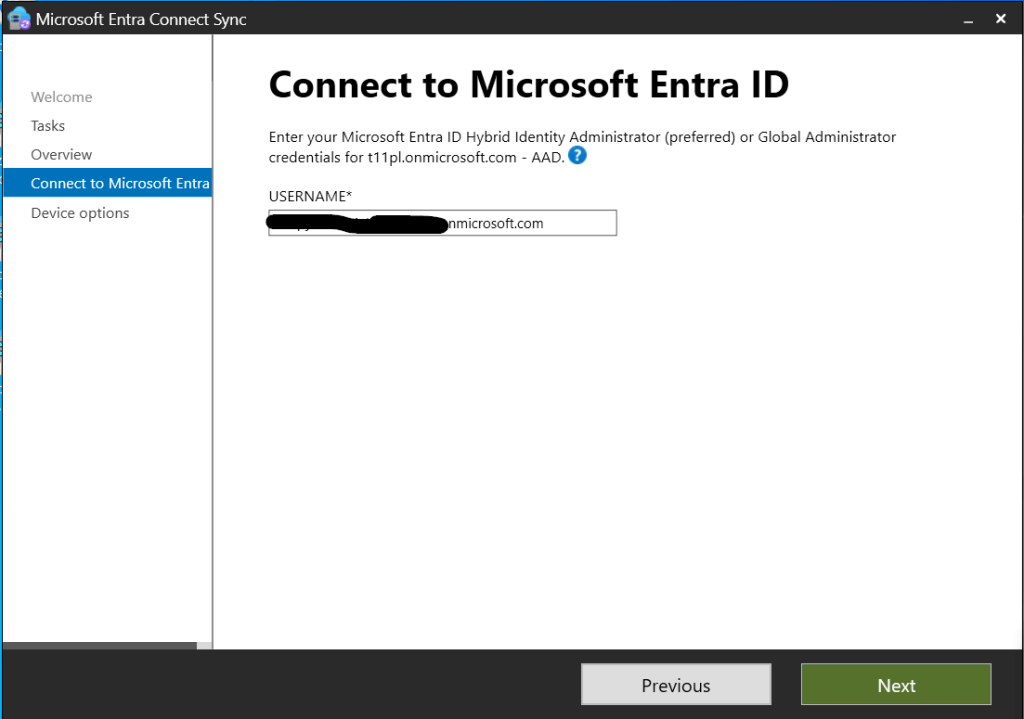
Enter the usersname and password for the account with Hybrid Identity Administrator.

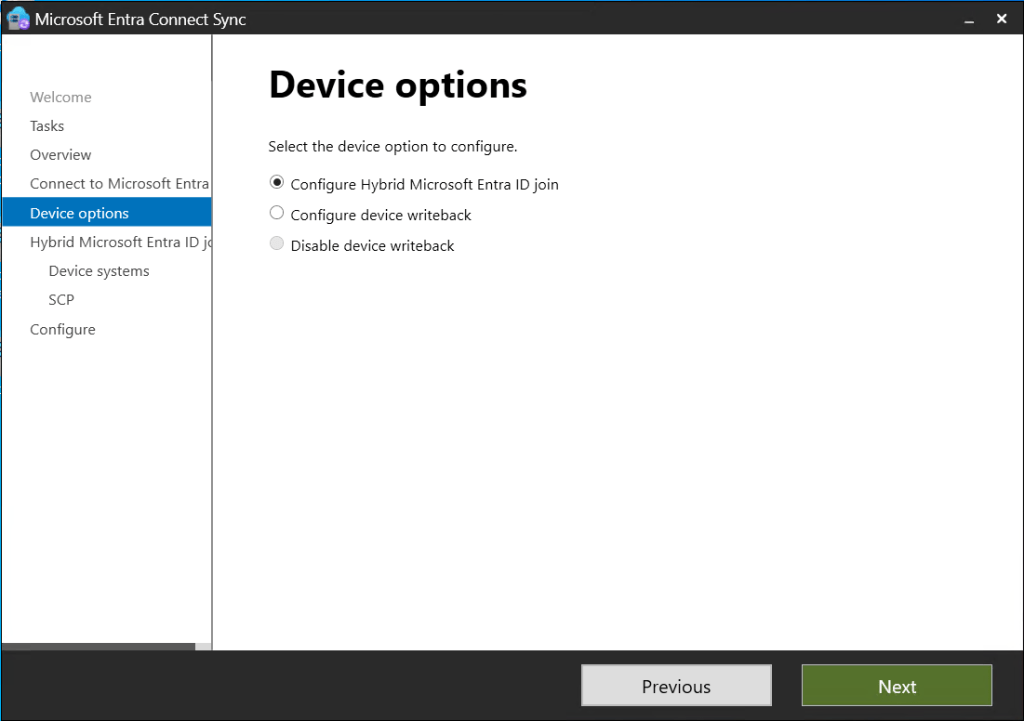
Select Configure Hybrid Microsoft Entra ID join.

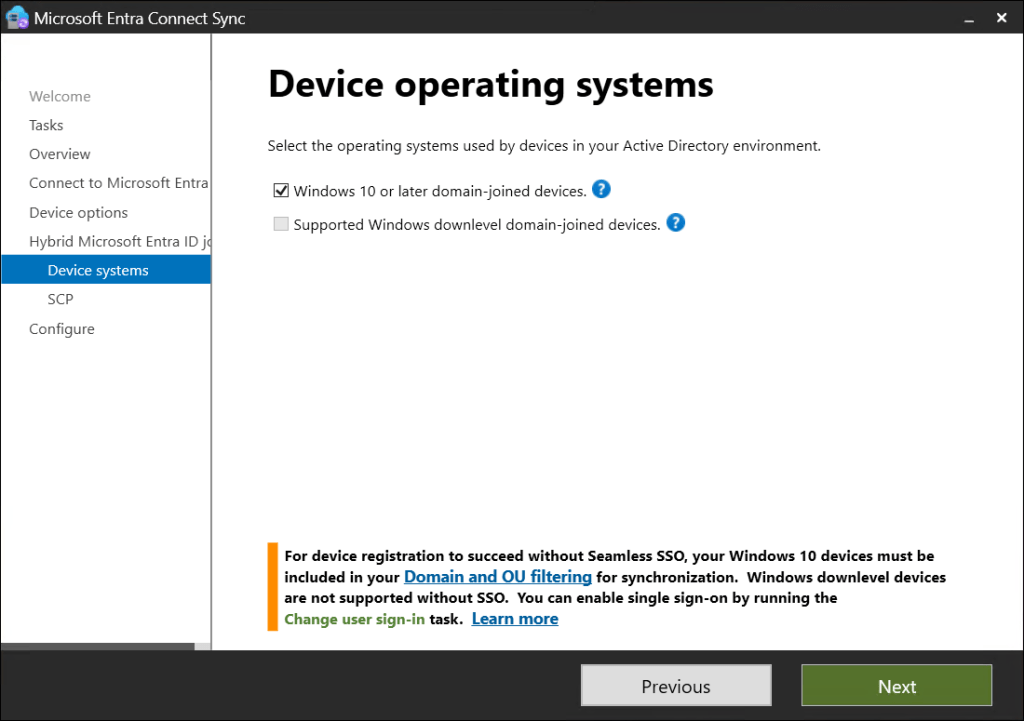
Windows 10 or later domain-joined devices.

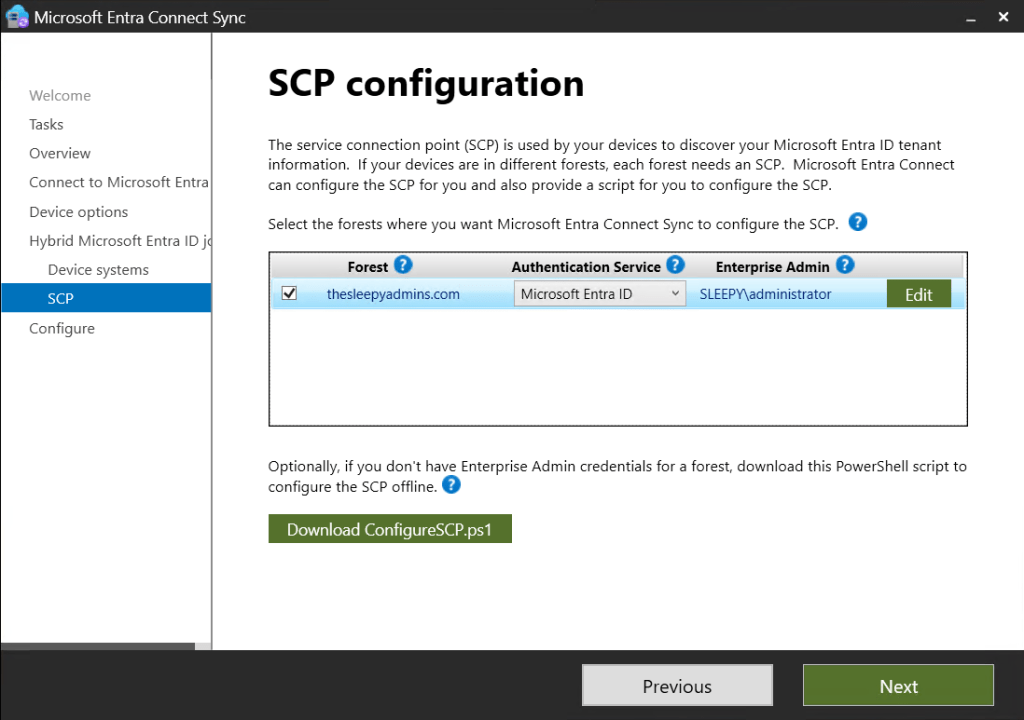
Select the domain to create the service connect point, the account used must be a enterprise admin.

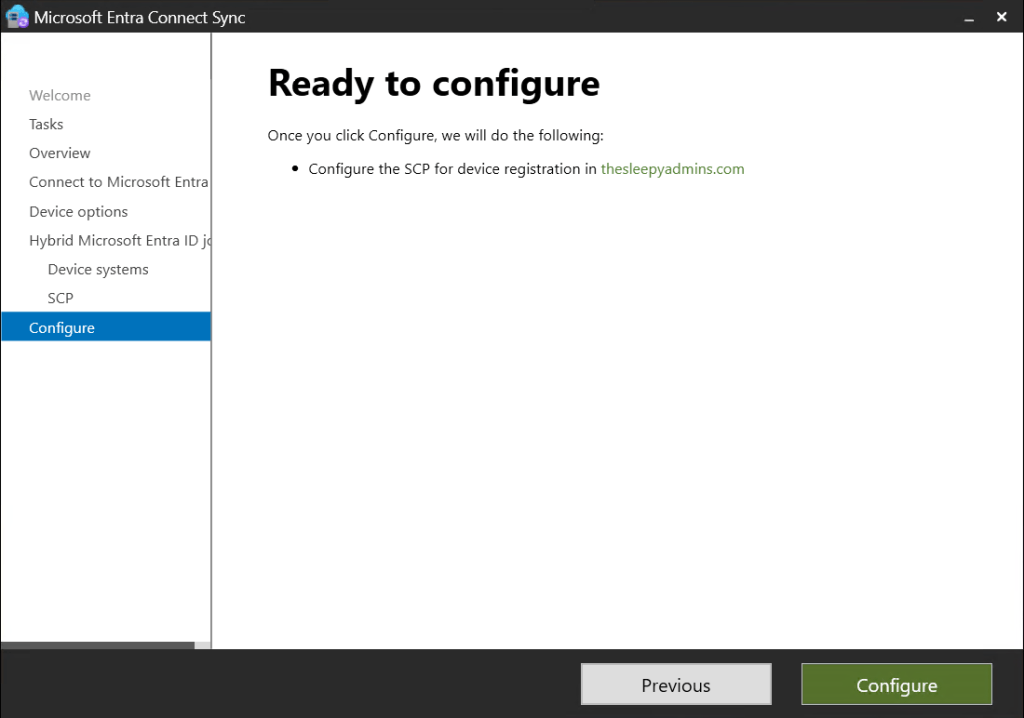
Click configure to start the deployment of the configuration.

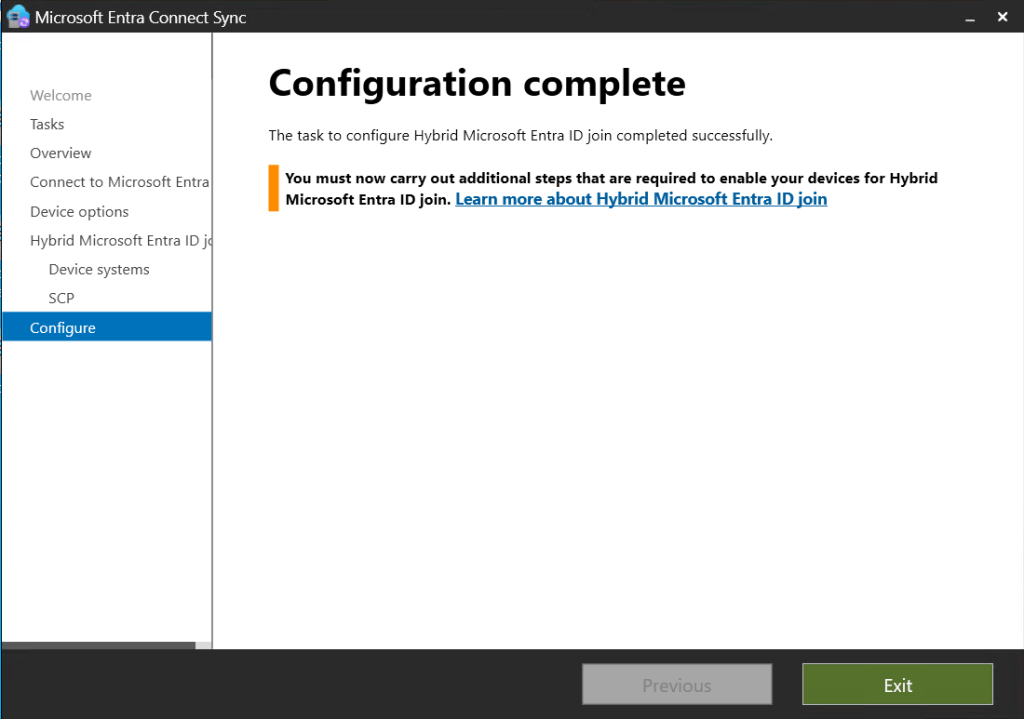
Once completed exit the console.

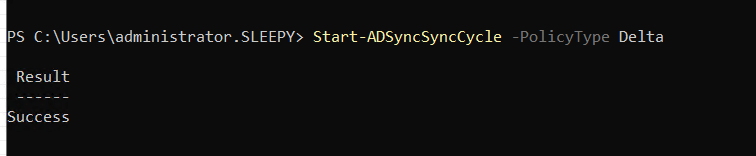
We can now run a delta sync using the below PowerShell command.

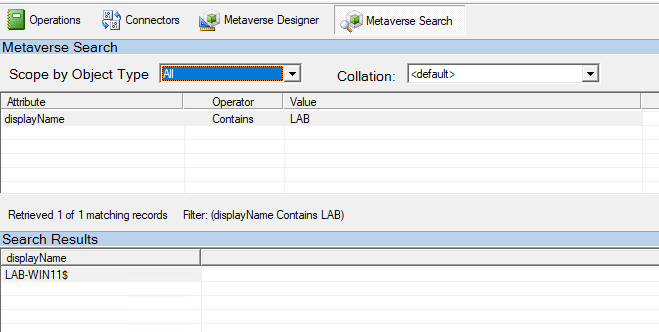
We can check the metaverse search to show if the device has been synced.

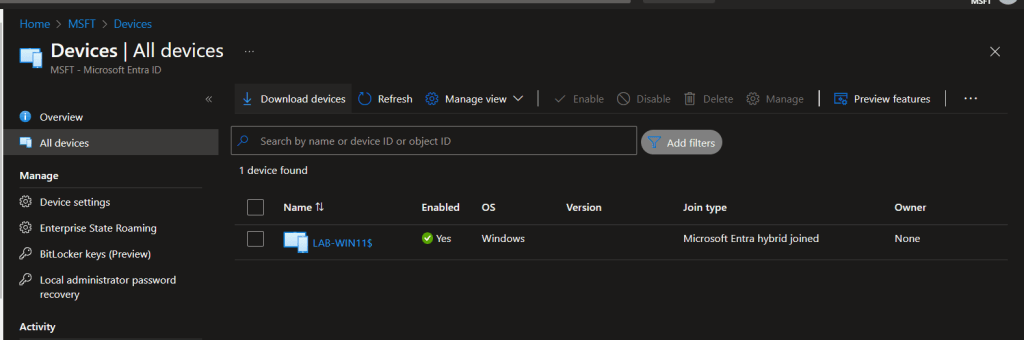
We can also confirm by going to Microsoft Entra ID > Devices > all devices and confirm the devices is now showing.

We next need to restart the device, then run the dsregcmd again to confirm if we are now showing as hybrid joined.

dsregcmd /status

This has been a overview of setting up Microsoft Entra Hybrid join.

Install and configure Microsoft Entra Connect

In this post we will be going through the process of installing and configure Microsoft Entra Connect to sync on premises AD object to Microsoft Entra ID.

We will be syncing users and groups.

We will be using a dedicated server you can co locate on another server but it best to have a dedicated server or Entra Connect. The server must be domain joined.

We will need an account with Global Admin rights on the tenant we want to sync too and Enterprise admin in AD that we will be syncing.

The account can be setup temporary and remove the rights after Entra Connect is setup as we will let it configure its own accounts with required rights during the install.

Entra Connect Pre-reqs

  • .NET Framework 4.6.2 or later
  • Domain-joined Windows Server 2016 or later
  • TLS 1.2 enabled
  • SQL (Can select to use SQL Expresses during install or use full SQL)
  • Domain we want to sync is external routable not .local and has been verified in the M365.

To view the prerequisites for see below link .

https://learn.microsoft.com/en-us/entra/identity/hybrid/connect/how-to-connect-install-prerequisites

TLS script to check and enabled required TLS settings.

https://learn.microsoft.com/en-us/entra/identity/hybrid/connect/reference-connect-tls-enforcement

We can download the Entra Connect installer from here.

https://www.microsoft.com/en-ie/download/details.aspx?id=47594

Once we confirm all permission, pre req and firewall rules are in place we can start to configure Entra ID.

Run the AzureADConnect.msi installer and agree to the license terms and click Continue.

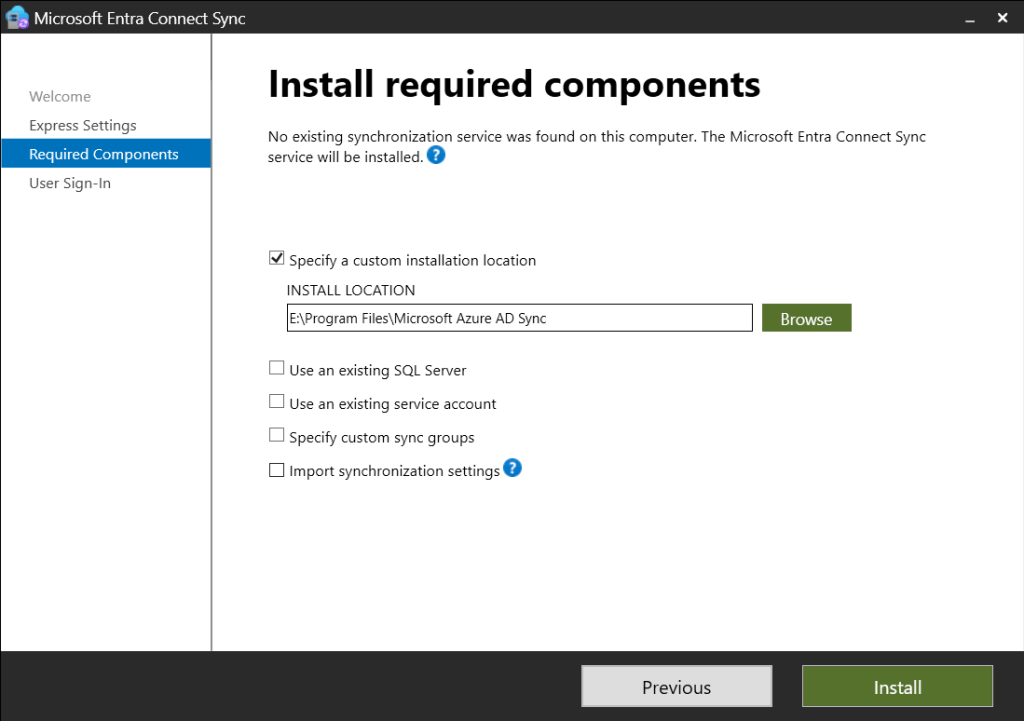
    We can either select custom or express install. We will use custom to select a specify install location but this can be use to set an existing SQL server or use pre configure service accounts also.

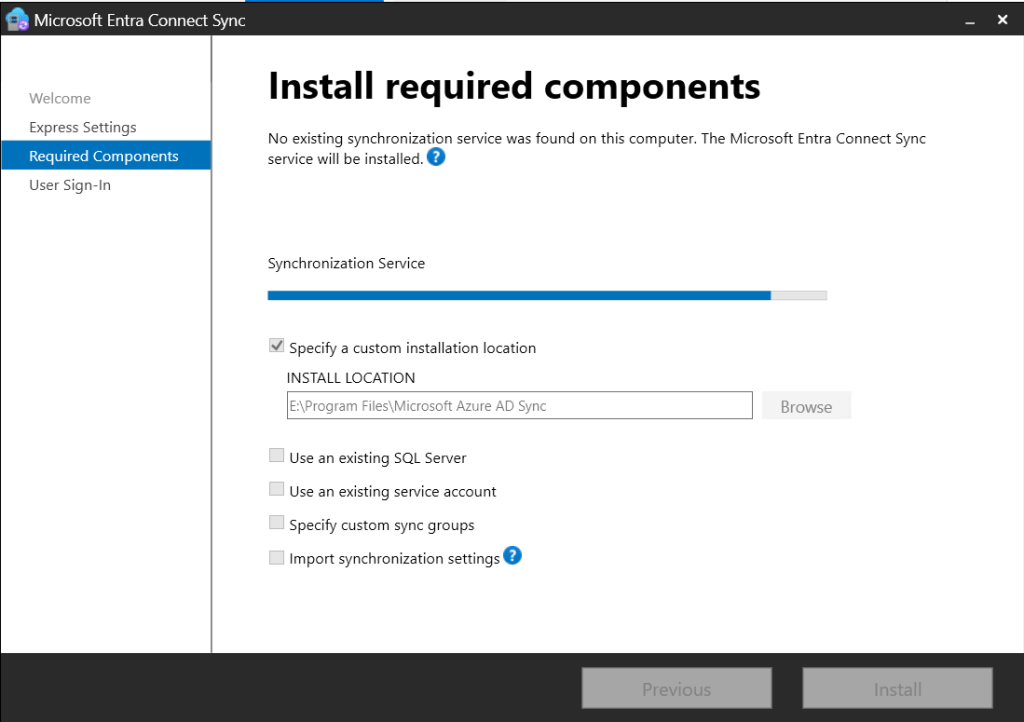
    Click install once all settings are configured.

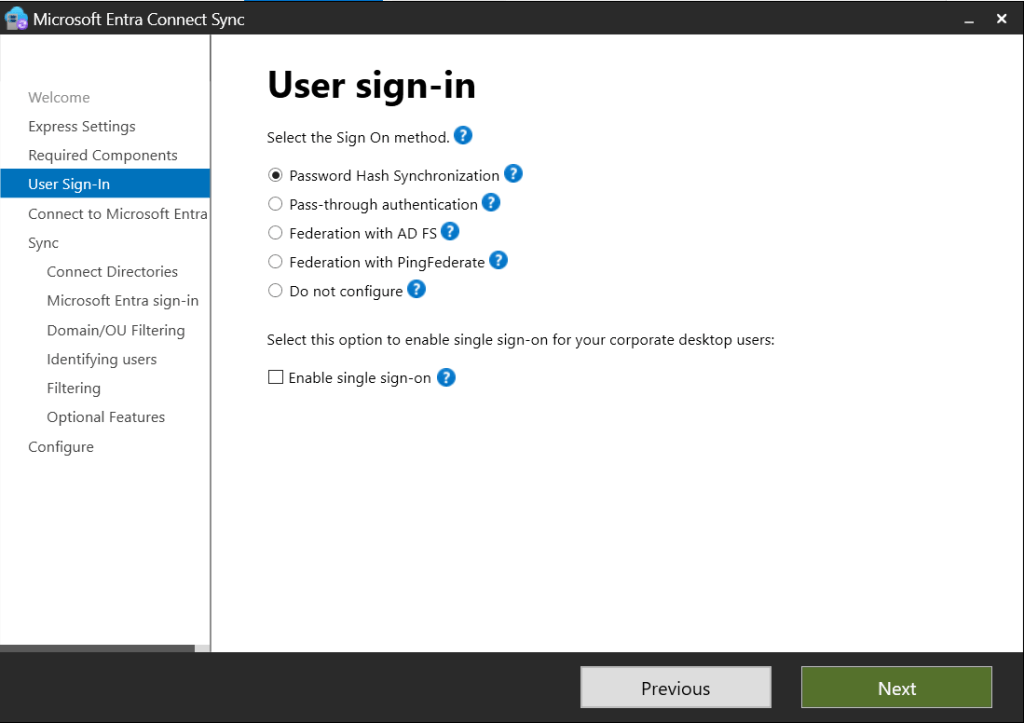
    Next we need to configure the sign in options. We will be using Password hash synchronization below link outlines each type.

    https://learn.microsoft.com/en-us/entra/identity/hybrid/connect/plan-connect-user-signin

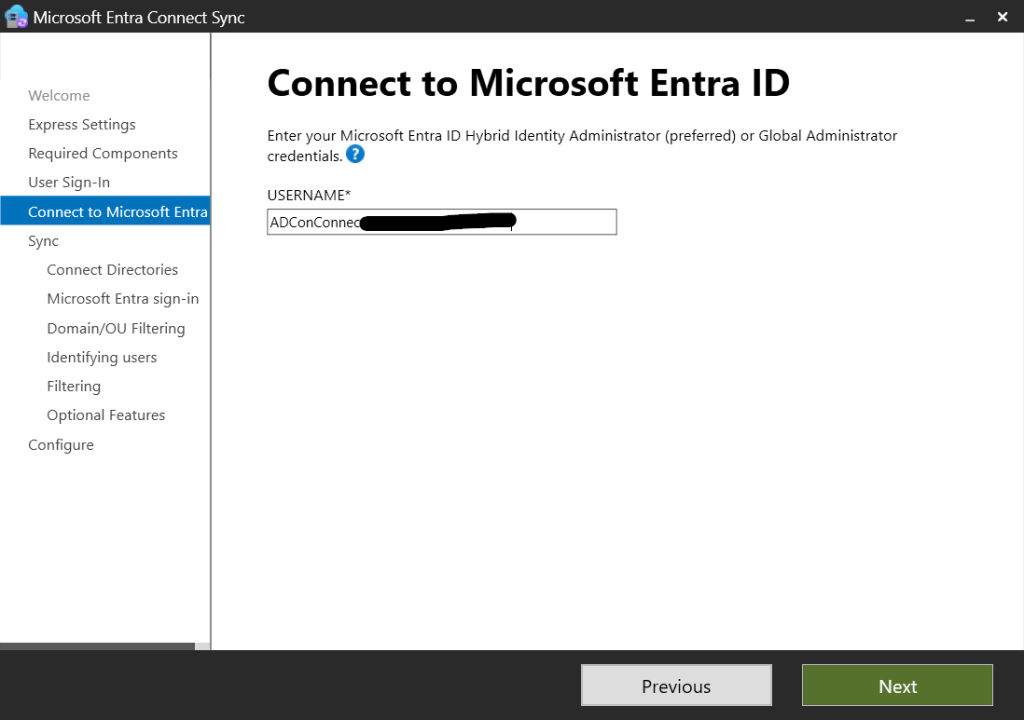
    Next enter the account with Hybrid Identity Administrator or Global Administrator.

    Enter the password and MFA prompt if required.

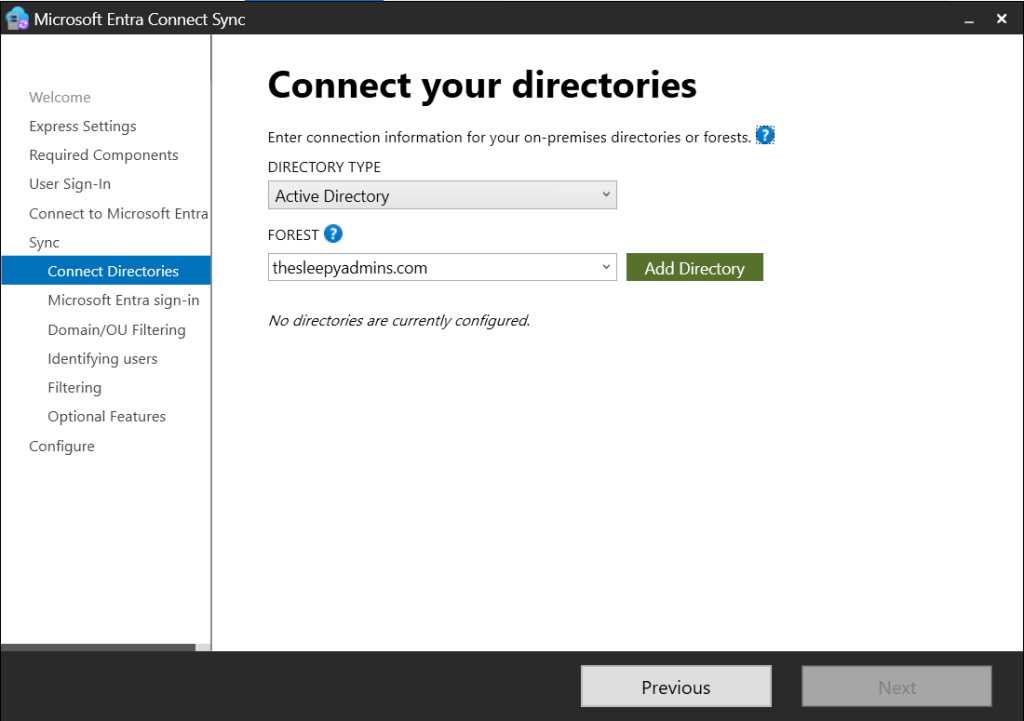
    Next we need to select the domain and click add directory.

    Enter the credentials for the enterprise admin and select to create a new account or use an existing account.

    Click ok and the domain now show as configured.

    Leave attribute at UPN unless there is a requirement to change.

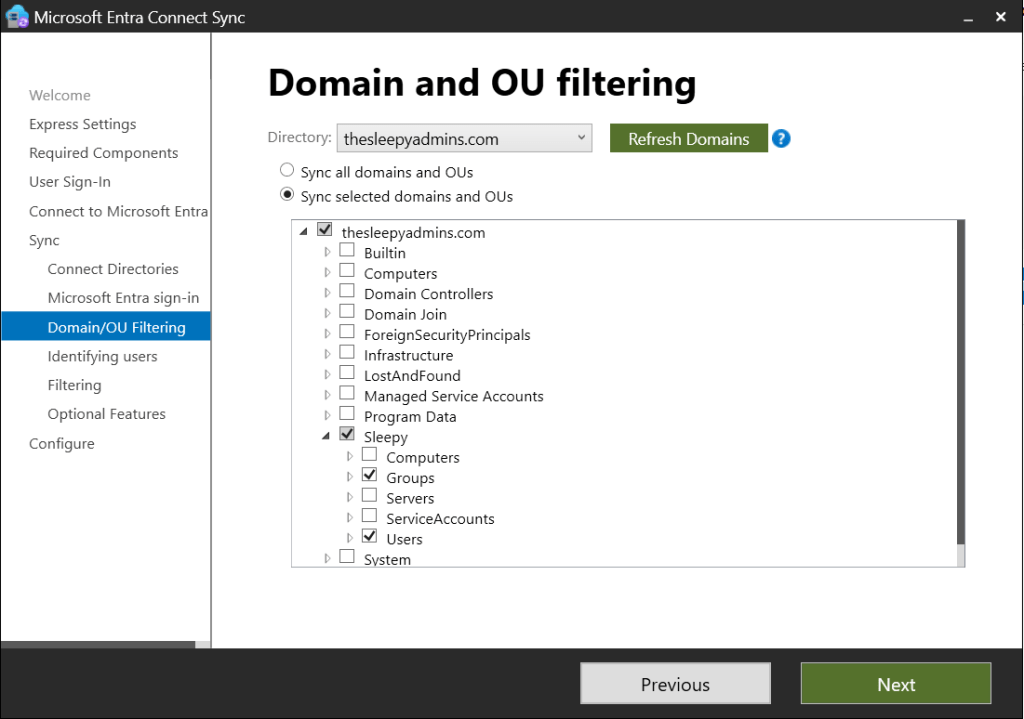
    Select the required OU’s to sync.

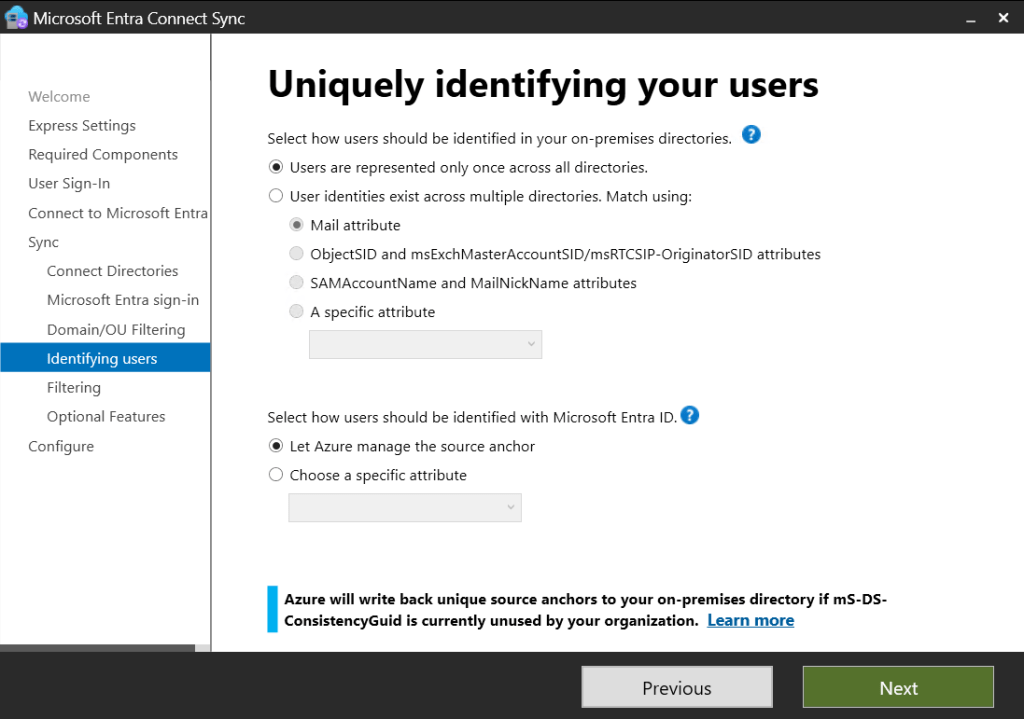
    Leave identifying users as default.

    We can either sync sub set of users or all users we will go for all users.

    We can enabled option features, we will be leaving this at password hash sync.

    Next we can start the sync process and enabled staging mode if we only want to write the details to the Entra Connect database but not M365 or AD. We will be starting the sync process.

    Click install to start.

    Wait for the install to complete.

    We can launch Synchronization Service to verify the sync

    We can also check and verify that on-prem users have been created.

    We can also verify the sync account service accounts have been created these should have names like

    On-Premises Directory Synchronization Service Account on Entra

    and

    MSOL_numbers in AD.

    We have now successfully configured Entra Connect. The sync will now happen every 30 minutes.

    Active Directory: Delegated Managed Service Accounts

    In this post we will be going over a new account type that has been release in Windows Server 2025. This account is similar to a gMSA which we covered using for scheduled task in a previous post.

    dMSAs and gMSAs are two types of managed service accounts that are used to run services and applications in Windows Server. A dMSA is managed by an administrator and is used to run a service or application on a specific server. A gMSA is managed by AD and is used to run a service or application on multiple servers. Both offer improved security and simplified password management.

    dMSA allows migration from a standard service account to a machine account with managed and fully randomized keys. Authentication for dMSA is linked to the device identity, which means that only specified machine objects mapped in Active Directory (AD) can access the account.

    There are some pre request required before using a dMSA

    • Only currently supported on Windows Server 2025
    • Required at least domain controller running Windows Server 2025
    • Have created a KDS root key

    To check if there is a KDS root key run

    Get-KdsRootKey
    

    If there is no KDS root key we can create one using the below command. It takes 10 hours before activating.

    Add-KdsRootKey -EffectiveImmediately
    

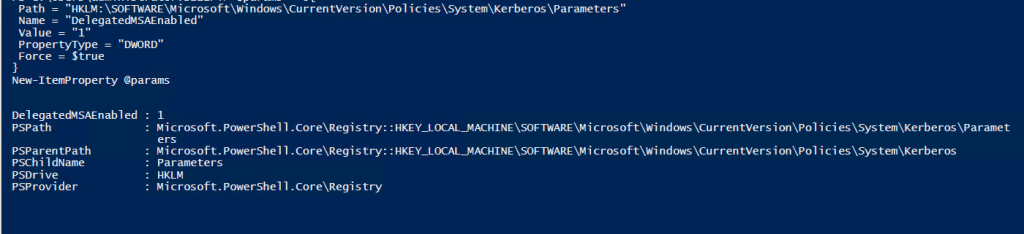
    Once the pre-req are confirmed, the next step is going to be adding a registry value for any server that will be using a dMSA.

    This can be set either in manually, group policy, or PowerShell. Below is the registry details.

    PathHKLM:\SOFTWARE\Microsoft\Windows\CurrentVersion\Policies\System\Kerberos\Parameters
    TypeDWORD
    NameDelegatedMSAEnabled
    Value1

    Next we need to Enabled Delegated managed services. This can be done locally on the servers or using groups policy.

    The policy setting to enable is below.

    Computer Configuration\Administrative Templates\System\Kerberos\Enable Delegated Managed Service Account logons

    To create the service account we can use PowerShell. (The DNS is required by the command but not needed for running services)

    New-ADServiceAccount -Name Accountname -DNSHostName Accountname.domain.local -CreateDelegatedServiceAccount:$true -KerberosEncryptionType AES256
    

    Next we need to grant permission for the device to retrieve the password for the account.

    Set-ADServiceAccount -Identity Accountname -PrincipalsAllowedToRetrieveManagedPassword DeviceName$
    

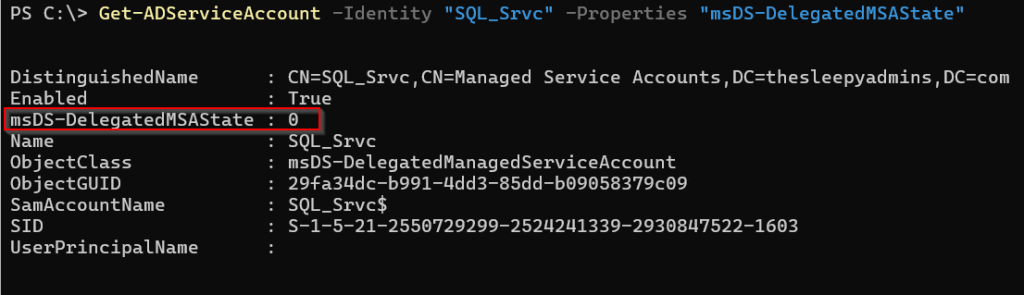
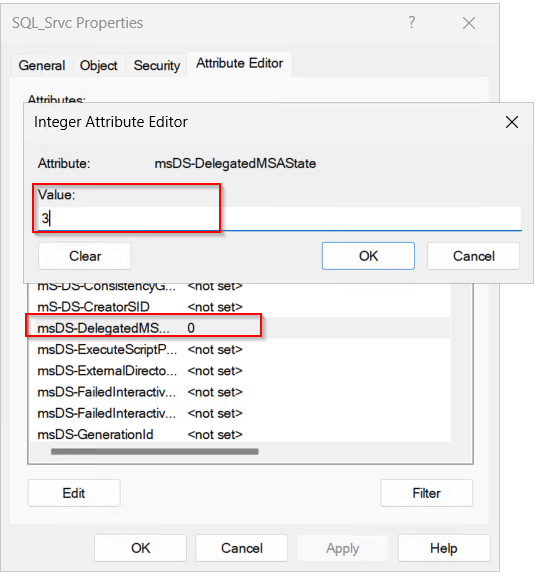
    Next we need to set the msDS-DelegatedMSAState, view the current value use

    Get-ADServiceAccount -Identity Accountname -Properties "msDS-DelegatedMSAState"
    

    We need to change this value to 3.

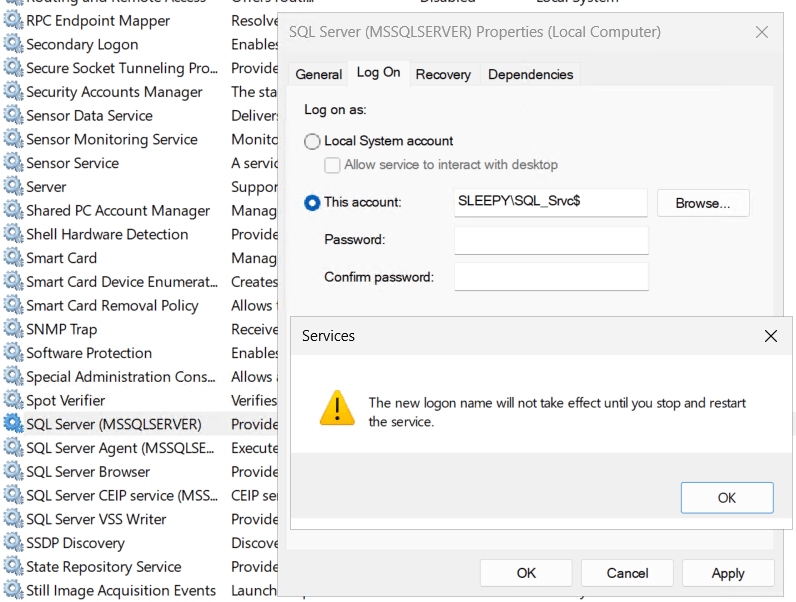
    Now we are ready to use the dMSA. Select the service that the account is to be used on, in my case its SQL Server (Leave the password blank).

    Restart the service and it should now be running using the dMSA account.

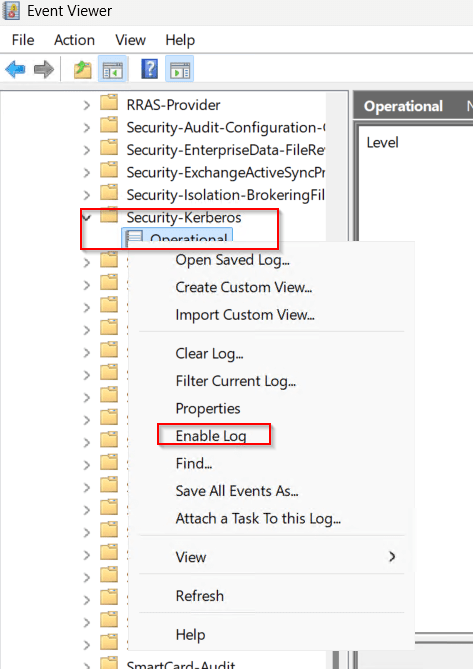
    We can enabled Kerberos Event Logging to view events.

    Open eventvwr and under Applications and Services Logs > Microsoft > Windows > Kerberos/Operational

    Event IDDescription
    307dMSA Migration – This event is written for both dMSAs under migration and for ones that migrated. It contains information about the old service account and the new dMSA.
    308dMSA Permission Add – This event is logged when a machine attempts to add itself to the principals allowed to retrieve managed password field of a dMSA during migration.
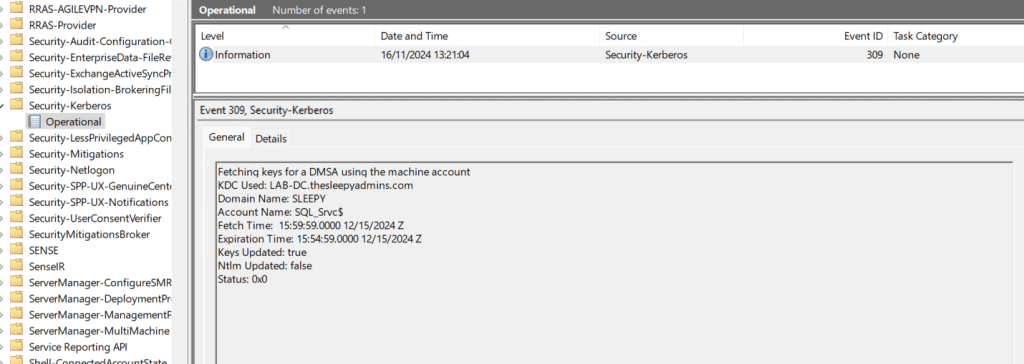
    309dMSA Key Fetch – This event is logged when the Kerberos client attempts to fetch keys for a dMSA from the domain controller.

    This has been a quick overview of setting up dMSA account. Below link is some of the common question on using dMSAs.

    https://learn.microsoft.com/en-us/windows-server/identity/ad-ds/manage/delegated-managed-service-accounts/delegated-managed-service-accounts-faq

    Active Directory: Fine-Grained Password Policy

    Active Directory usually has a single password policy that is applied to all users. This is will typically be in the default domain policy unless a new group policy is created. 

    There are certain scenario where we might want to have a different password policy, Admin users, testing password resets, service accounts…

    With fine grained password policies, we can target either specific users or groups and assign them a specific password policy.

    In this post we will be going through creating and assigning a fine grained password policy.

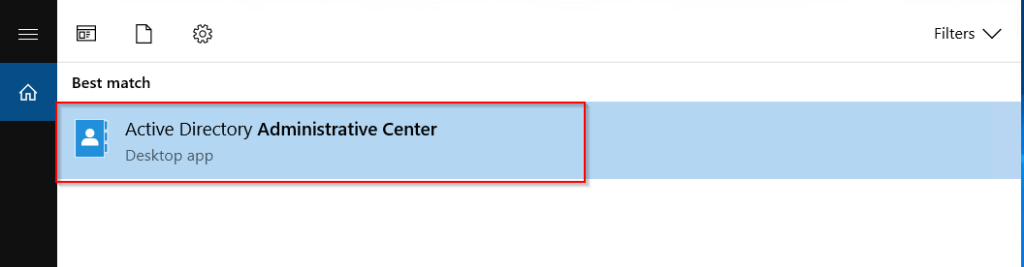
    To start we need to open ADAC (Active Directory Administrative Center.

    ADAC Console

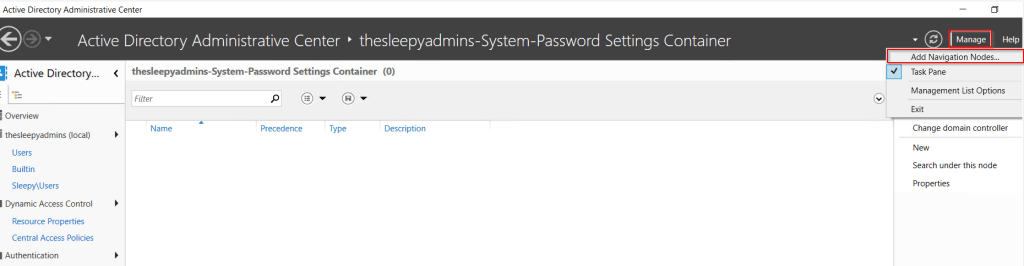
    Next we need to add the node to view the password settings container. Select Managed and Add Navigation Nodes.

    Add Navigation Node

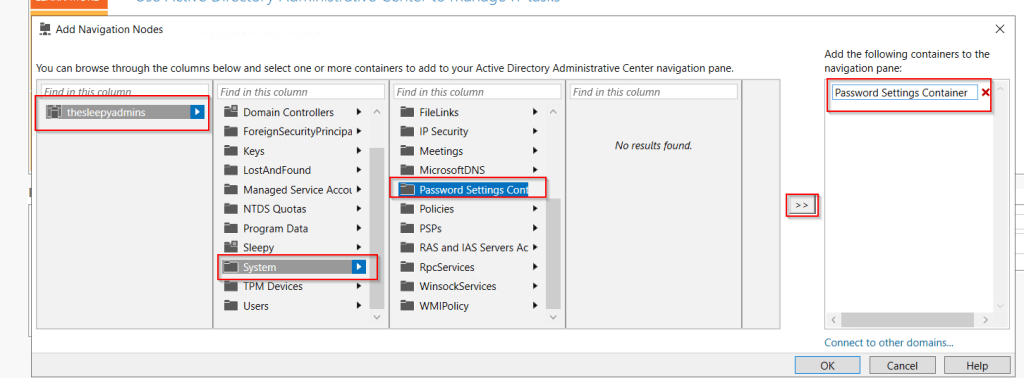
    Select the required domain > System > Password Settings Container and add, the name can be customized I just used Password Settings Container.

    Add Password Node

    To create the policy select the password node, right click, select new and Password Settings.

    ADAC Password Node

    The below table shows each setting with a short description of each.

    SettingDescription
    Policy NameThe name of the fine-grained password policy.
    PrecedenceA numerical value that determines the priority. Lower numbers have higher priority.
    Password History Length Specifies the number of unique new passwords that must be associated with a user account before an old password can be reused.
    Minimum Password AgeThe minimum number of days that a password must be used before the user can change it. Prevents users from frequently changing passwords to bypass history requirements.
    Maximum Password AgeThe maximum number of days that a password can be used before the user is required to change it.
    Minimum Password LengthThe minimum number of characters a password must contain.
    Password Complexity RequirementsSpecifies whether the password must meet complexity requirements, such as including uppercase and lowercase letters, numbers, and special characters.
    Store Passwords Using Reversible EncryptionSpecifies if passwords should be stored using reversible encryption, which is less secure but may be required for certain applications.
    Account Lockout ThresholdThe number of failed login attempts that will trigger an account lockout.
    Account Lockout DurationThe number of minutes that an account remains locked out before it is automatically unlocked.
    Reset Account Lockout Counter AfterThe number of minutes that must pass after a failed login attempt before the failed attempts counter is reset to zero.
    Applies ToSpecifies the users or groups to which the policy applies.
    DescriptionAn optional field to describe the purpose or details of the fine-grained password policy.

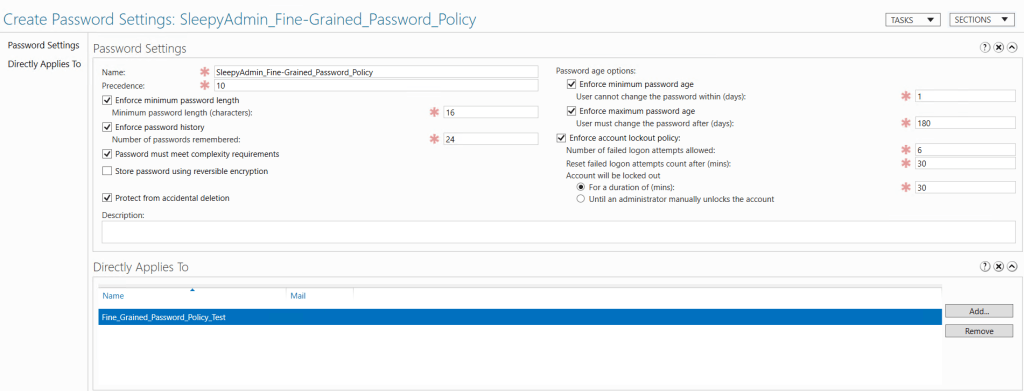
    Set the required setting values. I would recommend assigned to a test group first to confirm all setting work as expected before applying to standard users .

    Fine Grained Password Policy settings

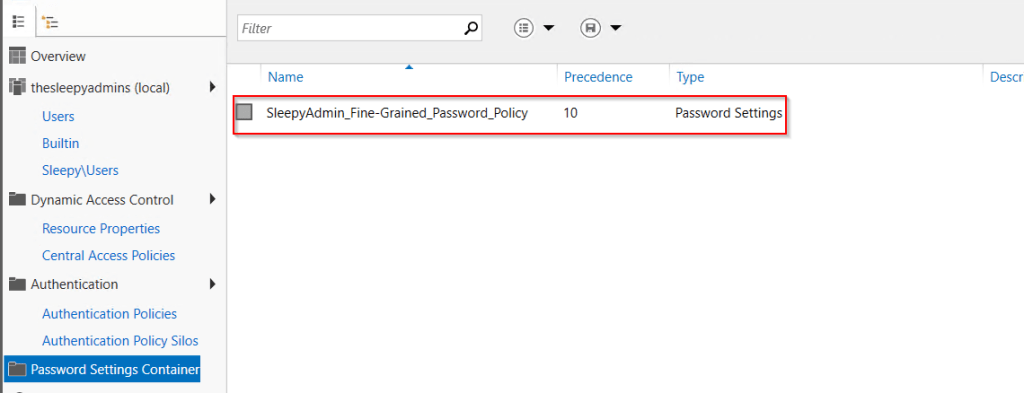
    Click ok and policy should now show.

    Fine Grained Password Policy

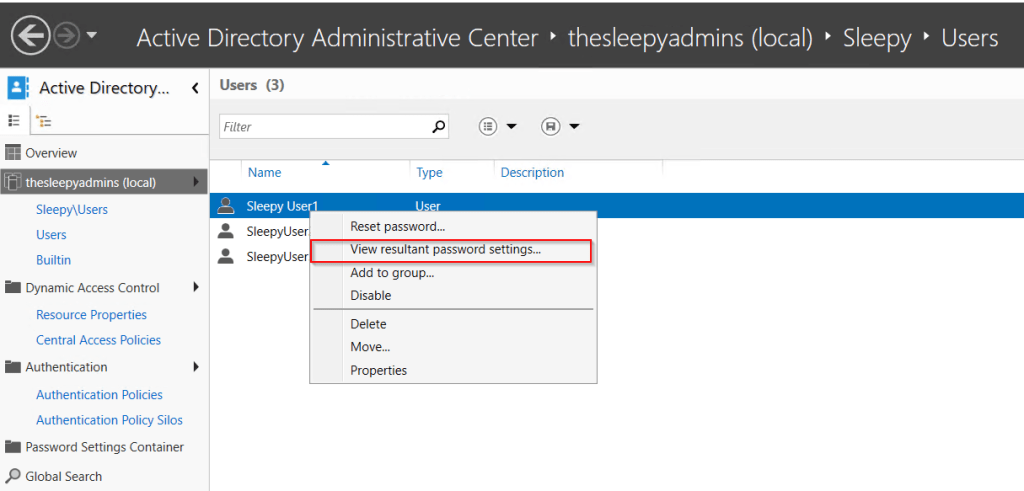
    To view if the password policy is applied select a users, right click and select view resultant password settings.

    ADAC Password Policy view

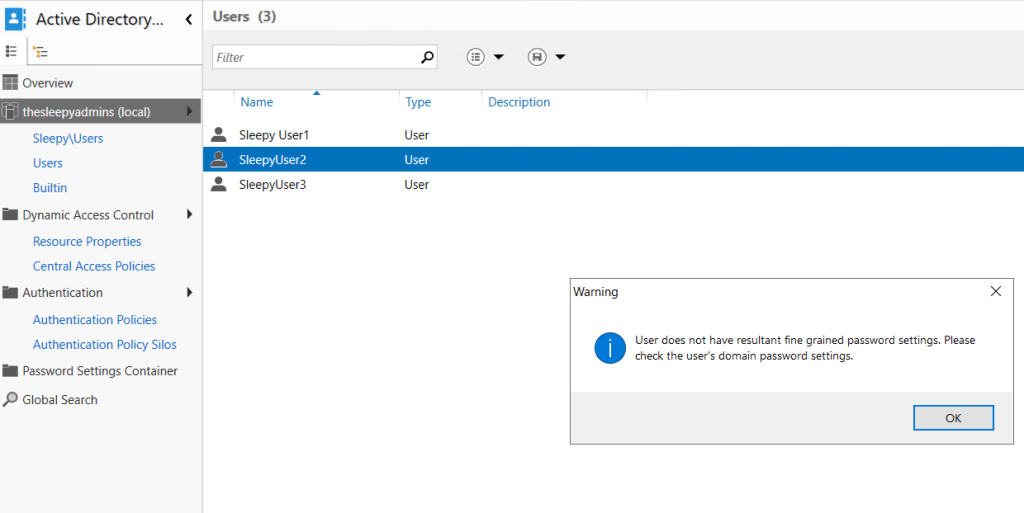
    If the user doesn’t have policy applied you will receive a warning.

    ADAC Policy Warning

    We can also create a password policy using PowerShell, this can be usefully if you need to script multiple policy.

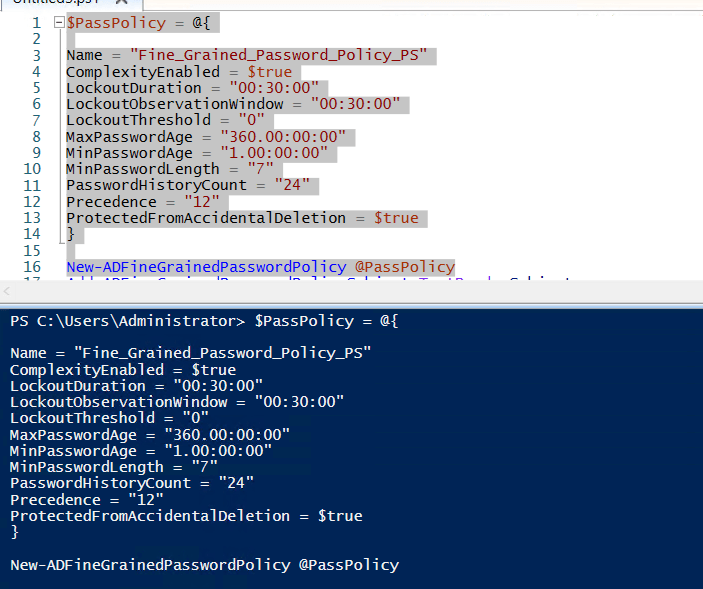
    We can use the below to create the policy I used PowerShell splatting to make the command shorter and easier to read.

    $PassPolicy = @{
    
    Name = "Name"
    ComplexityEnabled = $true
    LockoutDuration = "00:30:00"
    LockoutObservationWindow = "00:30:00"
    LockoutThreshold = "0"
    MaxPasswordAge = "360.00:00:00"
    MinPasswordAge = "1.00:00:00"
    MinPasswordLength = "7"
    PasswordHistoryCount = "24"
    Precedence = "12"
    ProtectedFromAccidentalDeletion = $true
    }
    
    New-ADFineGrainedPasswordPolicy @PassPolicy
    
    Create Fine Grained Password Policy PowerShell

    Next we can run the below command to return the password policies.

    Get-ADFineGrainedPasswordPolicy -Filter * | Select-Object Name
    
    List Fine Grained Password Policies

    Last step is to apply the policy to either the user or group.

    Add-ADFineGrainedPasswordPolicySubject Password_Policy_Name  -Subjects Group
    

    Setting up a fine-grained password policy in Microsoft Active Directory is great way to enhance security by applying custom password and account lockout settings to specific user or groups.

    After implementing the policy, it’s important to monitor and review its impact. Reviewing these settings over time can help maintain a balance between strong security and user convenience.

    Computer Account Re-Use Domain Join: SAM_DOMAIN_JOIN_POLICY_LEVEL_V2 returned NetStatus:0x5

    This is a quick post to go through an issue I ran in to when applying the Active Directory (AD) domain re-use policy. I have a post on setting up the domain re-use policy.

    Even though the policy was configured and the user I was attempting to re-join the computer to AD I was still getting the domain error

    Account exists and re-use is blocked by policy.

    When looking through the netsetup logs under C:\Windows\debug, I was getting the following error.

    Active Directory Policy check with SAM_DOMAIN_JOIN_POLICY_LEVEL_V2 returned NetStatus:0x5.

    SAM Error

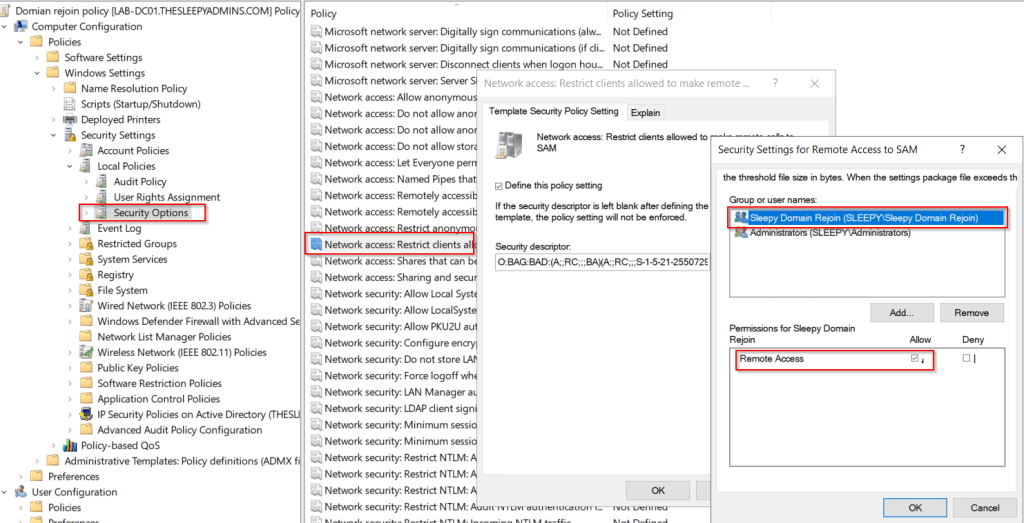
    This issue was caused by having the following security option policy set Network access: Restrict clients allowed to make remote calls to SAM

    This policy is recommend to improve security in AD, but by default it will only allow members of the administrators group in AD connect remotely to the Security Accounts Manager (SAM) database.

    To fix the issue I added the same group used for domain joins to the policy to allow the domain re-join accounts to also be able to make remote calls to SAM.

    SAM policy setting

    Once the policy is updated on all DC’s the domain join should now work correctly.

    Netsetup log

    Active Directory: Authentication Policies and Authentication Policy Silos

    In this post we will be going through setting up a authentication policies / authentication policy silos.

    Microsoft Active Directory (AD) Authentication Policies and Authentication Policy Silos are security features designed to enhance authentication processes and protect sensitive accounts in an Active Directory environment.

    • Authentication Policies provide granular control over authentication methods and restrictions, ensuring that only authorized users and devices can access resources.
    • Authentication Policy Silos, allow administrators to group sensitive accounts and applying specific authentication policies to these groups to mitigate the security risk.

    With these policies set it will help with protecting from unauthorized access and reducing the potential impact of security breaches.

    https://learn.microsoft.com/en-us/windows-server/security/credentials-protection-and-management/authentication-policies-and-authentication-policy-silos

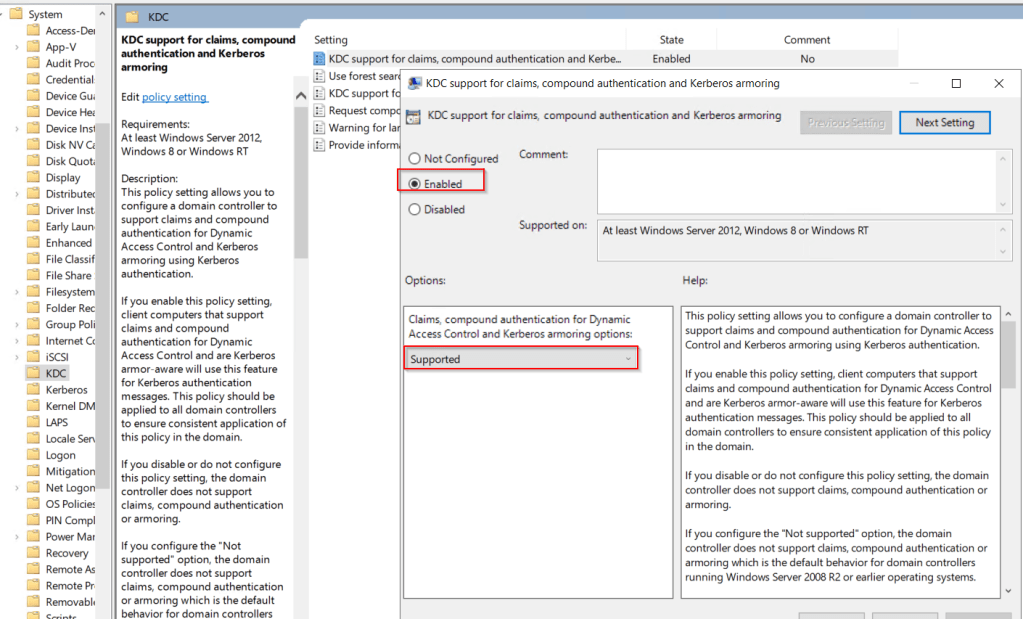
    First to allow the use of these policies we need to enabled the KDC support for claims, compound authentication, and Kerberos armoring on all domain controllers.

    The policy setting is under

    Computer Configuration > Administrative Templates > System > KDC

    This needs to be set to enabled and supported.

    KDC Policy

    We also need to enabled the Kerberos client support for claims, compound authentication, and Kerberos armoring on clients.

    The policy setting is under

    Computer Configuration > Administrative Templates > System > Kerberos

    Kerberos Policy

    We can either apply individually or at the root level of the domain. I applied at the root level of the domain and apply the KDC policy directly on the domain controller OU.

    The clients and DC’s will require a reboot for the policy to apply.

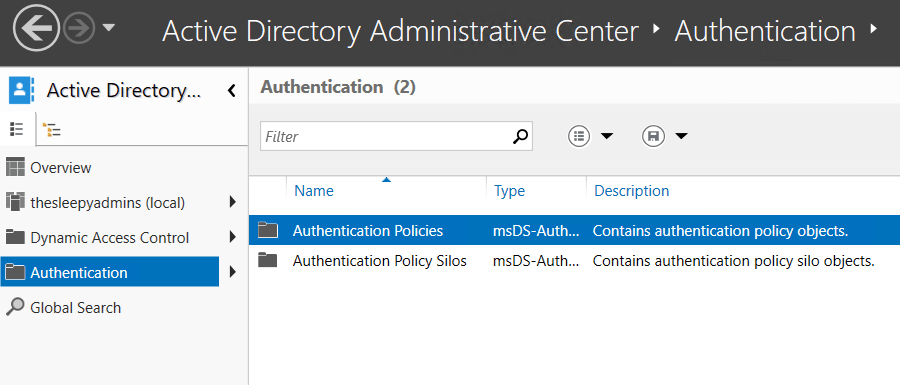
    Authentication policy and policy silos are configured using Active Directory Administrative center (ADAC).

    The polices containers are located under Authentication.

    ADAC Authentication

    Authentication policies control the following:

    • The ticket granting ticket (TGT) lifetime for the account, which is set to be non-renewable.
    • The criteria that device accounts need to meet to sign in with a password or a certificate.
    • The criteria that users and devices need to meet to authenticate to run services as a specific account.

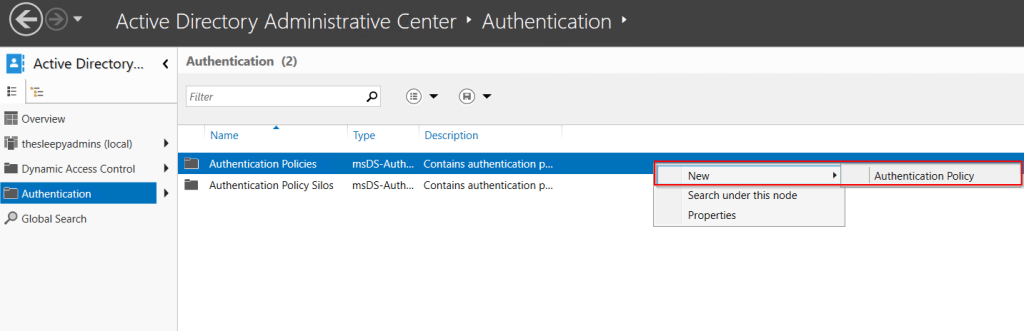
    First step is we need to create a new authentication policy.

    ADAC Creating Authentication Policy

    Set a policy name, protect from accidental deletion and if the policy is in audit or enforced mode. In production in would use audit and review the event logs to confirm the restrictions work as expect before setting to enforce.

    Authentication Policy

    Next we need to set what the policy will be applied against. These can be

    • User Accounts
    • Service accounts
    • Computer accounts

    In this example we will be using users sign on policy to reduce the ticket granting ticket lifetime (TGT) time to 90 minutes.

    User TGT Lifetime

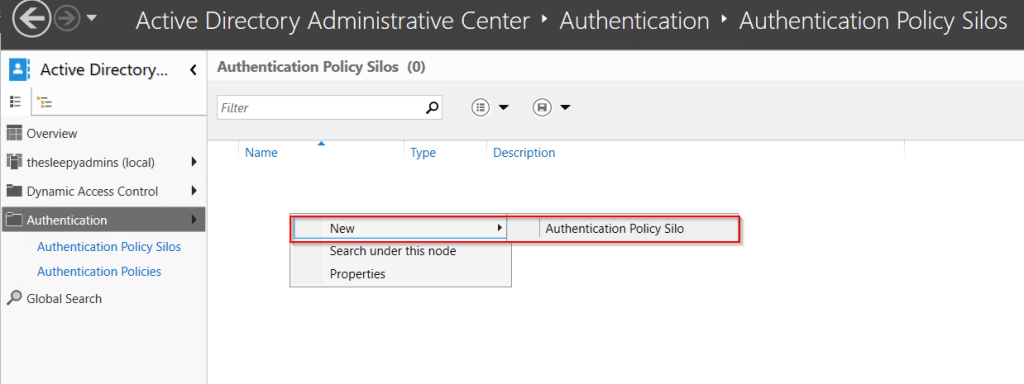
    Next we will configure the Authentication Policy Silos,

    ADAC Authentication Policy Silo

    Give the Silo a

    • Name
    • Set to audit or enforce
    • Add the permitted accounts
    • Set the authentication policy
    Create Authentication Policy Silo

    Next we need to set the silo policy on the accounts. This can be done by selecting the accounts from ADAC and going to silo.

    Then select the required silo policy to apply.

    Setting Authentication Policy Silo

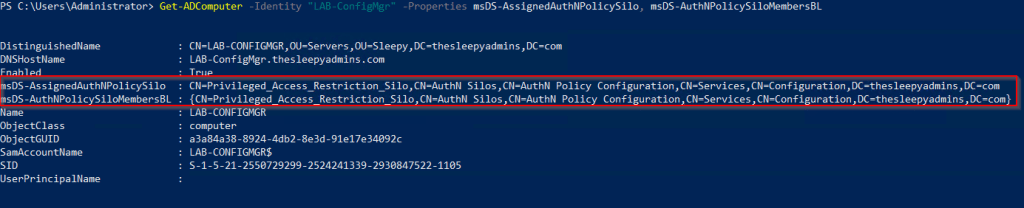
    We can checked the msDS-AssignedAuthNPolicySilo & msDS-AuthNPolicySiloMembersBL attributes on the accounts that have the silo applied to confirm.

    msDS attributes

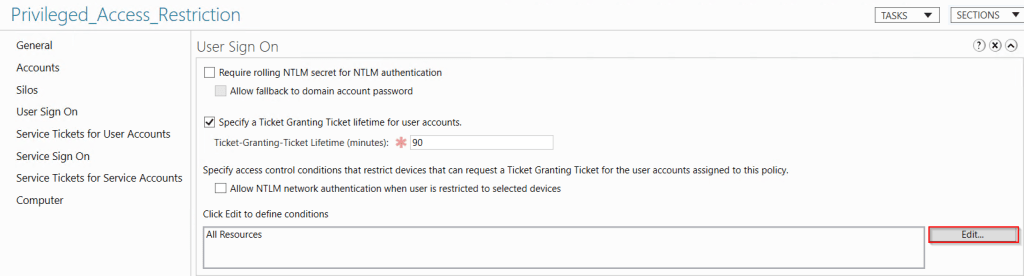
    Last step is to go back to the authentication policy and update the user sign on condition.


    Access Conditions

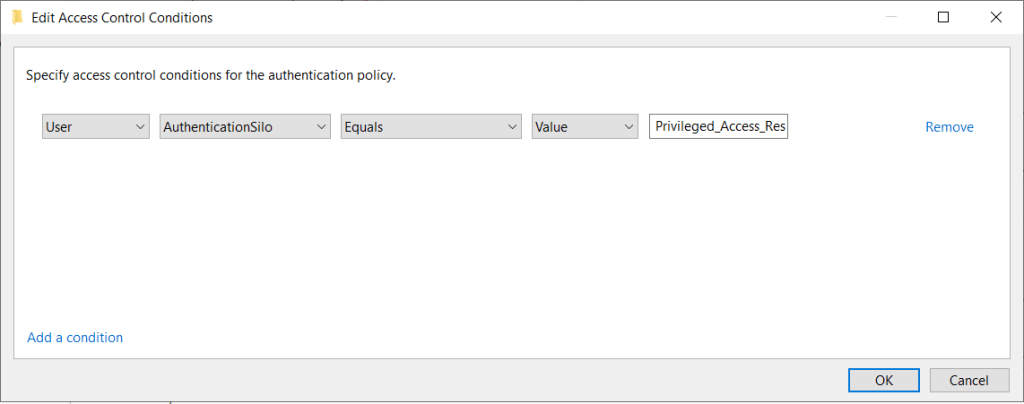
    Set to AuthenticationSilo, equals and set the silo name to the one we created.

    Create control conditions
    Access Conditions

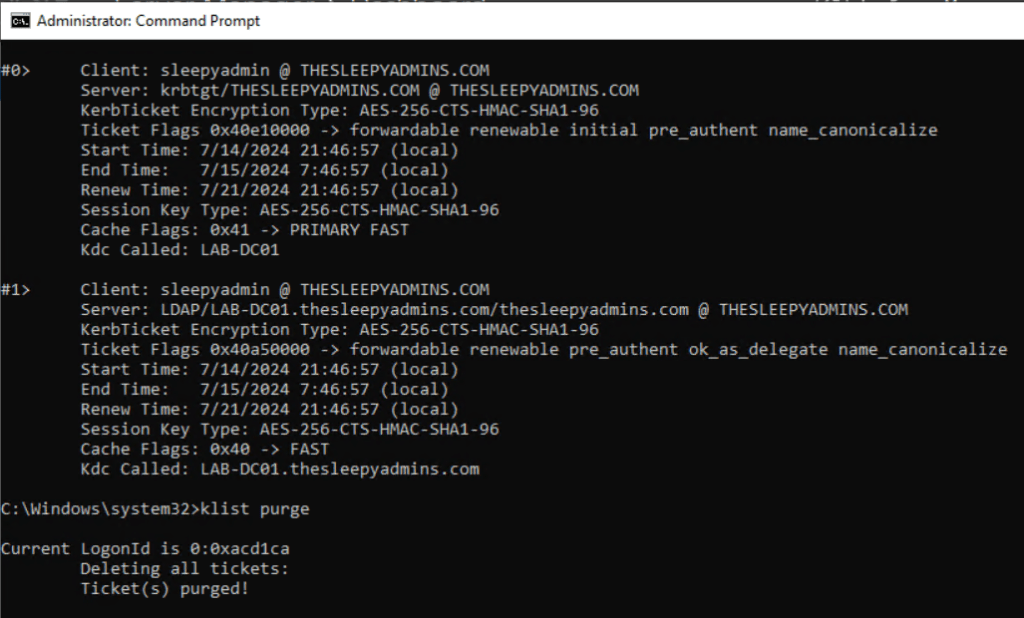
    The DC may also need to have the kerbros ticket purged before the policies will apply this can be done by using klist purge

    List Kerberos tickets

    Now when we try to logon to the server in the silo it should be allowed. We can also use whoami /claims to see if the claims is applied.

    Whoami claims

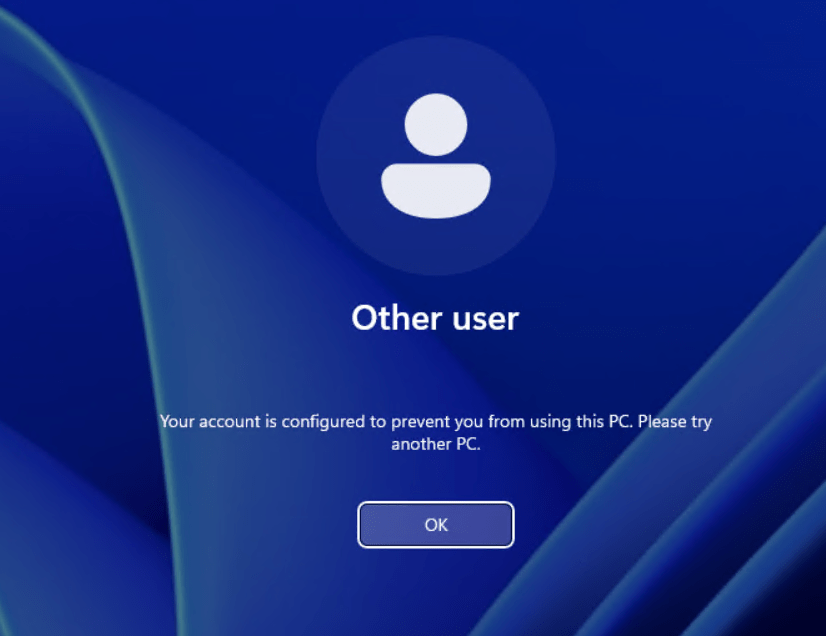
    If we try logon to another devices with the same account outside of the silo we should be blocked.

    Windows 11 client blocking access

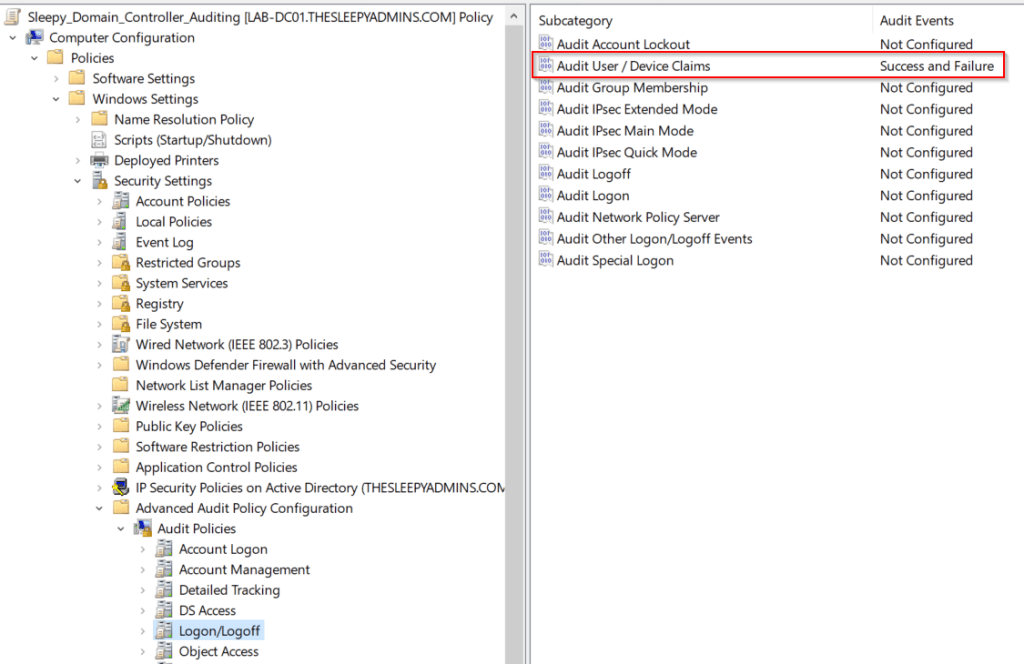
    To troubleshoot or audit, we can enabled Audit user / device claims using group policy. The policy is setting is under Policies > Windows Settings > Security Settings > Advanced Auditing Policy Configuration > Logon/Logoff

    Advanced Audit Policy

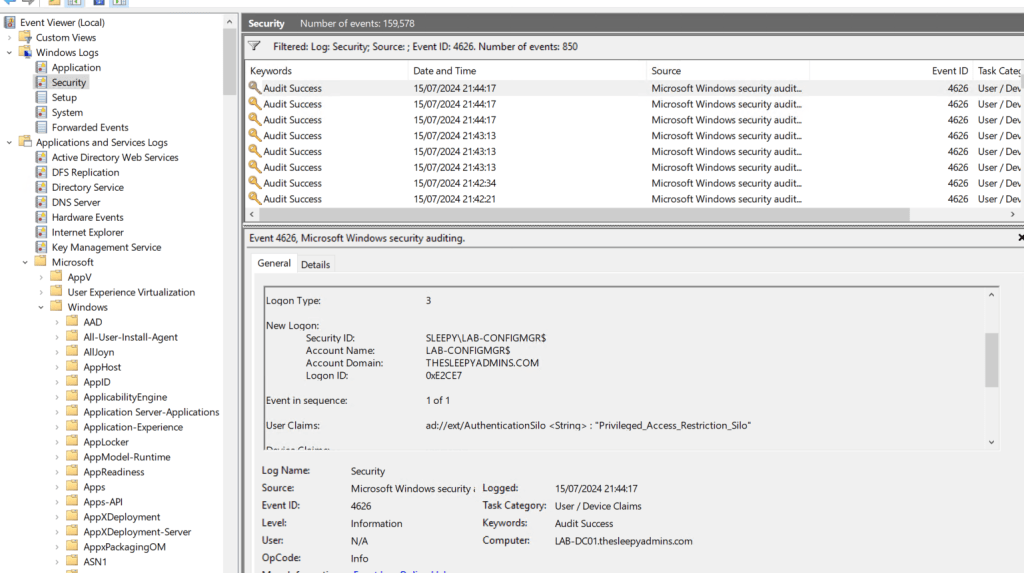
    We can check under the security logs on the DC for Eventid 4626

    Claims Event logs

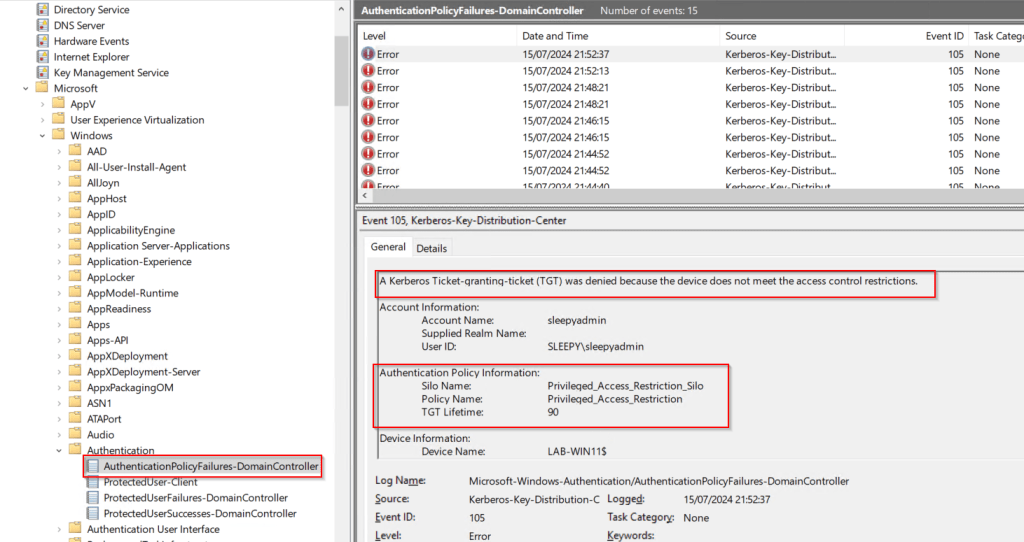
    We can also enabled Authentication policy failures and success, this will need to be done on all DC’s. The logs are under
    Microsoft > Windows >Authentication/AuthenticationPolicyFailures-DomainController

    This will then log the accounts that are failing to be issue a TGT.

    Authentication User event logs

    This has been a quick overview of creating an authentication silo, setting this up can be a bit tricky.

    I did have issue getting the policy silo to work due to existing TGT but once configured it can really help with locking down access to tier 0 devices.

    Active Directory: Computer Account Re-Use Domain Join Policy

    During a recent hardware refresh we have been running in to issue with domain rejoins, this happens for all users even the owner and domain admins.

    During the build process we use a service account with delegated permission on the specific OU to do the domain join step.

    If there was any issue or we need to re-join the device to AD we where getting the below error.

    An account with the same name exists in Active Directory. Re-using the account was blocked by security policy.

    This issue is from a update that was applied by Microsoft last year to harden domain joins.

    https://support.microsoft.com/en-us/topic/kb5020276-netjoin-domain-join-hardening-changes-2b65a0f3-1f4c-42ef-ac0f-1caaf421baf8

    This change isn’t suppose to effect users who are members of any of the below groups as they are exempt from the ownership check

    • Administrators
    • Enterprise Administrators
    • Built-in Administrators groups

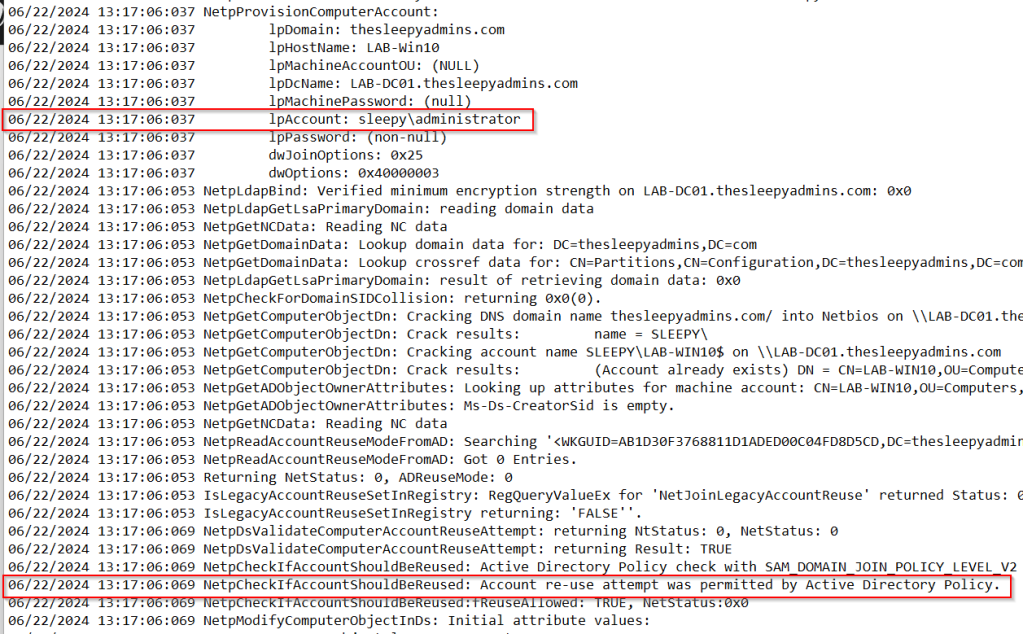
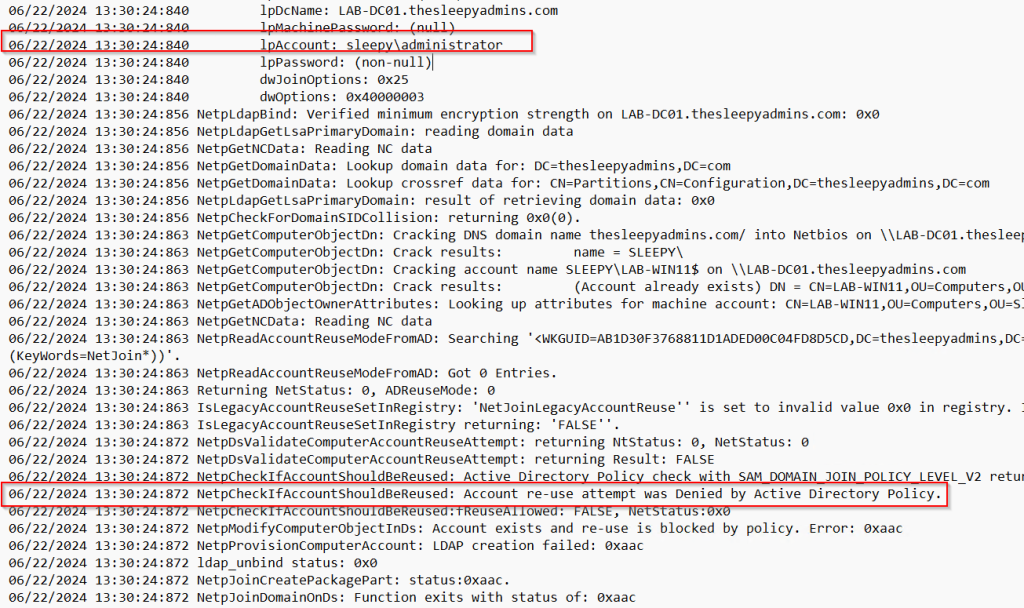
    but we found that this was not the case as even with a domain admin I couldn’t rejoin. To view the domain join log go to C:\Windows\debug\NetSetup.LOG.

    There is a registry workaround that can be applied but this is due to be removed in August 2024 so we wont go over that here.

    To fix this issue Microsoft now recommend using a new GPO setting, we have to apply the specific policy setting to all domain controllers to set what accounts can re-join the devices to the domain.

    We can set this to be either a single users or a security group but its recommend to use a group. This group should have as few users a possible this is to reduce the risk the hardening was introduced for.

    To make the GPO setting available we need to install the September 12, 2023 or later updates on all member computers and domain controllers. 

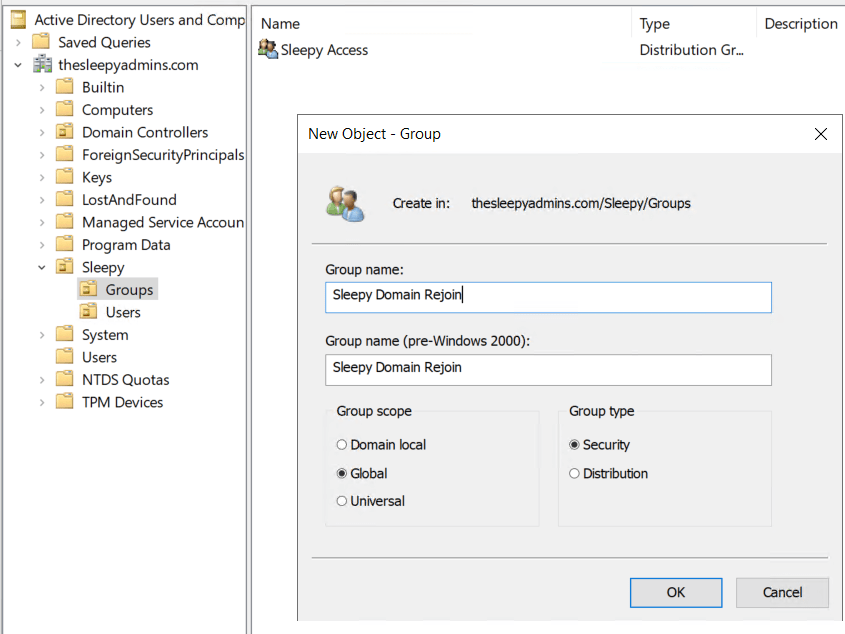
    First we will create a new security group

    Next we can add the specific user or users to the group.

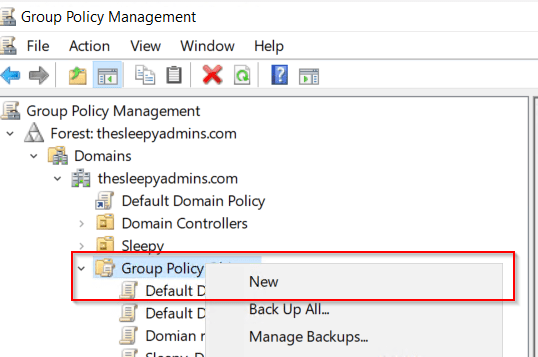
    Next we can either create or re-use an existing policy, I will be creating new policy

    Give the policy a name.

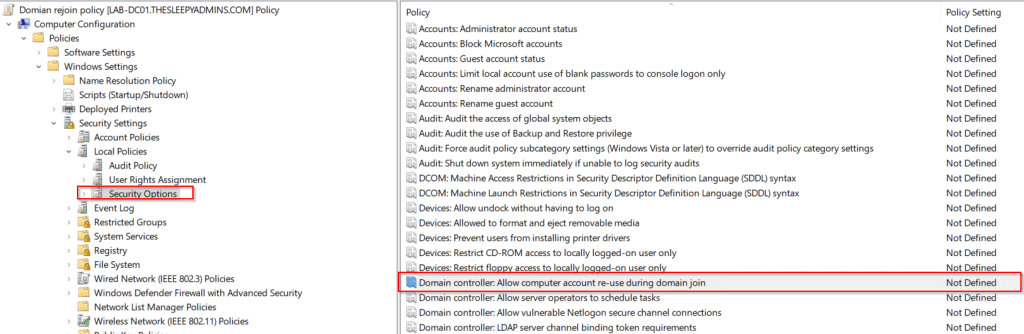
    Next edit the policy and go to  Computer Configuration\Policies\Windows Settings\Security Settings\Local Policies\Security Options, double-click Domain controller: Allow computer account re-use during domain join.

    If the policy is missing it most likely that the pre-req update has been installed yet.

    Select the policy setting and click edit, add users or groups of trusted computer account creators and owners to the Allow permission.

    Do not add the user account that performs the domain join.

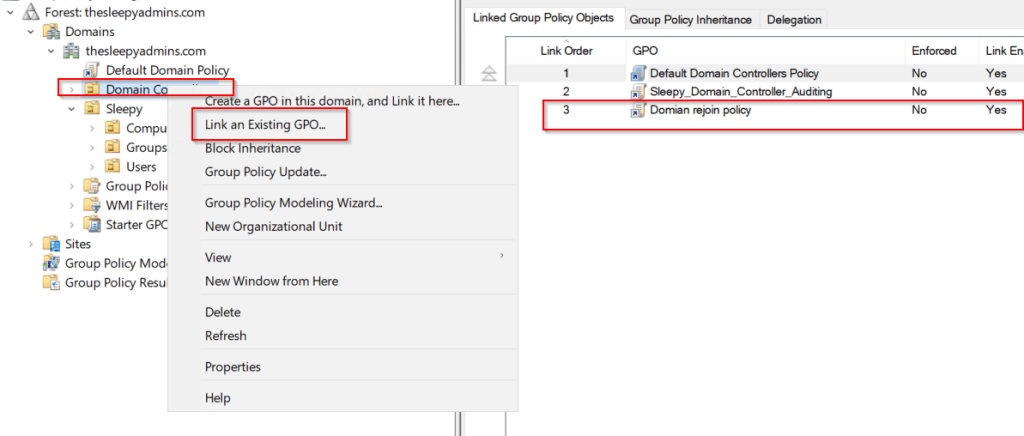
    Apply the new policy to the domain controllers OU.

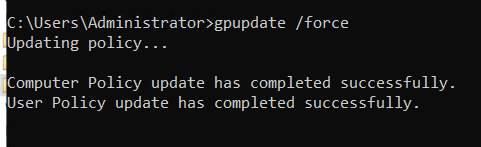
    Then run gpudpate /force on each DC or wait for about 15 minutes for the policy to apply.

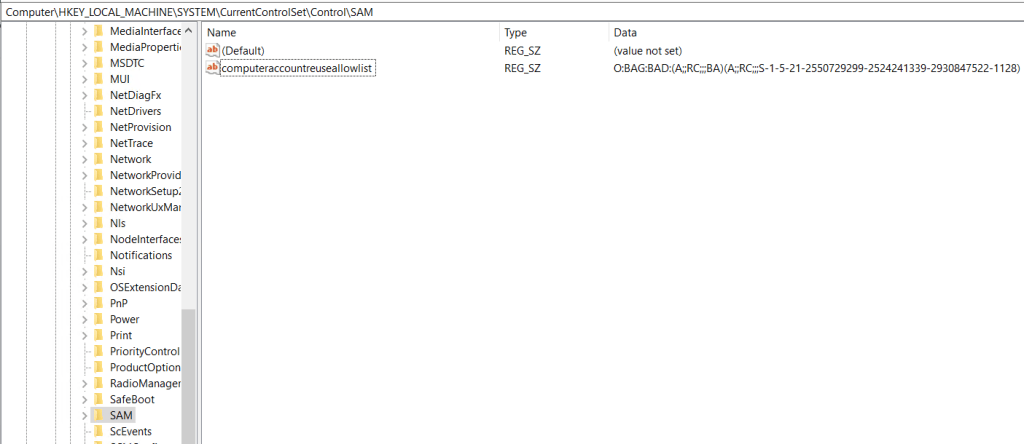
    To confirm if the setting is applied we can check the below registry value.

    PathHKEY_LOCAL_MACHINE\SYSTEM\CurrentControlSet\Control\SAM
    TypeREG_SZ
    Namecomputeraccountreuseallowlist
    ValueEquals what is in the group policy setting.
    Re-use registry setting

    Once confirmed the setting is on the Domain Controllers,

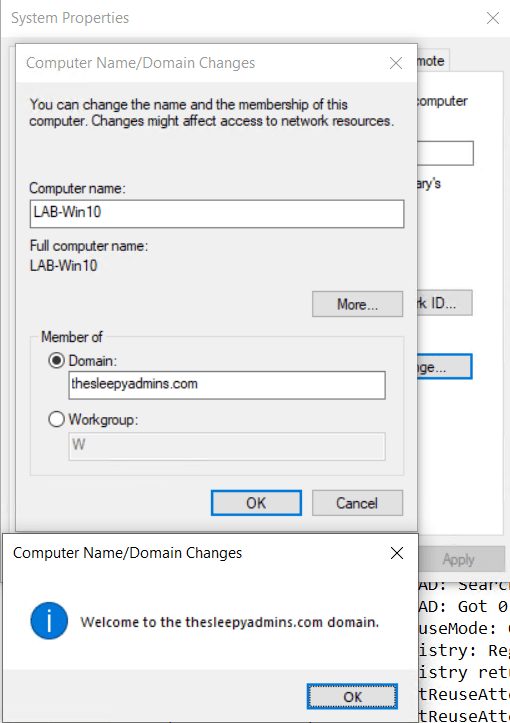
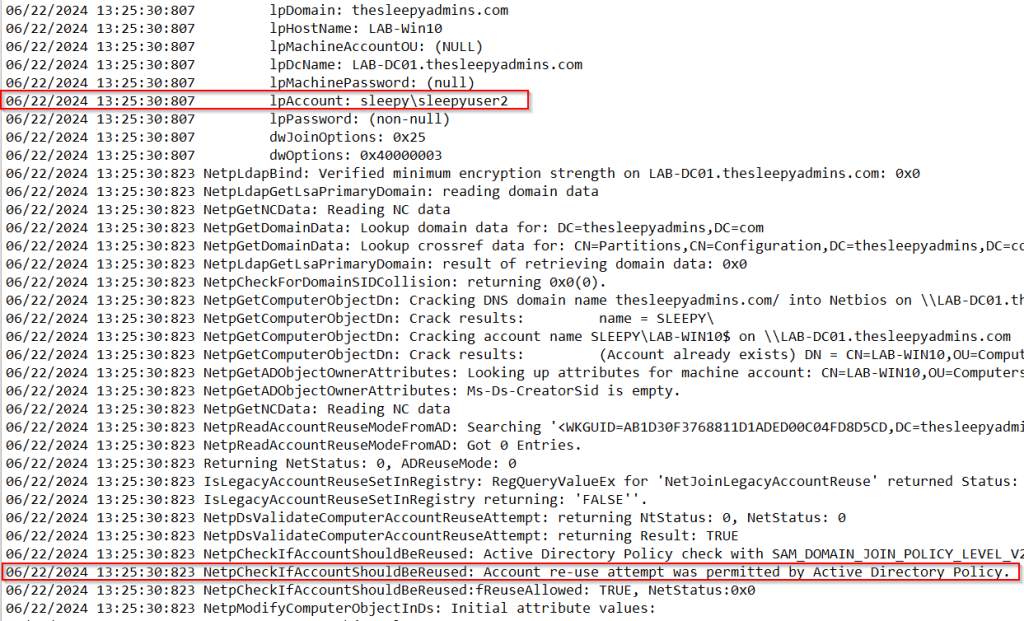
    Next we tried to re-join to the domain again with a domain admin account and now the join is successful.

    and if we check the log we can now see the attempt was permitted.

    Now that domain admins are able to re-join I wanted to test the lower privileged account in the re-join group we created earlier.

    This was also successful.

    Last test was to try an account that wasn’t part of the re-join group and confirm it would be blocked from re-joining which it was.

    I have tested this on a Windows 10, Windows Server 2019 & 2022 without issue.

    I have run in to issues on Windows 11 as it doesn’t seem to honor the policy setting not sure why might be a bug.

    Windows 11 policy failure

    The only way I was able to get Windows 11 to re-join was to use the legacy reg value workaround and then delete after re-joining to AD.

    PathHKLM\System\CurrentControlSet\Control\LSA
    TypeREG_DWORD
    NameNetJoinLegacyAccountReuse
    Value1
    Legacy reuse registry value

    Using the group policy is a easier method than having to use the registry value and hopefully Windows 11 will be fixed in a later update.