Configure Windows Hello for Business with Cloud Kerberos Trust

In this post we will be going through the process of setting up Cloud Kerberos Trust to allow Entra Joined devices to access on prem resources (FileShare, Web apps..).

Prerequisites

Before starting, ensure you have the following:

  • Microsoft Entra ID Tenant
  • Active Directory
  • Domain Admin and Global Admin rights
  • Intune license and admins rights to configure Windows Hello for Business settings.
  • Windows 10 or Windows 11 devices

I used this learn article to setup the cloud Kerberos trust.

https://learn.microsoft.com/en-us/windows/security/identity-protection/hello-for-business/deploy/hybrid-cloud-kerberos-trust?tabs=intune

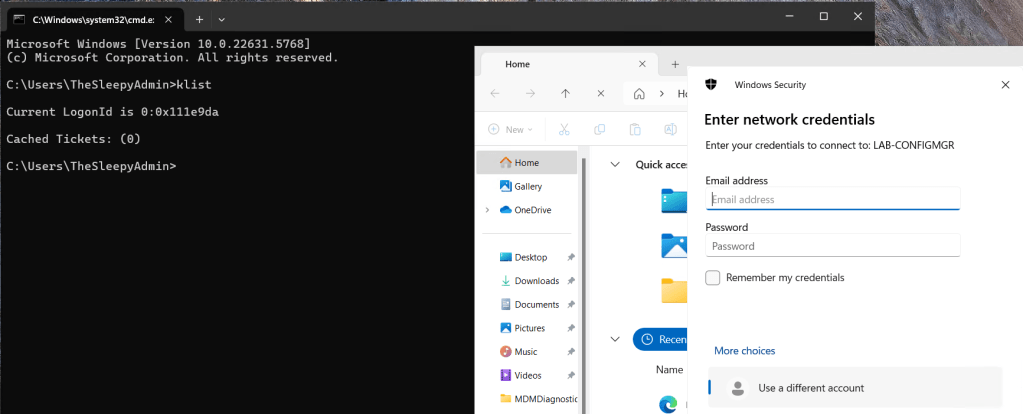
Currently when I try to access resource using a Entra only joined device I get prompted for my username and password by on-prem resources. This is due to NTLM being blocked and not being issue Kerberos tickets due to being a Entra Only joined device.

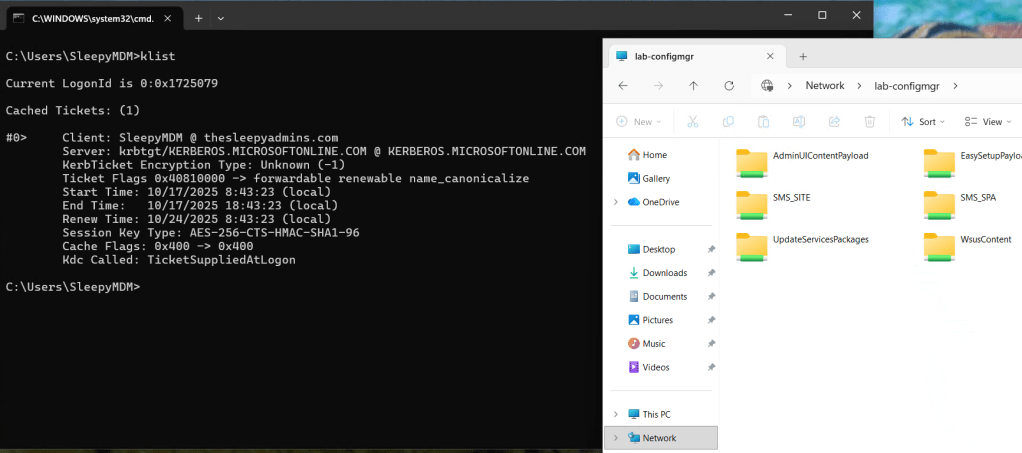
We can run klist to see if any Kerberos tickets have issues.
First we need to setup the AD object that will be used by Entra to generate Kerberos TGTs.

Open a PowerShell prompt using the Run as administrator option. Install the Azure AD Kerberos PowerShell module by running:

# First, ensure TLS 1.2 for PowerShell gallery access.
[Net.ServicePointManager]::SecurityProtocol = [Net.ServicePointManager]::SecurityProtocol -bor [Net.SecurityProtocolType]::Tls12

# Install the AzureADHybridAuthenticationManagement PowerShell module.
Install-Module -Name AzureADHybridAuthenticationManagement -AllowClobber

Run the following PowerShell commands to enable cloud trust Kerberos.

# Specify the on-premises Active Directory domain. A new Microsoft Entra ID
# Kerberos Server object will be created in this Active Directory domain.
$domain = $env:USERDNSDOMAIN

# Enter an Azure Active Directory Hybrid Identity Administrator username and password.
$cloudCred = Get-Credential -Message 'An Active Directory user who is a member of the Hybrid Identity Administrators group for Microsoft Entra ID.'

# Create the new Microsoft Entra ID Kerberos Server object in Active Directory
# and then publish it to Azure Active Directory.
Set-AzureADKerberosServer -Domain $domain -CloudCredential $cloudCred

This will then create a object in AD similar to a read only domain controller.

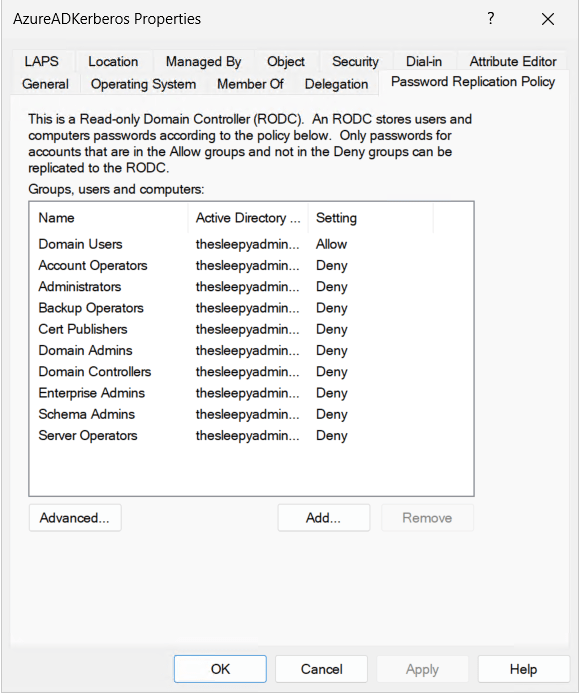
One thing to note is that if your account is part of a privileged group in AD, your password wont be replicated to this new object. We can check the group by going to the AD object and password replication tab. If your account is in any of the deny group you wont be issued Kerberos tickets.
Next we need to go to Intune and Configure the Windows Hello for Business policy.

Logon to the Intune Admin portal > Devices > Windows > Configuration > Create New Policy.
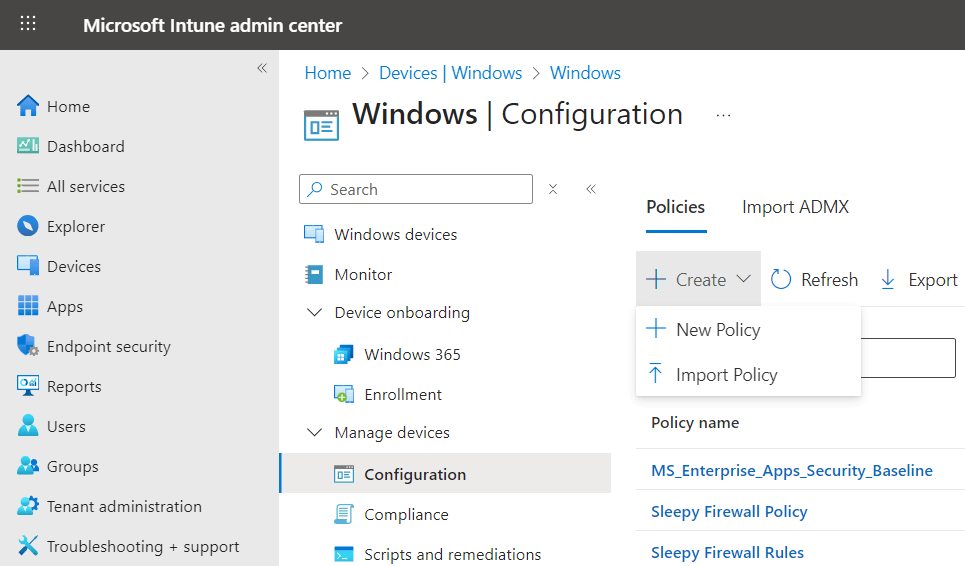
Select platform Windows 10 and Later and profile type Settings Catalog, click Create

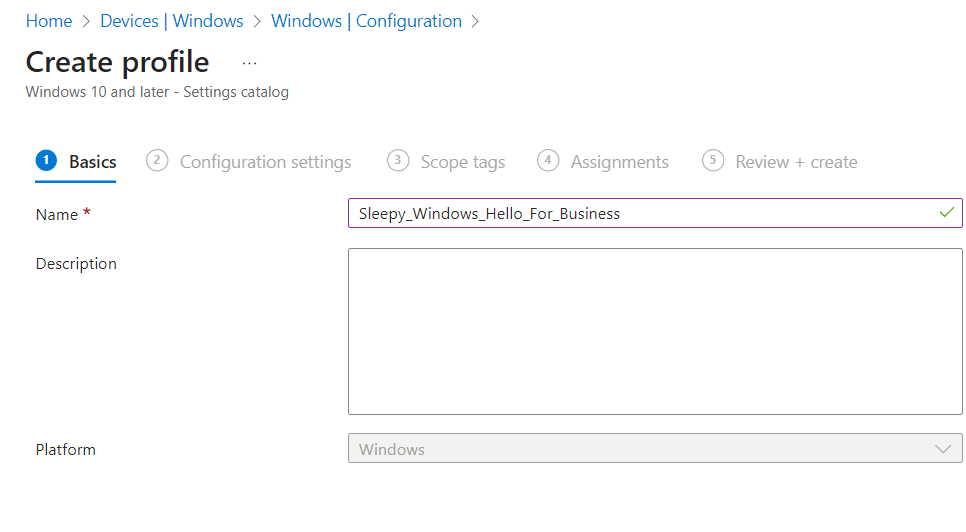
Give the policy a name and description.
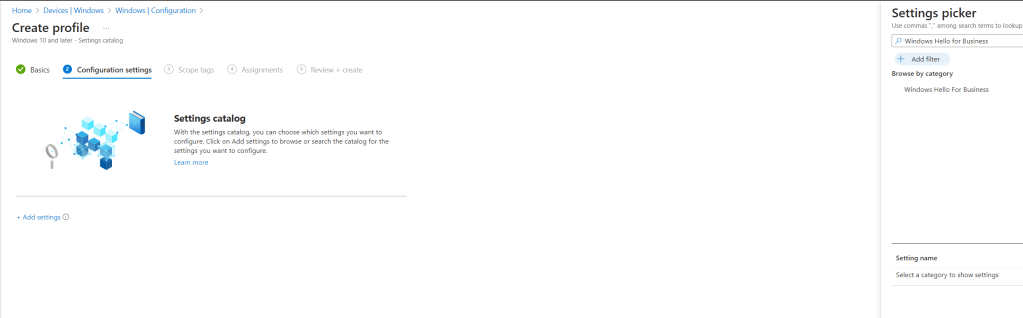
Click add settings and search for Windows Hello for Business.
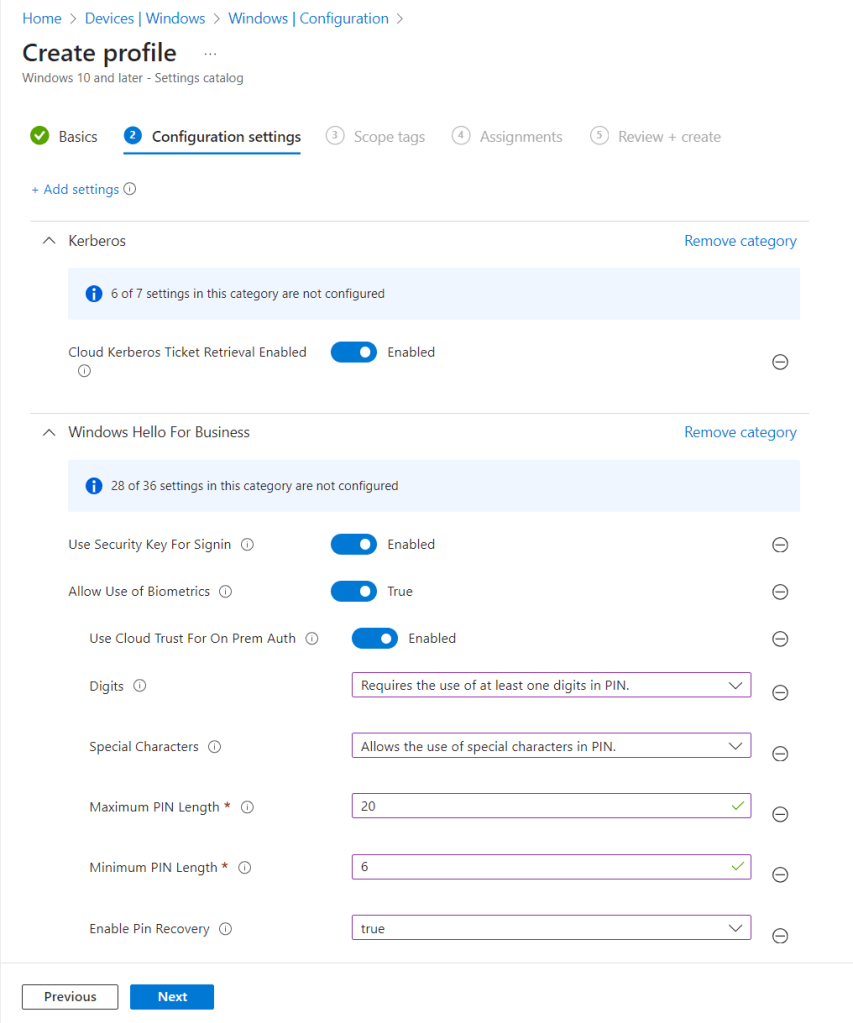
I used the below settings for my pin and we need to enable use cloud trust for on prem auth and Cloud Kerberos Ticket Retrieval.
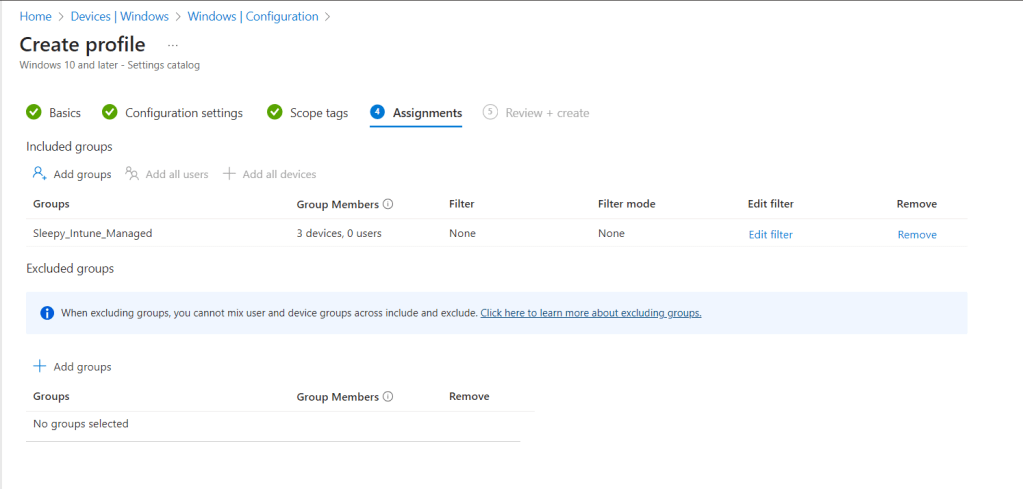
I left scope as defualt and apply the policy to my Intune Managed group.
Once the policy is applied we can connect back to the asset and restart.

On the next logon if we check we should now be able to connect to onprem resources and get issued Kerberos tickets.
This has been a quick run through of Setting up Cloud Kerberos Trust.
Set Local Account Policies Using Intune

In the post we will be going through the process of setting local account policies settings like maximum password age, password length, account lockout ….

To set these will be a configuration policy, these settings done have settings catalogue yet so we will be using custom policy.

I will be using an Entra Joined Windows 11 device, but this will also work if the device is hybrid joined and MDM is set to Win over GPO.

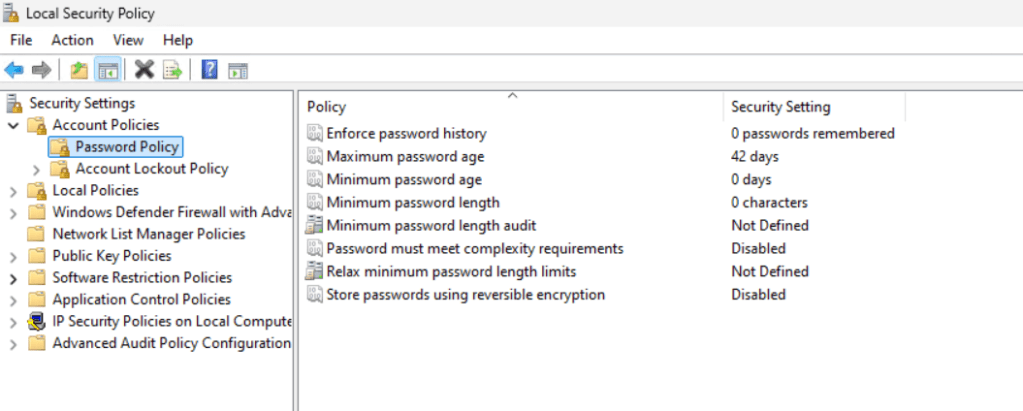
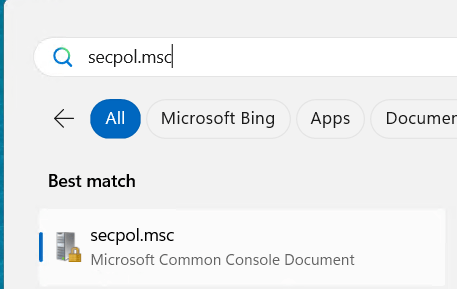
To check the current policy settings we can use secpol.msc to open the local security policy console.

Next we can check the account policies.

Once we have the current settings we can create the policy and change as required.

Next we need to configure the policy in Intune.

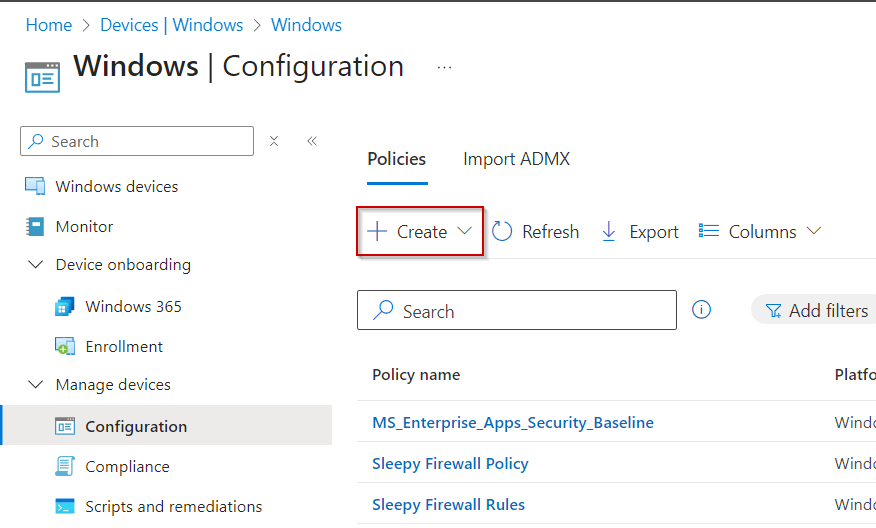
Go to Intune Admin center > Devices > Manage Devices > Configuration

Select Create

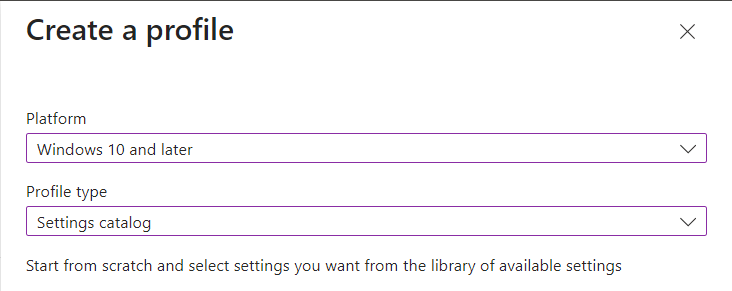
Select Platform and Profile type (Will be using Windows 10 or later and Settings catalog in the example)

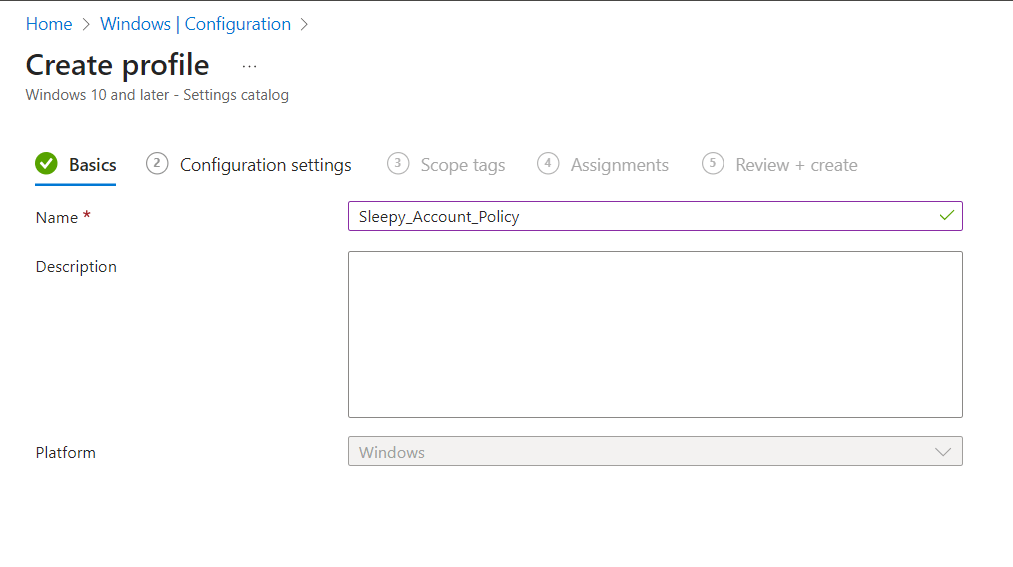
Give the policy a name and description

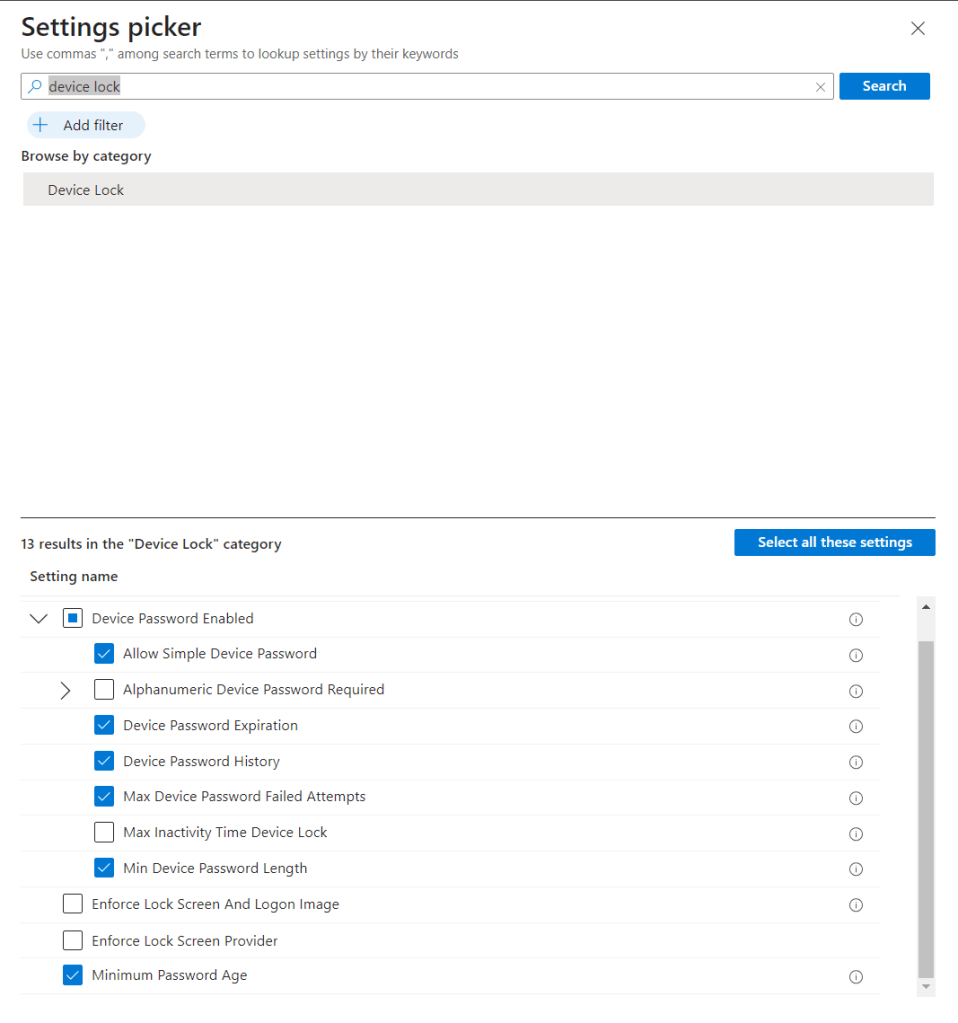
Search for Device Lock and select the required settings.

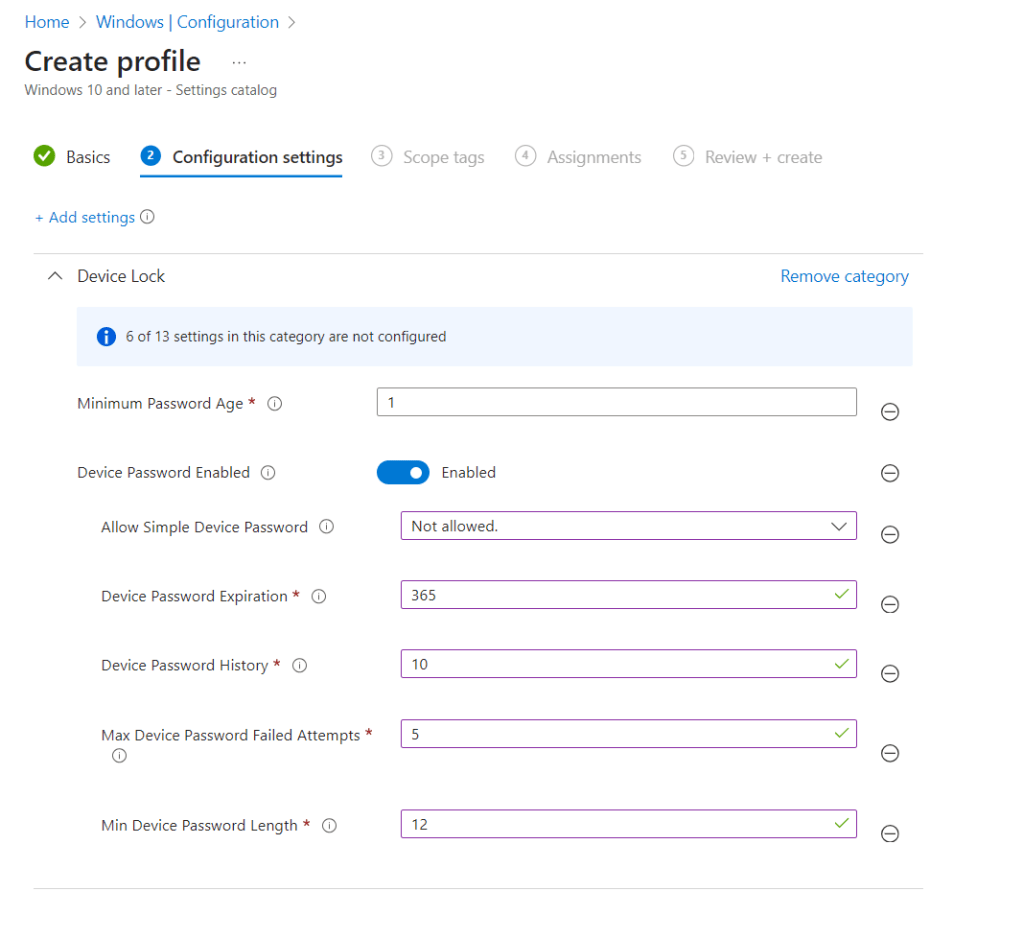
Enable and set the required values.

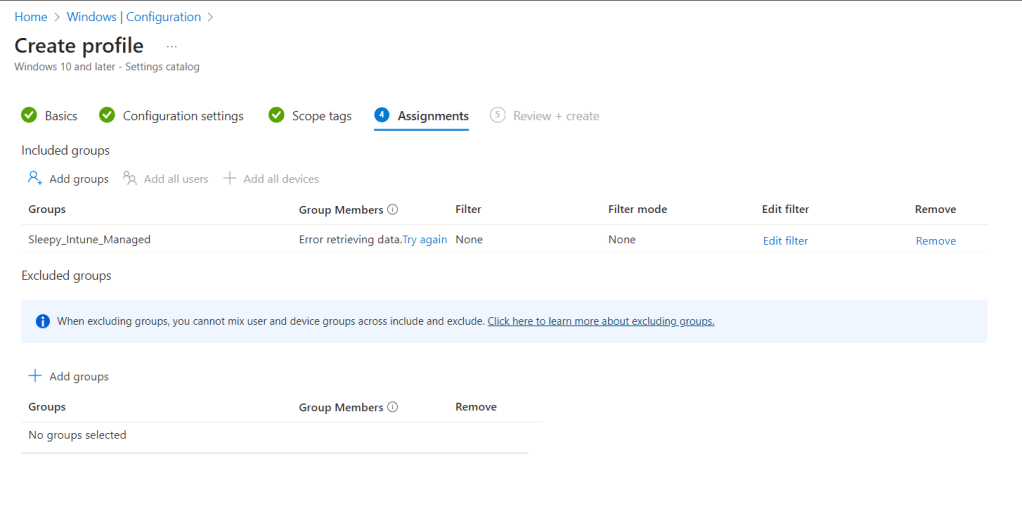
I will be using a dynamic group for all Intune managed devices.

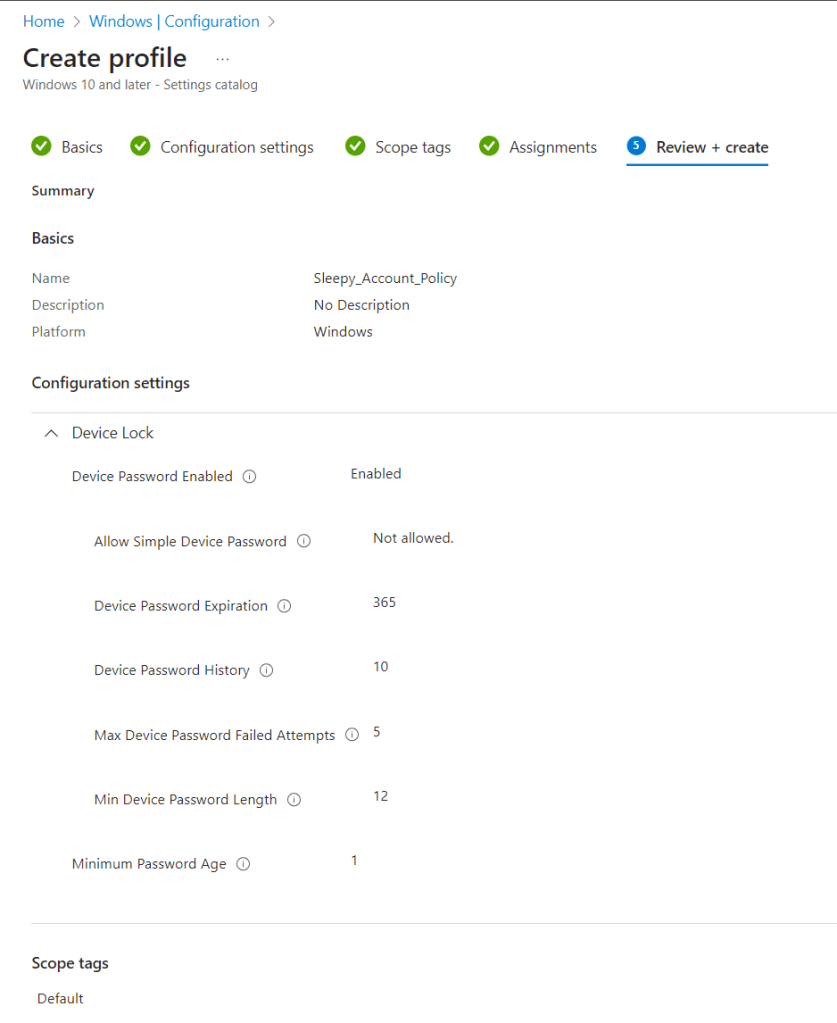
Next we need to review and create the policy.

Once the policy is create we can run a manual sync or wait for the next sync.

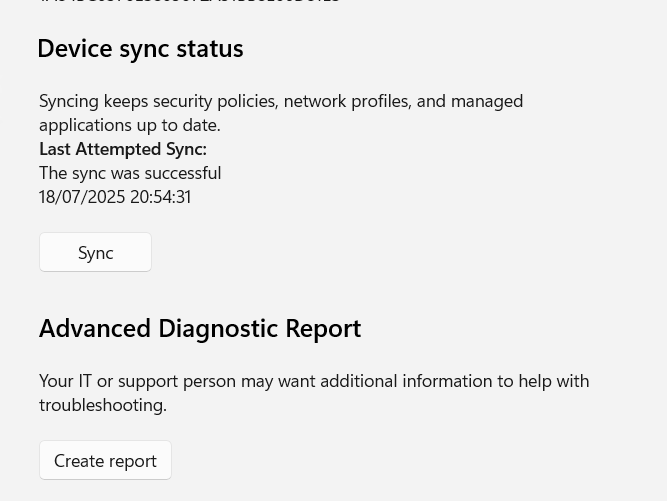
To manually sync open Settings > Accounts > Access Work or School

Select the account and go to info. Go to Device sync status and select Sync.

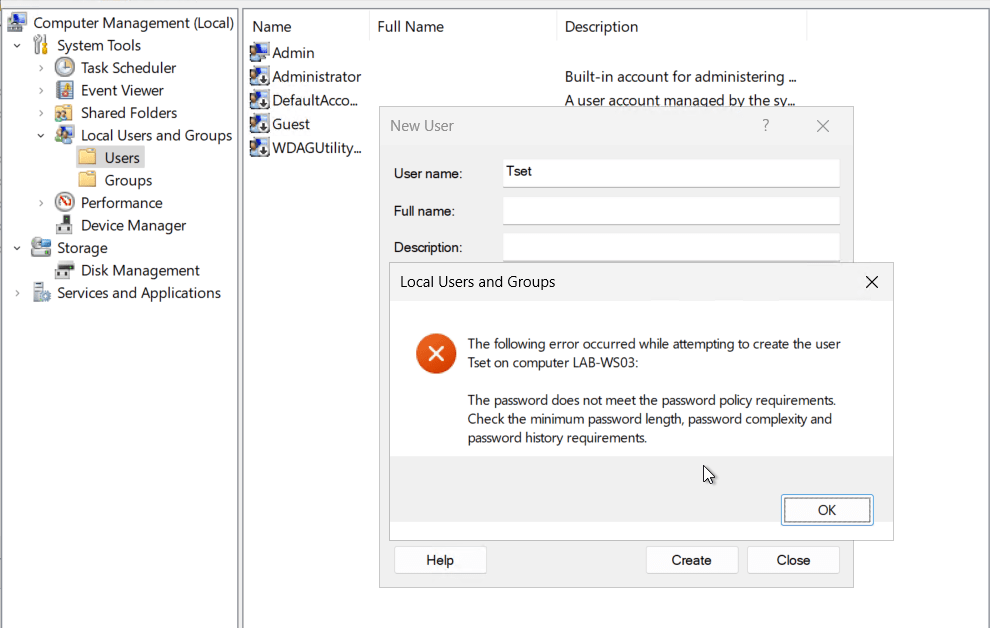
We can now try to set a simple password.

The only issue I have seen with this setup is that it doesn’t update the local security policy and can fail compliance scans.

If the settings needs to be set in local security policy we can apply the same settings using CSP policy and this will update the local policy.

To create a custom policy go back to Intune Admin center > Devices > Manage Devices > Configuration.

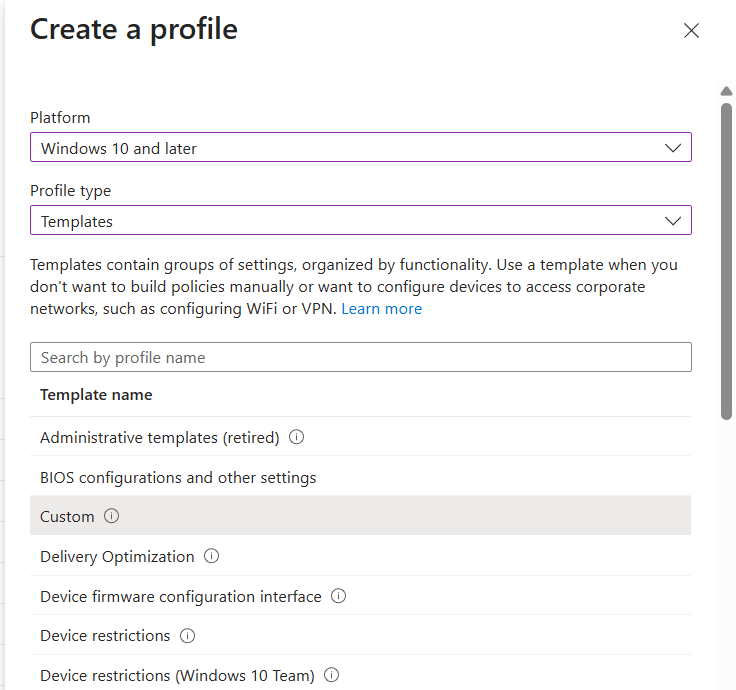
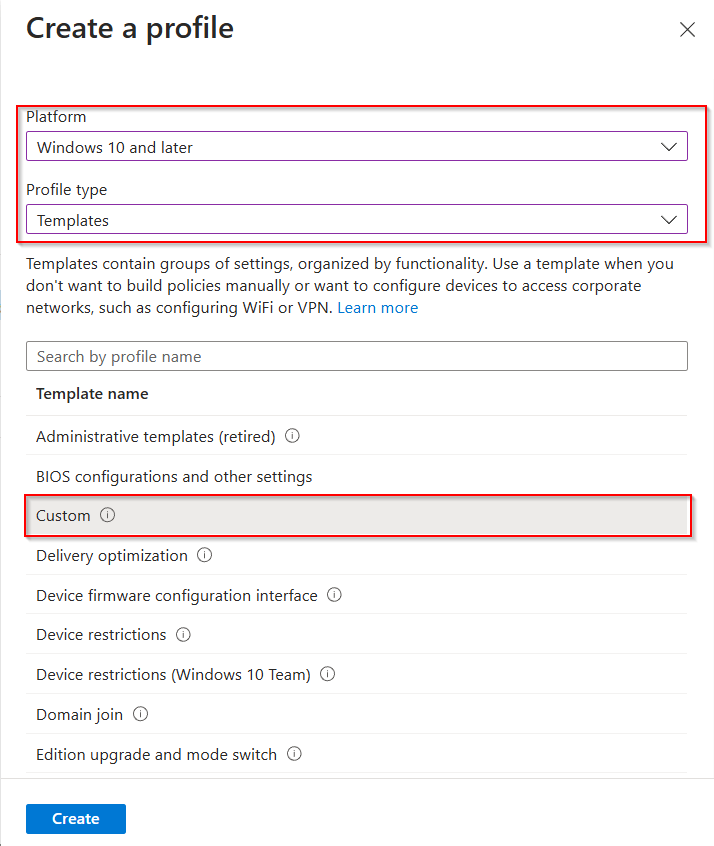
This time select templates > custom

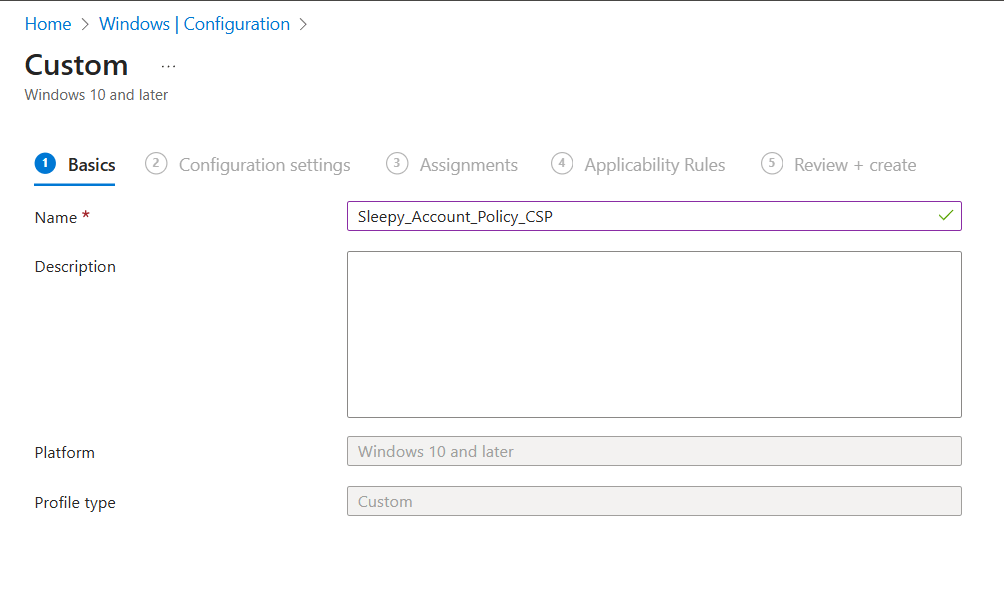
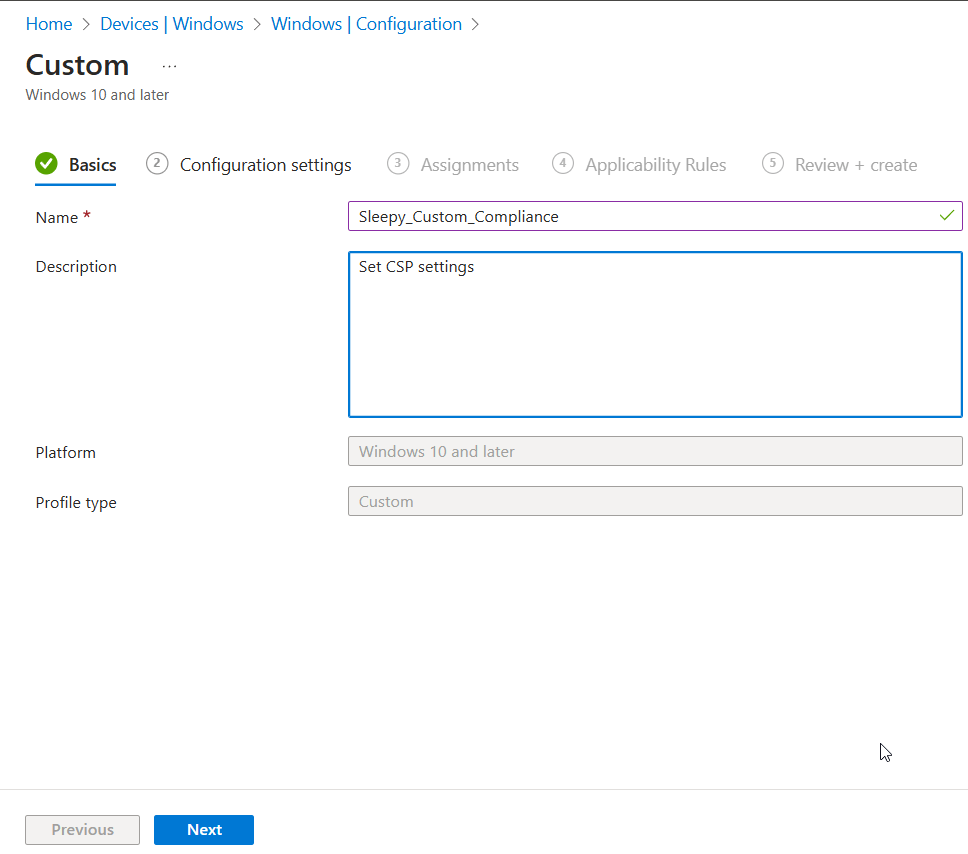
Give the policy a name.

Next we need to add the Microsoft OMA-URI for device lock. These can be found here.

https://learn.microsoft.com/en-us/windows/client-management/mdm/policy-csp-devicelock

I wont be going through OMA-URI in this post, I have done a previous post on this

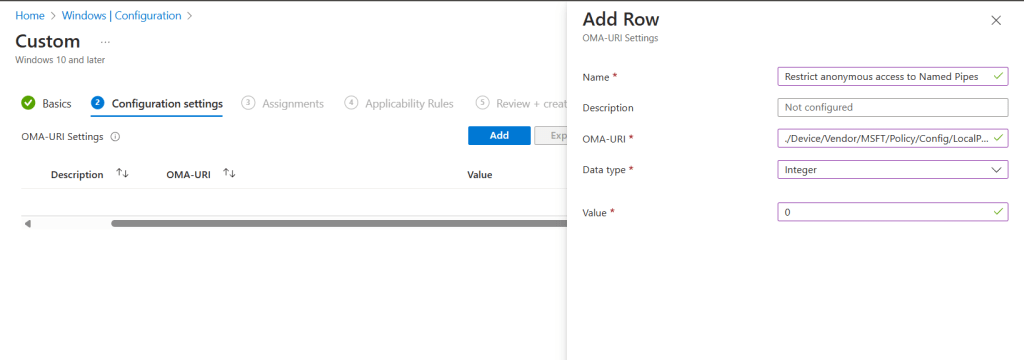
We need to add in a name, OMA-URI, Data type (can be gotten from the documentation for the OMA) and the value.

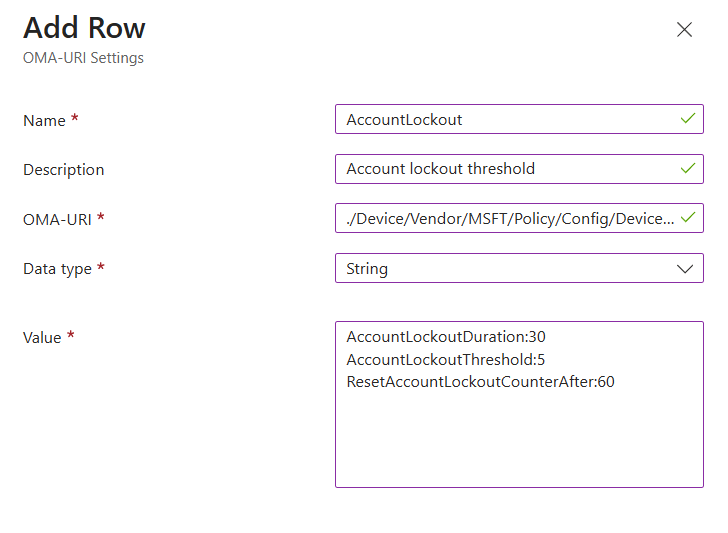
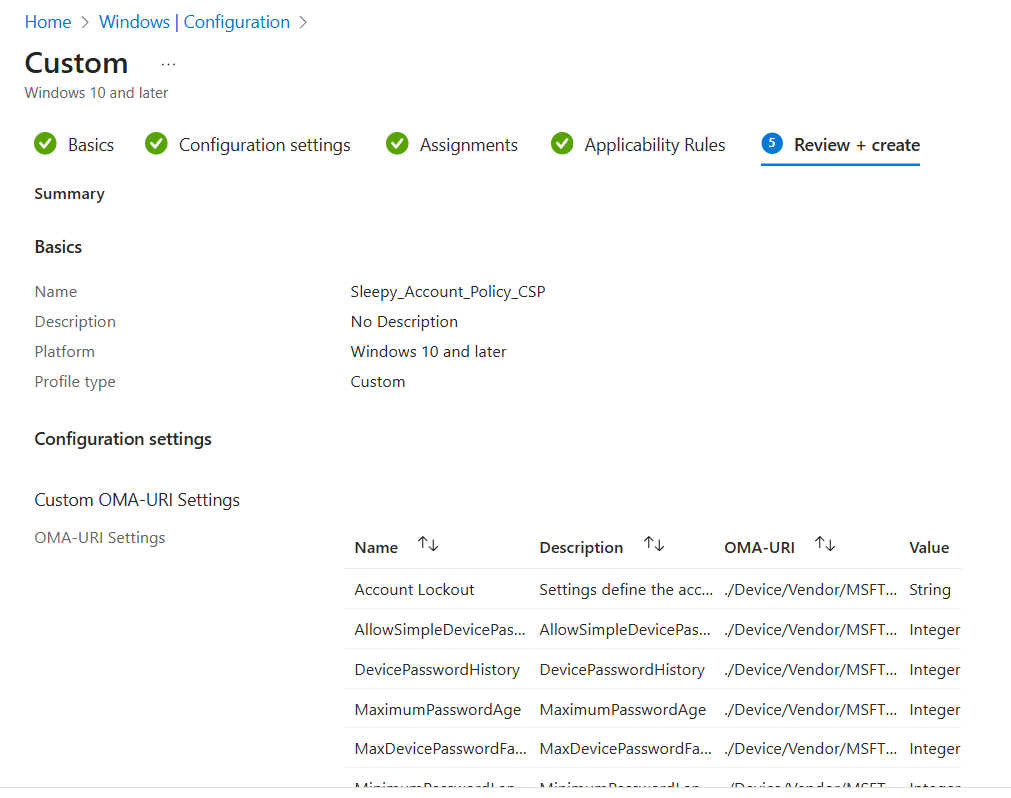
In the below we will be setting the account lockout values, this is a string value and all values can be added in to the one row.

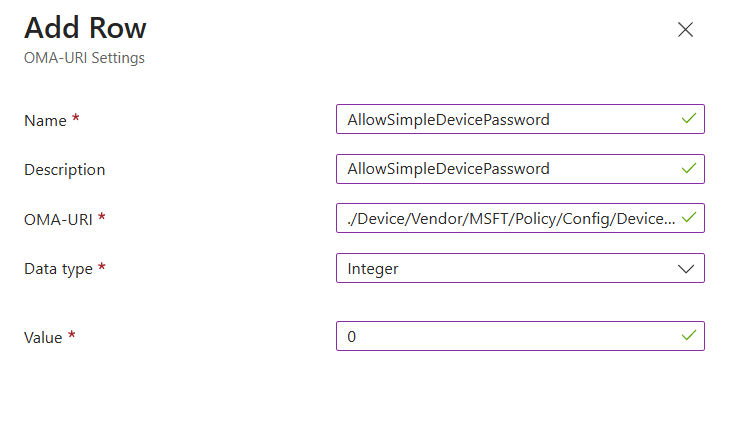
Next we will set the the allow simple device password and this is a integer value, 0 is disabled and 1 is allowed.

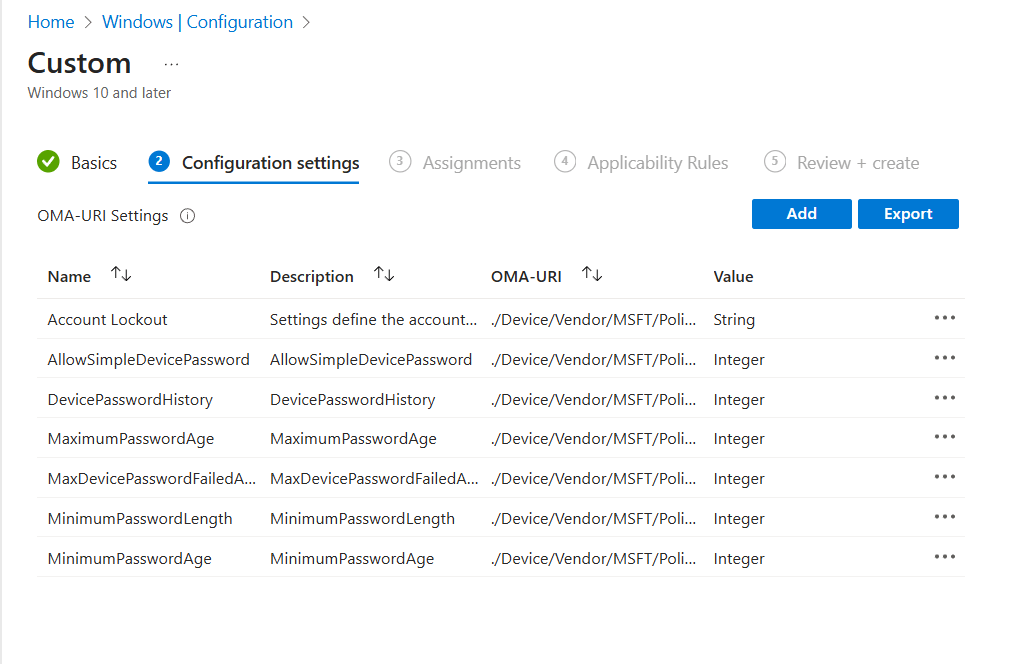
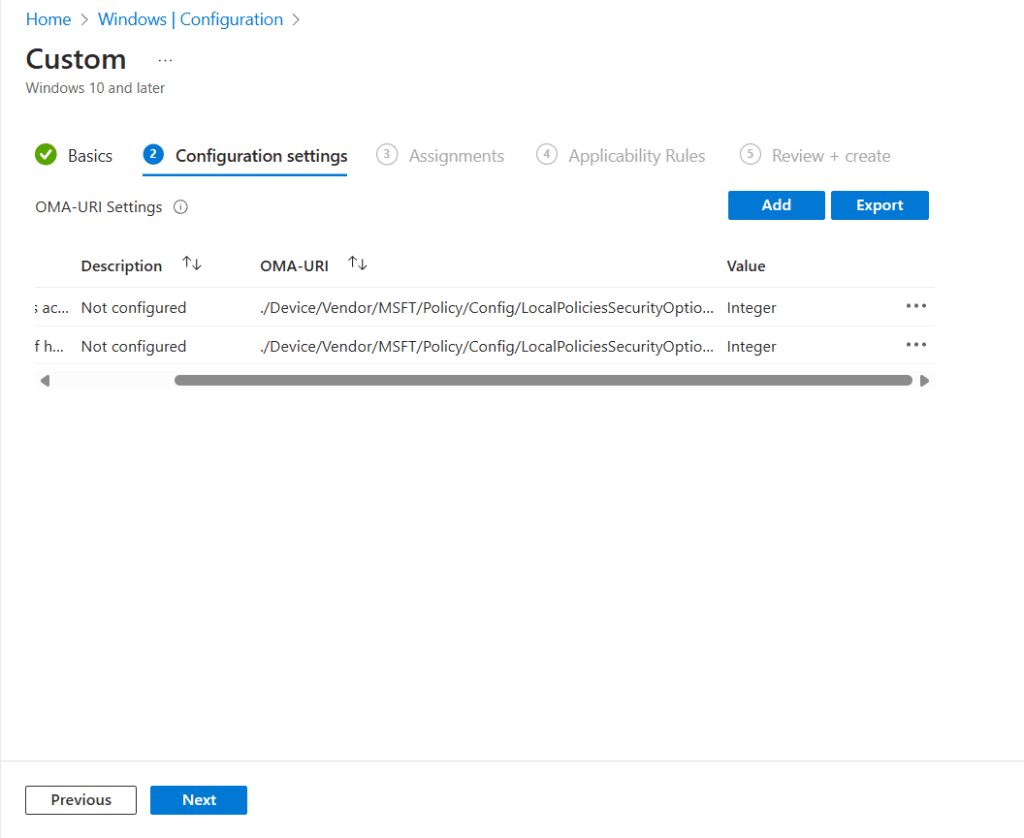
Once we have all custom settings added.

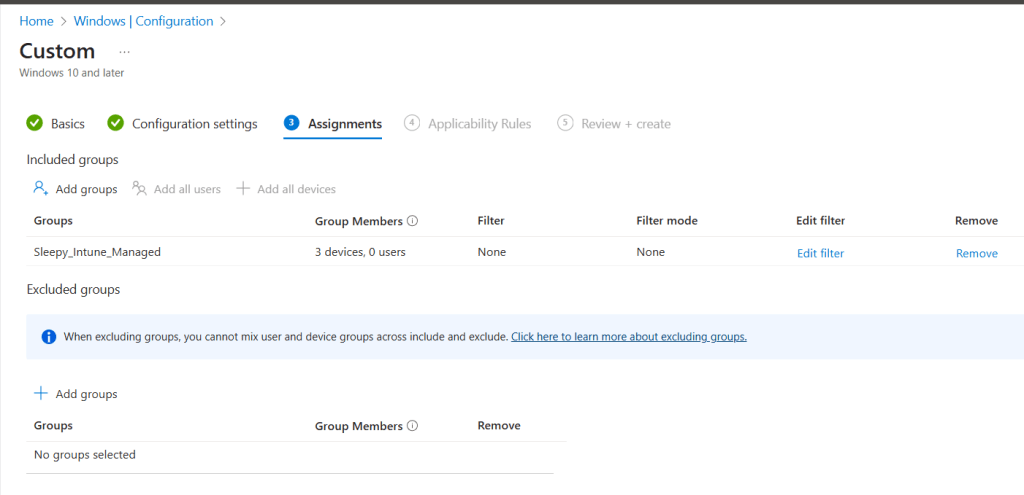
I will use the same Intune managed device group for the assignment.
I will be leaving applicatio nrules as default.
Go to review and create and review the settings.

Next we can run a manual sync or wait for the automatic sync to complete.

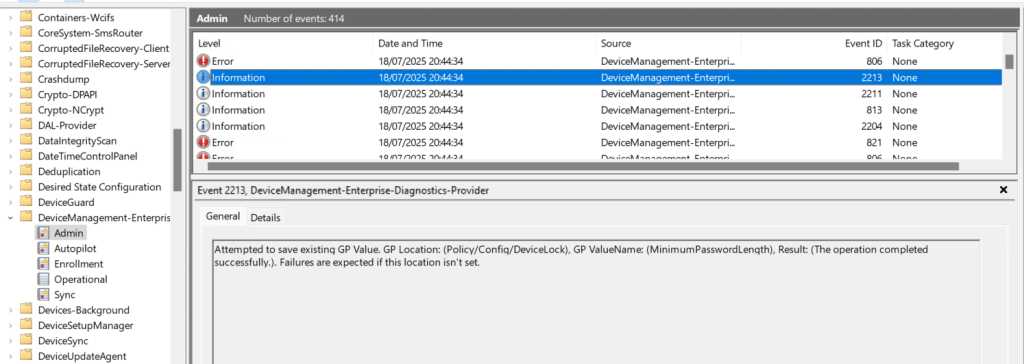
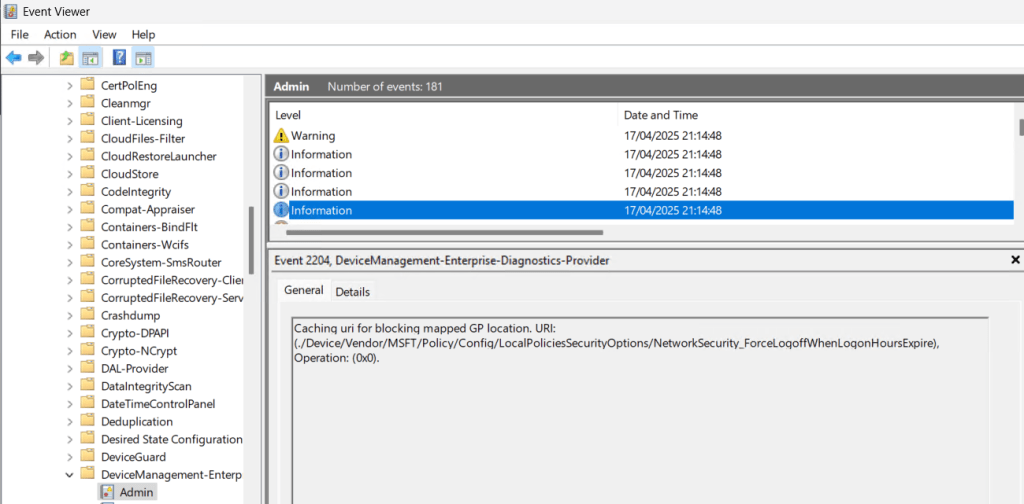
We can check the event logs to confirm the setting has been applied.

Now if we check local security policy, we can see the setting are now updated.

This has been a over view of setting local security policies using Intune, the method to use will depend on the requirement.

Using setting catalogue is a simpler process but the issue with compliance reports has meant in some case i need to use custom policy to successfully pass compliance audits.

Managing Windows Defender Firewall Rules with Intune

In this post we will be going through the process of setting up and configuring Windows Defender Firewall and firewall rules using Intune.

There are two parts in Intune for setting up in Windows Defender Firewall.

  • Windows Firewall – Configure settings for Windows Firewall with Advanced Security.
  • Windows Firewall rules – Define Firewall rules, including specific ports, protocols, applications and networks, and to allow or block network traffic. Each instance of this profile supports up to 150 custom rules.

First we will create the Firewall Policy.

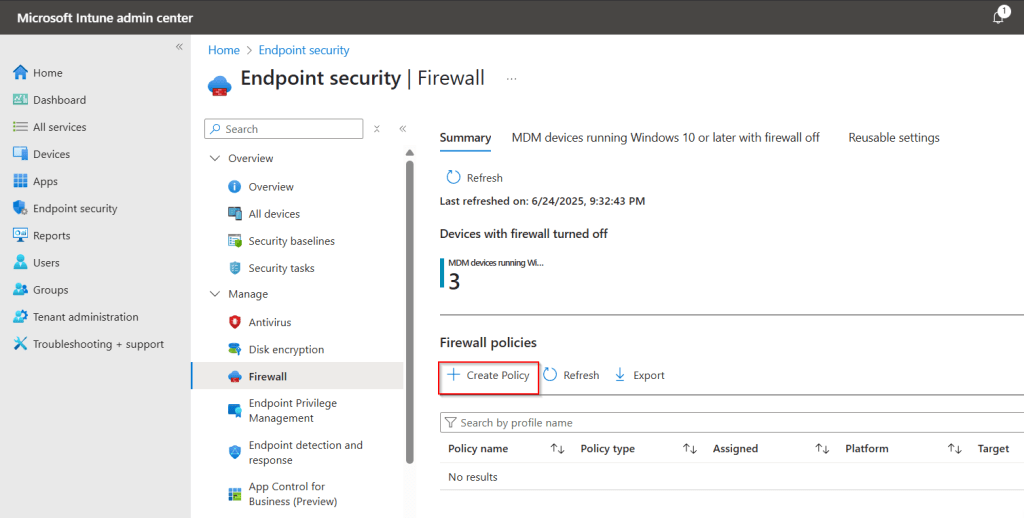
Go to Intune admin center > Endpoint security > Firewall.

Select Create Policy.

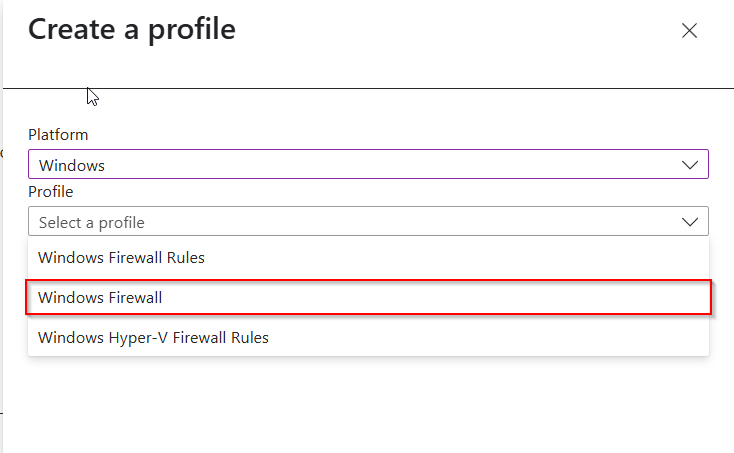
Select Windows and Windows Firewall.

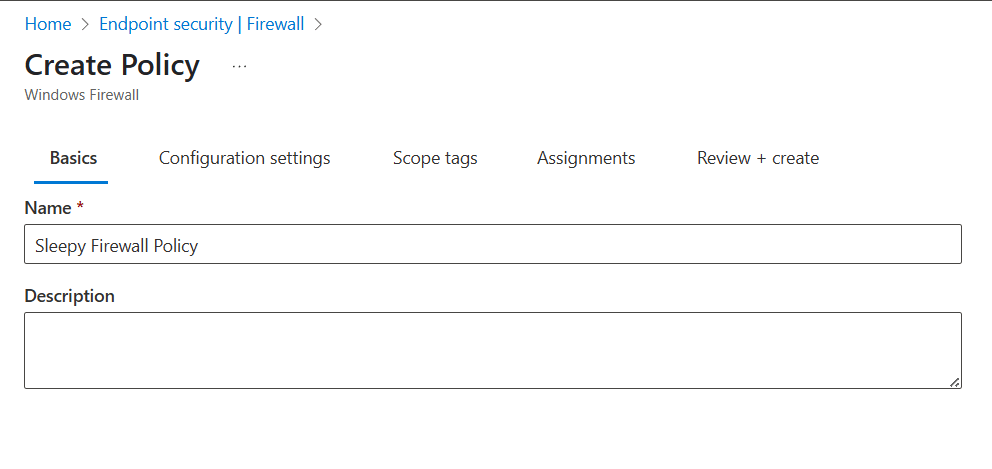
Give the Firewall policy a name

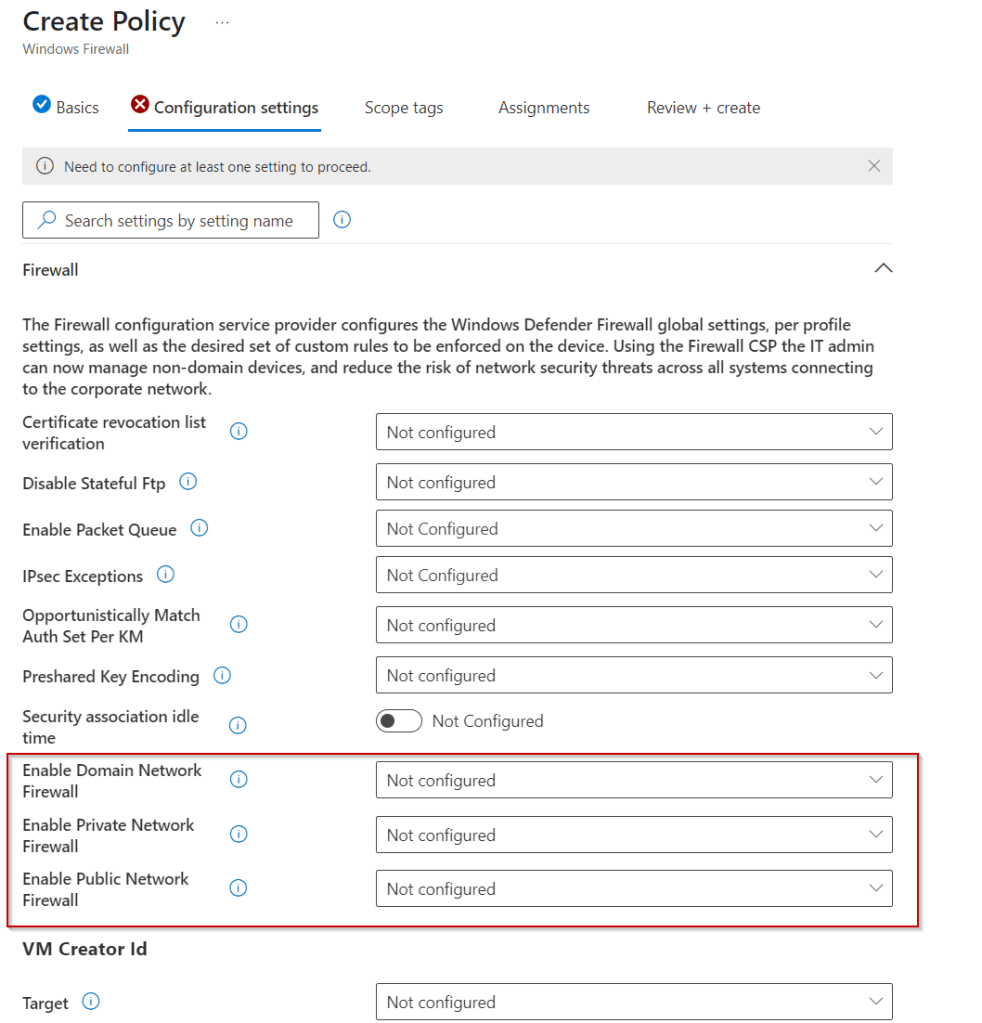
I will enabling the Domain, Private and Public.

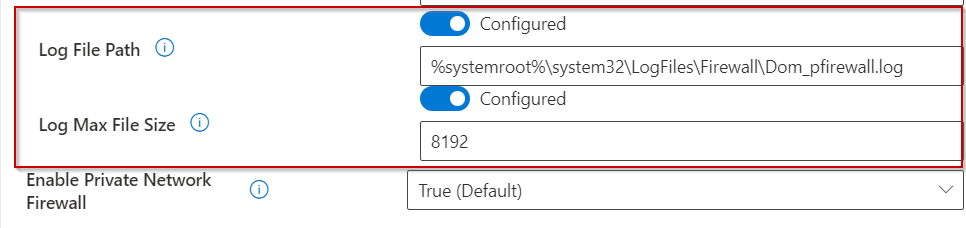
I will only be changing the log name and log size. Everything else I will leave as default.

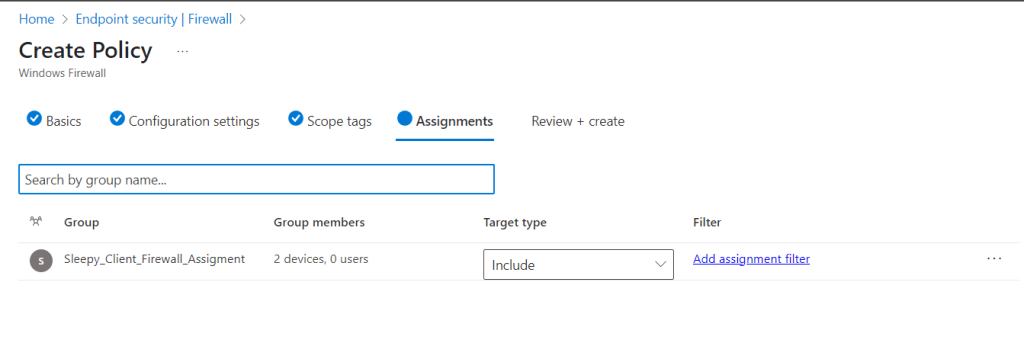
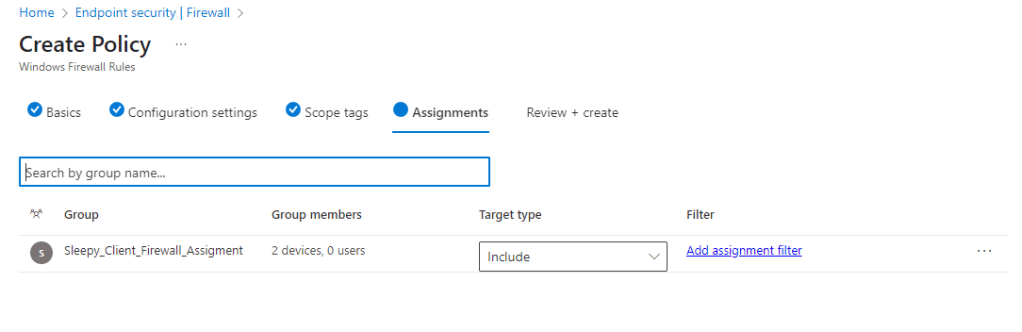
I am leaving scope as default. I will be applying the rules to a specific security group that i have added two assets to.

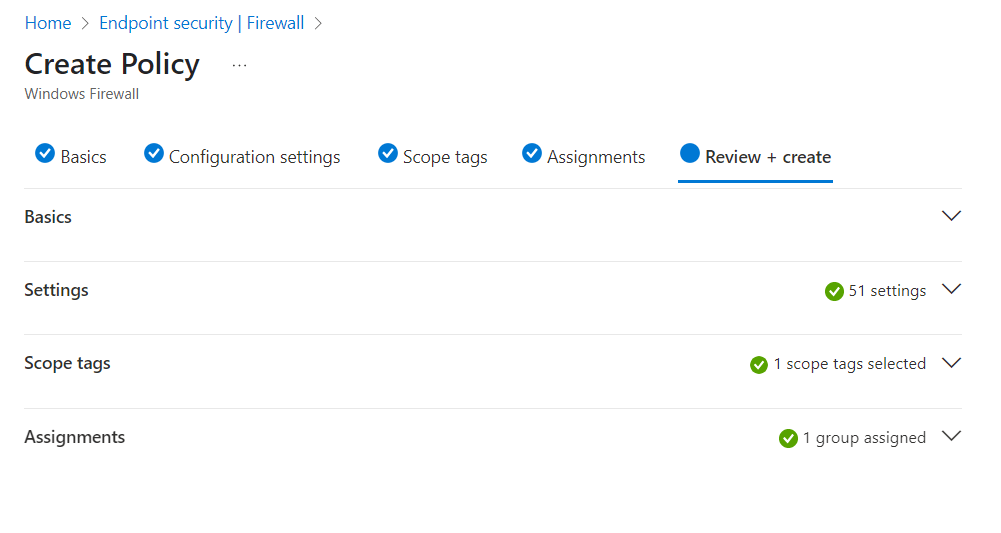
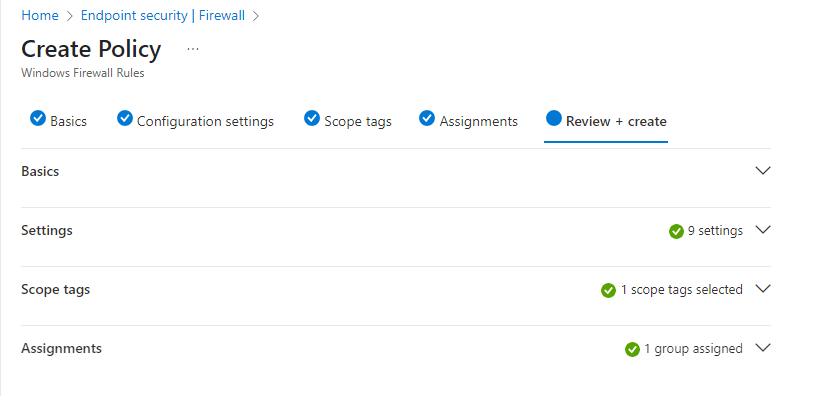
Next we will review and create the Firewall Policy.

Once we review the settings we can start creating our firewall rules.

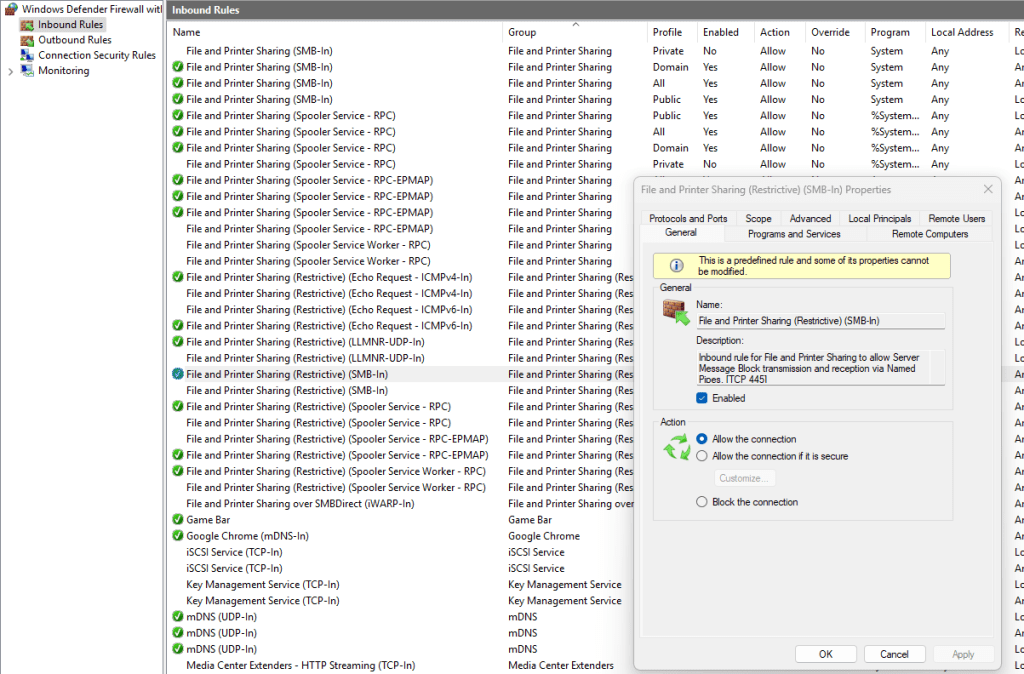
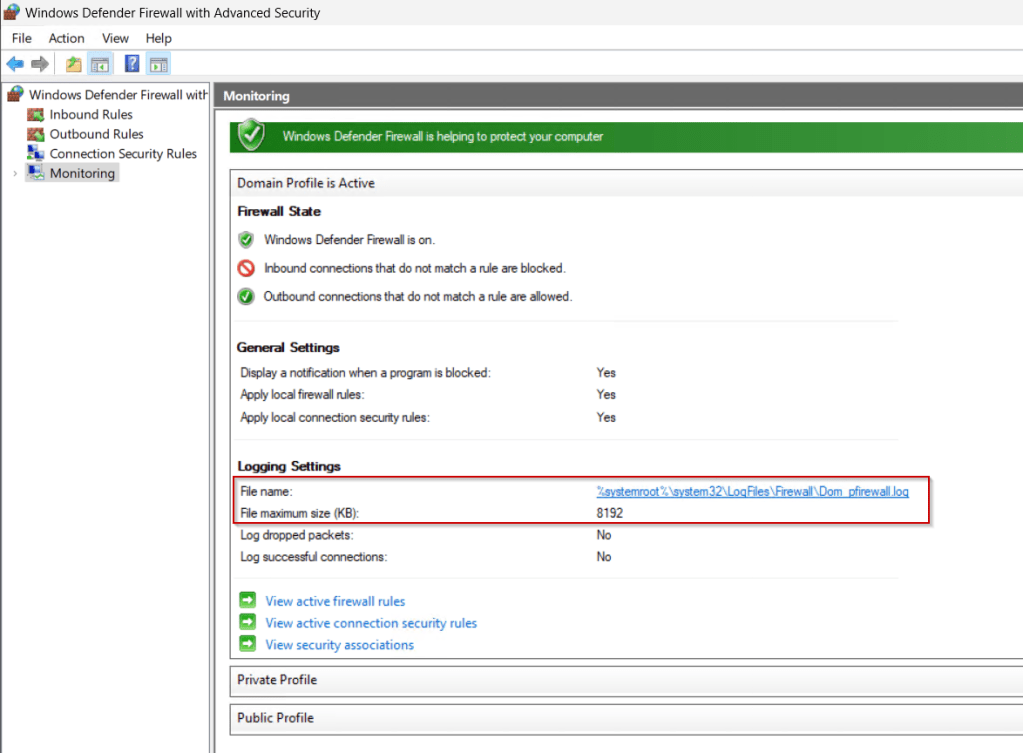
I have been using Windows Firewall on a Windows 11 asset to get the specific details for the rules I want to create.

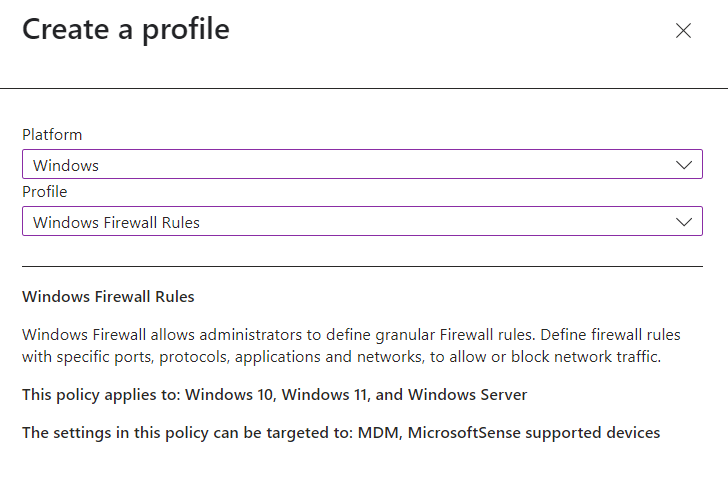
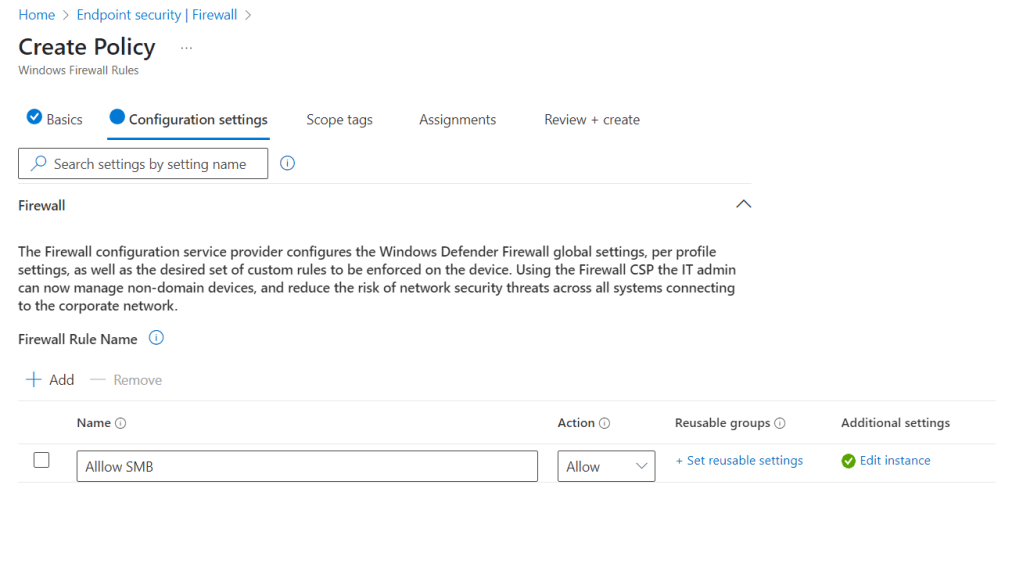
To create go back to Create Policy, select the platform and profile type Windows Firewall Rules.

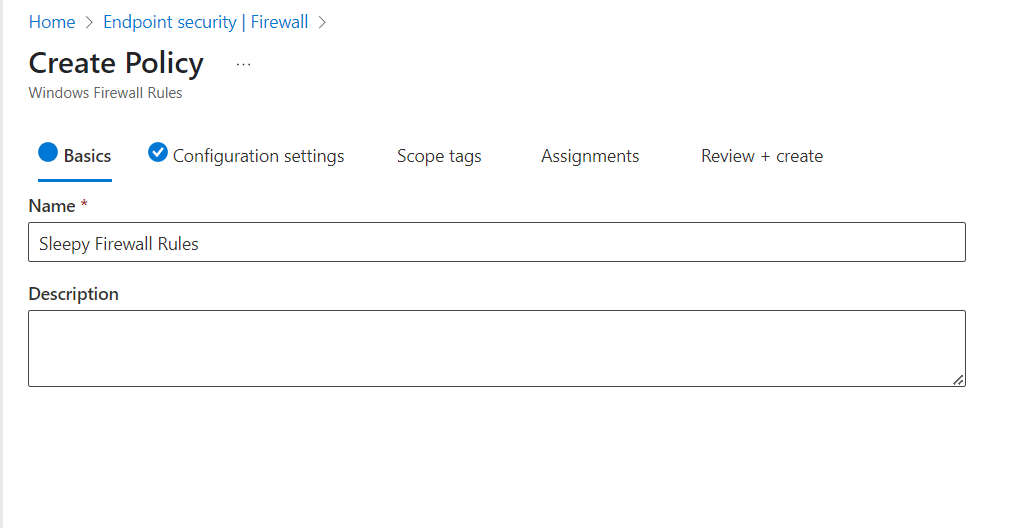
Give the policy a name and description.

Next we will add a rule, give the rule a name and set the action to either allow or deny.

To modify the settings click on edit instance.

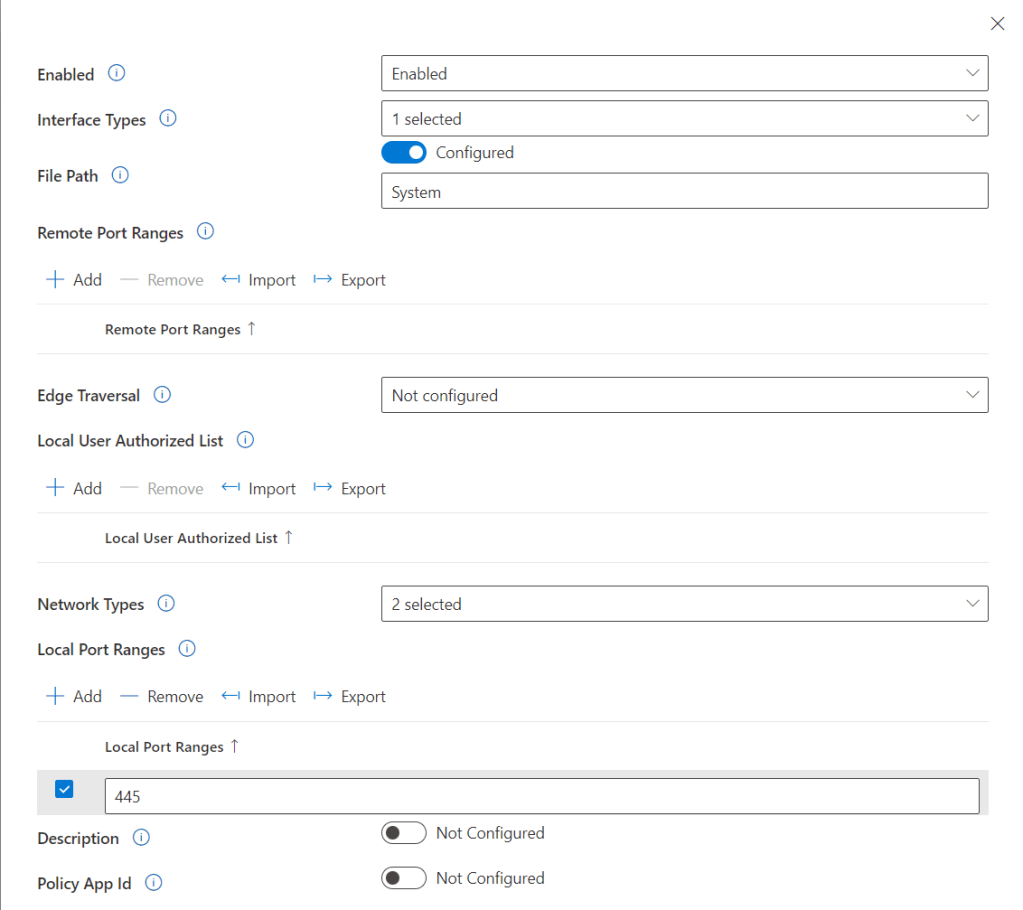
This rule we will be creating using the below details.

  • Enabled: Enabled
  • Interface Types: All
  • File Path: System
  • Remote Port Ranges: Any
  • Network Types: Domain / Private
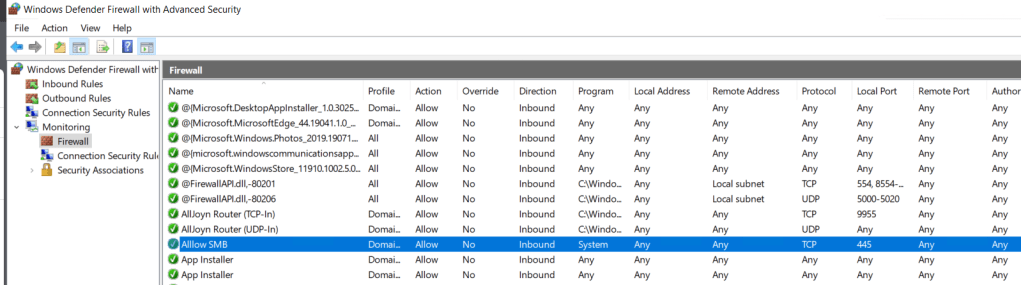
  • Local Port Ranges: 445
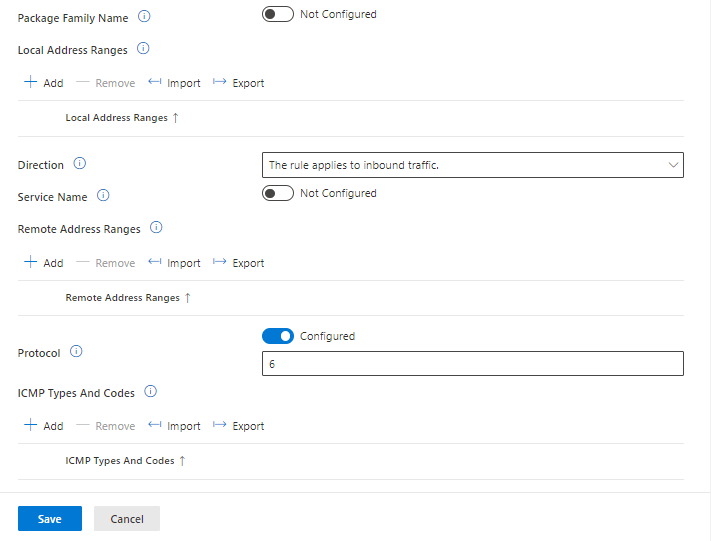
  • Direction: The rule applies to Inbound traffic
  • Local Address ranges: Any
  • Local Port Ranges: Any
  • Protocol: 6

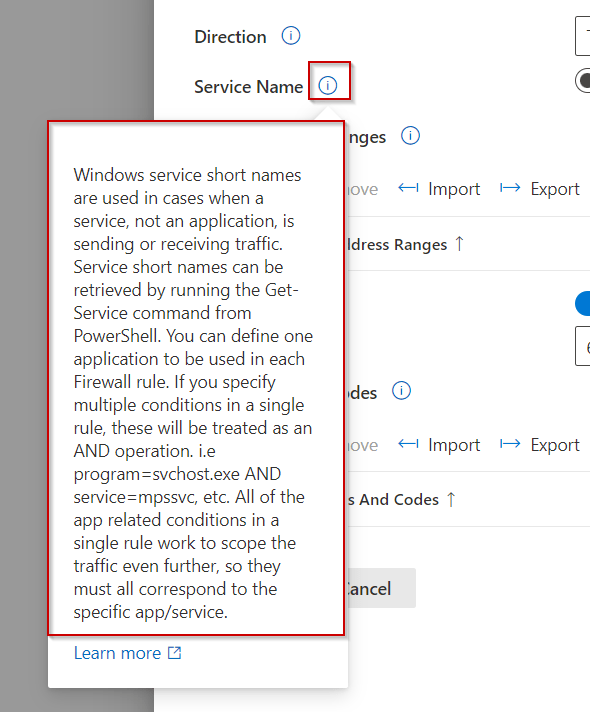
We can check what each setting can be set to by click on the i button.

Once we have all the setting we want to configure we can save.

I am leaving scope as default. I will be applying the rules to the same security group used for the Firewall policy.

Next we can review settings and create.

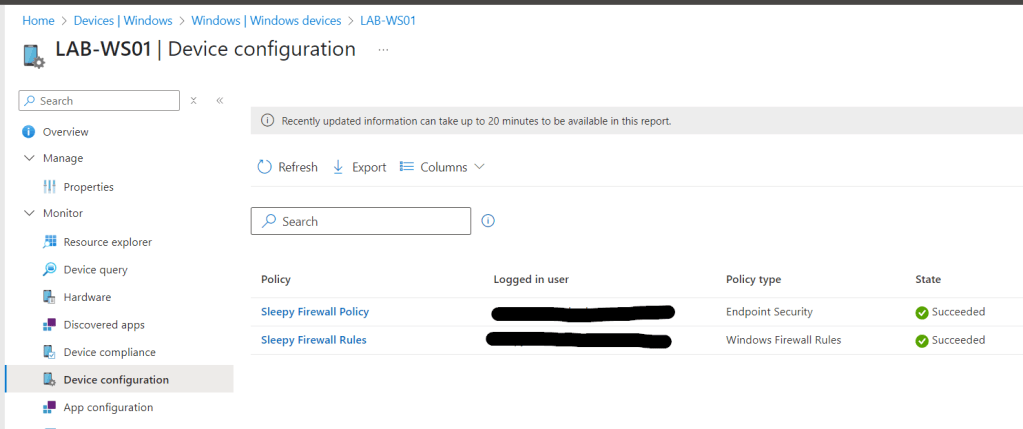
Next we can need to either manually sync the client or wait for the next policy refresh. We can check the compliance in Intune to check for any errors.

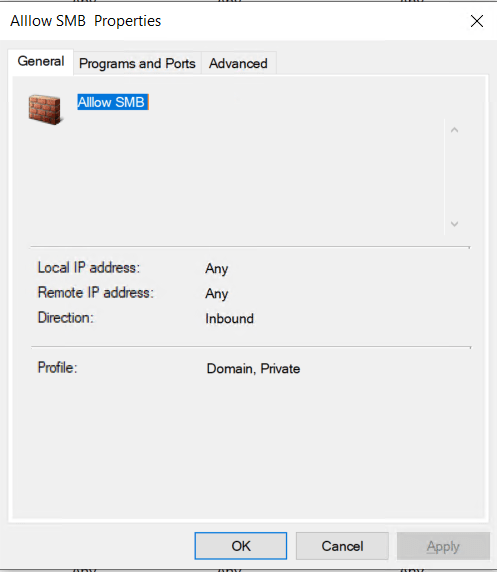
To confirm on the client we need to open Windows Defender Firewall with Advanced Security > Monitoring > Firewall. The rules wont show under Inbound Rules.

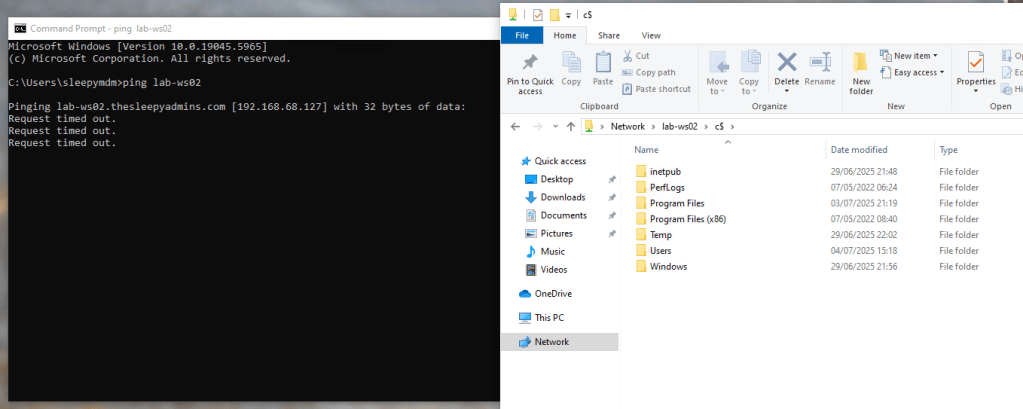
To test we can try ping the devices and open a remote SMB connect to confirm that only SMB is allowed.

We can also check the firewall policy settings have applied.

This has been a quick run through of setting up Firewall policy and rules in Intune. Setting up rules in Intune is a bit more difficult than it is through group policy or using PowerShell (At least for predefined rules).

It takes a little getting use to and know how each setting can be configured but it become easier after setting up a few rules.

Using Microsoft Intune Custom Policies

In this post we will be going through setting up custom policy in Intune using Configuration Service Providers (CSP’s).

CSPs are similar to Group Policy and provide an interface to read, set, modify, or delete configuration settings. There are some settings that are not available in other types of configuration policies and can only be set using CSP or remediation script’s.

I am using the below link to find CPS policy settings.

https://learn.microsoft.com/en-us/windows/client-management/mdm/policy-configuration-service-provider

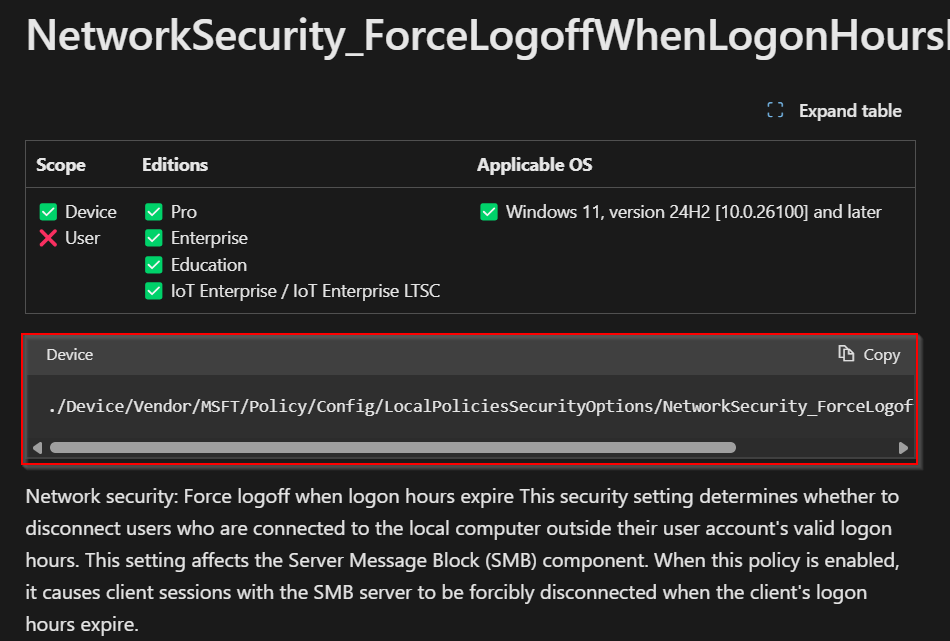
To use CPS we need to find the setting we want to configure. We can then copy the OMA-URI which follows the below format.

Device: ./Device/Vendor/MSFT/Policy/Config/AreaName/PolicyName
User: ./User/Vendor/MSFT/Policy/Config/AreaName/PolicyName

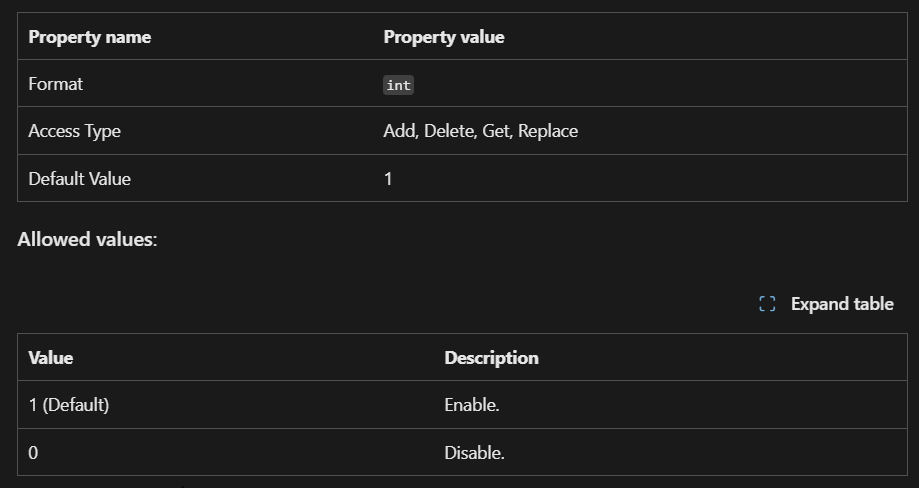
We can then check what format and values can be set.

Once we have the settings we want to configure, we can create a new policy.

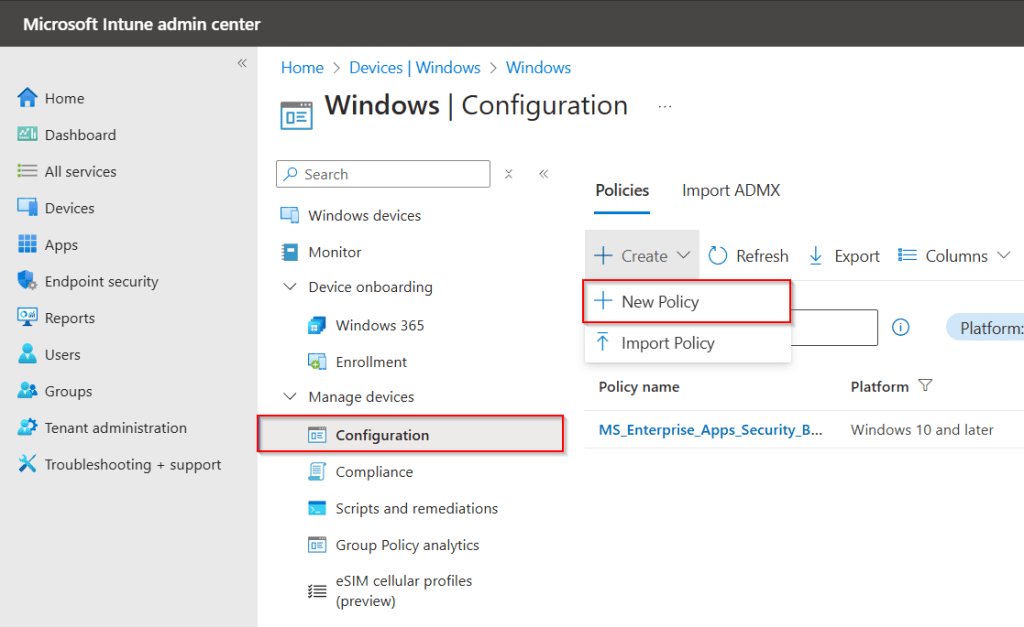
To create a policy go to Intune Admin center > Devices > Windows > Configuration and click create new policy.

Set the platform, profile type and use custom template.

Give the policy a name and description.

Click Add, Give the setting a name, description, OMA-URI, Data type (based on CSP documentation) and value to set.

Click save and the setting should now show. Add any additional settings and click next.

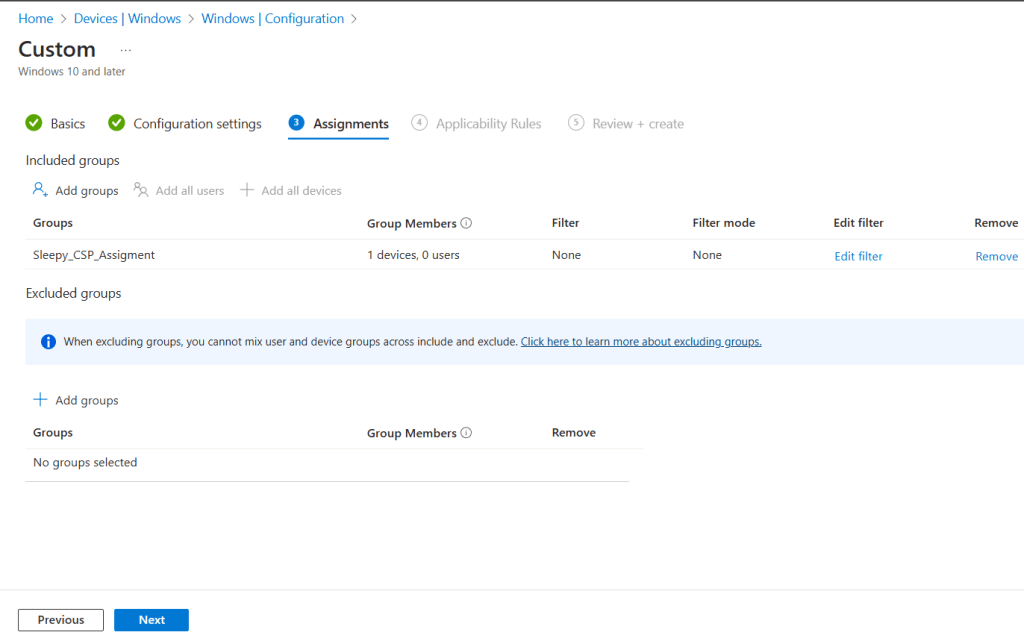
We can assign the policy to a group, or all devices / Users.

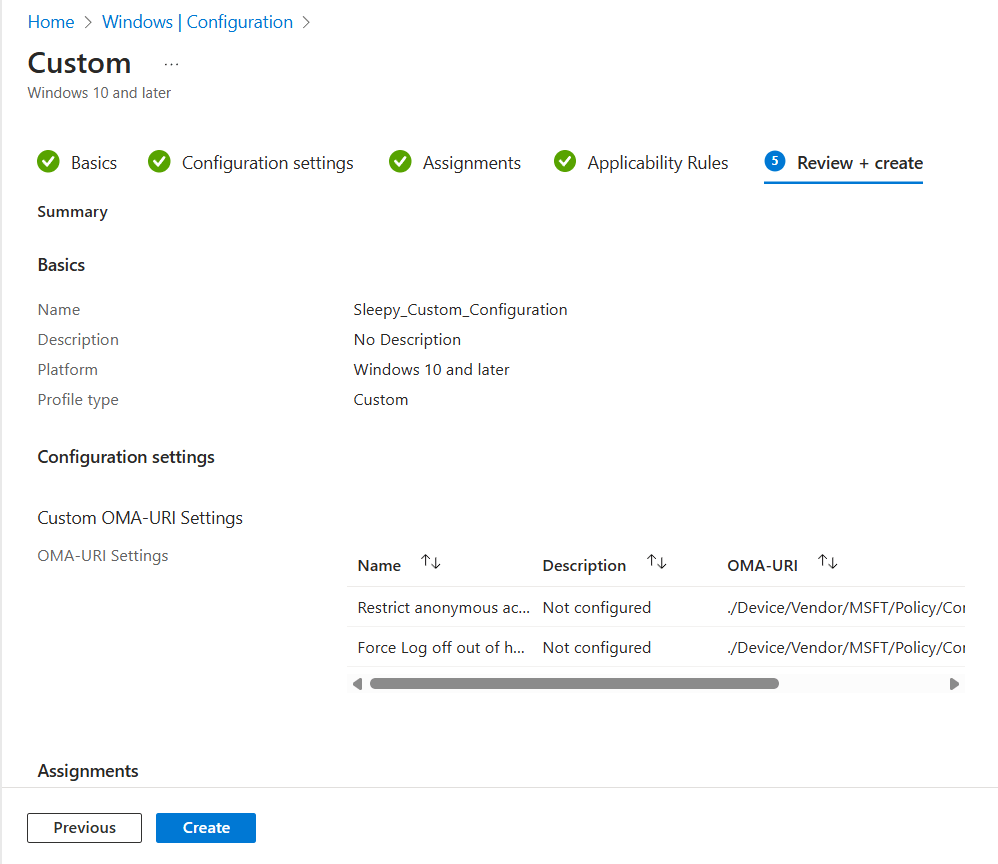
Add applicability rules if required and then review and create.

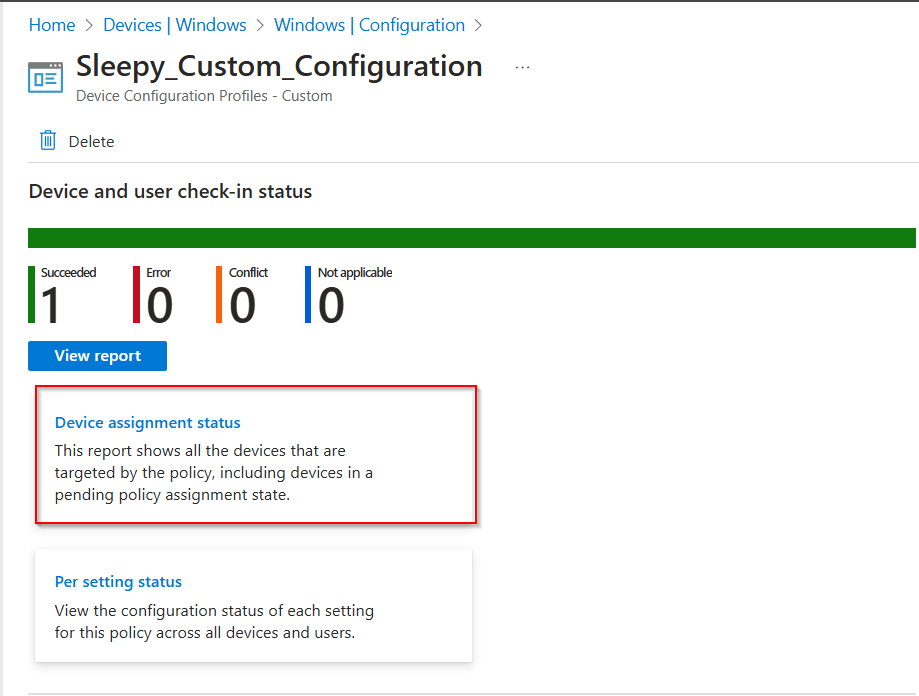
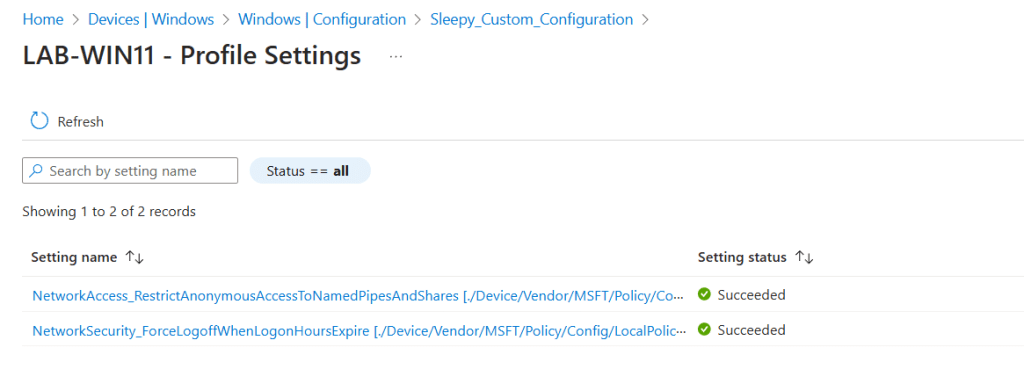
To confirm policy assignment we can generate a report by going to the policy and clicking on device assignment status.

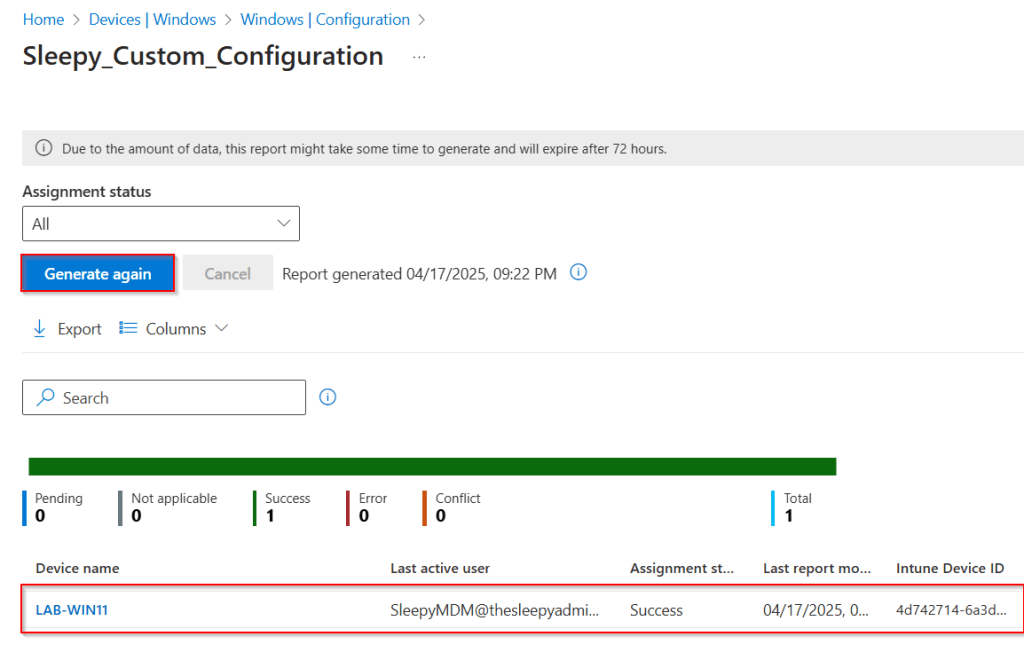
Click generate report.

Select device from report and view setting status.

We can also check on the clients event log under Application and services logs > Microsoft > Windows > DeviceManagement-Enterprise-Diagnostics-Provider/Admin