
During a recent audit we need to get a list of all update and there install status on every device.
We use Configmgr for applying software update but I was not getting the information (well that I could find) using the out of the box reports.
I decided to write a SQL query to all devices, applicable updates and some device information.
To get the compliance status I used the Microsoft doc for the v_UpdateComplianceStatus SQL view.
SMS_UpdateComplianceStatus Class – Configuration Manager | Microsoft Docs

Below is the full SQL query
select rsys.name0 AS 'Computername',
 os.Caption0 AS 'Operating System',
 os.BuildNumber0 AS 'Build Number',
 ui.ArticleID AS 'Update ID',
 ui.Title,
 ui.Description,
 --Set Install Status
 Case
 when ucs.Status='0' then 'Detection state unknown'
 When ucs.Status='1' then 'Update is not required'
 when ucs.Status='2' then 'Update is required'
 When ucs.Status='3' then 'Update is installed'
 End As 'Install Status',
 --Set client Activity
 Case
 When ch.ClientActiveStatus='1' then 'Active'
 When ch.ClientActiveStatus='0' then 'Inactive'
 End As 'Client Active Status',
 ui.InfoURL,
 ui.DatePosted
 from v_updateinfo ui
 join v_UpdateComplianceStatus ucs on ucs.ci_id=ui.ci_id
 join v_CICategories_All catall on catall.CI_ID=UCS.CI_ID
 join v_CategoryInfo catinfo on catall.CategoryInstance_UniqueID = catinfo.CategoryInstance_UniqueID and catinfo.CategoryTypeName='UpdateClassification'
 join v_R_System rsys on rsys.resourceid=ucs.resourceid
 join v_GS_OPERATING_SYSTEM os on os.ResourceID = ucs.ResourceID
 join v_CH_ClientSummary ch on ch.resourceID = ucs.ResourceID
 order by rsys.name0
This is what the output should look like.

 To confirm the query is working we can create a search filter for all software updates to make sure they match.
 Last step was to create a weekly email report using SQL Server Reporting Services (SSRS).
 I created a custom Reports folder to keep any report I created.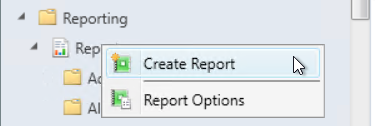
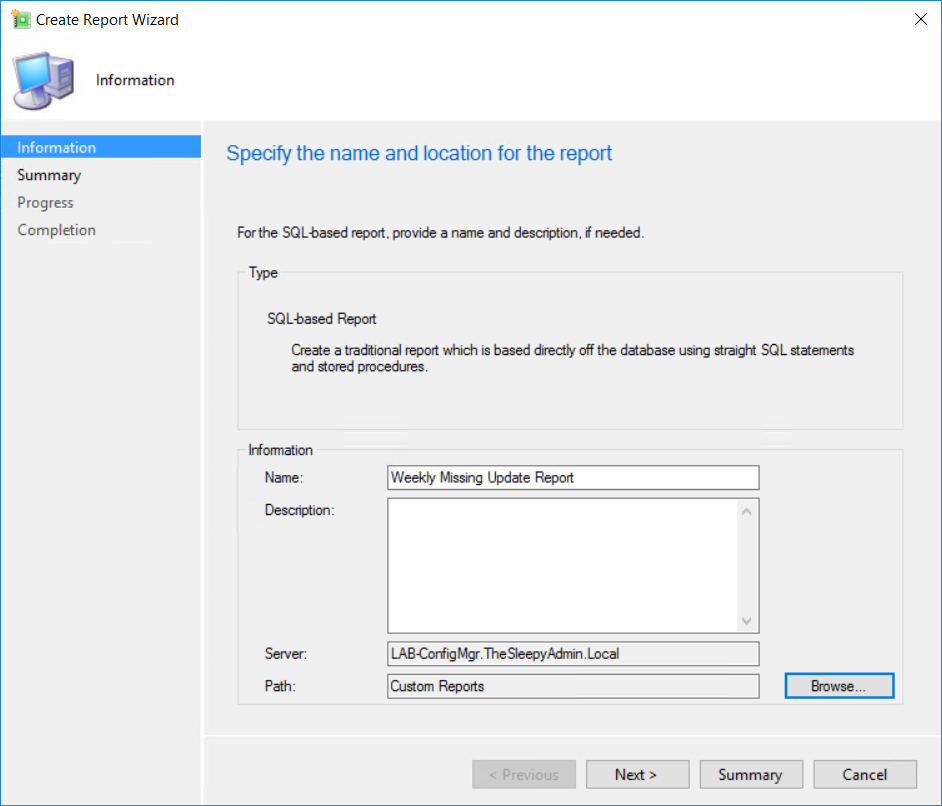 Follow the report wizard to finish the report creation.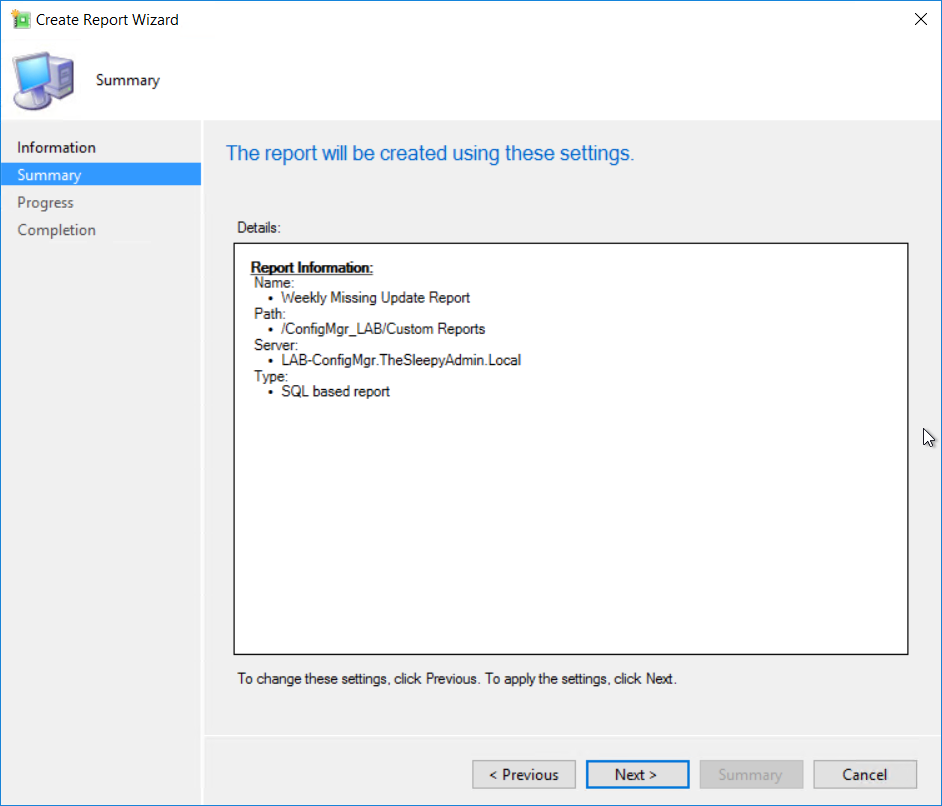
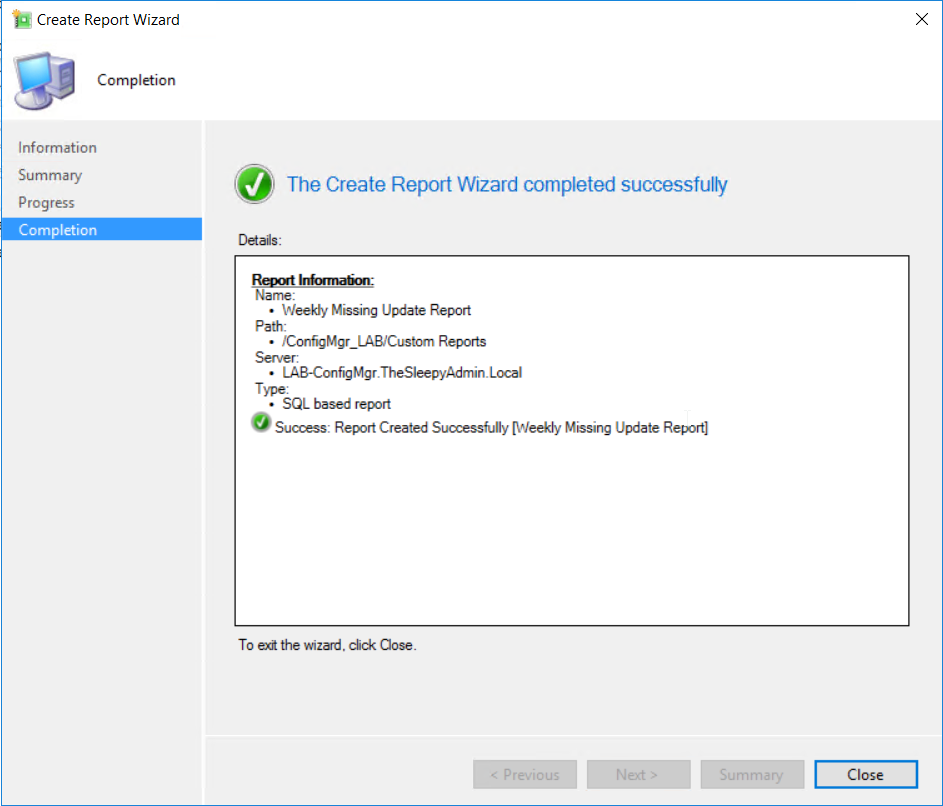 Once the report wizard completed the report builder should load.
 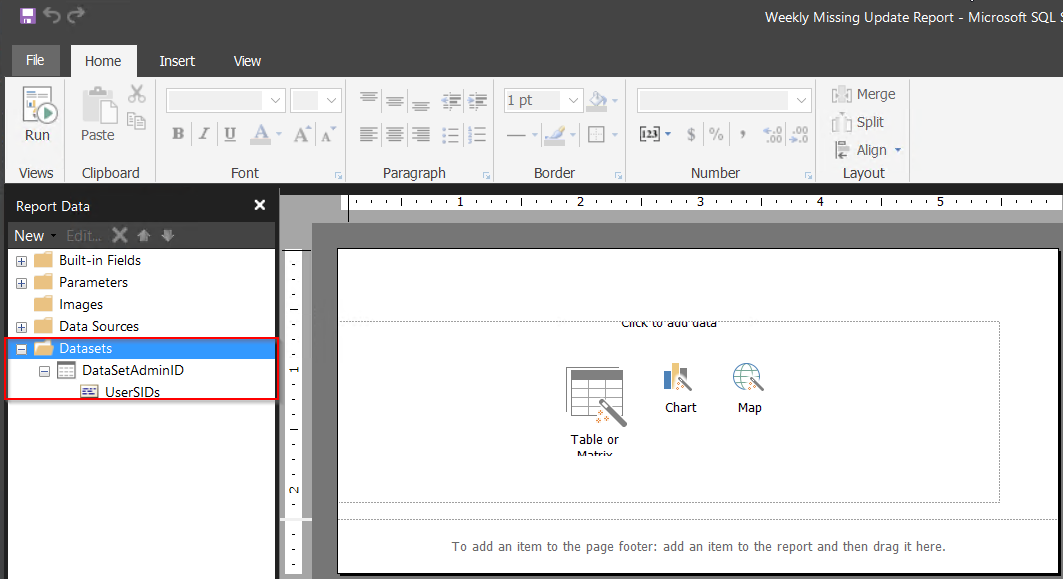 First create a new dataset. Right click on Datasets > Add Datasets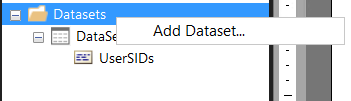
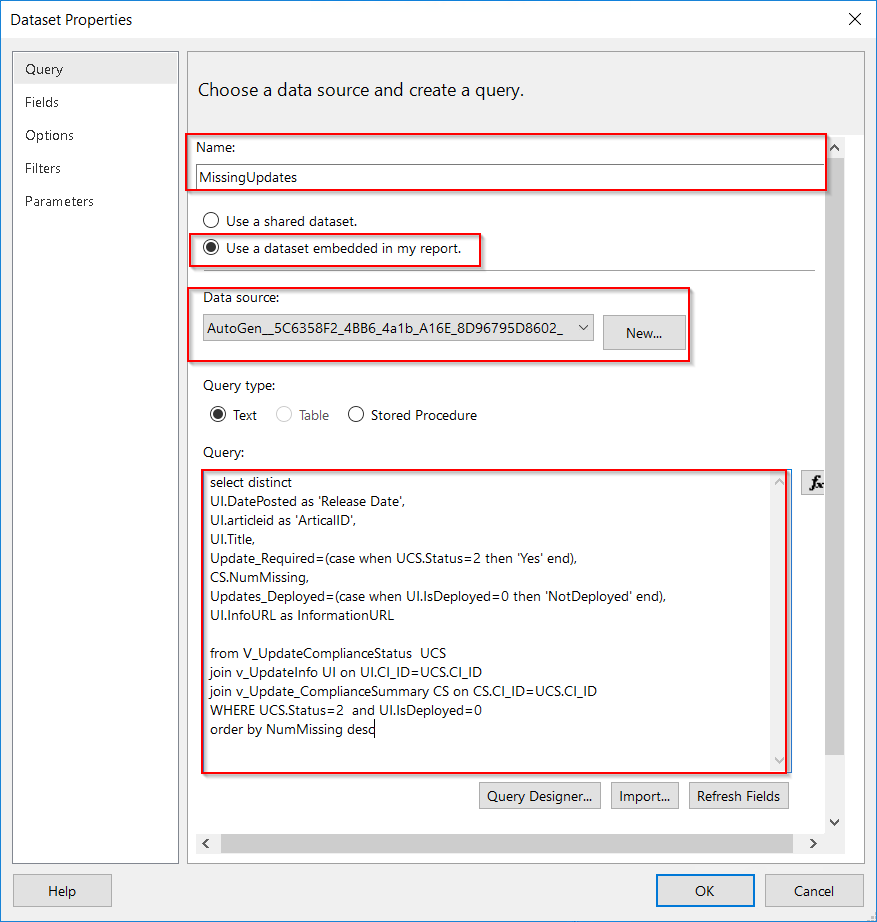 Once that click ok and the dataset should show under datasets.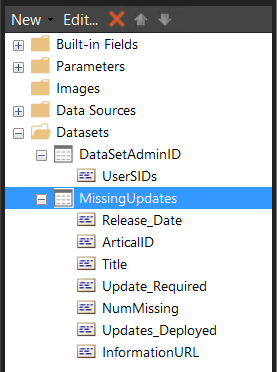
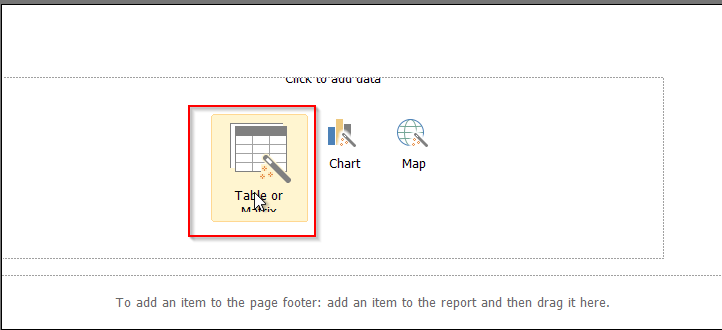 Select the dataset we create.
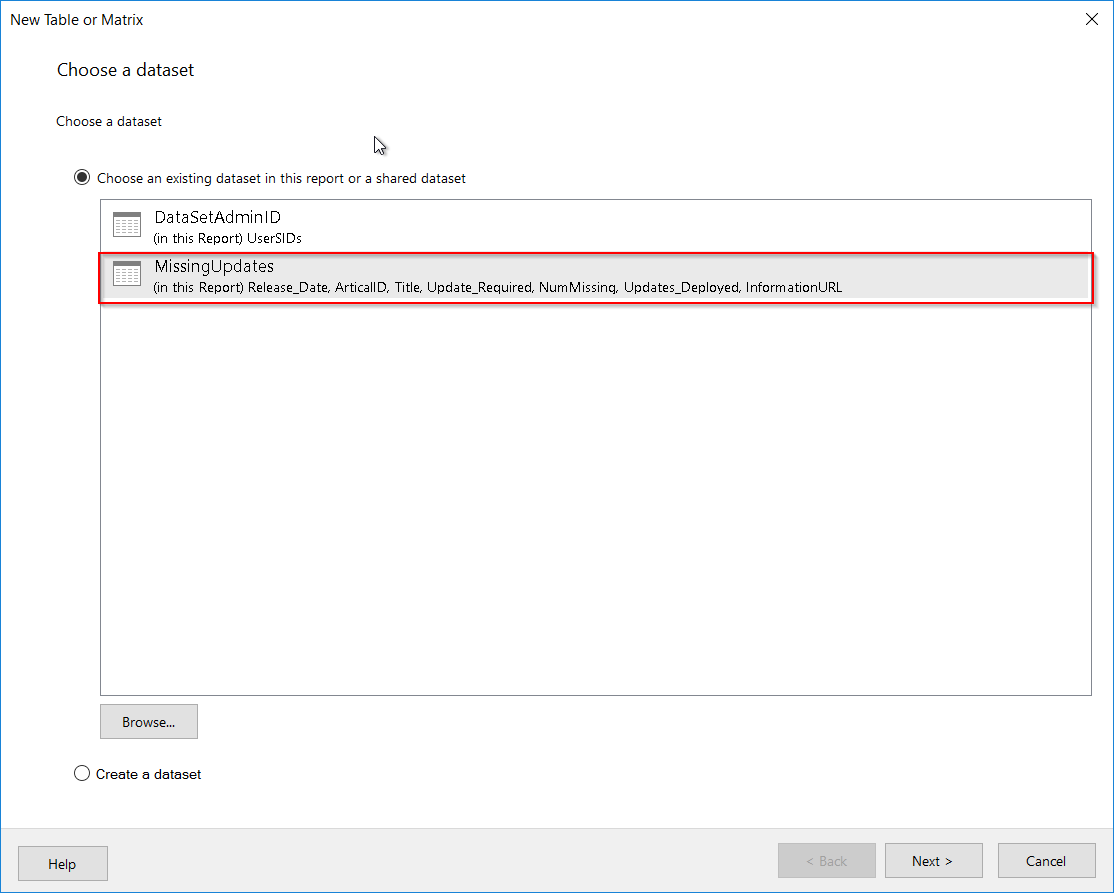 I just wanted to use all values so drag all row to the value box.
 Next just go through the rest of the wizard. Once completed you should see something similar to the below. I added a text box at the top for a tile and added in some grey filling on the table.
 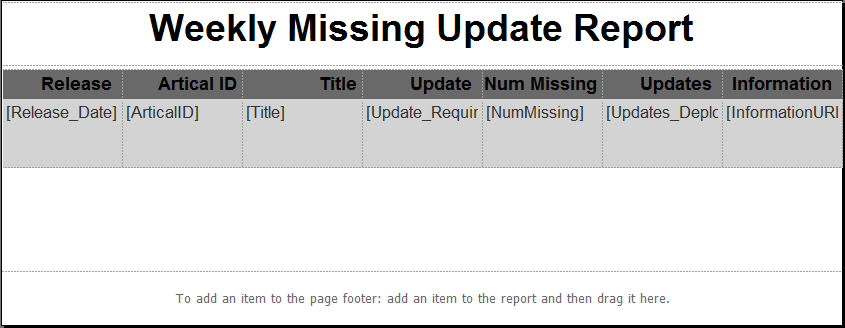 Now save the report and we can run from the MECM console to see what the report will look like.
  Last step is to create subscription to send a the weekly report
 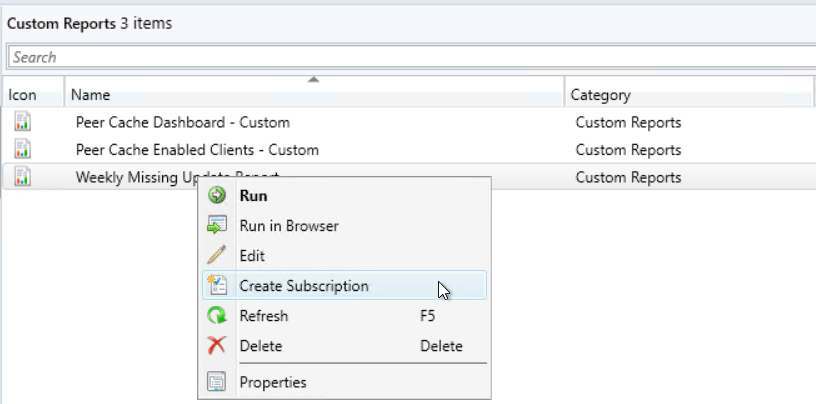 Select report delivered by Email and put in the required detail and report to be included.(Email settings need to be configured in SSRS before you can select email as a deliver option)
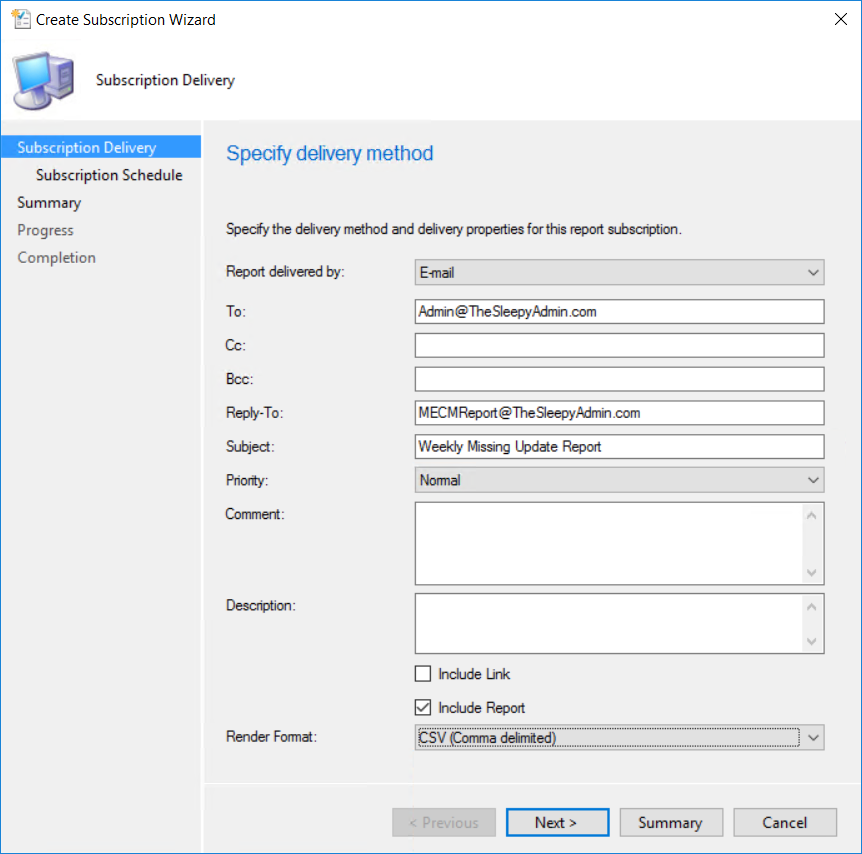 Set the schedule that is required and complete the wizard.
  The report should now be sent out weekly as a csv file.
 TheSleepyAdmins