
In this post we will be going through the process of setting up and configuring Windows Defender Firewall and firewall rules using Intune.
There are two parts in Intune for setting up in Windows Defender Firewall.
- Windows Firewall – Configure settings for Windows Firewall with Advanced Security.
- Windows Firewall rules – Define Firewall rules, including specific ports, protocols, applications and networks, and to allow or block network traffic. Each instance of this profile supports up to 150 custom rules.
First we will create the Firewall Policy.
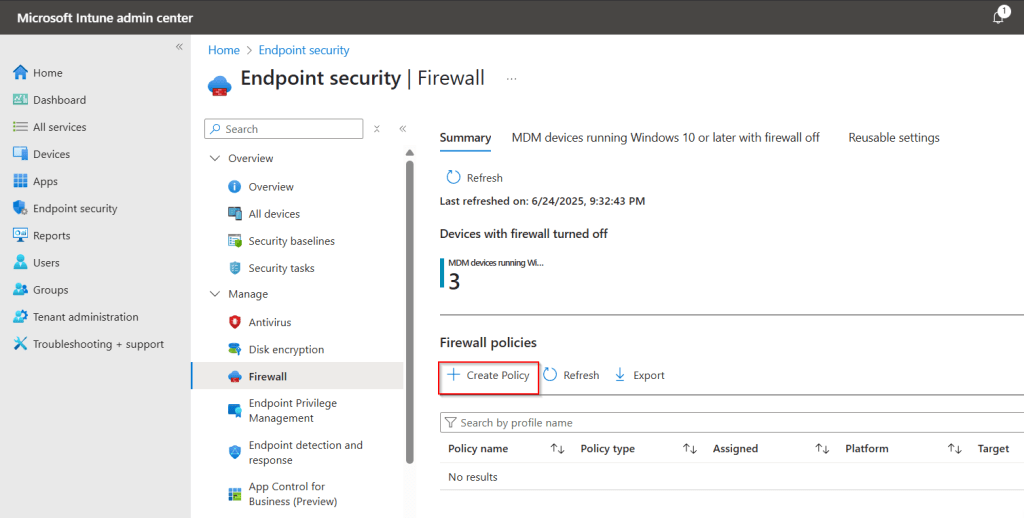
Go to Intune admin center > Endpoint security > Firewall.
Select Create Policy.
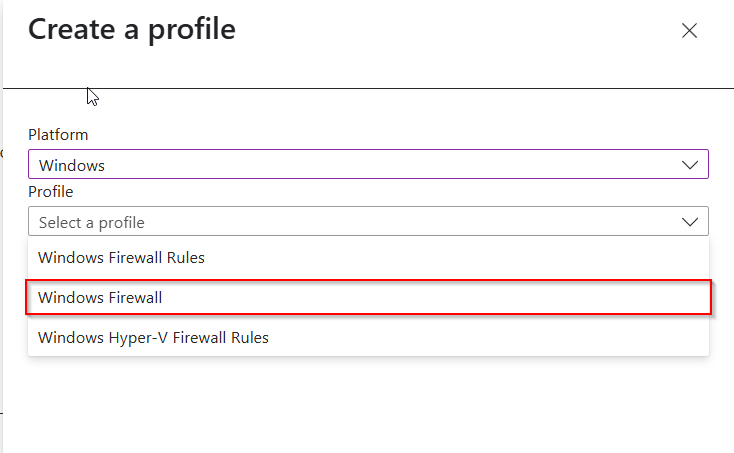
Select Windows and Windows Firewall.
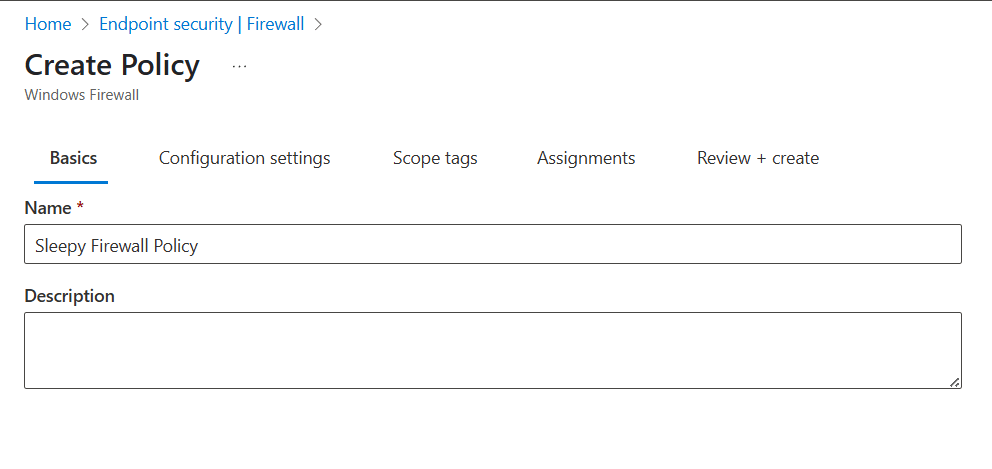
Give the Firewall policy a name
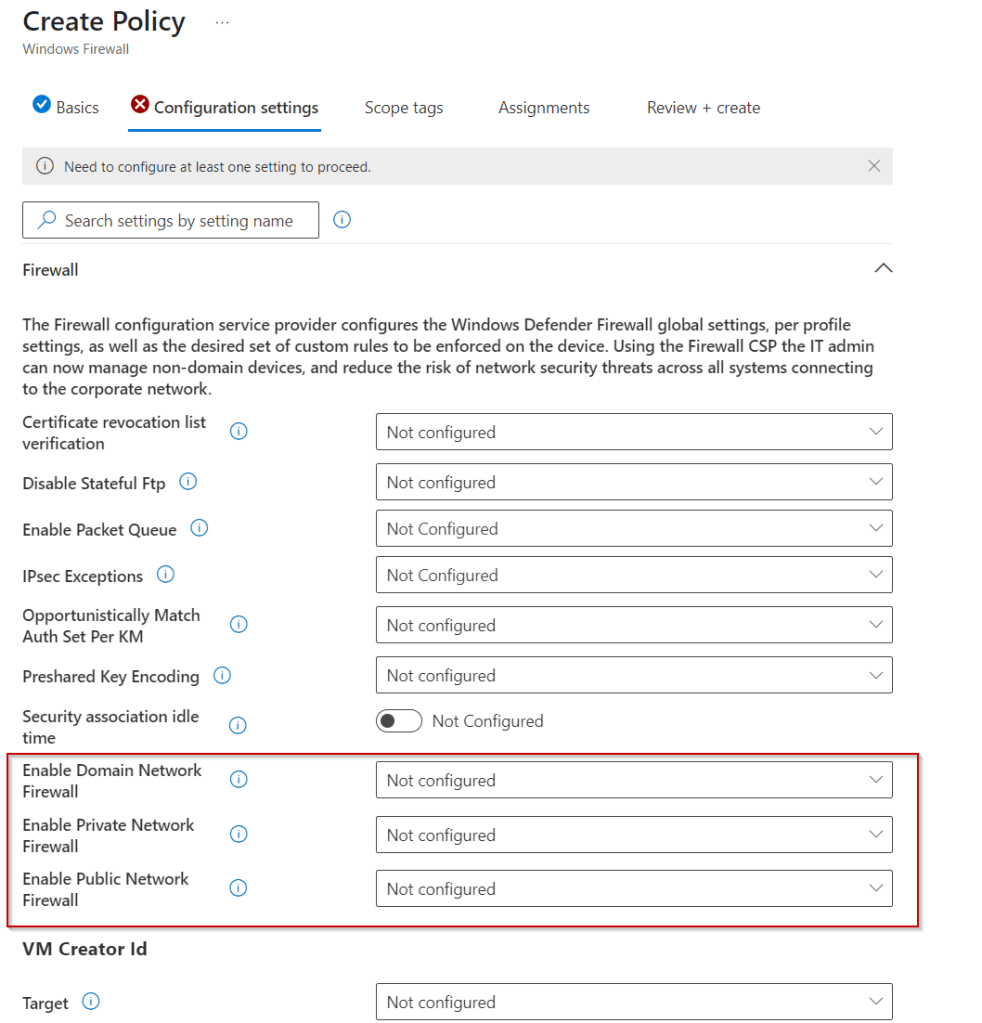
I will enabling the Domain, Private and Public.
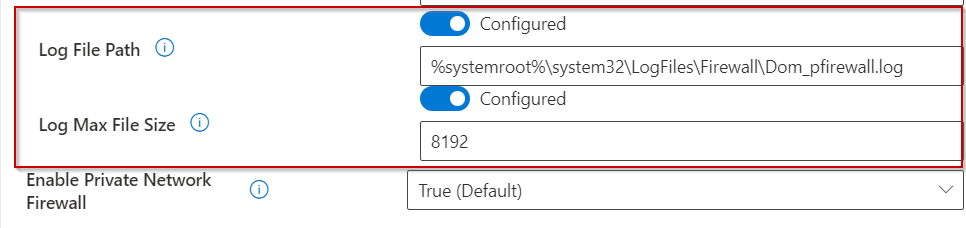
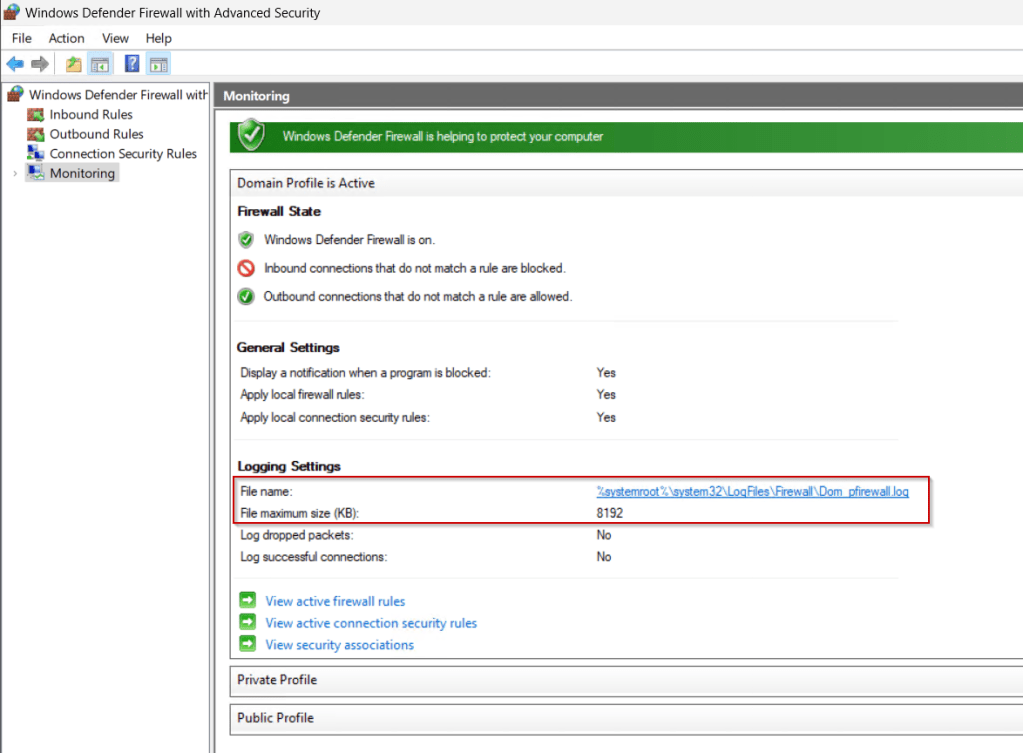
I will only be changing the log name and log size. Everything else I will leave as default.
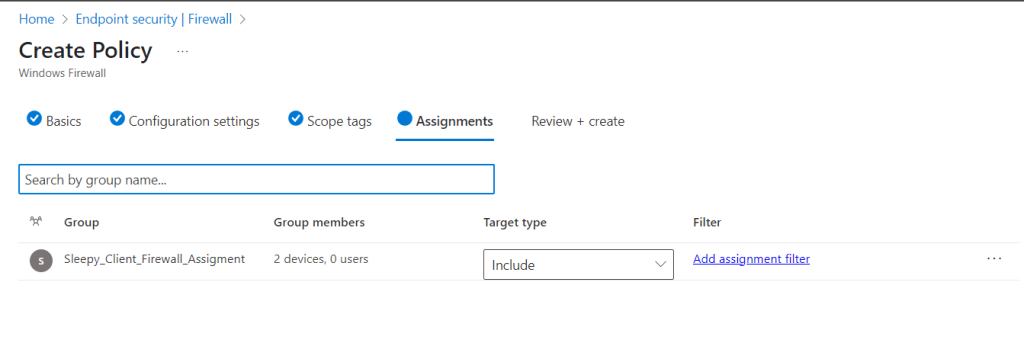
I am leaving scope as default. I will be applying the rules to a specific security group that i have added two assets to.
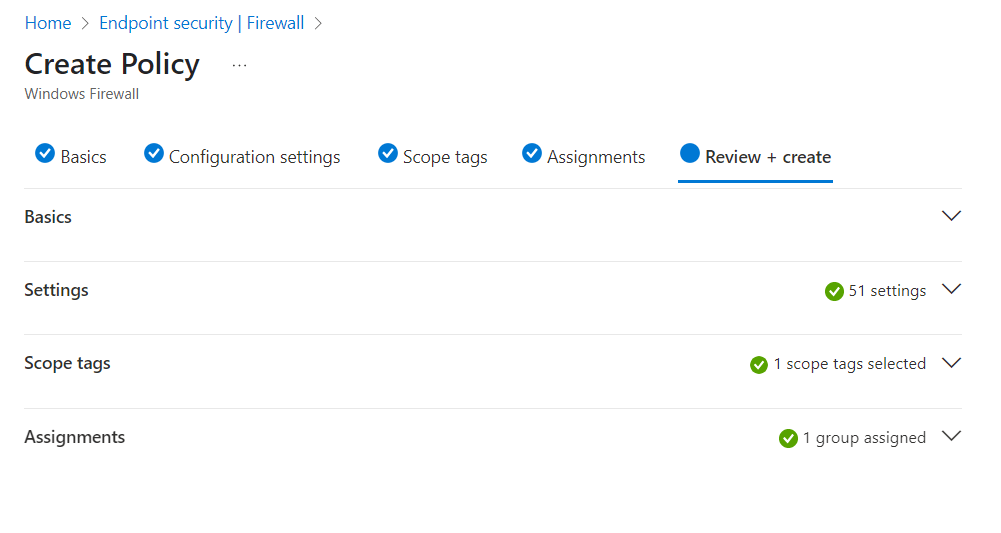
Next we will review and create the Firewall Policy.
Once we review the settings we can start creating our firewall rules.
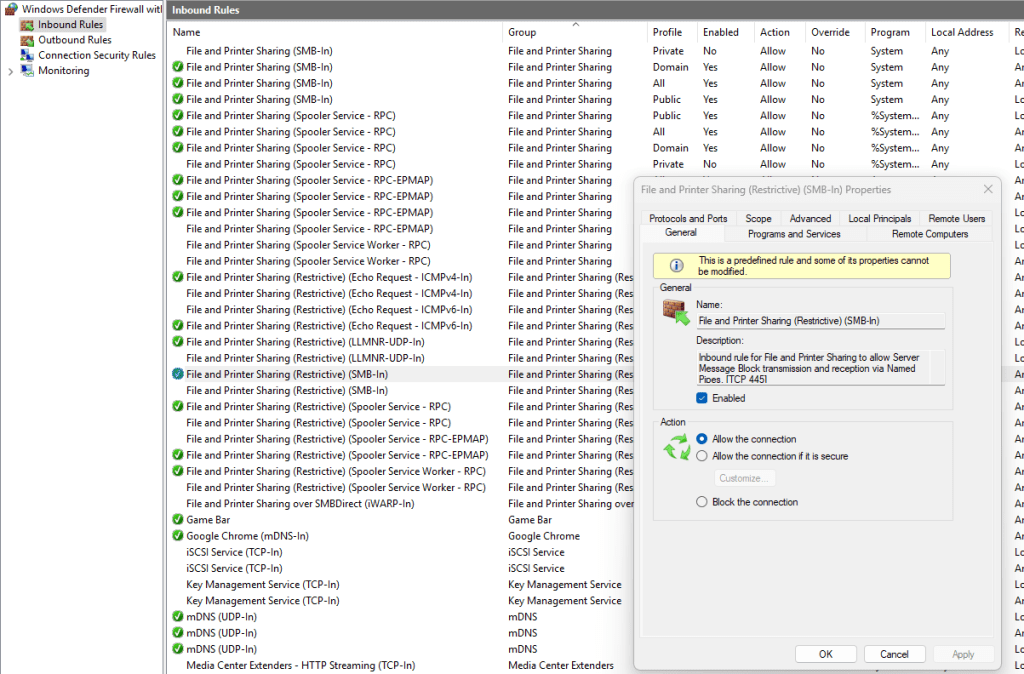
I have been using Windows Firewall on a Windows 11 asset to get the specific details for the rules I want to create.
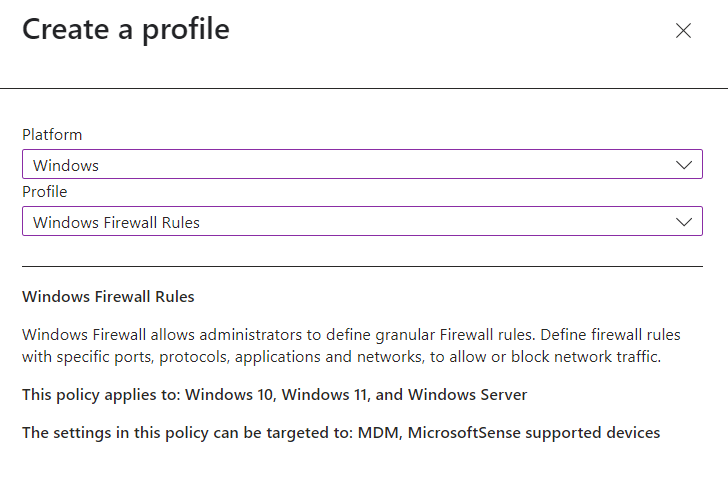
To create go back to Create Policy, select the platform and profile type Windows Firewall Rules.
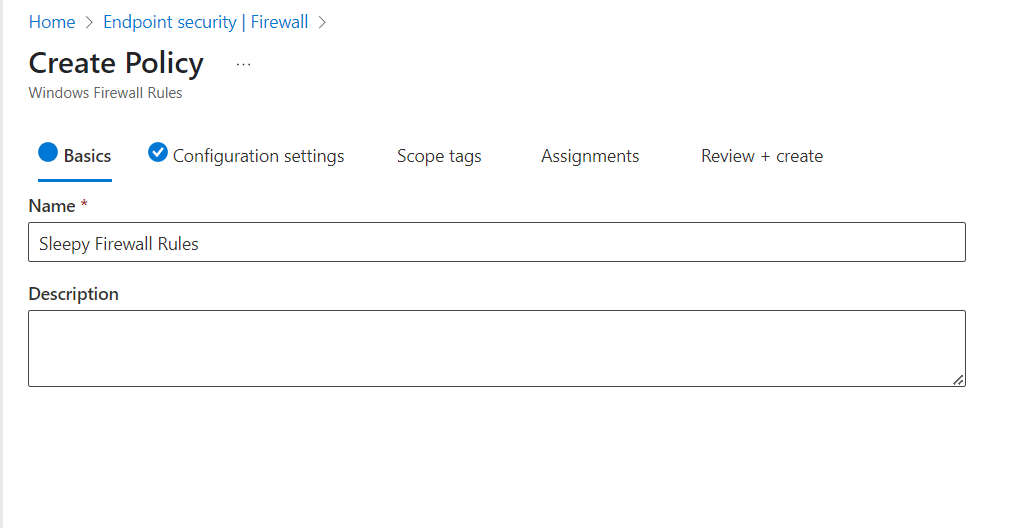
Give the policy a name and description.
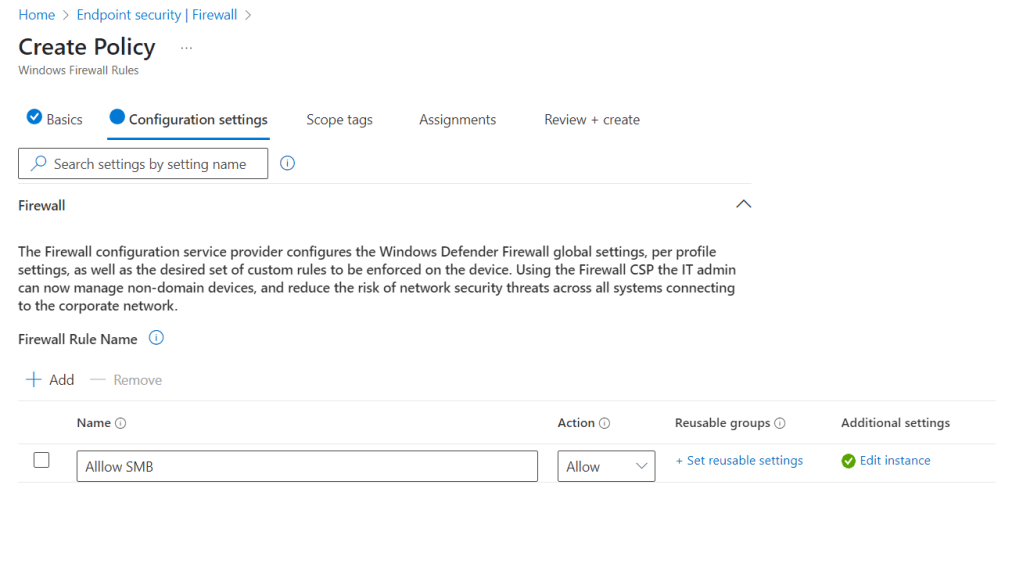
Next we will add a rule, give the rule a name and set the action to either allow or deny.
To modify the settings click on edit instance.
This rule we will be creating using the below details.
- Enabled: Enabled
- Interface Types: All
- File Path: System
- Remote Port Ranges: Any
- Network Types: Domain / Private
- Local Port Ranges: 445
- Direction: The rule applies to Inbound traffic
- Local Address ranges: Any
- Local Port Ranges: Any
- Protocol: 6
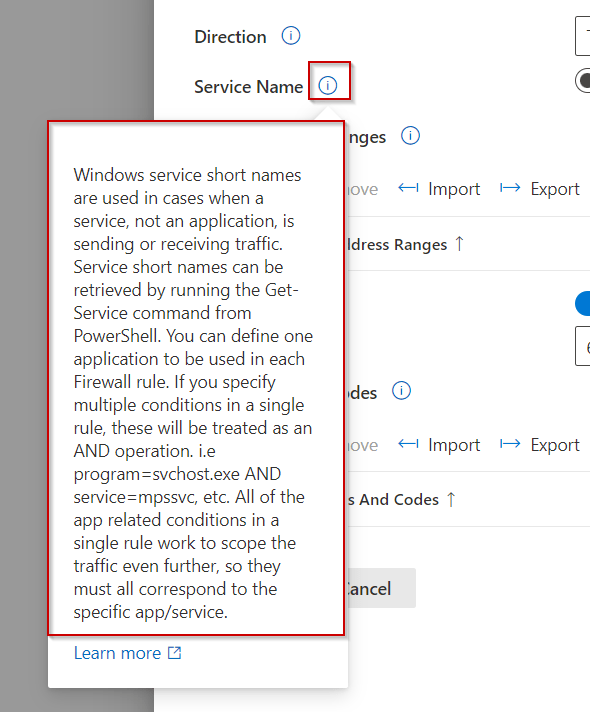
We can check what each setting can be set to by click on the i button.
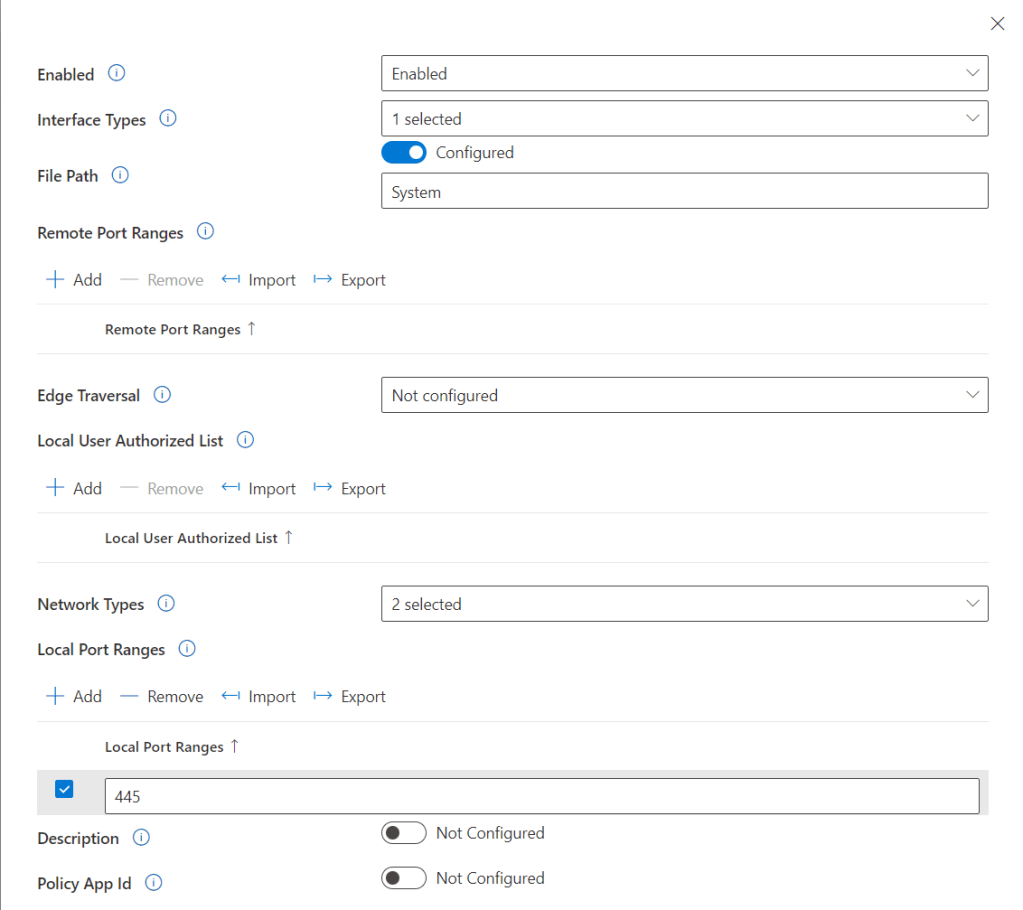
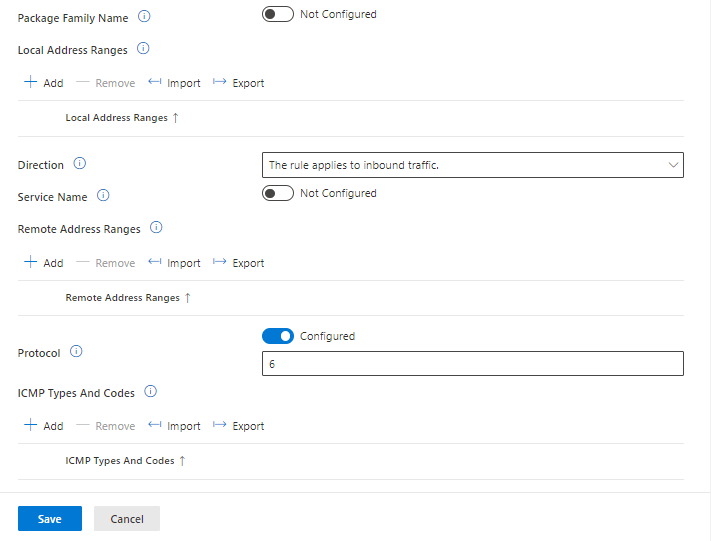
Once we have all the setting we want to configure we can save.
I am leaving scope as default. I will be applying the rules to the same security group used for the Firewall policy.
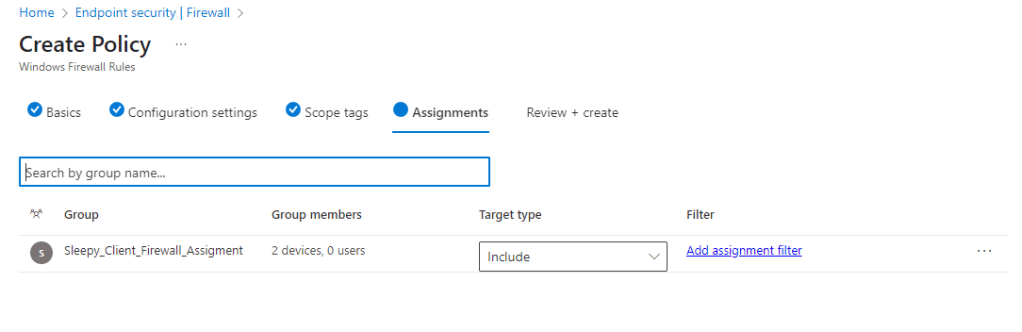
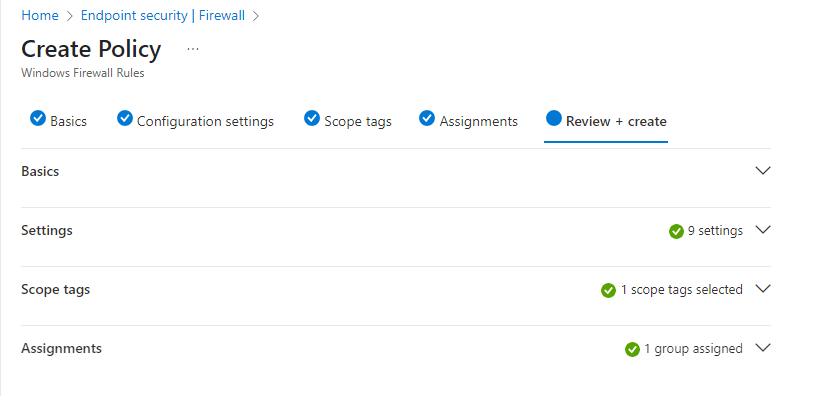
Next we can review settings and create.
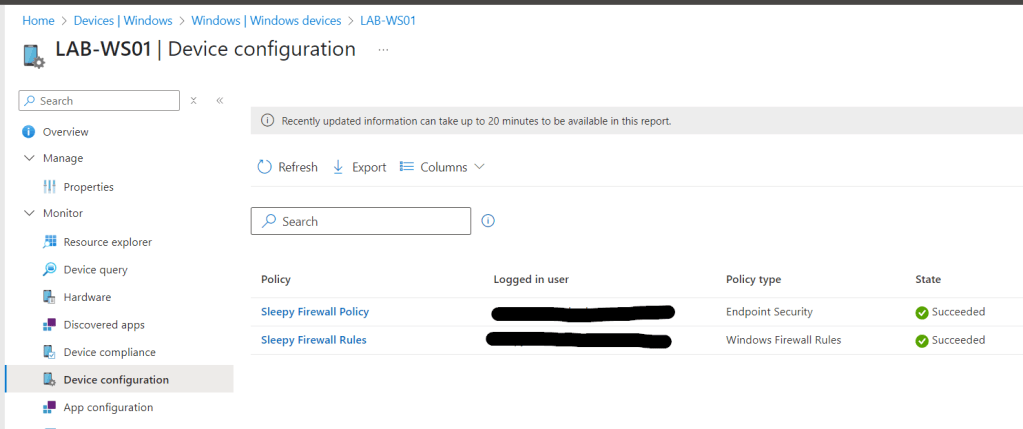
Next we can need to either manually sync the client or wait for the next policy refresh. We can check the compliance in Intune to check for any errors.
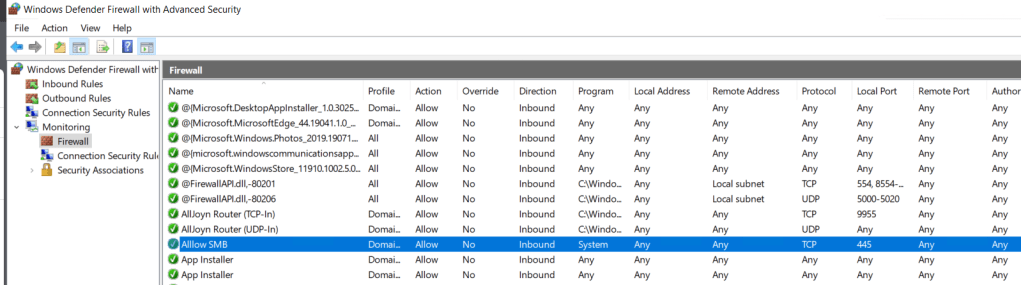
To confirm on the client we need to open Windows Defender Firewall with Advanced Security > Monitoring > Firewall. The rules wont show under Inbound Rules.
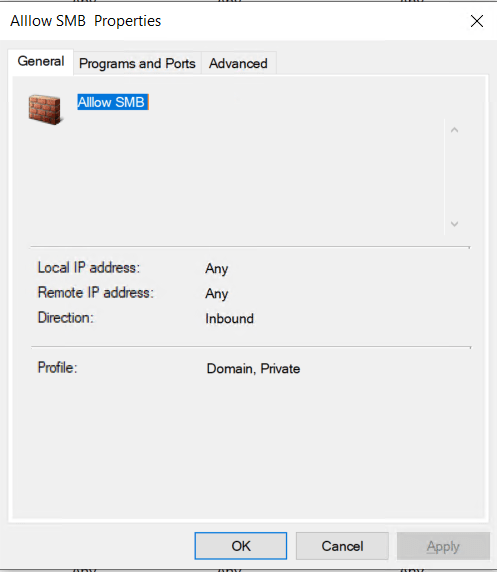
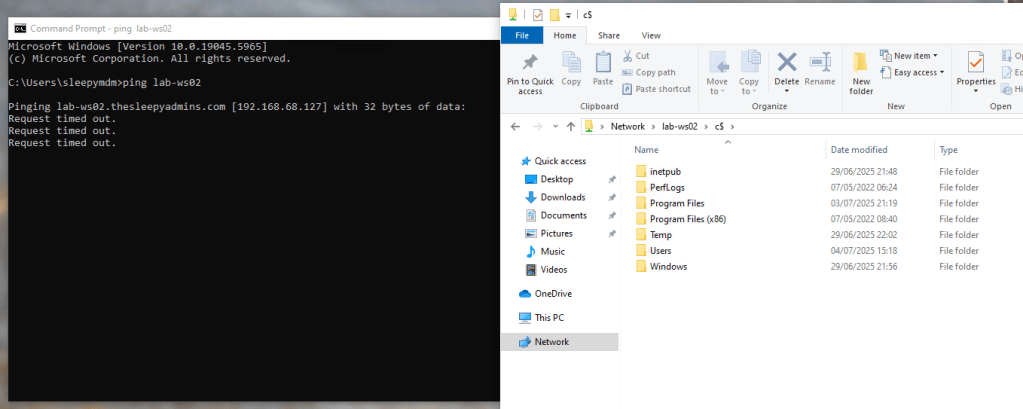
To test we can try ping the devices and open a remote SMB connect to confirm that only SMB is allowed.
We can also check the firewall policy settings have applied.
This has been a quick run through of setting up Firewall policy and rules in Intune. Setting up rules in Intune is a bit more difficult than it is through group policy or using PowerShell (At least for predefined rules).
It takes a little getting use to and know how each setting can be configured but it become easier after setting up a few rules.
 TheSleepyAdmins