
In the post we will be going through the process of setting local account policies settings like maximum password age, password length, account lockout ….
To set these will be a configuration policy, these settings done have settings catalogue yet so we will be using custom policy.
I will be using an Entra Joined Windows 11 device, but this will also work if the device is hybrid joined and MDM is set to Win over GPO.
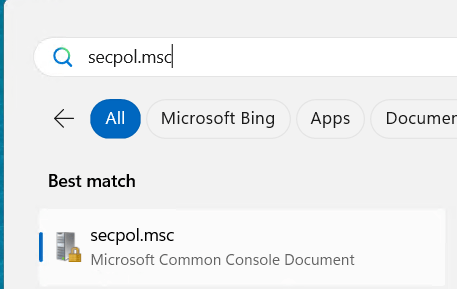
To check the current policy settings we can use secpol.msc to open the local security policy console.
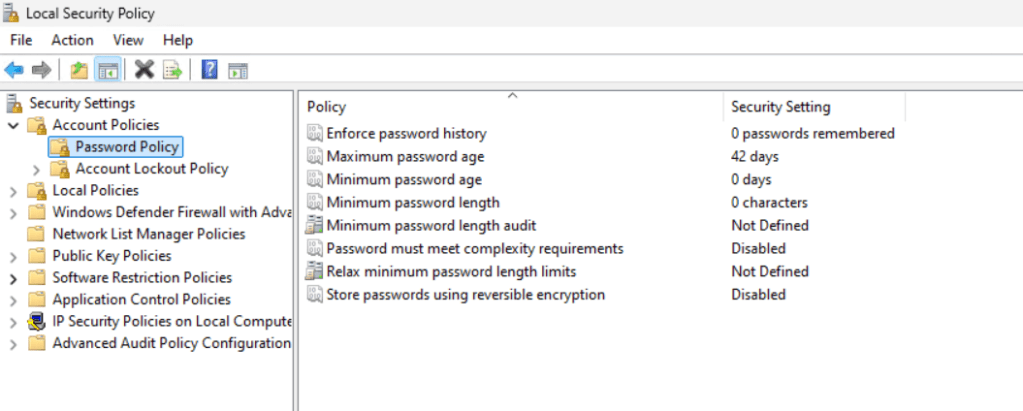
Next we can check the account policies.
Once we have the current settings we can create the policy and change as required.
Next we need to configure the policy in Intune.
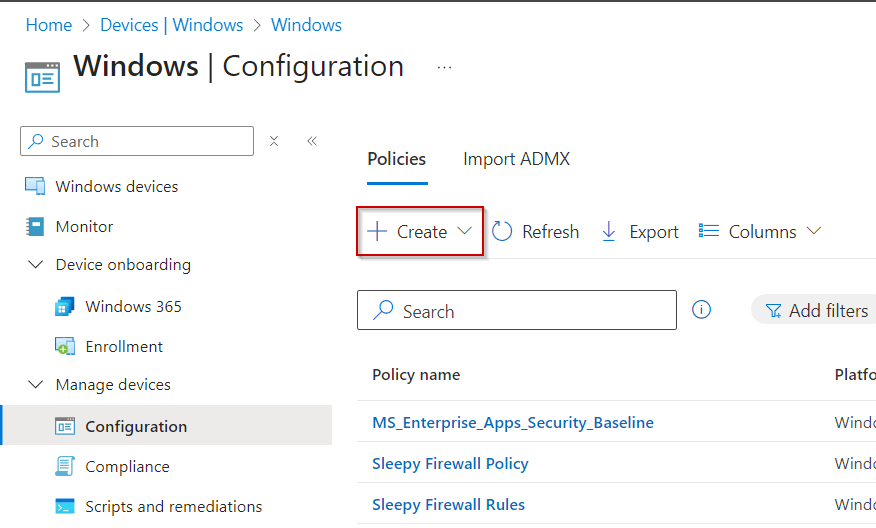
Go to Intune Admin center > Devices > Manage Devices > Configuration
Select Create
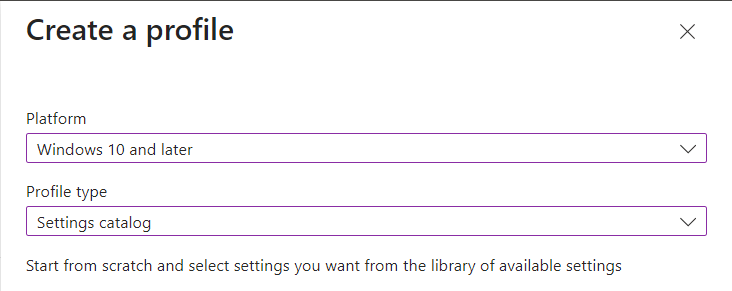
Select Platform and Profile type (Will be using Windows 10 or later and Settings catalog in the example)
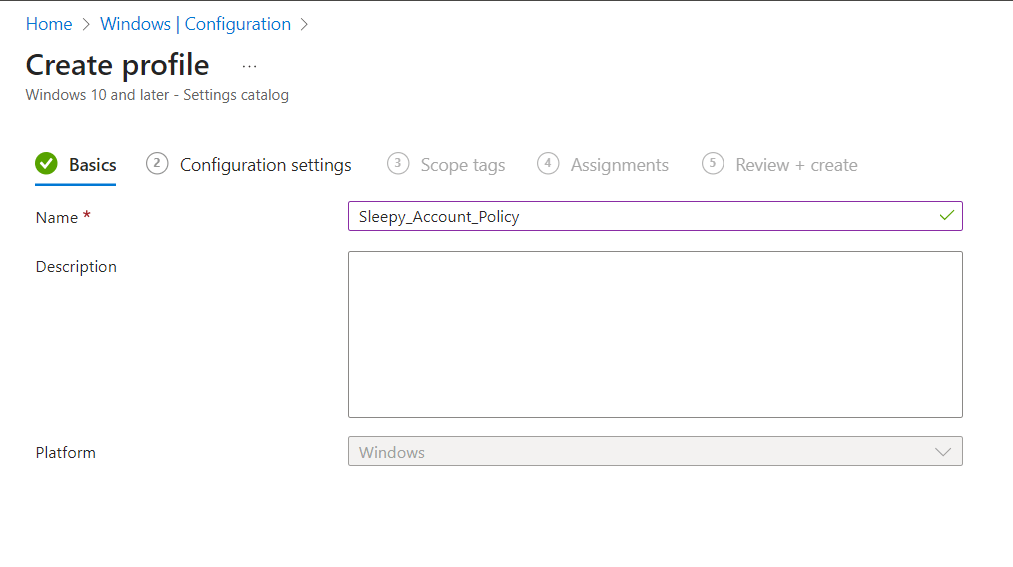
Give the policy a name and description
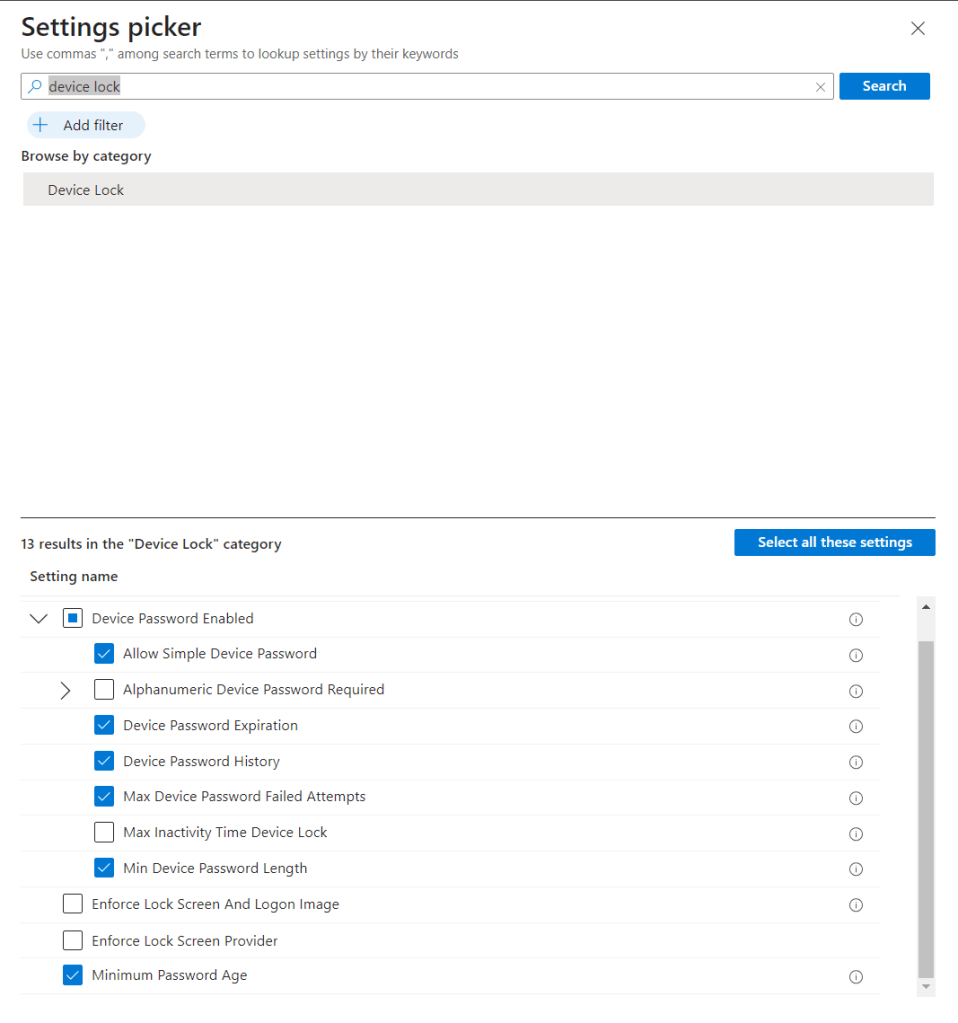
Search for Device Lock and select the required settings.
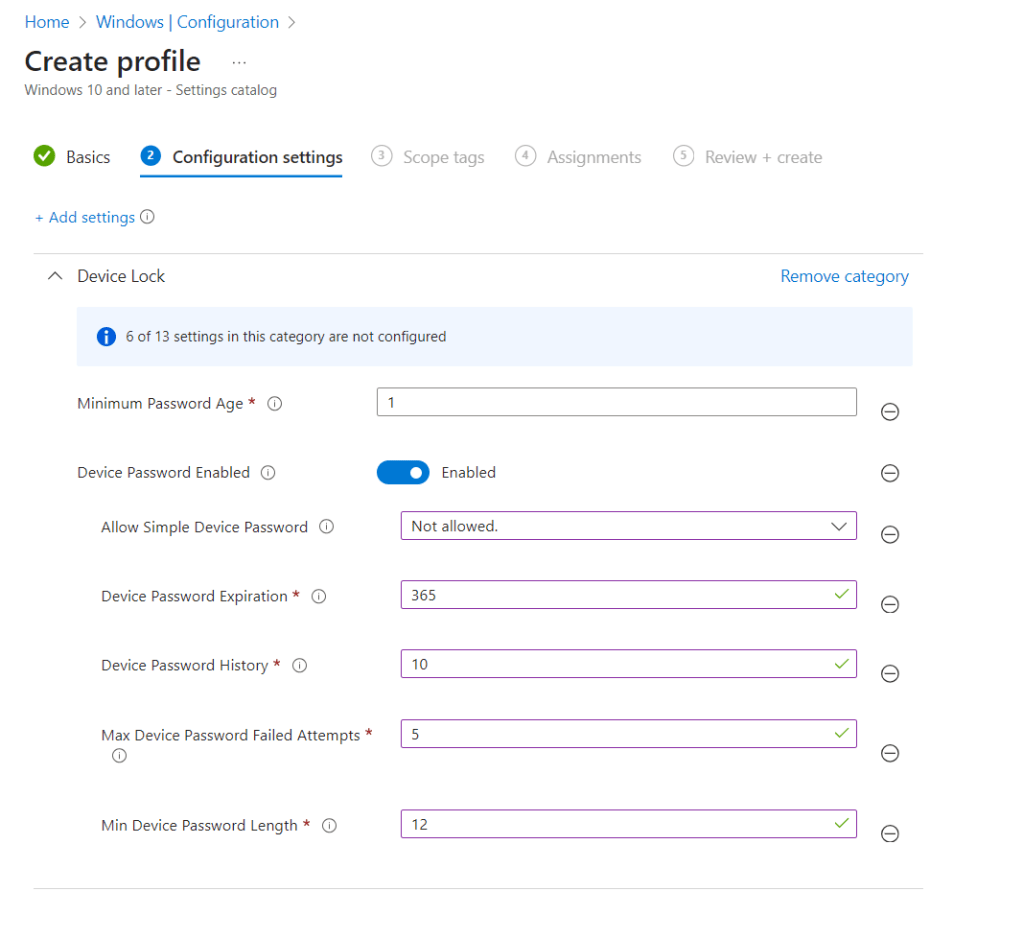
Enable and set the required values.
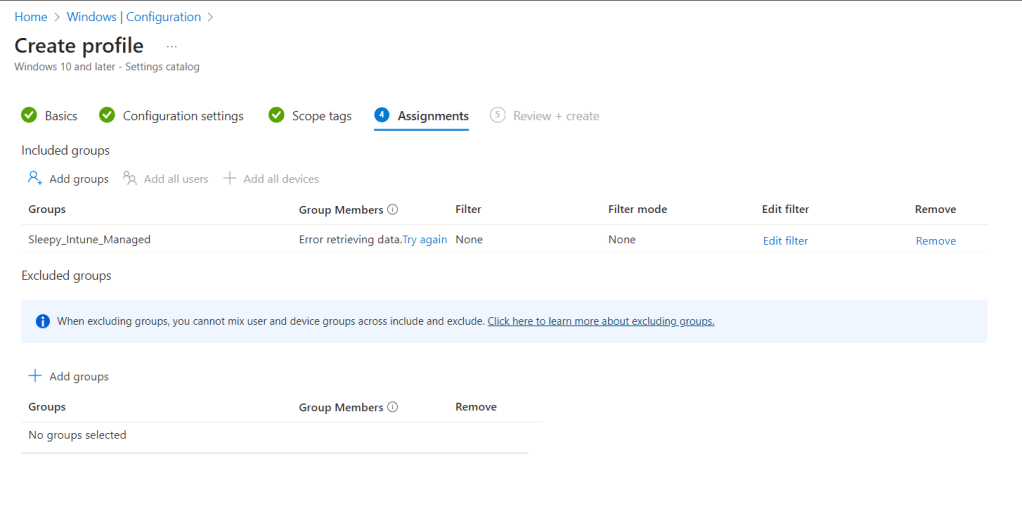
I will be using a dynamic group for all Intune managed devices.
Next we need to review and create the policy.
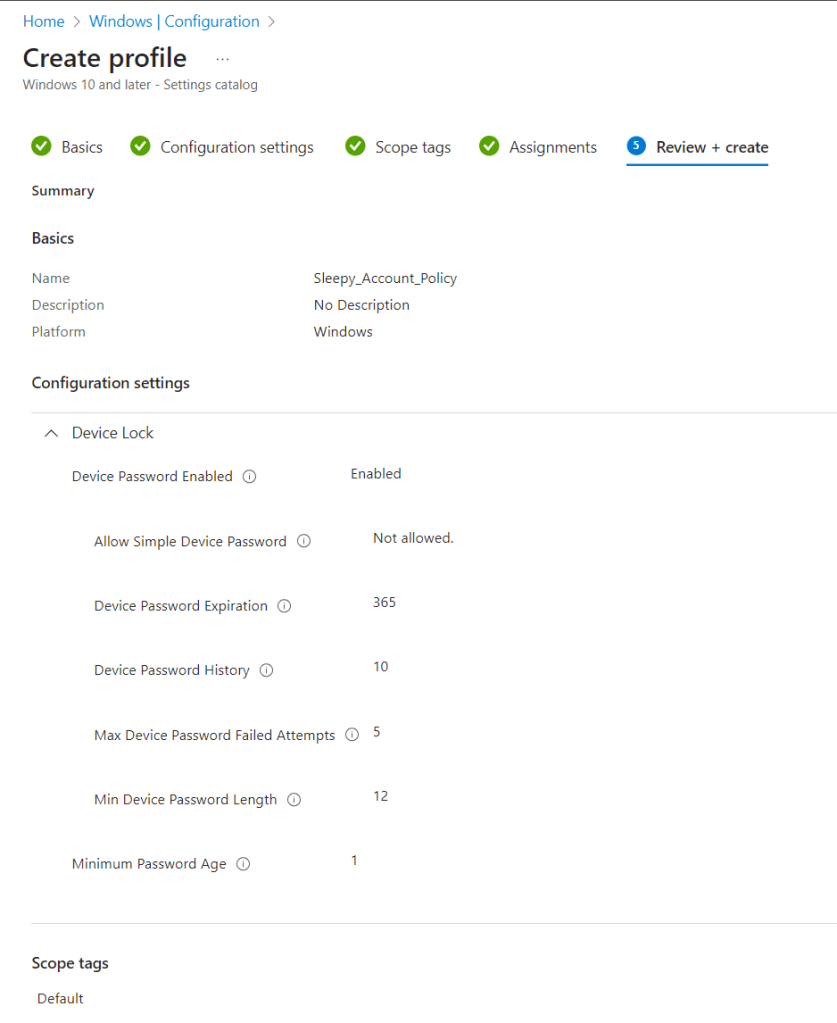
Once the policy is create we can run a manual sync or wait for the next sync.
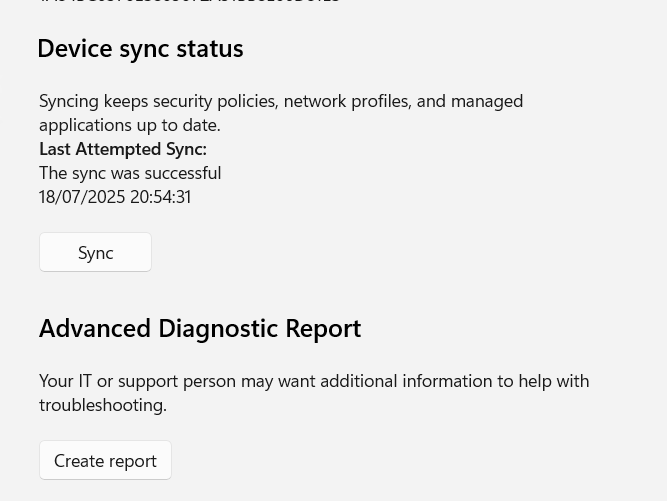
To manually sync open Settings > Accounts > Access Work or School
Select the account and go to info. Go to Device sync status and select Sync.
We can now try to set a simple password.
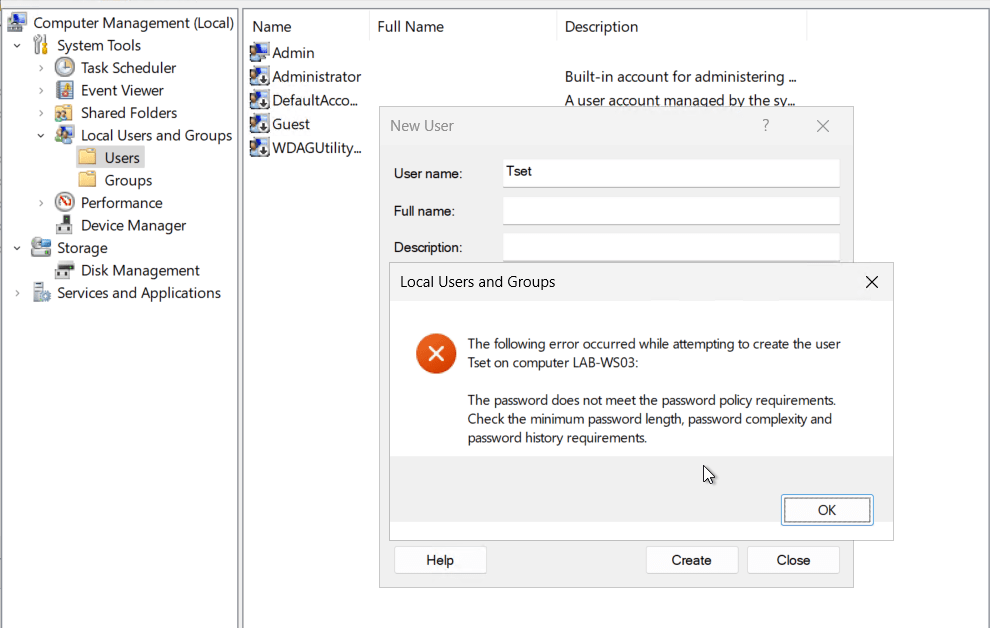
The only issue I have seen with this setup is that it doesn’t update the local security policy and can fail compliance scans.
If the settings needs to be set in local security policy we can apply the same settings using CSP policy and this will update the local policy.
To create a custom policy go back to Intune Admin center > Devices > Manage Devices > Configuration.
This time select templates > custom
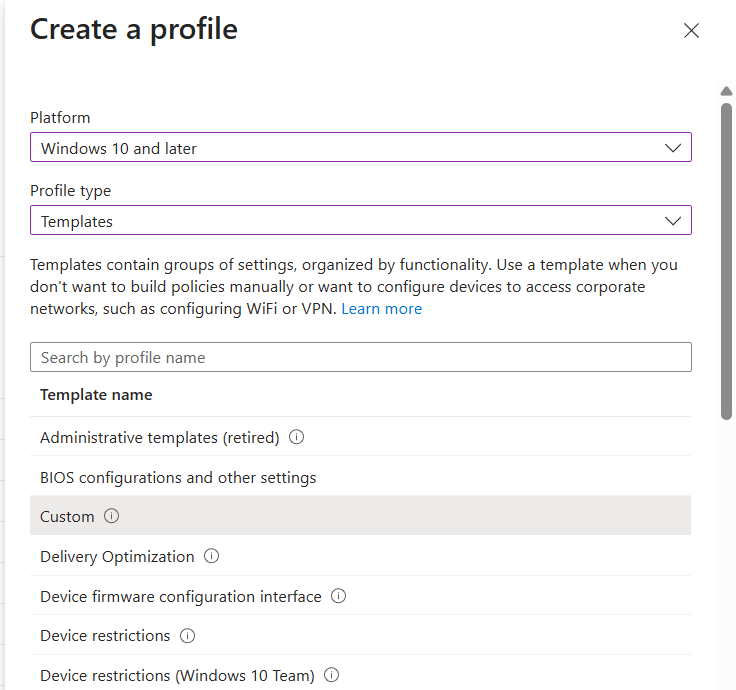
Give the policy a name.
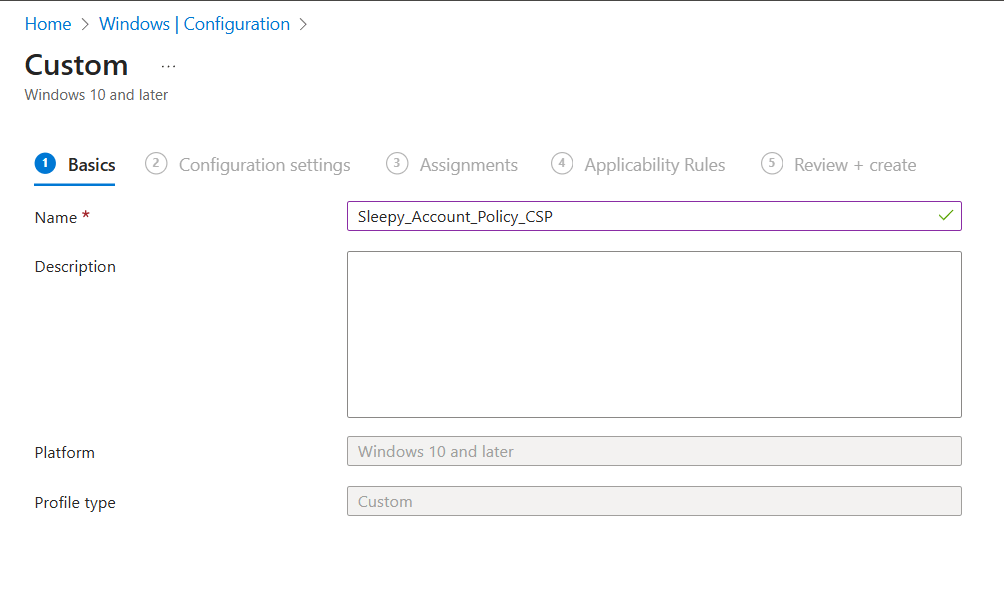
Next we need to add the Microsoft OMA-URI for device lock. These can be found here.
https://learn.microsoft.com/en-us/windows/client-management/mdm/policy-csp-devicelock
I wont be going through OMA-URI in this post, I have done a previous post on this
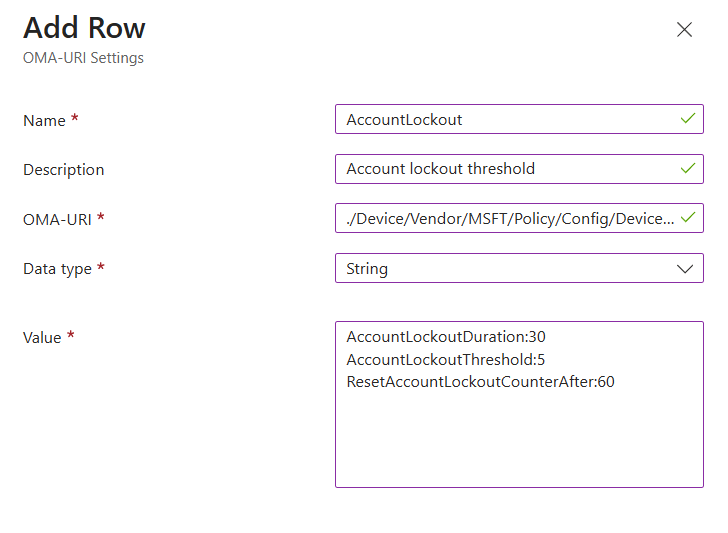
We need to add in a name, OMA-URI, Data type (can be gotten from the documentation for the OMA) and the value.
In the below we will be setting the account lockout values, this is a string value and all values can be added in to the one row.
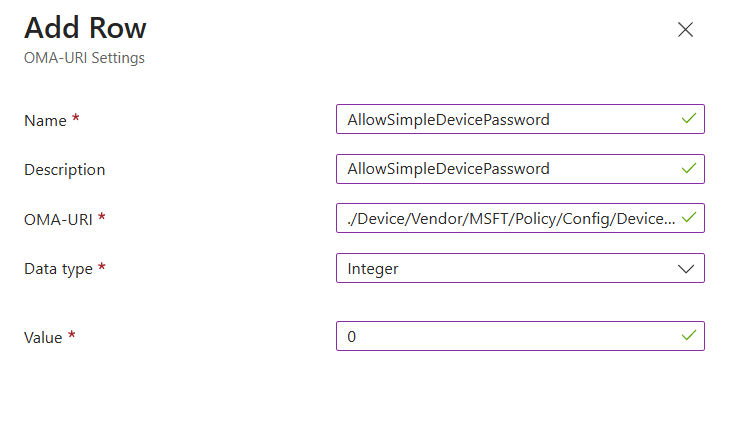
Next we will set the the allow simple device password and this is a integer value, 0 is disabled and 1 is allowed.
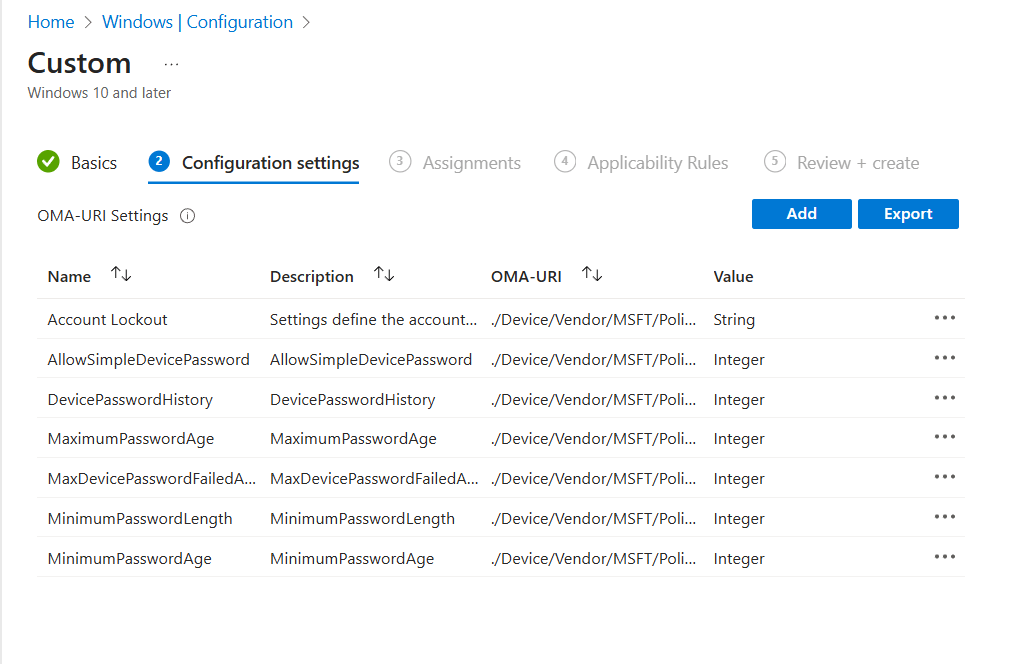
Once we have all custom settings added.
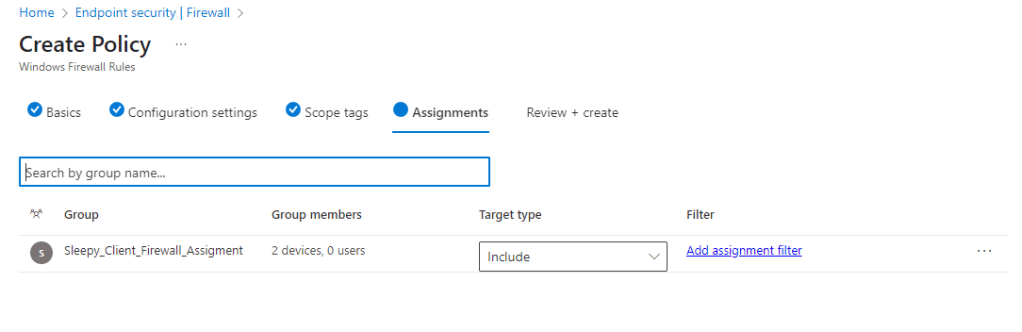
I will use the same Intune managed device group for the assignment.
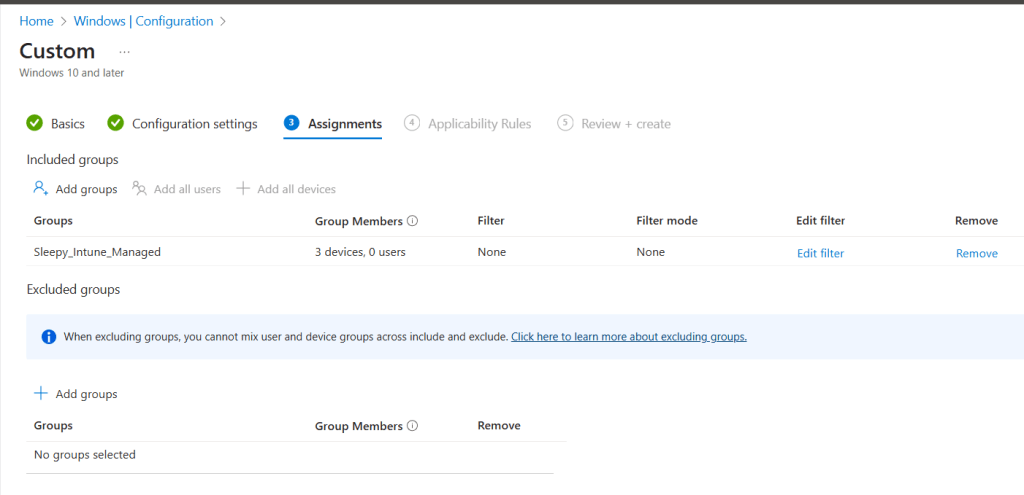
I will be leaving applicatio nrules as default.
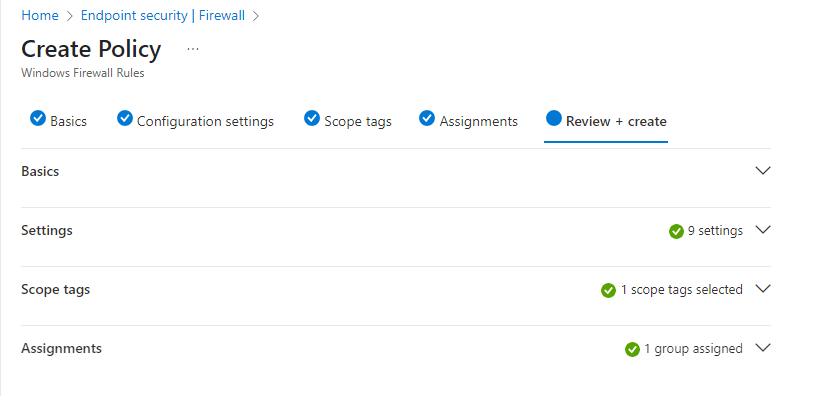
Go to review and create and review the settings.
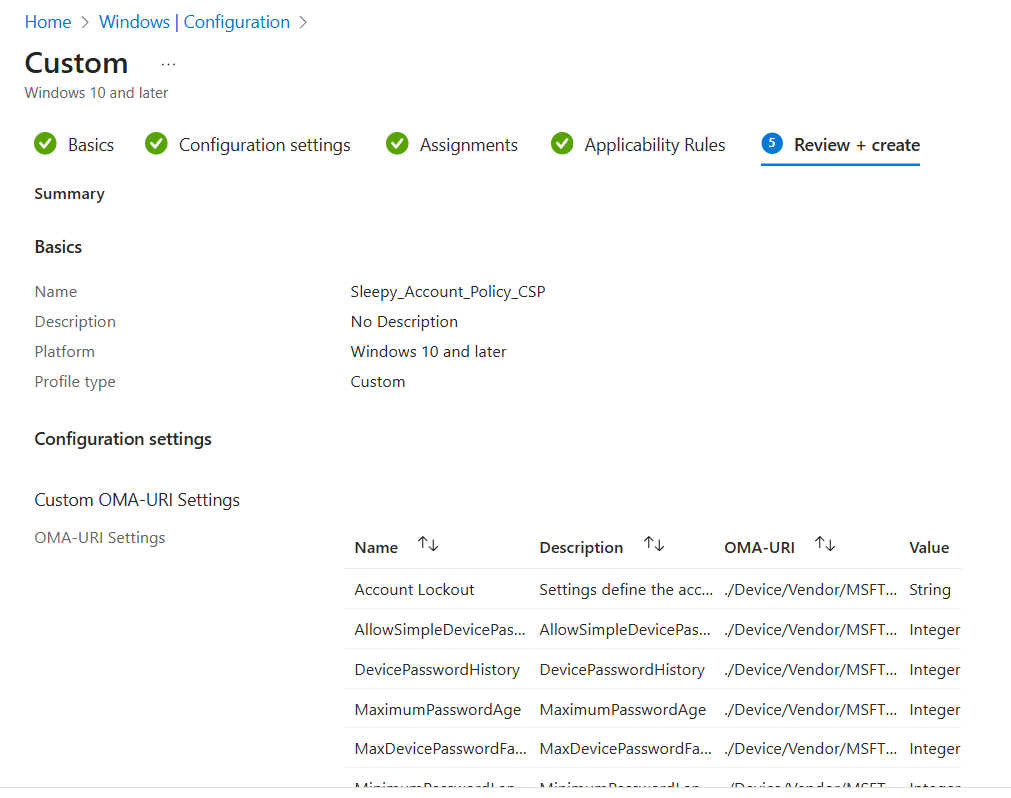
Next we can run a manual sync or wait for the automatic sync to complete.
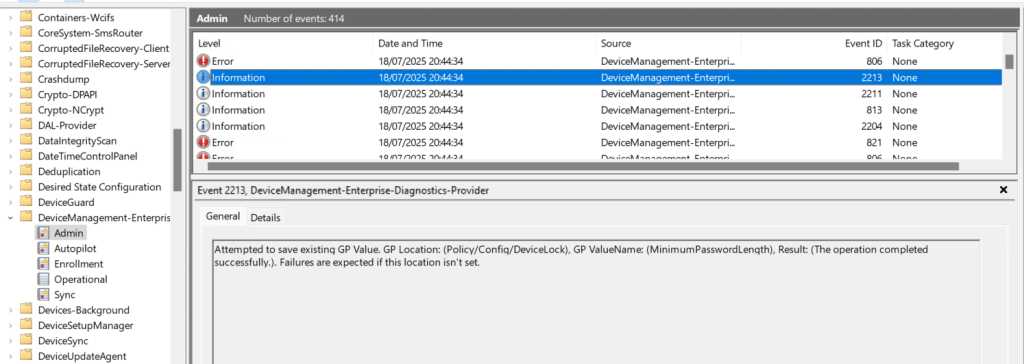
We can check the event logs to confirm the setting has been applied.
Now if we check local security policy, we can see the setting are now updated.

This has been a over view of setting local security policies using Intune, the method to use will depend on the requirement.
Using setting catalogue is a simpler process but the issue with compliance reports has meant in some case i need to use custom policy to successfully pass compliance audits.
 TheSleepyAdmins