
In this post we will be going through setting up custom policy in Intune using Configuration Service Providers (CSP’s).
CSPs are similar to Group Policy and provide an interface to read, set, modify, or delete configuration settings. There are some settings that are not available in other types of configuration policies and can only be set using CSP or remediation script’s.
I am using the below link to find CPS policy settings.
To use CPS we need to find the setting we want to configure. We can then copy the OMA-URI which follows the below format.
Device: ./Device/Vendor/MSFT/Policy/Config/AreaName/PolicyName
User: ./User/Vendor/MSFT/Policy/Config/AreaName/PolicyName
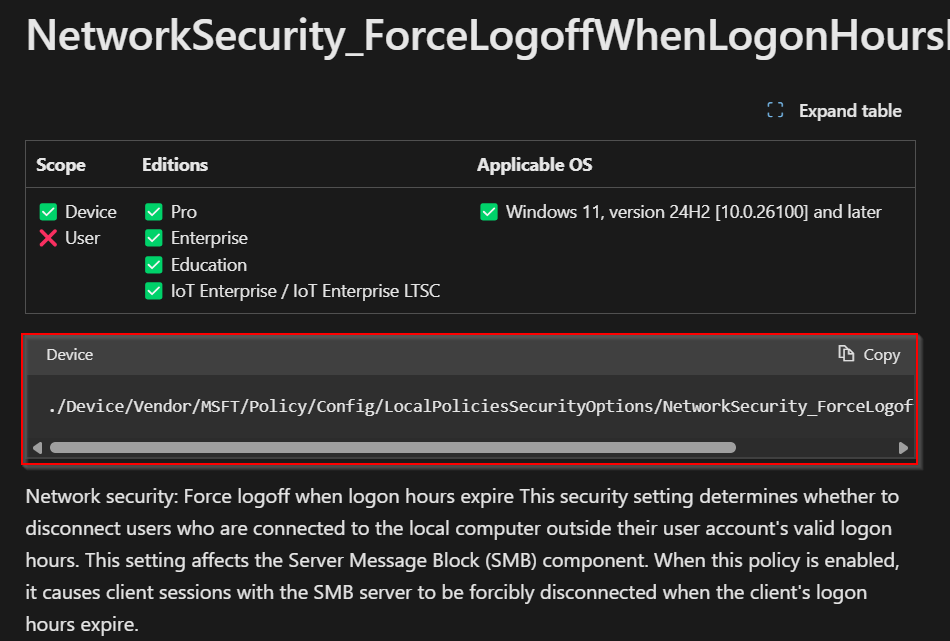
We can then check what format and values can be set.
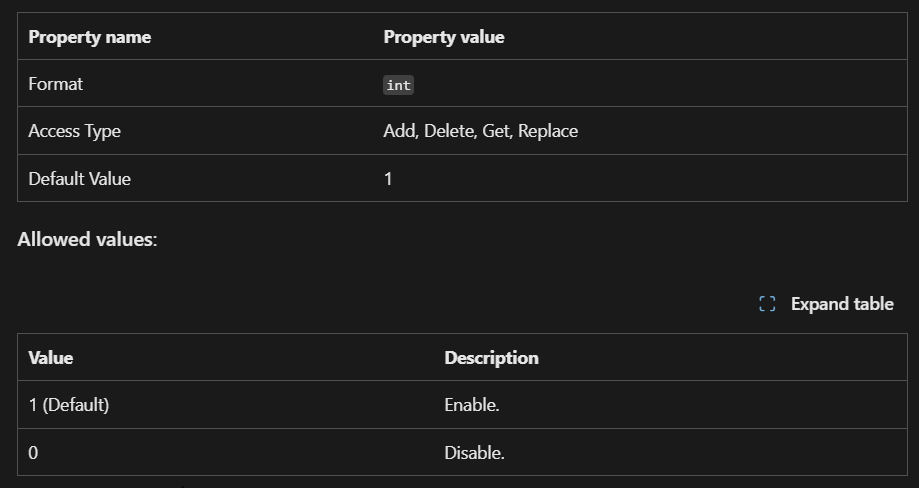
Once we have the settings we want to configure, we can create a new policy.
To create a policy go to Intune Admin center > Devices > Windows > Configuration and click create new policy.
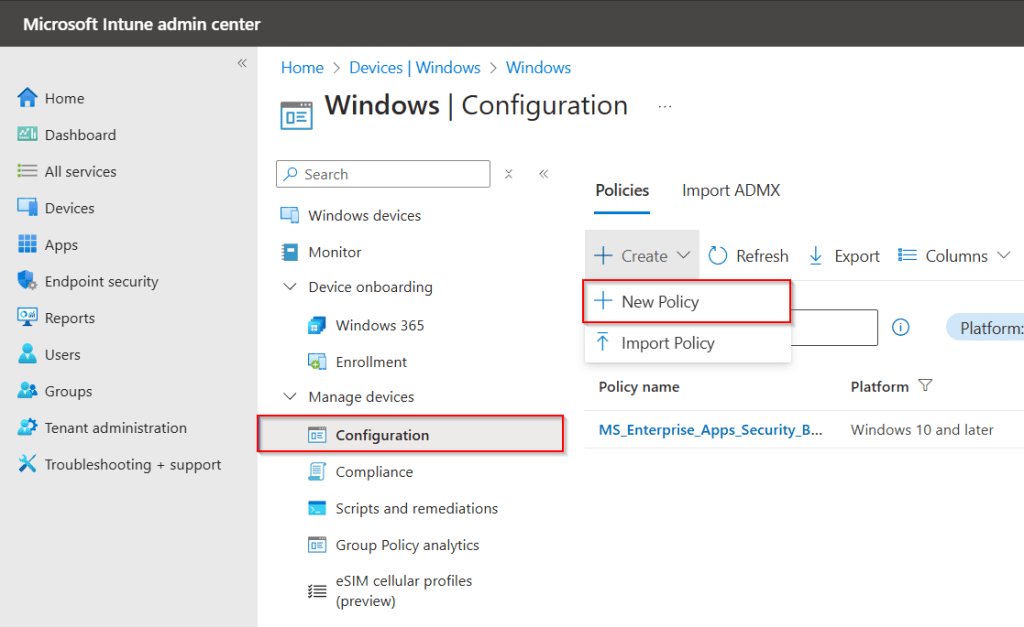
Set the platform, profile type and use custom template.
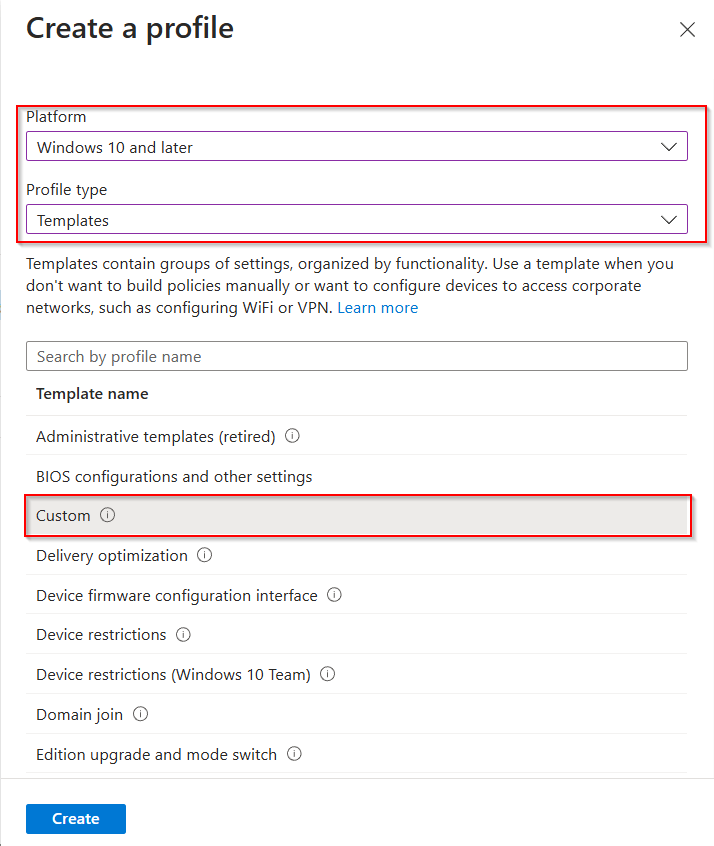
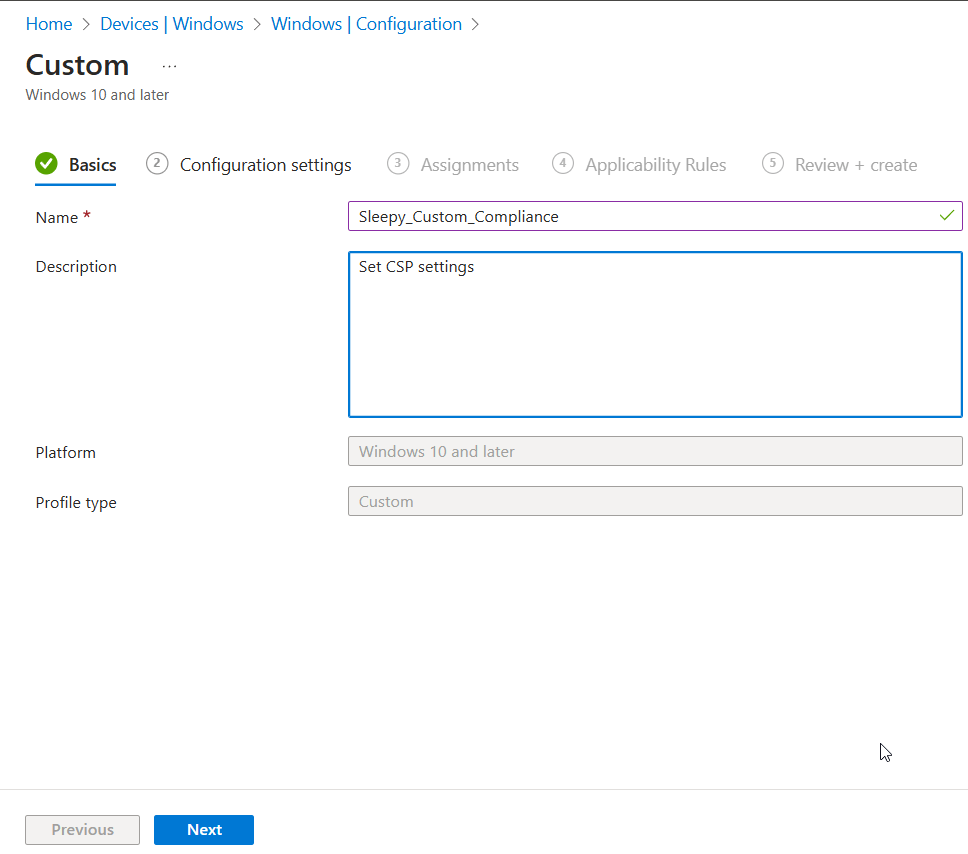
Give the policy a name and description.
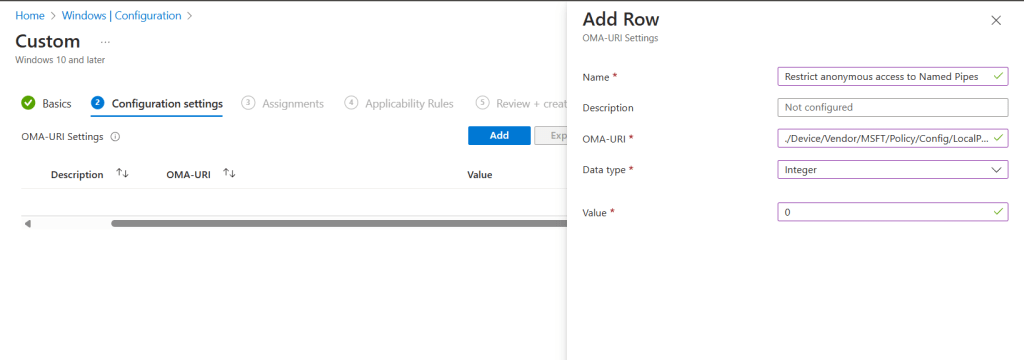
Click Add, Give the setting a name, description, OMA-URI, Data type (based on CSP documentation) and value to set.
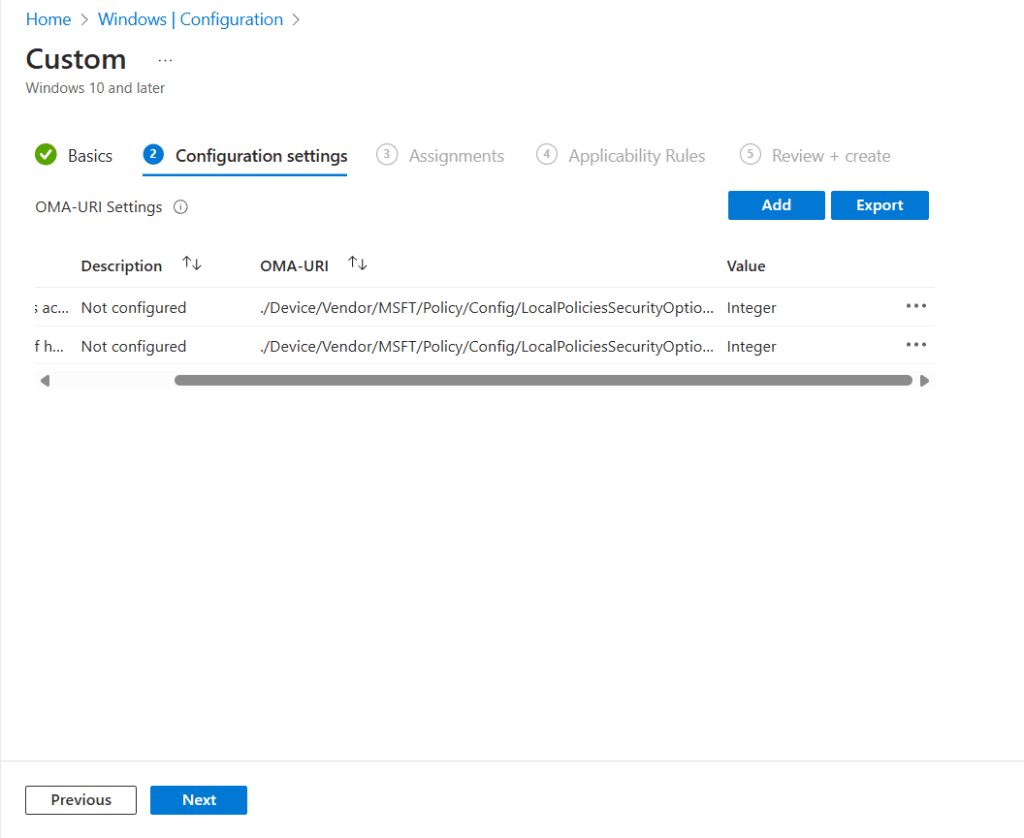
Click save and the setting should now show. Add any additional settings and click next.
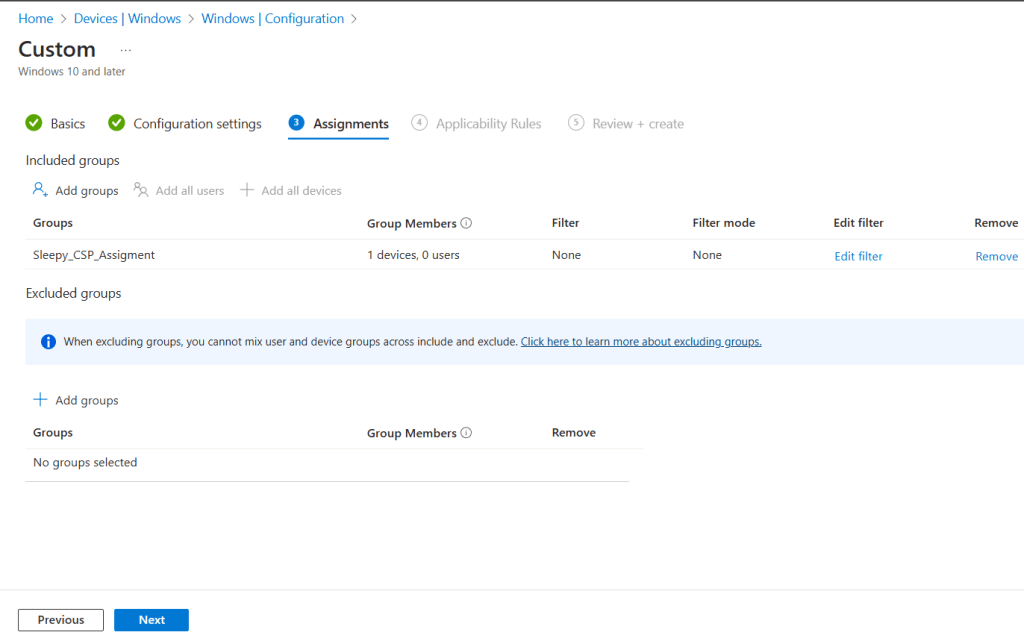
We can assign the policy to a group, or all devices / Users.
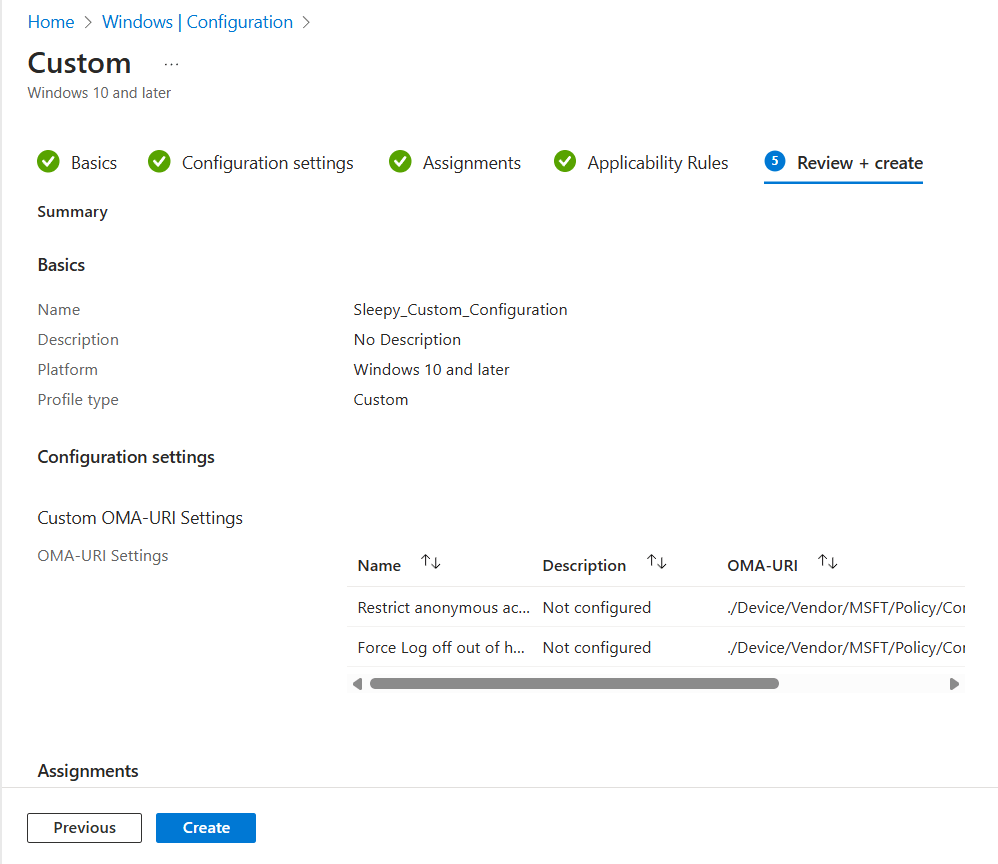
Add applicability rules if required and then review and create.
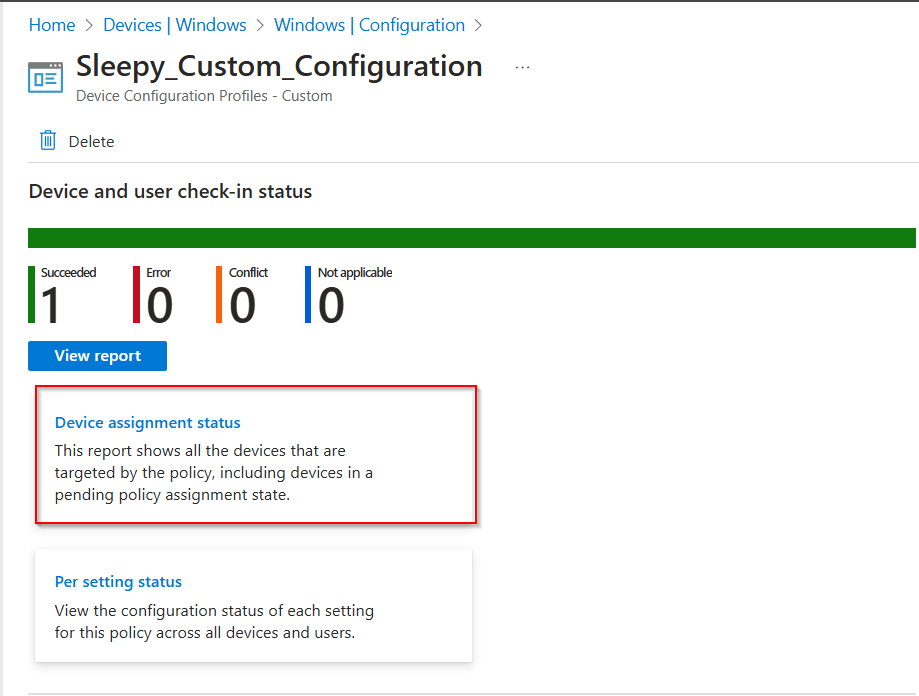
To confirm policy assignment we can generate a report by going to the policy and clicking on device assignment status.
Click generate report.
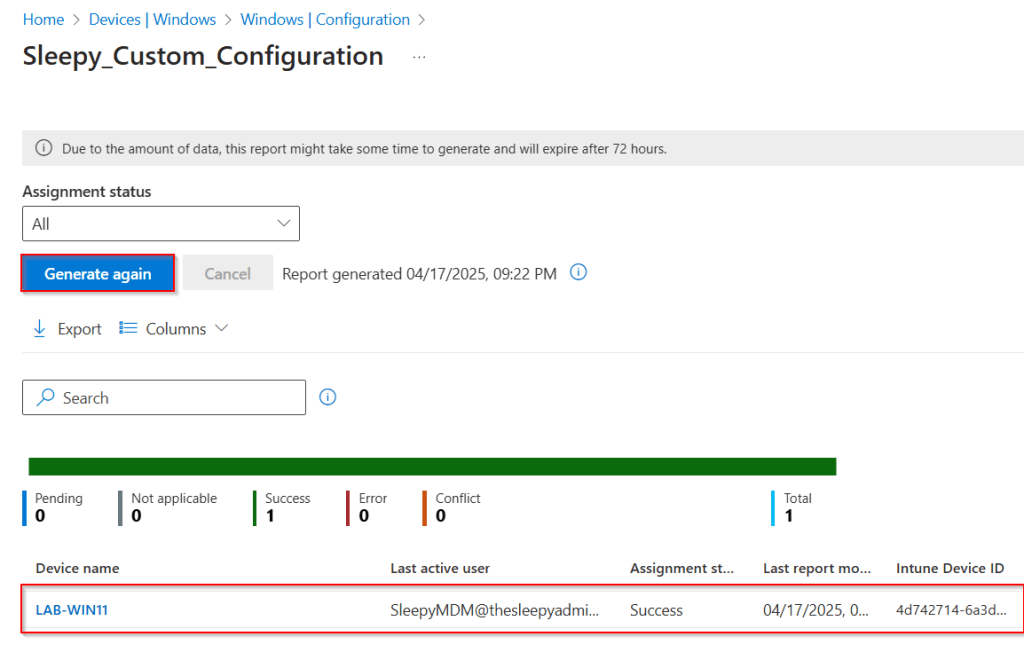
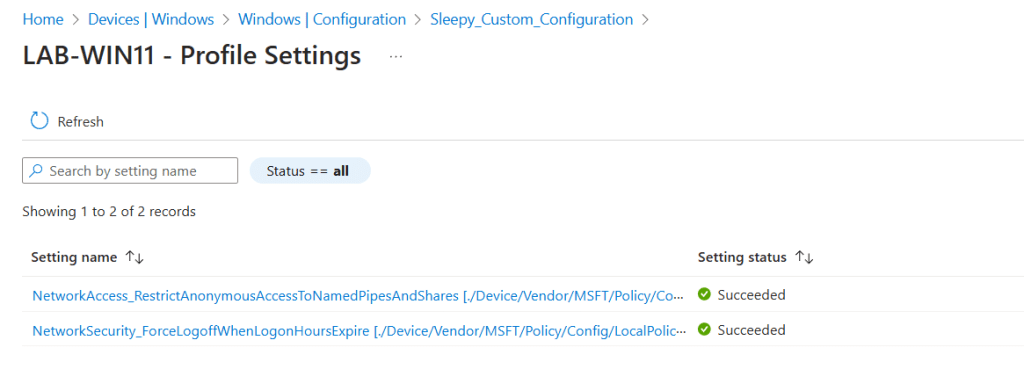
Select device from report and view setting status.
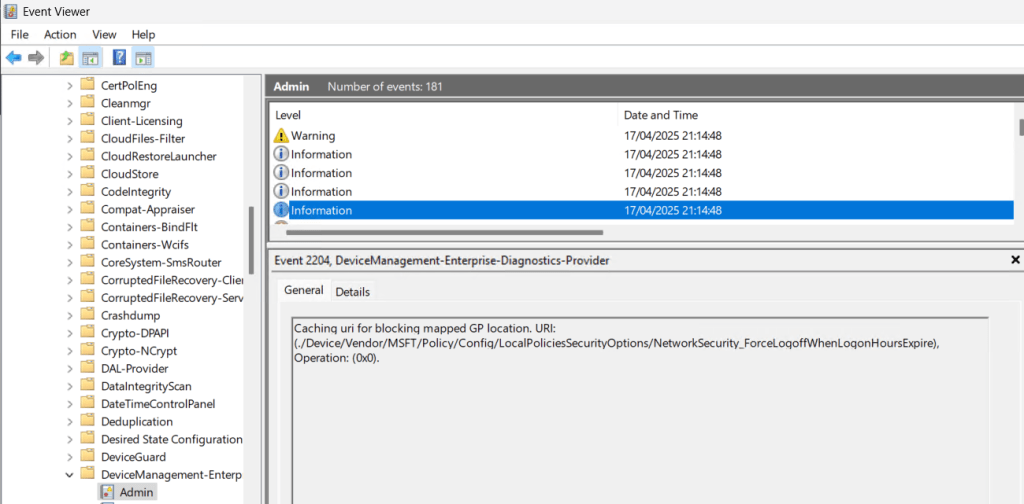
We can also check on the clients event log under Application and services logs > Microsoft > Windows > DeviceManagement-Enterprise-Diagnostics-Provider/Admin
 TheSleepyAdmins
One thought on “Using Microsoft Intune Custom Policies”