
In this post we will going through the process of enabling and setting up Entra ID hybrid with on-premises AD join.
There is some debated on whether companies should go with hybrid join or Entra ID joined. The decision should be based on business requirements, if there is very little on- premises resources and no required for legacy application then the move to fully cloud managed is most likely the best option but for larger organization that have on-premises resources, then doing hybrid join can be a good alternative till full cloud management can be implemented.
Below are the prerequisite for setting hybrid join
- Microsoft Entra Connect 1.1.819.0 or later
- Account with Hybrid Identity Administrator on your Microsoft Entra tenant.
- Enterprise administrator credentials for each of the on-premises Active Directory Domain Services forests.
- Users can register their devices with Microsoft Entra ID. More information about this setting can be found under the heading Configure device settings, in the article, https://learn.microsoft.com/en-us/entra/identity/devices/manage-device-identities#configure-device-settings
- The OU which contains the computer accounts that need to be synced must be selected in Entra Connect.
I would recommend reviewing Plan your Microsoft Entra hybrid join implementation article before enabling.
https://learn.microsoft.com/en-us/entra/identity/devices/hybrid-join-plan
If you need to know how to configure Microsoft Entra Connect see previous blog post. https://thesleepyadmins.com/2025/02/17/install-and-configure-microsoft-entra-connect/
We can either enabled hybrid join during the initial install of Entra Connect, but in this case we will be adding the feature to an existing Entra Connect deployment.
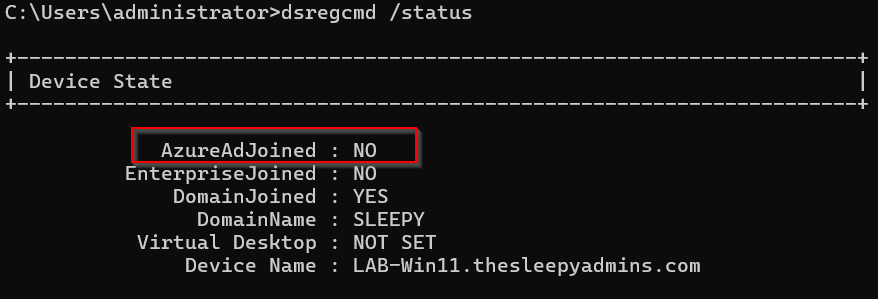
First we can check the status of the client to confirm we are not using hybrid joined by running the below command.
dsregcmd /status
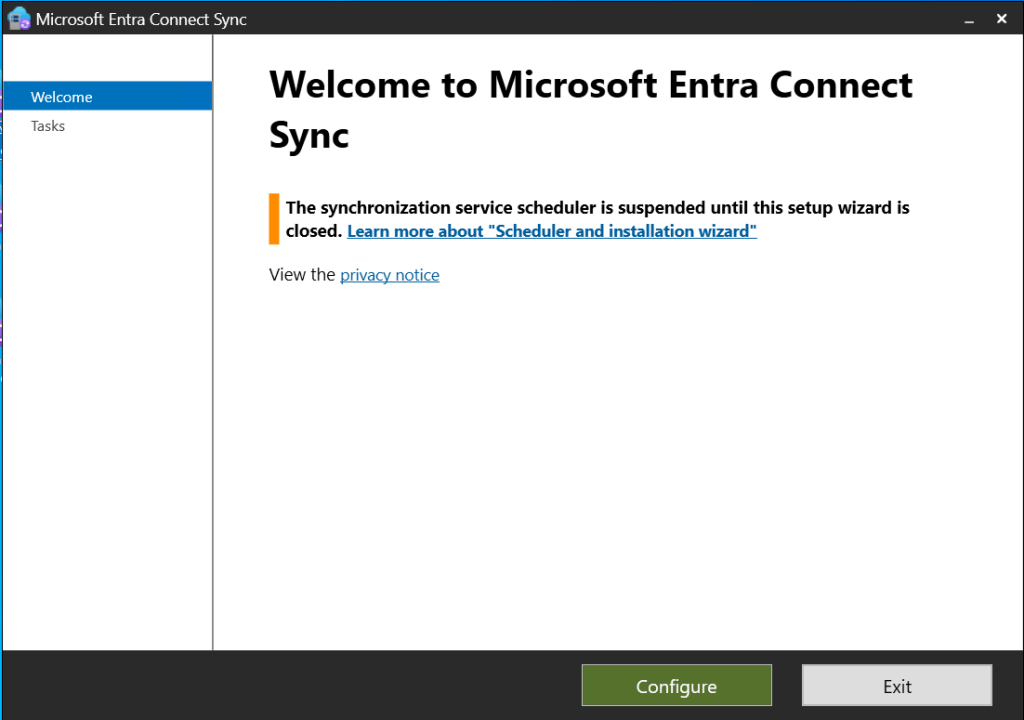
Next to configure hybrid join we need to open Microsoft Entra Connect sync configuration application.
Select configure.
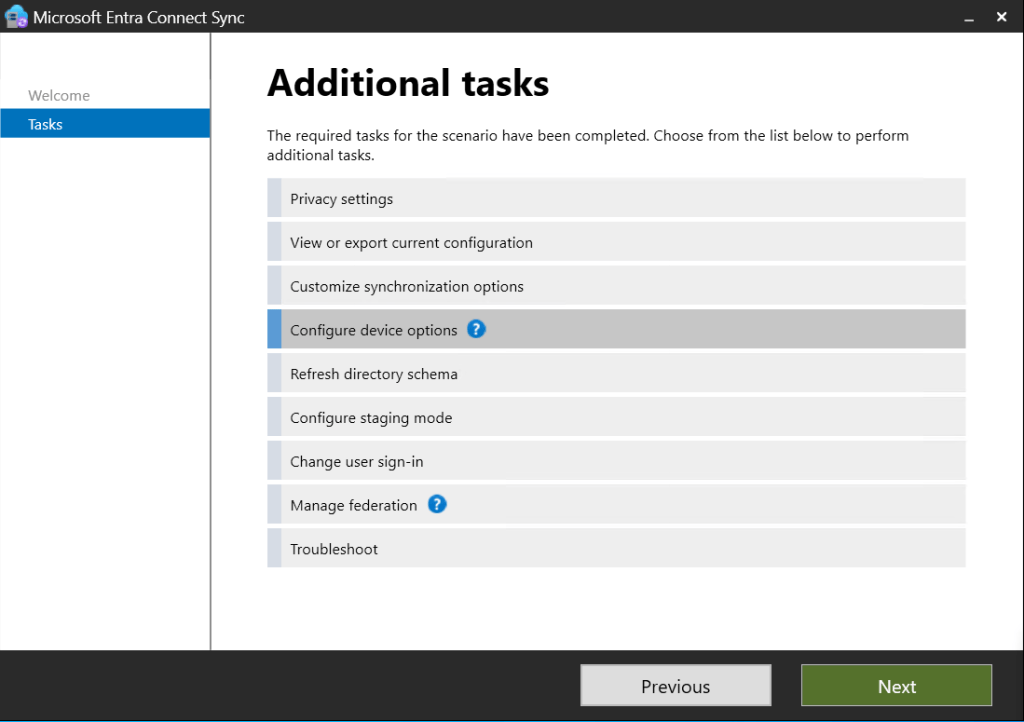
Next on tasks tab select Configure device options.
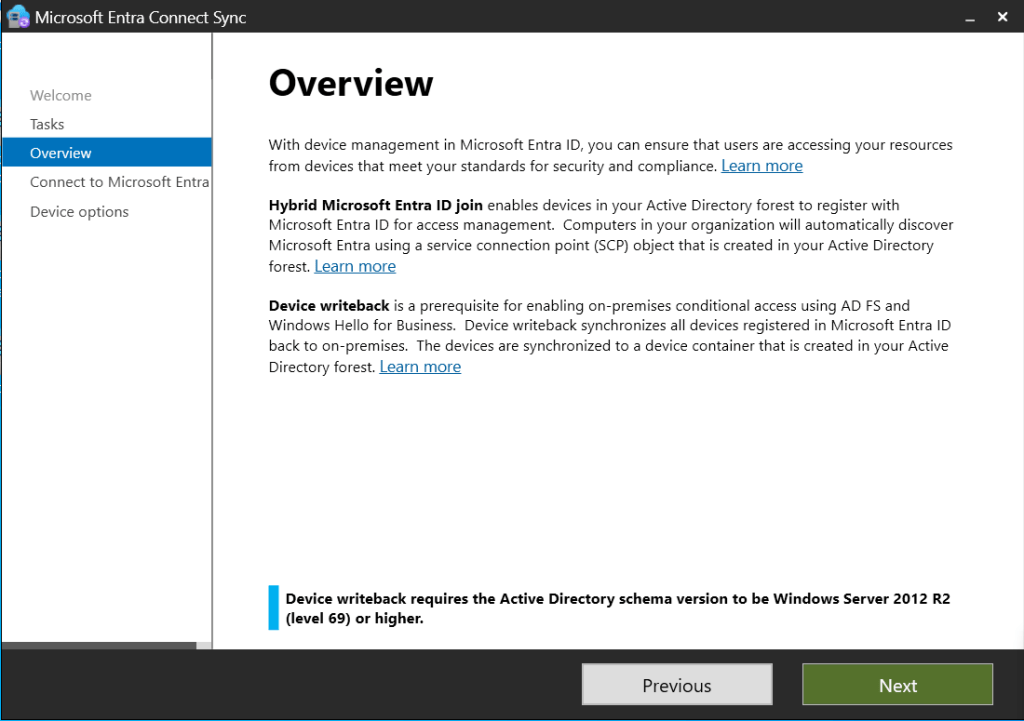
Check the overview
Enter the usersname and password for the account with Hybrid Identity Administrator.
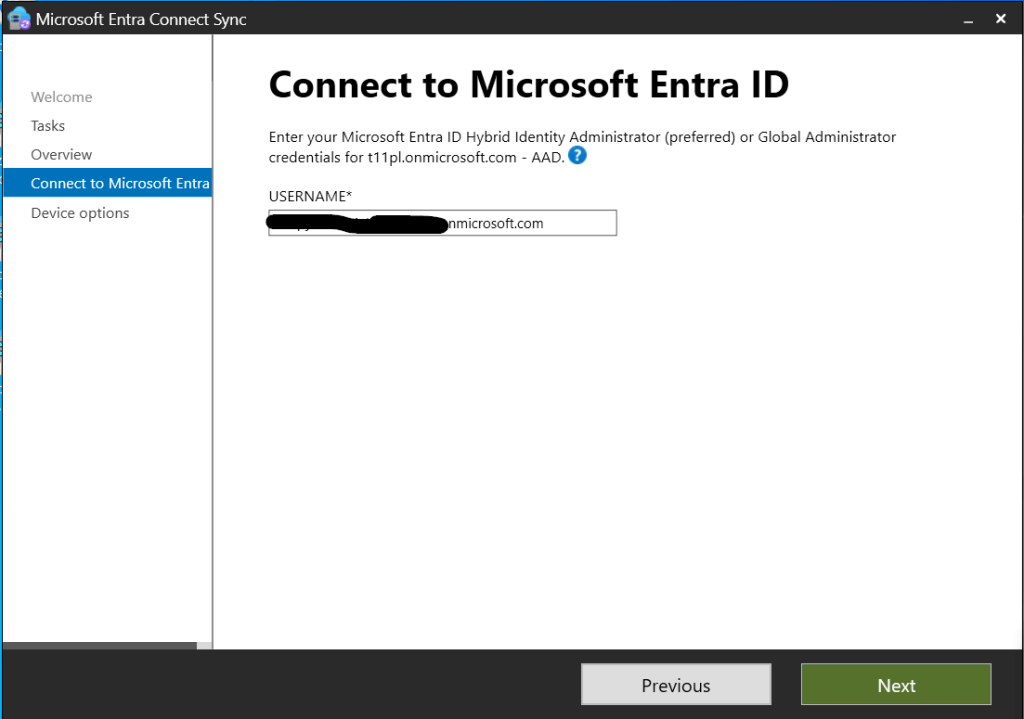
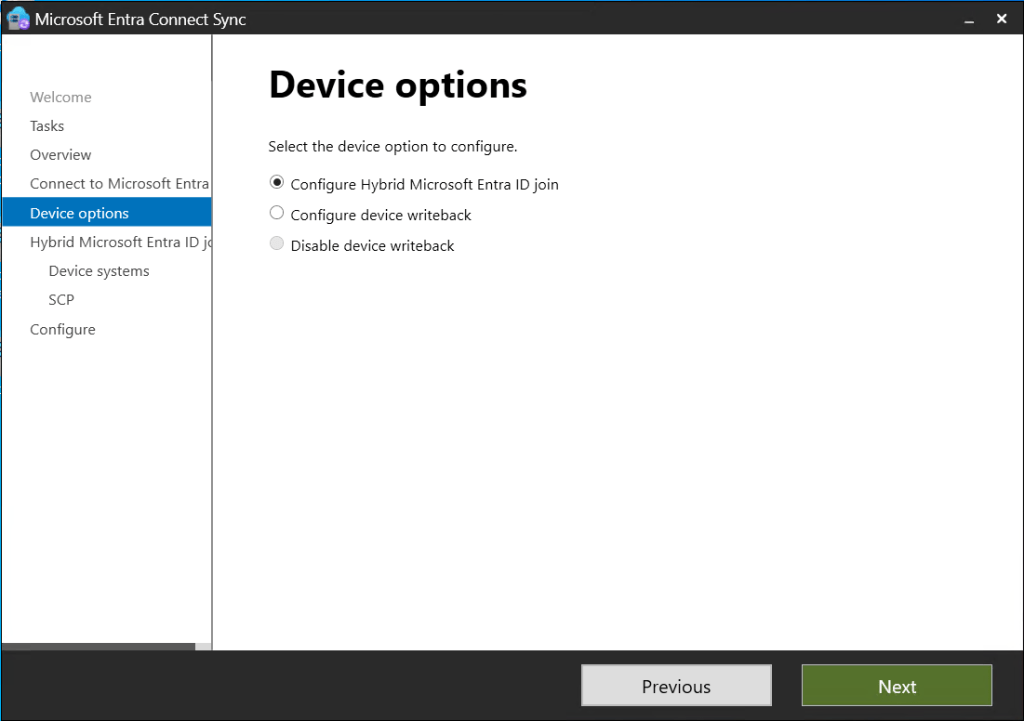
Select Configure Hybrid Microsoft Entra ID join.
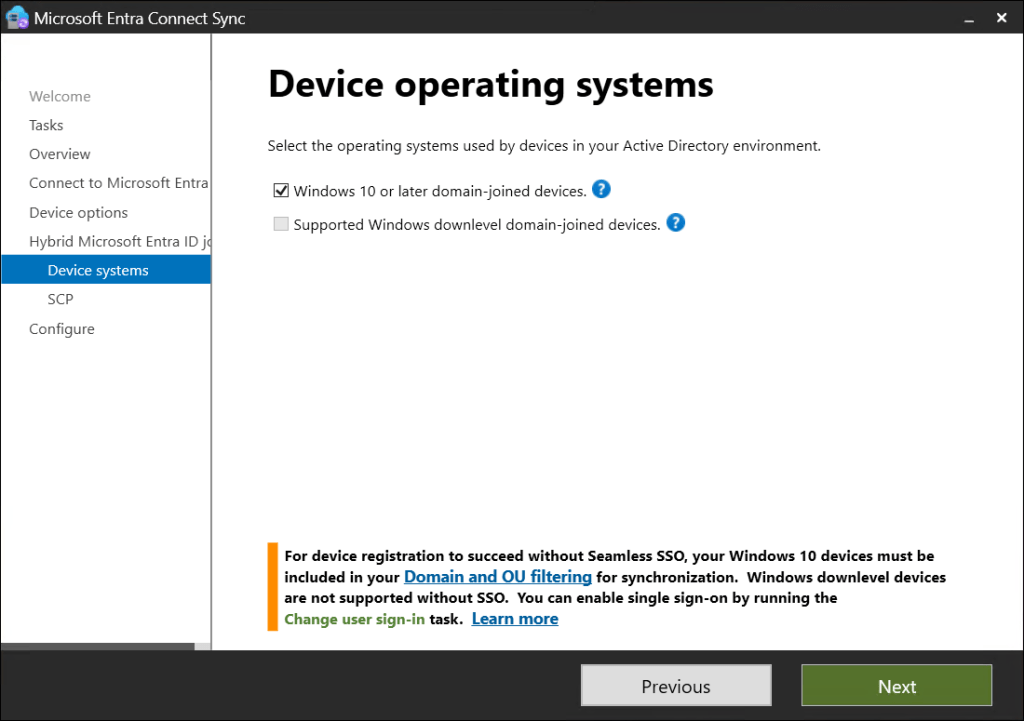
Windows 10 or later domain-joined devices.
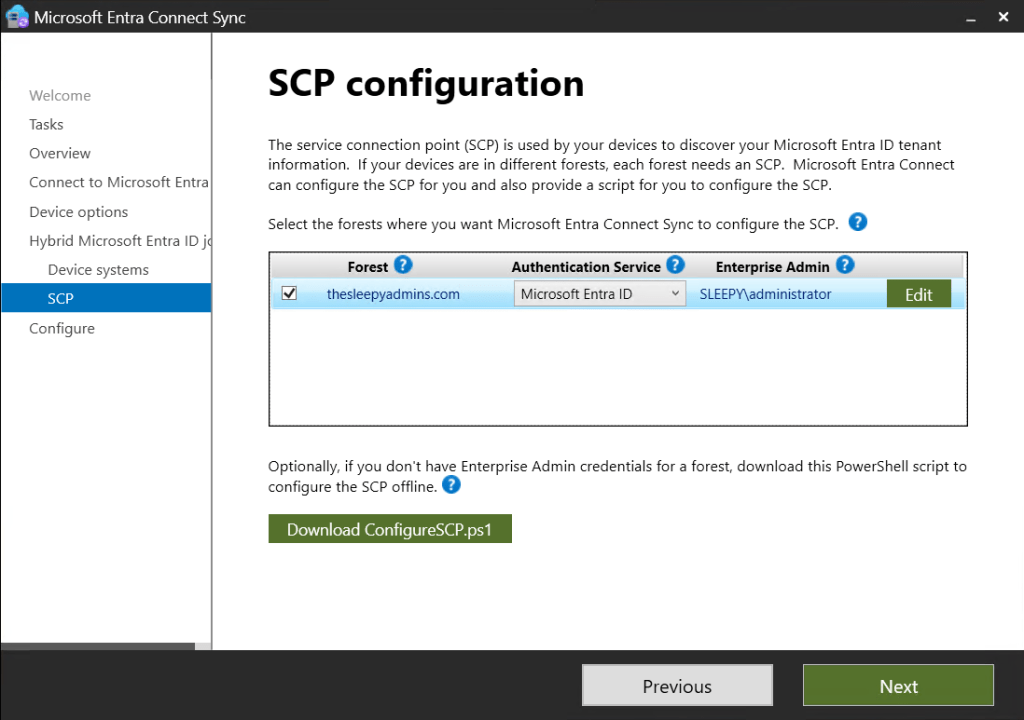
Select the domain to create the service connect point, the account used must be a enterprise admin.
Click configure to start the deployment of the configuration.
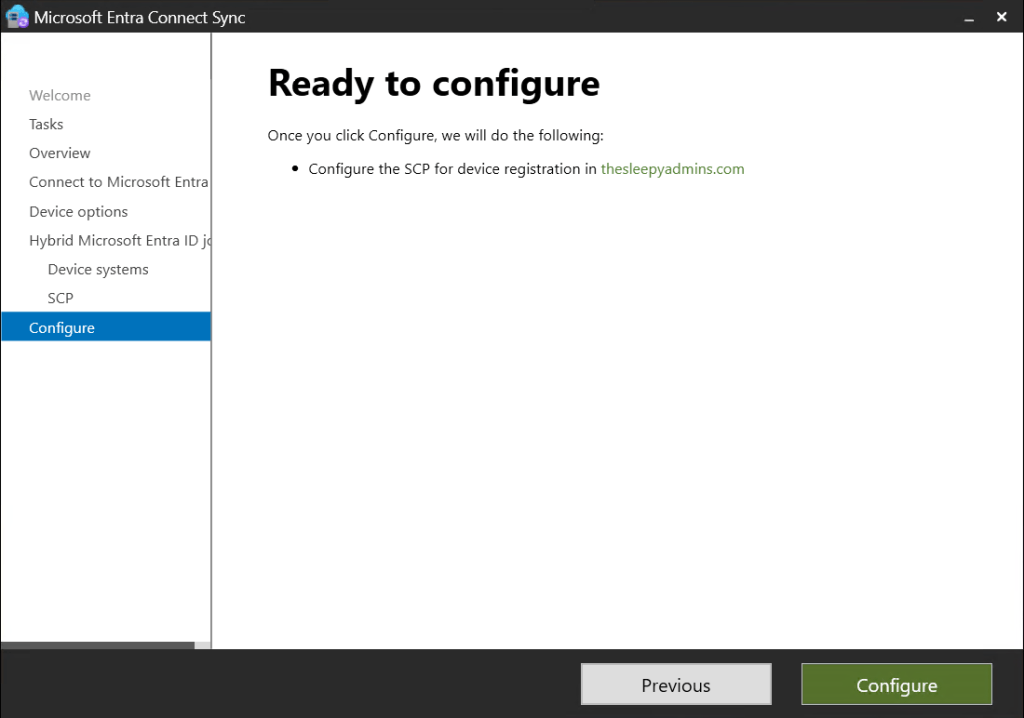
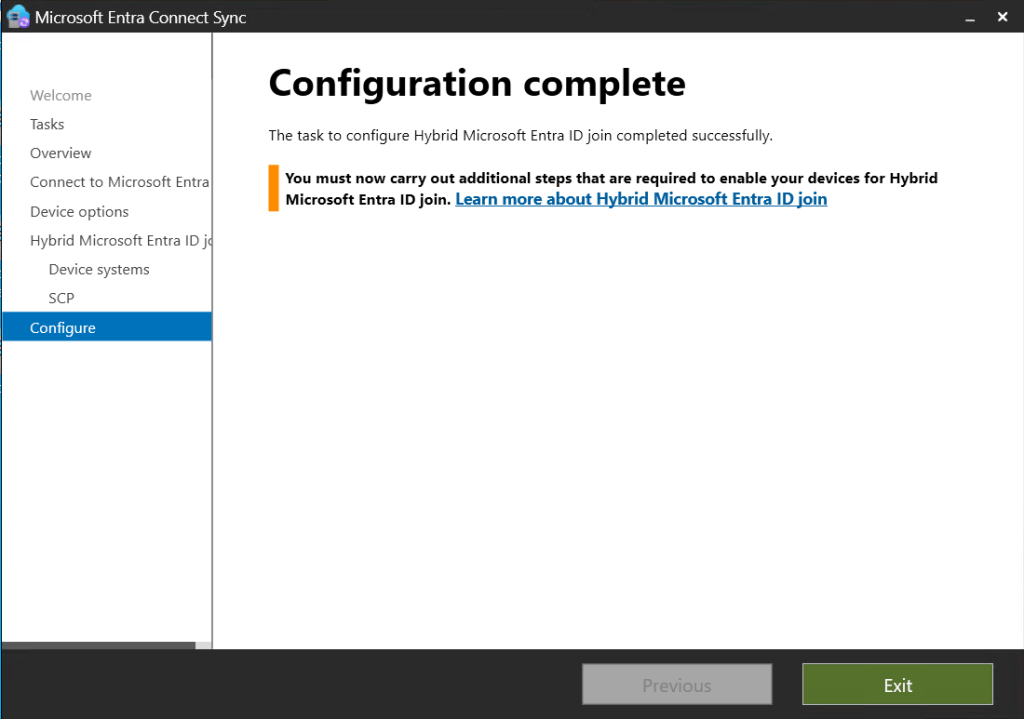
Once completed exit the console.
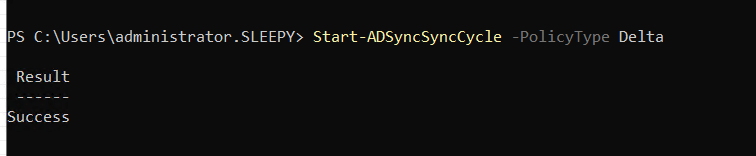
We can now run a delta sync using the below PowerShell command.
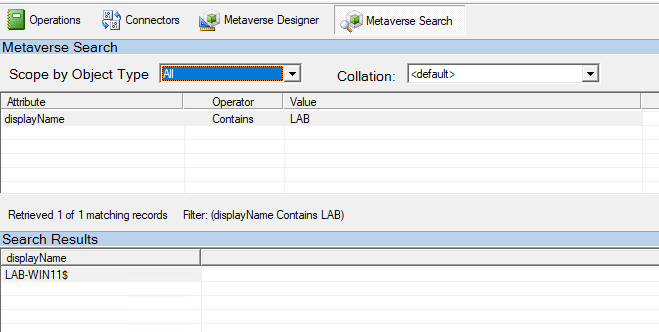
We can check the metaverse search to show if the device has been synced.
We can also confirm by going to Microsoft Entra ID > Devices > all devices and confirm the devices is now showing.
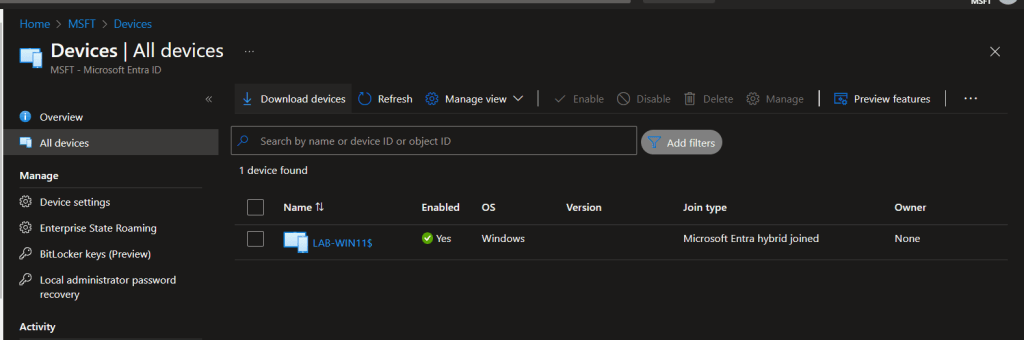
We next need to restart the device, then run the dsregcmd again to confirm if we are now showing as hybrid joined.
dsregcmd /status

This has been a overview of setting up Microsoft Entra Hybrid join.
 TheSleepyAdmins