
In this post we will be going over a new account type that has been release in Windows Server 2025. This account is similar to a gMSA which we covered using for scheduled task in a previous post.
dMSAs and gMSAs are two types of managed service accounts that are used to run services and applications in Windows Server. A dMSA is managed by an administrator and is used to run a service or application on a specific server. A gMSA is managed by AD and is used to run a service or application on multiple servers. Both offer improved security and simplified password management.
dMSA allows migration from a standard service account to a machine account with managed and fully randomized keys. Authentication for dMSA is linked to the device identity, which means that only specified machine objects mapped in Active Directory (AD) can access the account.
There are some pre request required before using a dMSA
- Only currently supported on Windows Server 2025
- Required at least domain controller running Windows Server 2025
- Have created a KDS root key
To check if there is a KDS root key run
Get-KdsRootKey

If there is no KDS root key we can create one using the below command. It takes 10 hours before activating.
Add-KdsRootKey -EffectiveImmediately
Once the pre-req are confirmed, the next step is going to be adding a registry value for any server that will be using a dMSA.
This can be set either in manually, group policy, or PowerShell. Below is the registry details.
| Path | HKLM:\SOFTWARE\Microsoft\Windows\CurrentVersion\Policies\System\Kerberos\Parameters |
| Type | DWORD |
| Name | DelegatedMSAEnabled |
| Value | 1 |
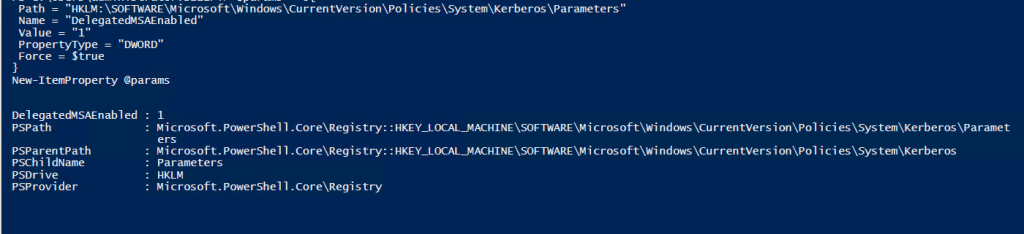
Next we need to Enabled Delegated managed services. This can be done locally on the servers or using groups policy.
The policy setting to enable is below.
Computer Configuration\Administrative Templates\System\Kerberos\Enable Delegated Managed Service Account logons

To create the service account we can use PowerShell. (The DNS is required by the command but not needed for running services)
New-ADServiceAccount -Name Accountname -DNSHostName Accountname.domain.local -CreateDelegatedServiceAccount:$true -KerberosEncryptionType AES256

Next we need to grant permission for the device to retrieve the password for the account.
Set-ADServiceAccount -Identity Accountname -PrincipalsAllowedToRetrieveManagedPassword DeviceName$

Next we need to set the msDS-DelegatedMSAState, view the current value use
Get-ADServiceAccount -Identity Accountname -Properties "msDS-DelegatedMSAState"
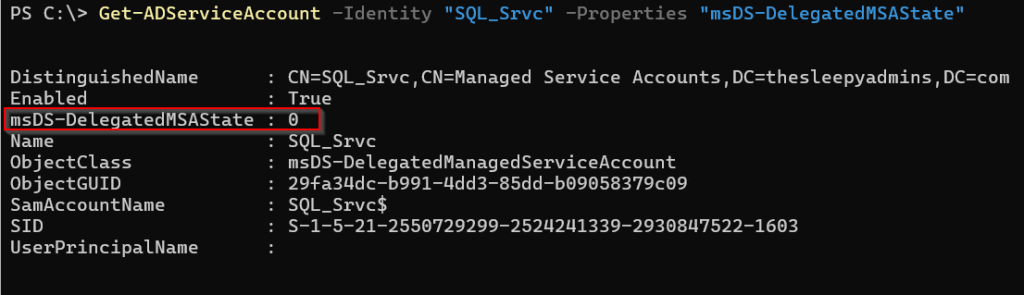
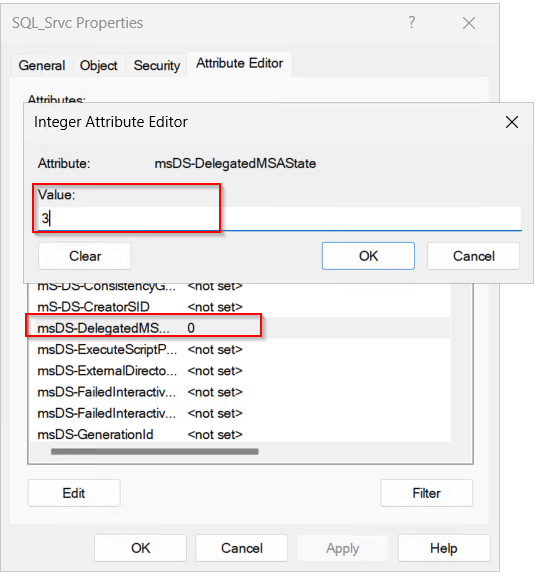
We need to change this value to 3.
Now we are ready to use the dMSA. Select the service that the account is to be used on, in my case its SQL Server (Leave the password blank).
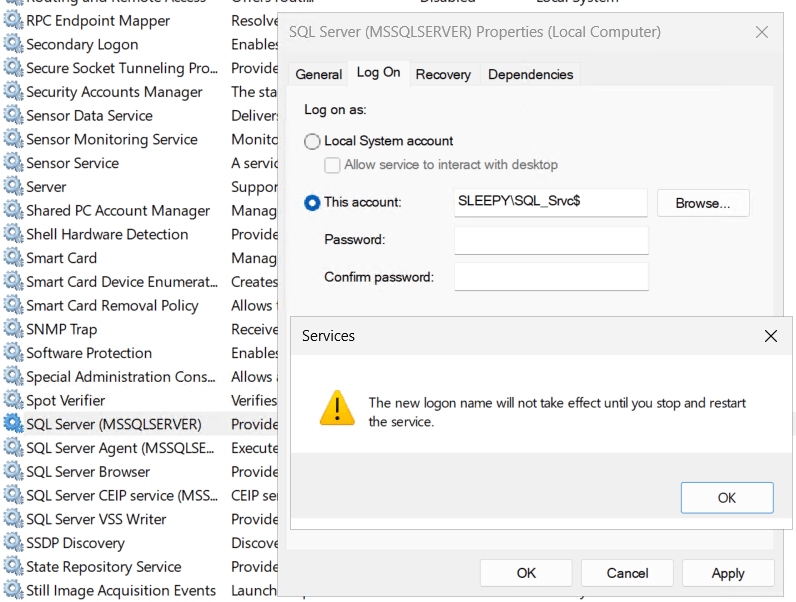
Restart the service and it should now be running using the dMSA account.

We can enabled Kerberos Event Logging to view events.
Open eventvwr and under Applications and Services Logs > Microsoft > Windows > Kerberos/Operational
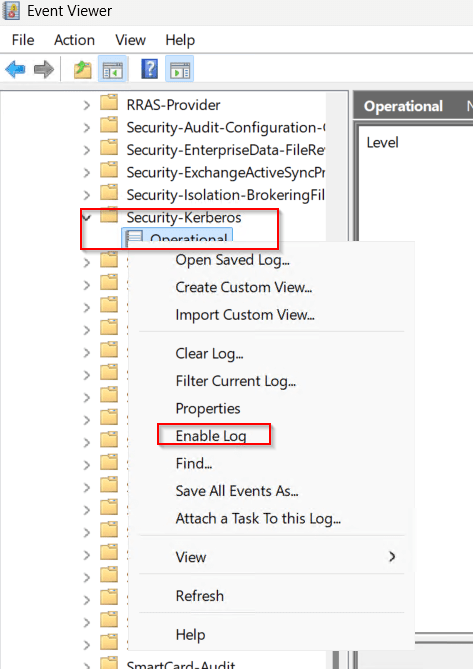
| Event ID | Description |
|---|---|
| 307 | dMSA Migration – This event is written for both dMSAs under migration and for ones that migrated. It contains information about the old service account and the new dMSA. |
| 308 | dMSA Permission Add – This event is logged when a machine attempts to add itself to the principals allowed to retrieve managed password field of a dMSA during migration. |
| 309 | dMSA Key Fetch – This event is logged when the Kerberos client attempts to fetch keys for a dMSA from the domain controller. |
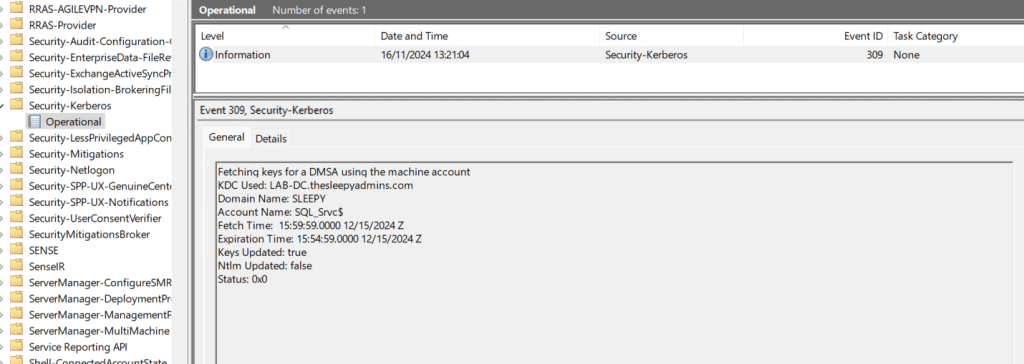
This has been a quick overview of setting up dMSA account. Below link is some of the common question on using dMSAs.
 TheSleepyAdmins