
Active Directory usually has a single password policy that is applied to all users. This is will typically be in the default domain policy unless a new group policy is created.
There are certain scenario where we might want to have a different password policy, Admin users, testing password resets, service accounts…
With fine grained password policies, we can target either specific users or groups and assign them a specific password policy.
In this post we will be going through creating and assigning a fine grained password policy.
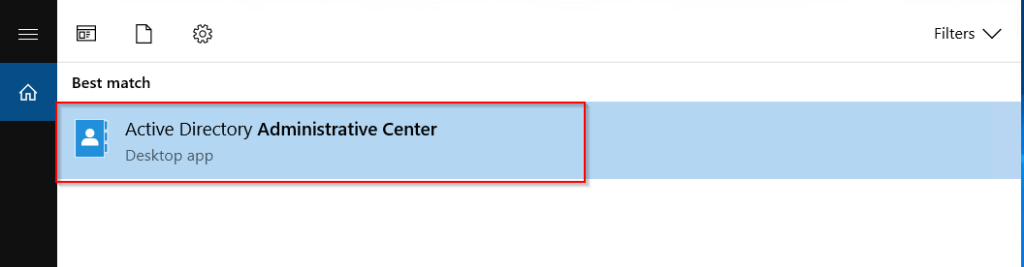
To start we need to open ADAC (Active Directory Administrative Center.
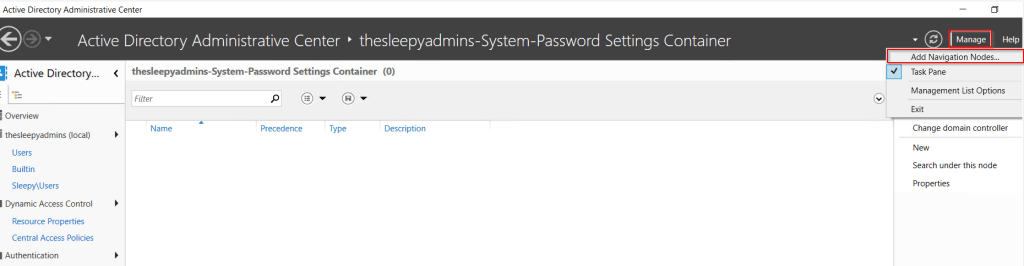
Next we need to add the node to view the password settings container. Select Managed and Add Navigation Nodes.
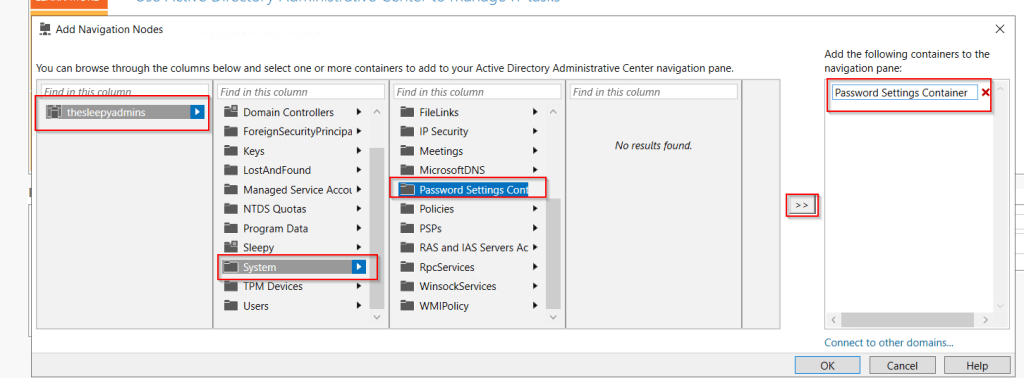
Select the required domain > System > Password Settings Container and add, the name can be customized I just used Password Settings Container.
To create the policy select the password node, right click, select new and Password Settings.

The below table shows each setting with a short description of each.
| Setting | Description |
| Policy Name | The name of the fine-grained password policy. |
| Precedence | A numerical value that determines the priority. Lower numbers have higher priority. |
| Password History Length | Specifies the number of unique new passwords that must be associated with a user account before an old password can be reused. |
| Minimum Password Age | The minimum number of days that a password must be used before the user can change it. Prevents users from frequently changing passwords to bypass history requirements. |
| Maximum Password Age | The maximum number of days that a password can be used before the user is required to change it. |
| Minimum Password Length | The minimum number of characters a password must contain. |
| Password Complexity Requirements | Specifies whether the password must meet complexity requirements, such as including uppercase and lowercase letters, numbers, and special characters. |
| Store Passwords Using Reversible Encryption | Specifies if passwords should be stored using reversible encryption, which is less secure but may be required for certain applications. |
| Account Lockout Threshold | The number of failed login attempts that will trigger an account lockout. |
| Account Lockout Duration | The number of minutes that an account remains locked out before it is automatically unlocked. |
| Reset Account Lockout Counter After | The number of minutes that must pass after a failed login attempt before the failed attempts counter is reset to zero. |
| Applies To | Specifies the users or groups to which the policy applies. |
| Description | An optional field to describe the purpose or details of the fine-grained password policy. |
Set the required setting values. I would recommend assigned to a test group first to confirm all setting work as expected before applying to standard users .
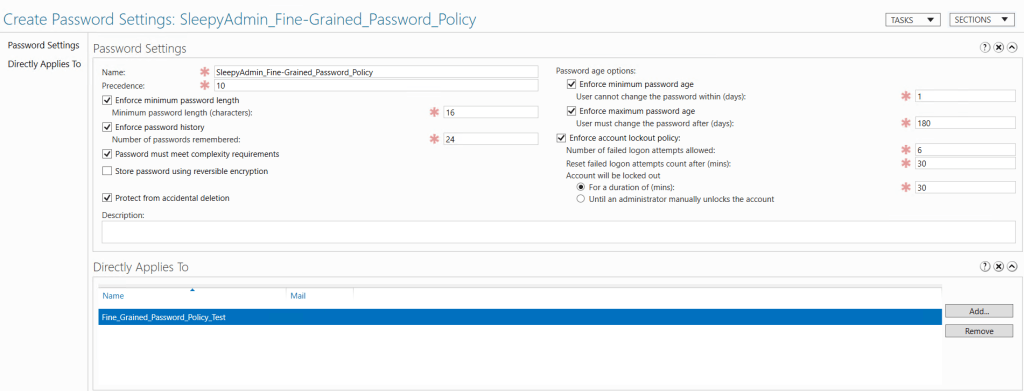
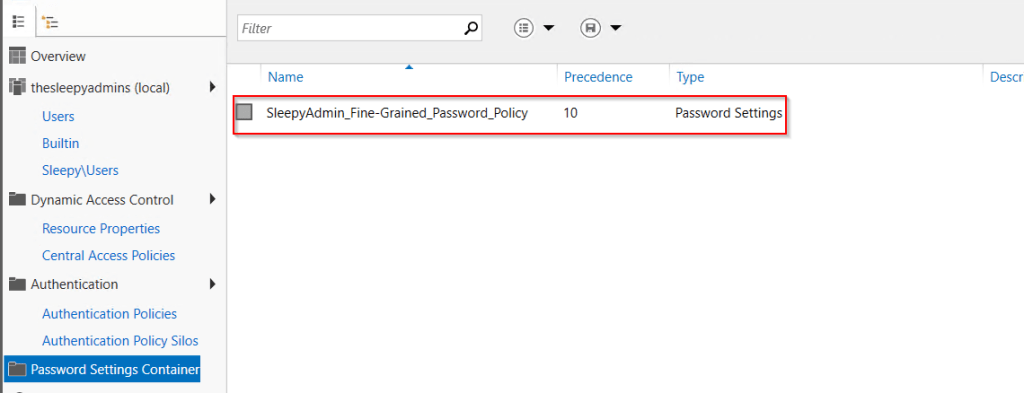
Click ok and policy should now show.
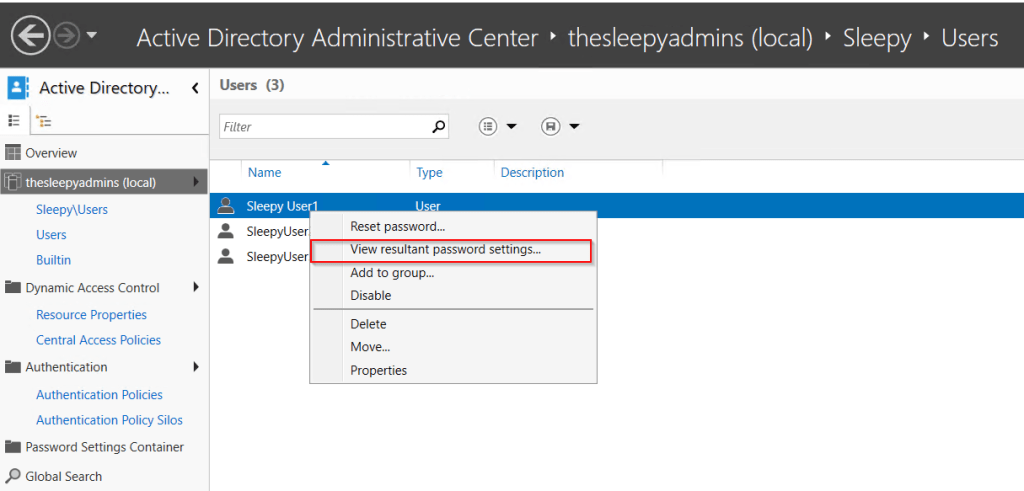
To view if the password policy is applied select a users, right click and select view resultant password settings.
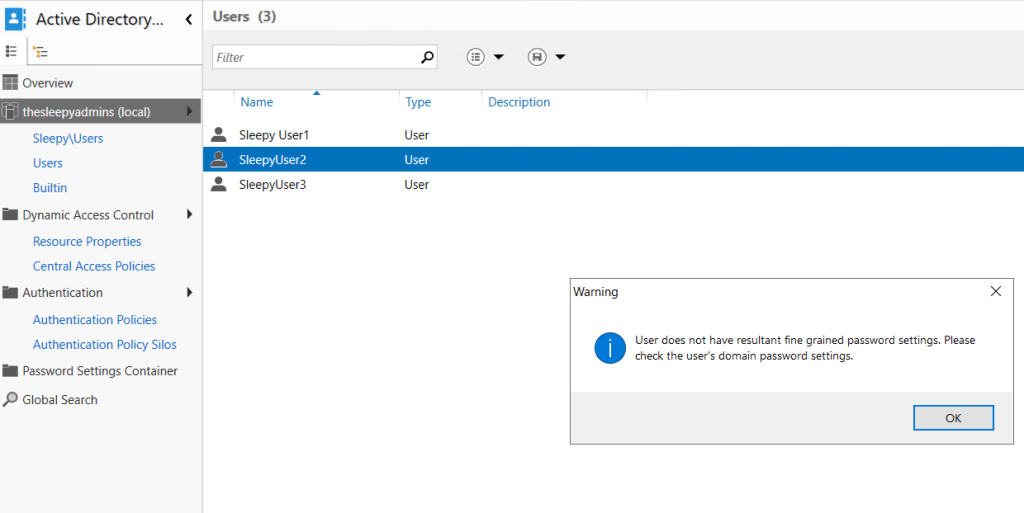
If the user doesn’t have policy applied you will receive a warning.
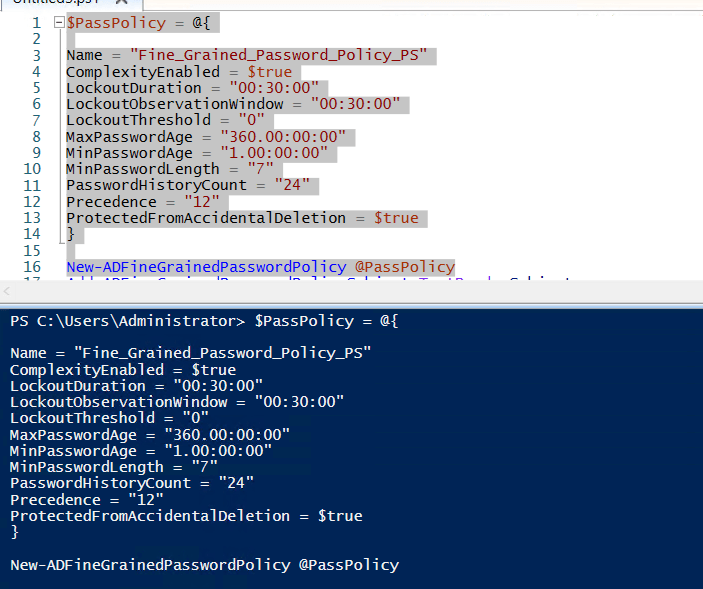
We can also create a password policy using PowerShell, this can be usefully if you need to script multiple policy.
We can use the below to create the policy I used PowerShell splatting to make the command shorter and easier to read.
$PassPolicy = @{

Name = "Name"
ComplexityEnabled = $true
LockoutDuration = "00:30:00"
LockoutObservationWindow = "00:30:00"
LockoutThreshold = "0"
MaxPasswordAge = "360.00:00:00"
MinPasswordAge = "1.00:00:00"
MinPasswordLength = "7"
PasswordHistoryCount = "24"
Precedence = "12"
ProtectedFromAccidentalDeletion = $true
}

New-ADFineGrainedPasswordPolicy @PassPolicy
Next we can run the below command to return the password policies.
Get-ADFineGrainedPasswordPolicy -Filter * | Select-Object Name

Last step is to apply the policy to either the user or group.
Add-ADFineGrainedPasswordPolicySubject Password_Policy_Name -Subjects Group
Setting up a fine-grained password policy in Microsoft Active Directory is great way to enhance security by applying custom password and account lockout settings to specific user or groups.
After implementing the policy, it’s important to monitor and review its impact. Reviewing these settings over time can help maintain a balance between strong security and user convenience.


 TheSleepyAdmins