
In this post we will be going through setting up a authentication policies / authentication policy silos.
Microsoft Active Directory (AD) Authentication Policies and Authentication Policy Silos are security features designed to enhance authentication processes and protect sensitive accounts in an Active Directory environment.
- Authentication Policies provide granular control over authentication methods and restrictions, ensuring that only authorized users and devices can access resources.
- Authentication Policy Silos, allow administrators to group sensitive accounts and applying specific authentication policies to these groups to mitigate the security risk.
With these policies set it will help with protecting from unauthorized access and reducing the potential impact of security breaches.
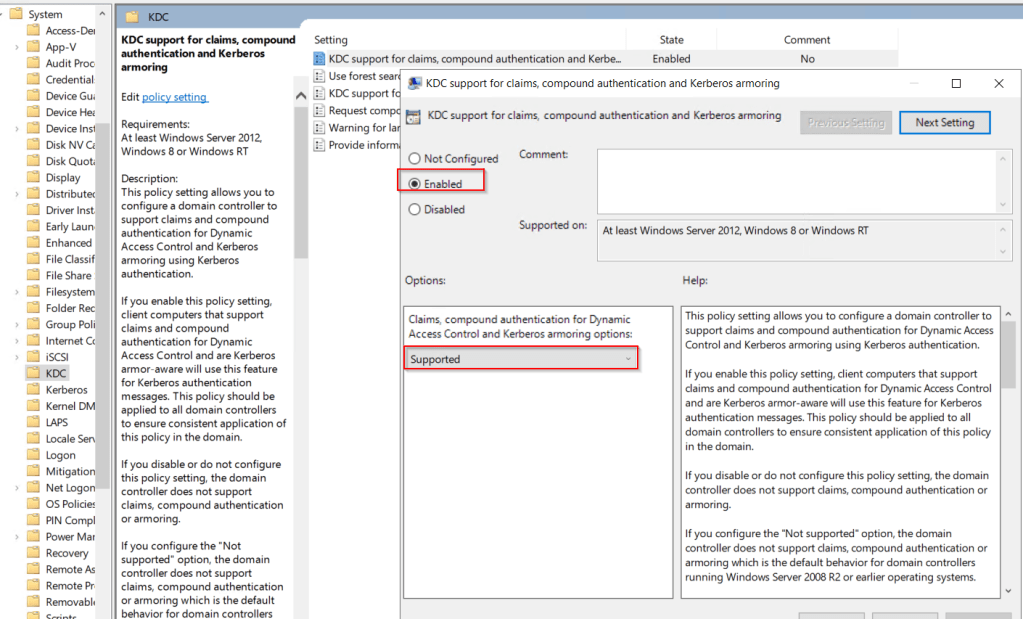
First to allow the use of these policies we need to enabled the KDC support for claims, compound authentication, and Kerberos armoring on all domain controllers.
The policy setting is under
Computer Configuration > Administrative Templates > System > KDC
This needs to be set to enabled and supported.
We also need to enabled the Kerberos client support for claims, compound authentication, and Kerberos armoring on clients.
The policy setting is under
Computer Configuration > Administrative Templates > System > Kerberos

We can either apply individually or at the root level of the domain. I applied at the root level of the domain and apply the KDC policy directly on the domain controller OU.

The clients and DC’s will require a reboot for the policy to apply.
Authentication policy and policy silos are configured using Active Directory Administrative center (ADAC).
The polices containers are located under Authentication.
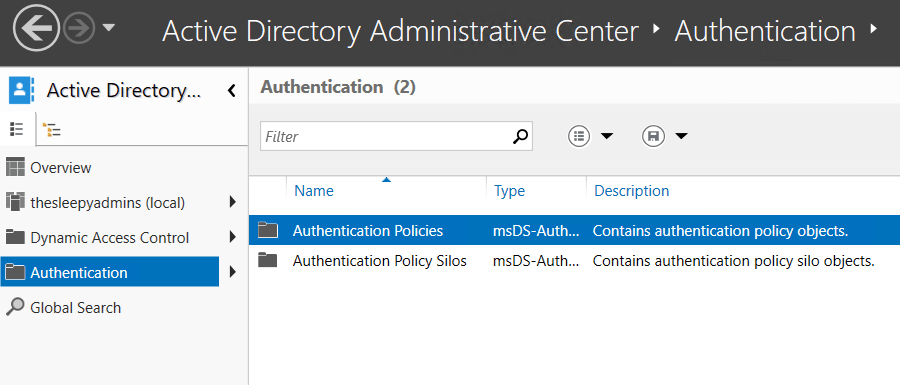
Authentication policies control the following:
- The ticket granting ticket (TGT) lifetime for the account, which is set to be non-renewable.
- The criteria that device accounts need to meet to sign in with a password or a certificate.
- The criteria that users and devices need to meet to authenticate to run services as a specific account.
First step is we need to create a new authentication policy.
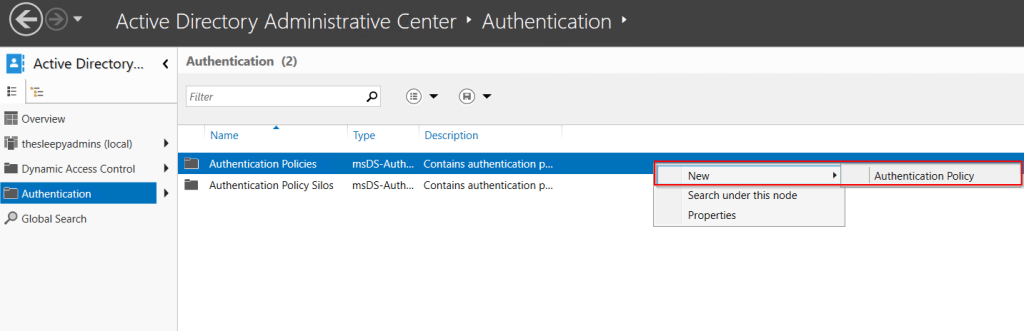
Set a policy name, protect from accidental deletion and if the policy is in audit or enforced mode. In production in would use audit and review the event logs to confirm the restrictions work as expect before setting to enforce.

Next we need to set what the policy will be applied against. These can be
- User Accounts
- Service accounts
- Computer accounts
In this example we will be using users sign on policy to reduce the ticket granting ticket lifetime (TGT) time to 90 minutes.

Next we will configure the Authentication Policy Silos,
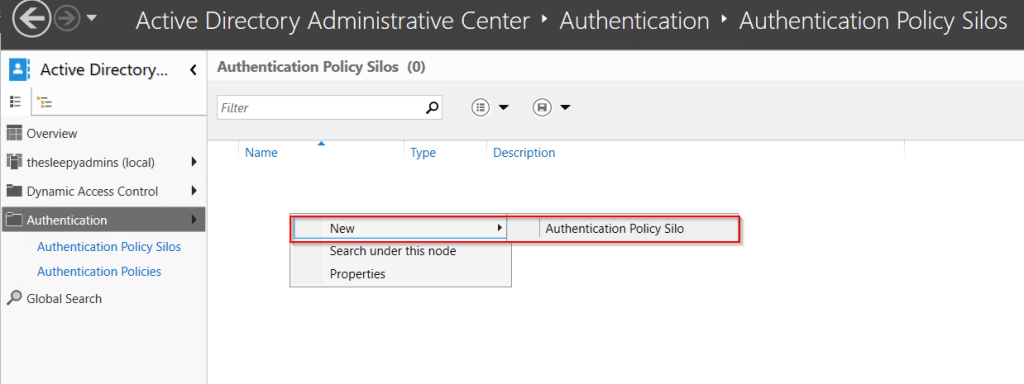
Give the Silo a
- Name
- Set to audit or enforce
- Add the permitted accounts
- Set the authentication policy

Next we need to set the silo policy on the accounts. This can be done by selecting the accounts from ADAC and going to silo.
Then select the required silo policy to apply.

We can checked the msDS-AssignedAuthNPolicySilo & msDS-AuthNPolicySiloMembersBL attributes on the accounts that have the silo applied to confirm.
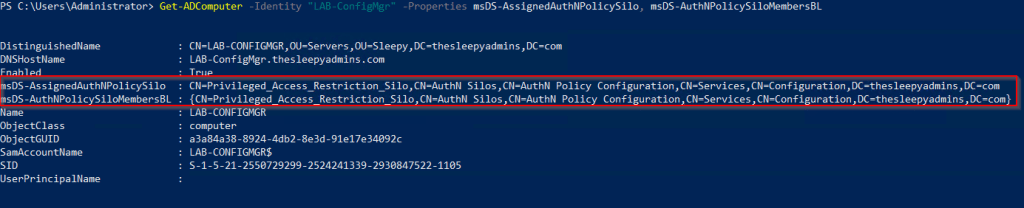
Last step is to go back to the authentication policy and update the user sign on condition.
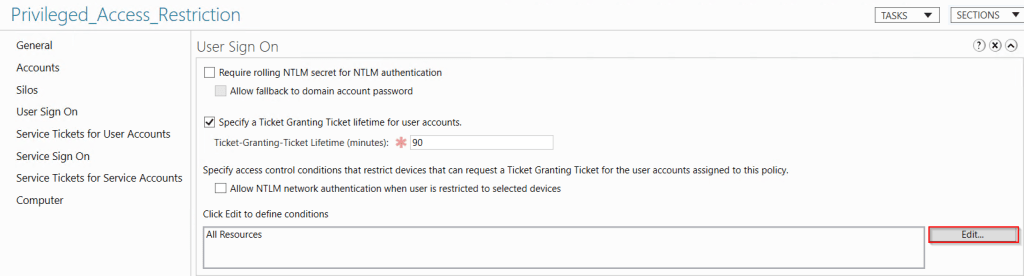
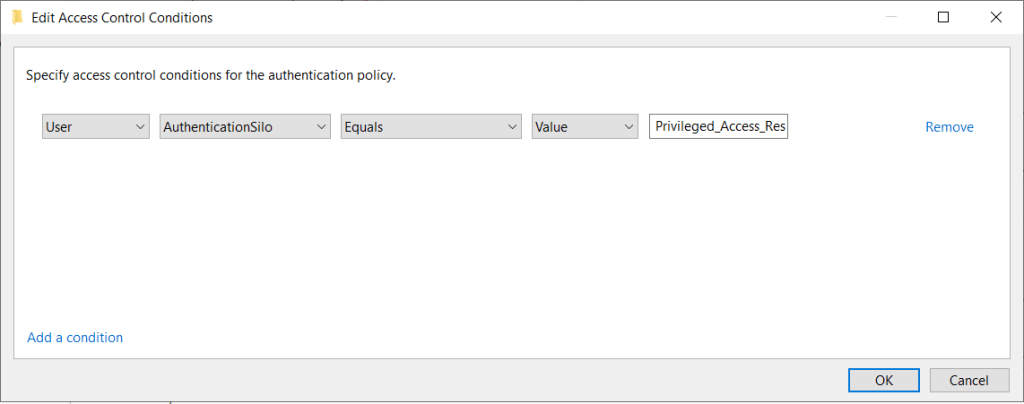
Access Conditions
Set to AuthenticationSilo, equals and set the silo name to the one we created.

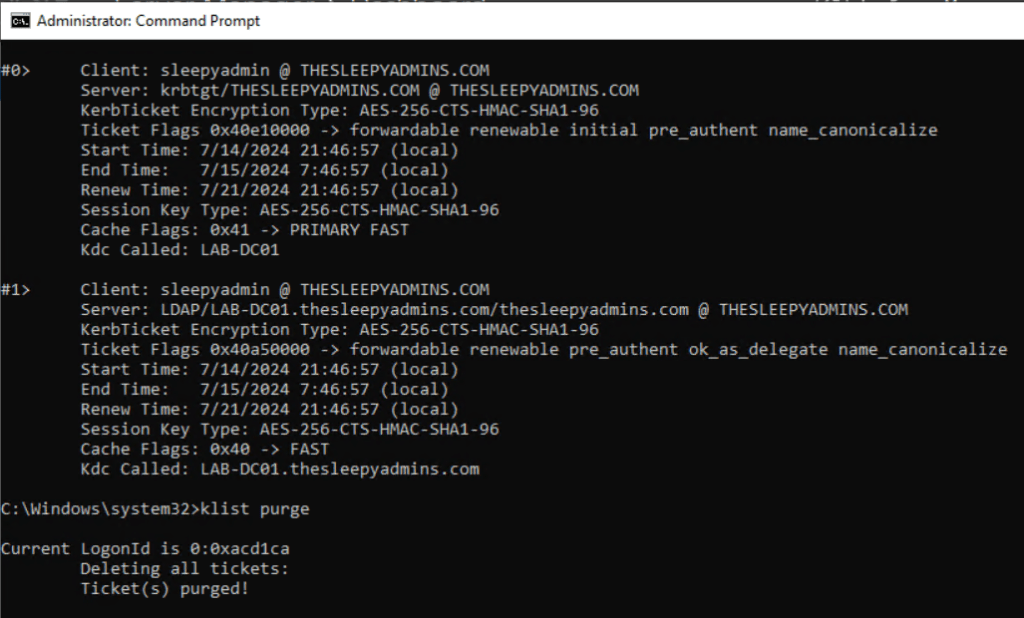
The DC may also need to have the kerbros ticket purged before the policies will apply this can be done by using klist purge
Now when we try to logon to the server in the silo it should be allowed. We can also use whoami /claims to see if the claims is applied.

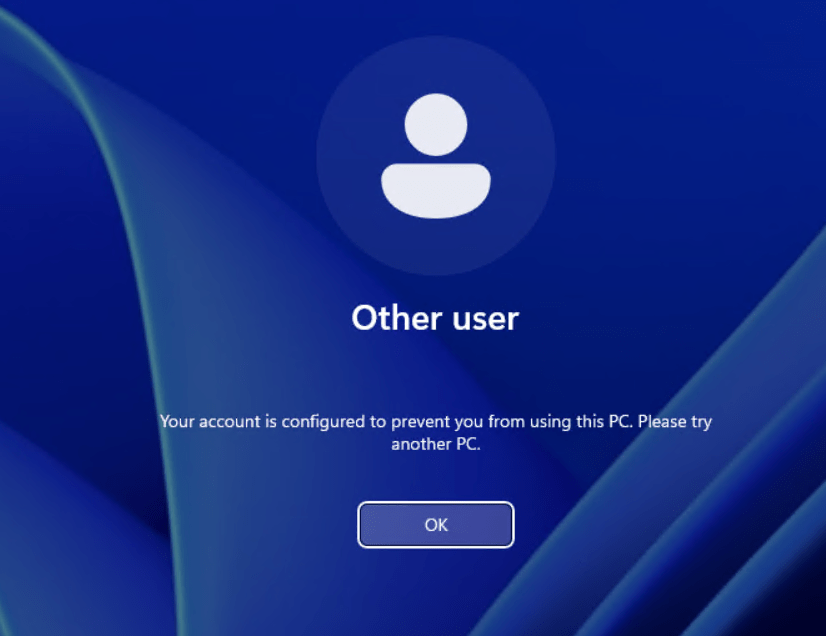
If we try logon to another devices with the same account outside of the silo we should be blocked.
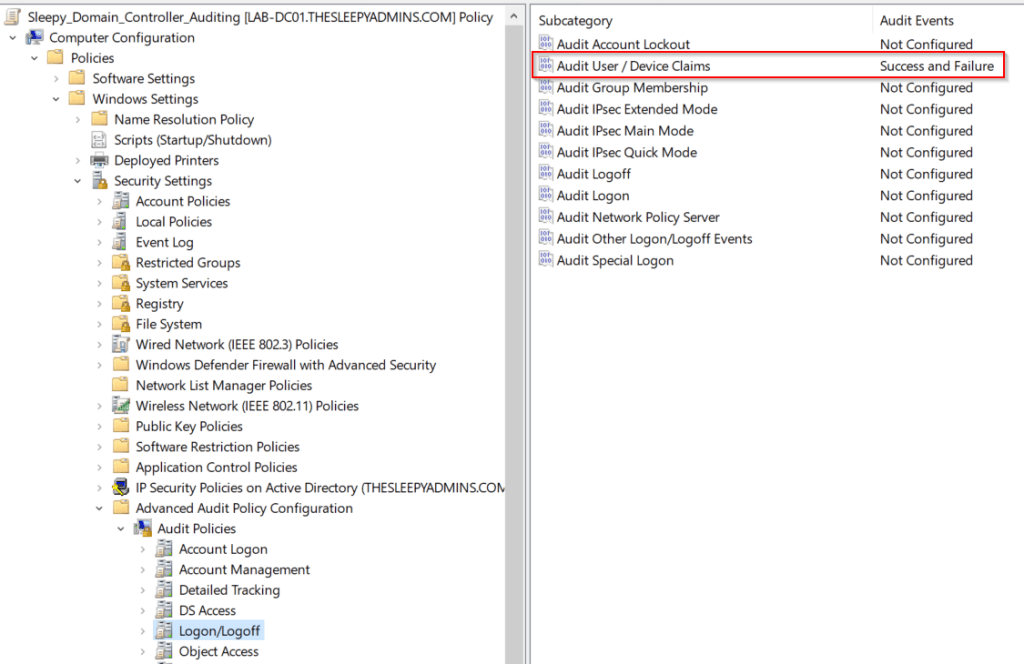
To troubleshoot or audit, we can enabled Audit user / device claims using group policy. The policy is setting is under Policies > Windows Settings > Security Settings > Advanced Auditing Policy Configuration > Logon/Logoff
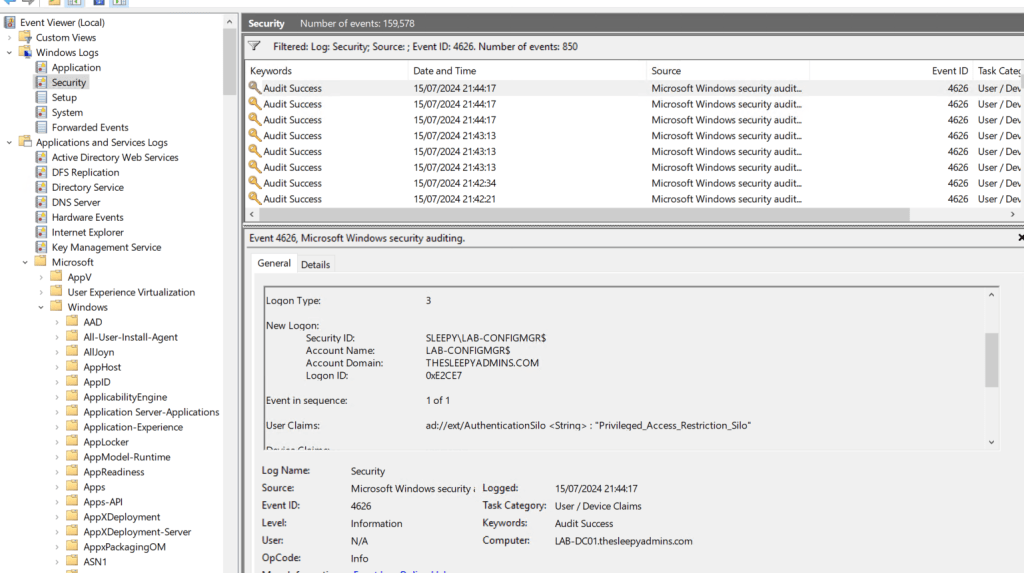
We can check under the security logs on the DC for Eventid 4626
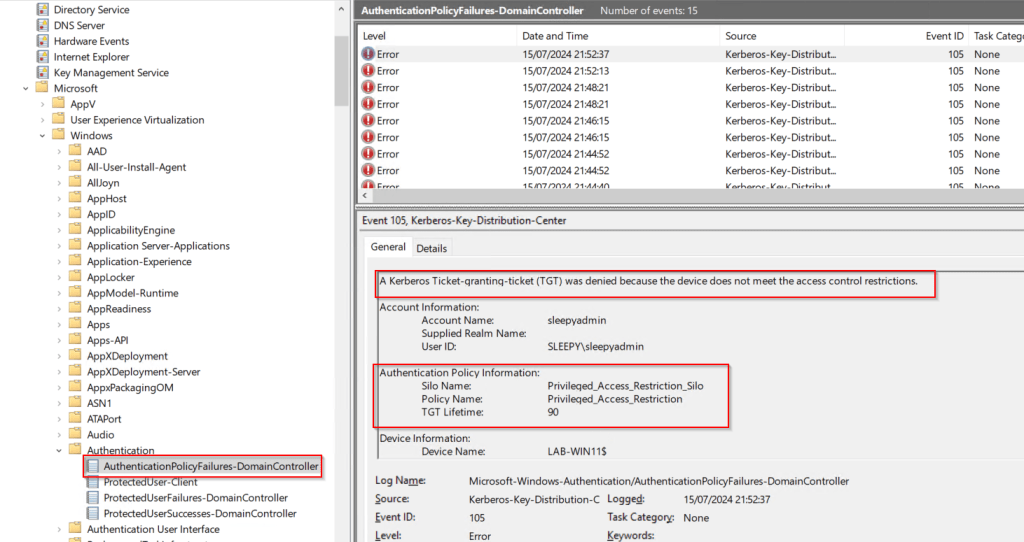
We can also enabled Authentication policy failures and success, this will need to be done on all DC’s. The logs are under
Microsoft > Windows >Authentication/AuthenticationPolicyFailures-DomainController
This will then log the accounts that are failing to be issue a TGT.
This has been a quick overview of creating an authentication silo, setting this up can be a bit tricky.
I did have issue getting the policy silo to work due to existing TGT but once configured it can really help with locking down access to tier 0 devices.
 TheSleepyAdmins