
In this next series of post we will go through getting start with basic commands, more advances commands and then going through how to use these to creating more complex scripts.
First cmdlets in PowerShell are named according to a verb-noun naming (mostly, there are times when people create there own command that don’t use the verb-noun naming). This pattern is to help give an understanding of what the command does and how to search for them.
Sometimes finding the specific command you want is time consuming in PowerShell. This is where the Get-Command command can come in handy
If we want to find a command by name we can use the full name

If we don’t know what the command is we can use wildcard (*) to return all command that have a conmen name.
Below example returns all command that have network in the name.

Once we have a command we can either look up the documentation or use Get-Help to view how to use the command and examples.
To view the full help with examples on how to use.
Get-Help Get-Service -Full

To view just the examples
Get-Help Get-Service -Examples
To open the webpage for the command use -Online
Get-Help Get-Service -Online
Below is a quick overview of what each verb function should be.
| Verb | Function |
| Get | Return values (object, properties….) |
| New | Create new objects (File, object….) |
| Set | Set object (value, properties….) |
| Out | Output to (Console, file…..) |
| Start | Start service, process’s …. |
| Stop | Stop service, process’s….. |
To return a list service’s we can run Get-Service.

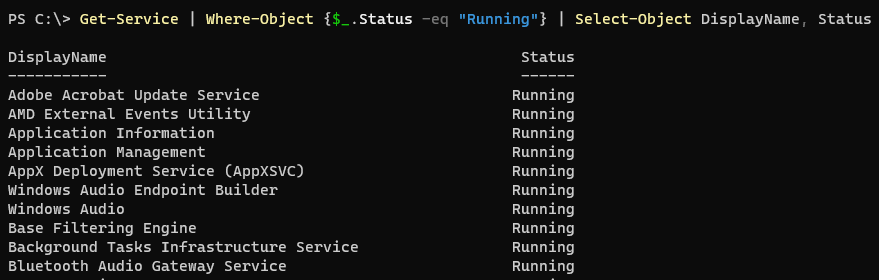
If we want to filter to only return service with specific status like running we can use where-object and the status property.

If we wanted to only return the display name and status we would pipe the result using | and then use Select-Object.
If we know there is a certain restart order for an application or a restart of a service will fix a specific issue on server or endpoint device, we could then use the name and status to start or restart the service.

To run remotely (if the command supports remote calls) we an use the ComputerName (sometimes its Server, depends on the command).

In the next post we will look at sorting, selecting and additional properties of Objects in PowerShell.
 TheSleepyAdmins