
In this post we will be going through using the Microsoft PowerShell AZ Module to manage resources in Azure.
Using PowerShell to managed Azure resources can have advantages over using the Azure portal as it can be easier to do tasks and export configuration data.
I use the Az module learn pages below to find the commands I need.
https://learn.microsoft.com/en-us/powershell/module/?view=azps-10.3.0
First step is to install the Az module
Install-Module -Name Az
If you already have the Az module installed it a good idea to update as new command and fixes can be added to the module over time.
Update-Module -Name Az -Force
Once we have the module installed we can connect to start managing resources.
Use Connect-AzAccount command to connect and put the Azure account with permission to connect.
If you connect and there are multiple subscriptions, you can use the below command to check what subscription are available and the select the correct subscription to use.
Get-AzSubscription

Set-AzContext -SubscriptionName SubName
To find a command we can use the Get-Command and wildcards to return the list of commands with a specify name below I am looking for network commands
Get-Command Get-Az*Network*

To list all resource groups we can use
Get-AzResourceGroup
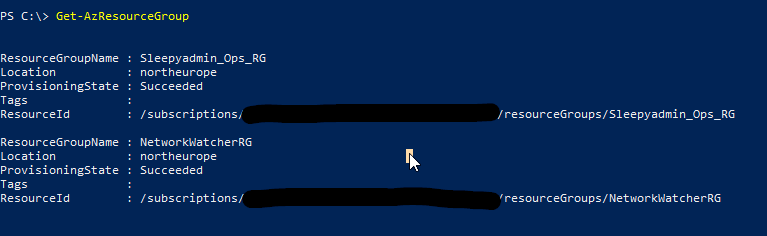
To select a specify resource group use
Get-AzResourceGroup -ResourceGroupName Sleepyadmin_Ops_RG

To get a list of virtual network we can use
Get-AzVirtualNetwork

When running commands like Get-AzVirtualNetwork, they will sometimes only return a few properties.
To return the full set of properties we can use format-list
Get-AzVirtualNetwork | Format-List

We can select specify properties by using Parentheses and the properties name. Below we are select the virtual network address space.
(Get-AzVirtualNetwork).AddressSpace.AddressPrefixes
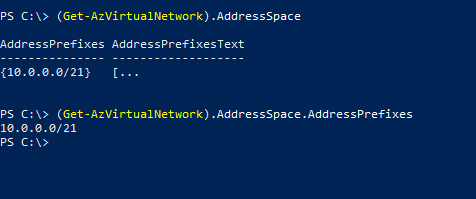
To select specify properties we can use select-object, to get sub properties like address space and subnets we can use hash tables to format the properties like below.
Get-AzVirtualNetwork | Select-Object ResourceGroupName,Name, @{N='AddressSpace';E={$_.AddressSpace.AddressPrefixes}}, @{N='SubnetName';E={$_.Subnets.Name}}

We can use the above method with other command like with Network security groups to export firewall rules.
Get-AzNetworkSecurityGroup -Name NSG_Name | Select-Object Name,@{N="RuleName";E={$_.SecurityRules.Name}},ResourceGroupName,@{N="DestinationPortRange";E={$_.SecurityRules.DestinationPortRange}}

This has been a quick overview of getting start with Az PowerShell.
 TheSleepyAdmins